04
Search
Search modes such as text search, similar person search, and attribute search can be configured in [AI Service]. The search screen layout may vary depending on the search mode settings.
Searching
- In the main menu, click [] > [Search]The Search screen appears.
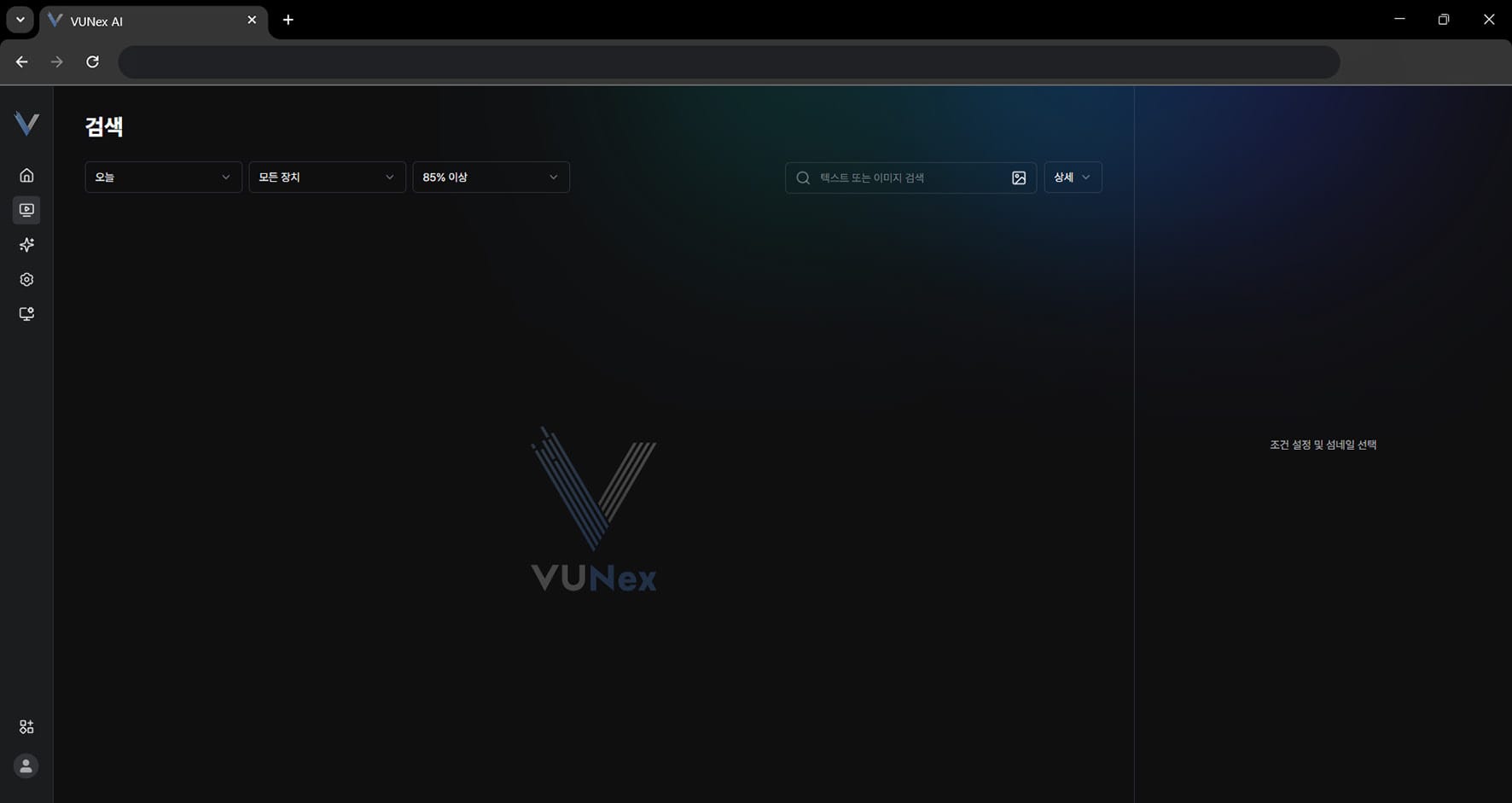 Figure 4-1. Search Screen
 - Set the search conditions
- Check the search results
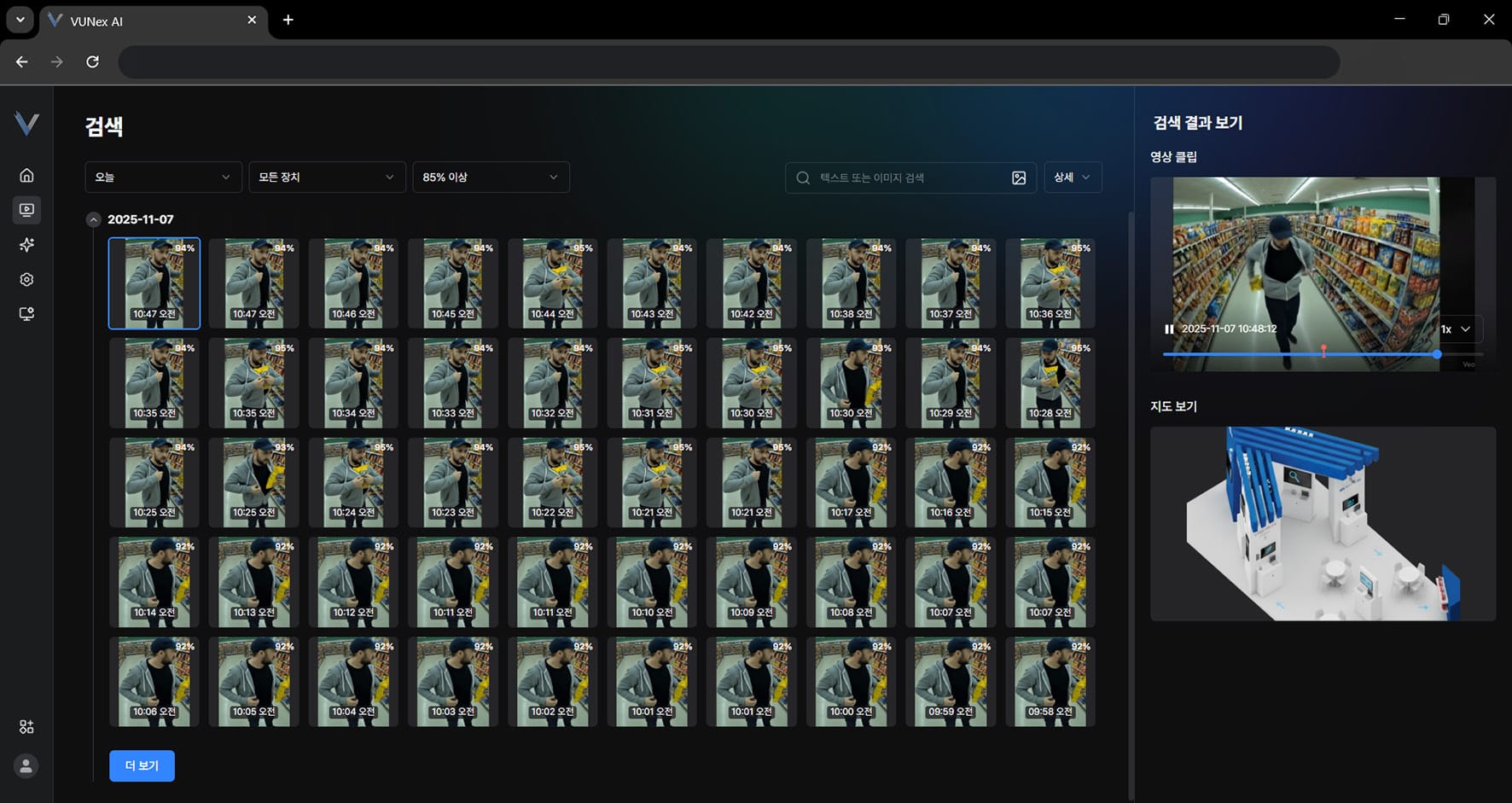 Figure 4-2. Search Results
Note
In the main menu, click [] > [AI Service] > [Search] to configure the search service.
For details, see Event - Configuring the Search Service.
Viewing the Search Screen Layout
The screen layout is shown.
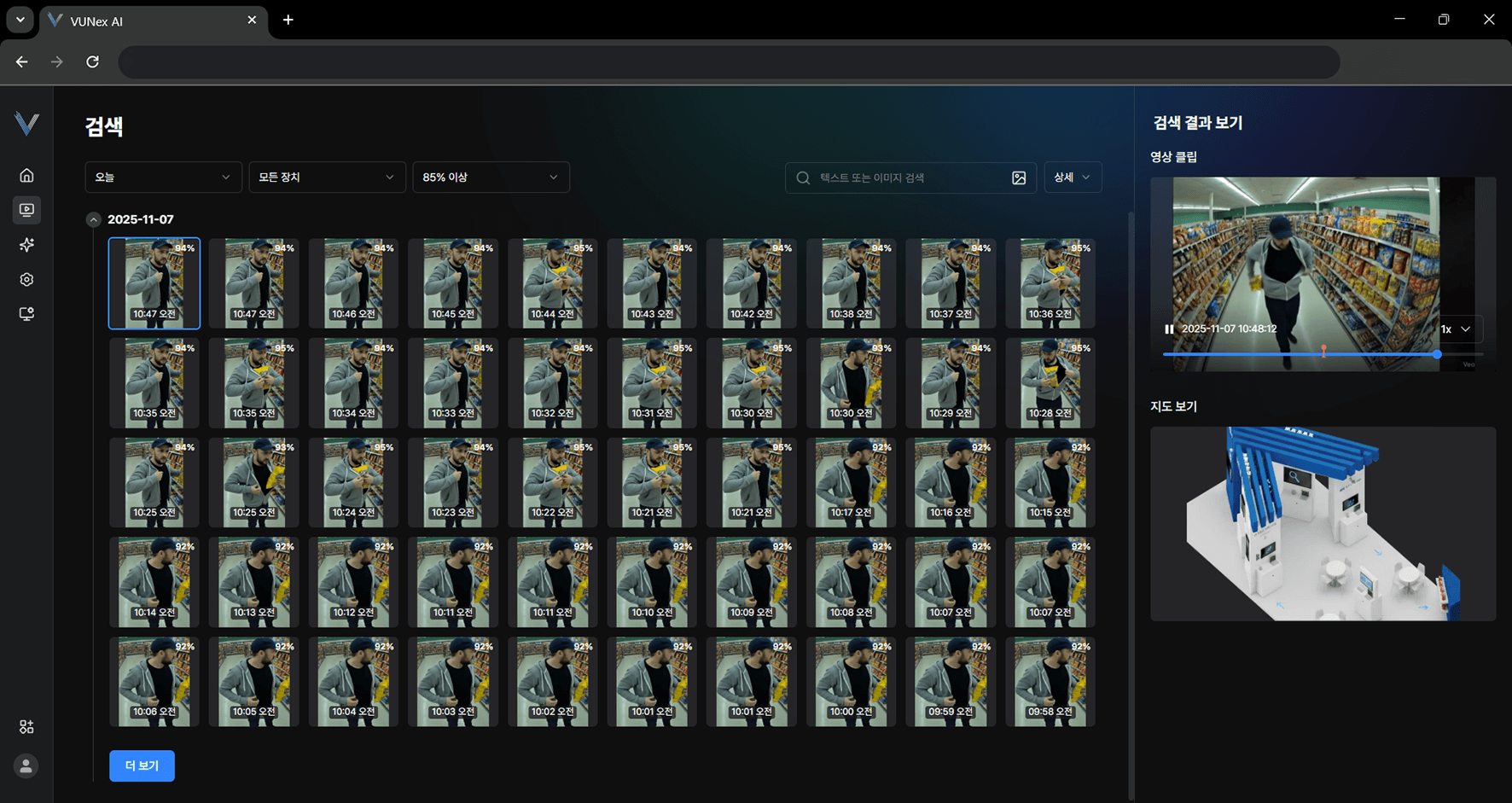
Figure 4-3. Search Screen Layout
| No. | Item | Description |
|---|---|---|
| ❶ | Search period | Select a date and time. |
| ❷ | Search device | Select a device. |
| ❸ | Search accuracy | Select the search accuracy. |
| ❹ | Search by text or image | Search by entering a query or registering an image. |
| ❺ | Detailed search | Shows the detailed search panel. |
| ❻ | Search results | Shows results matching the search conditions as thumbnails. |
| ❼ | Search result details | Shows result information such as the video and the map. |
Setting Search Conditions
Set the search conditions.
- In the main menu, click [] > [Search]The Search screen appears.
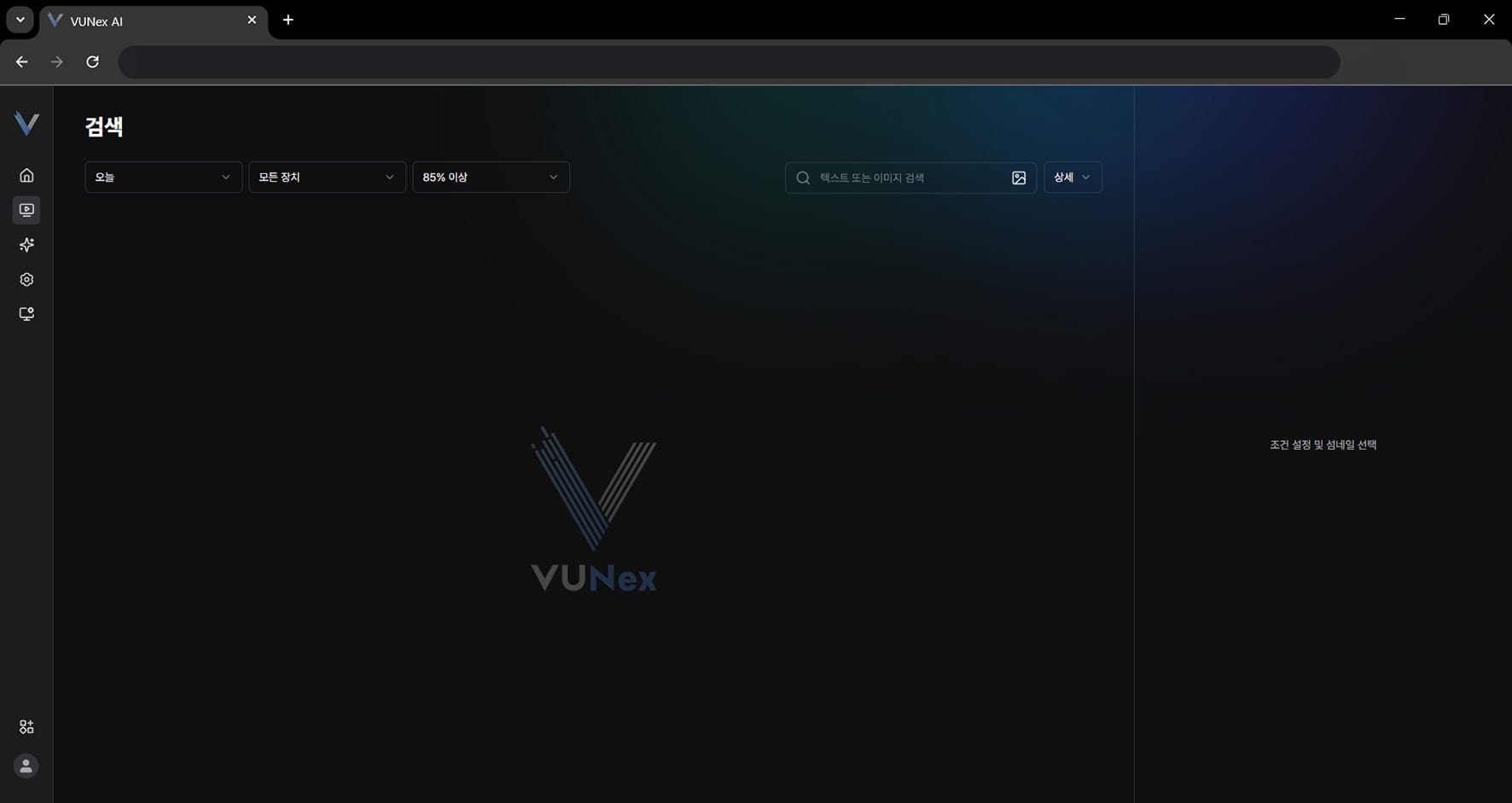 Figure 4-4. Setting the Search Period
 - Select the search period
- Select the device to search
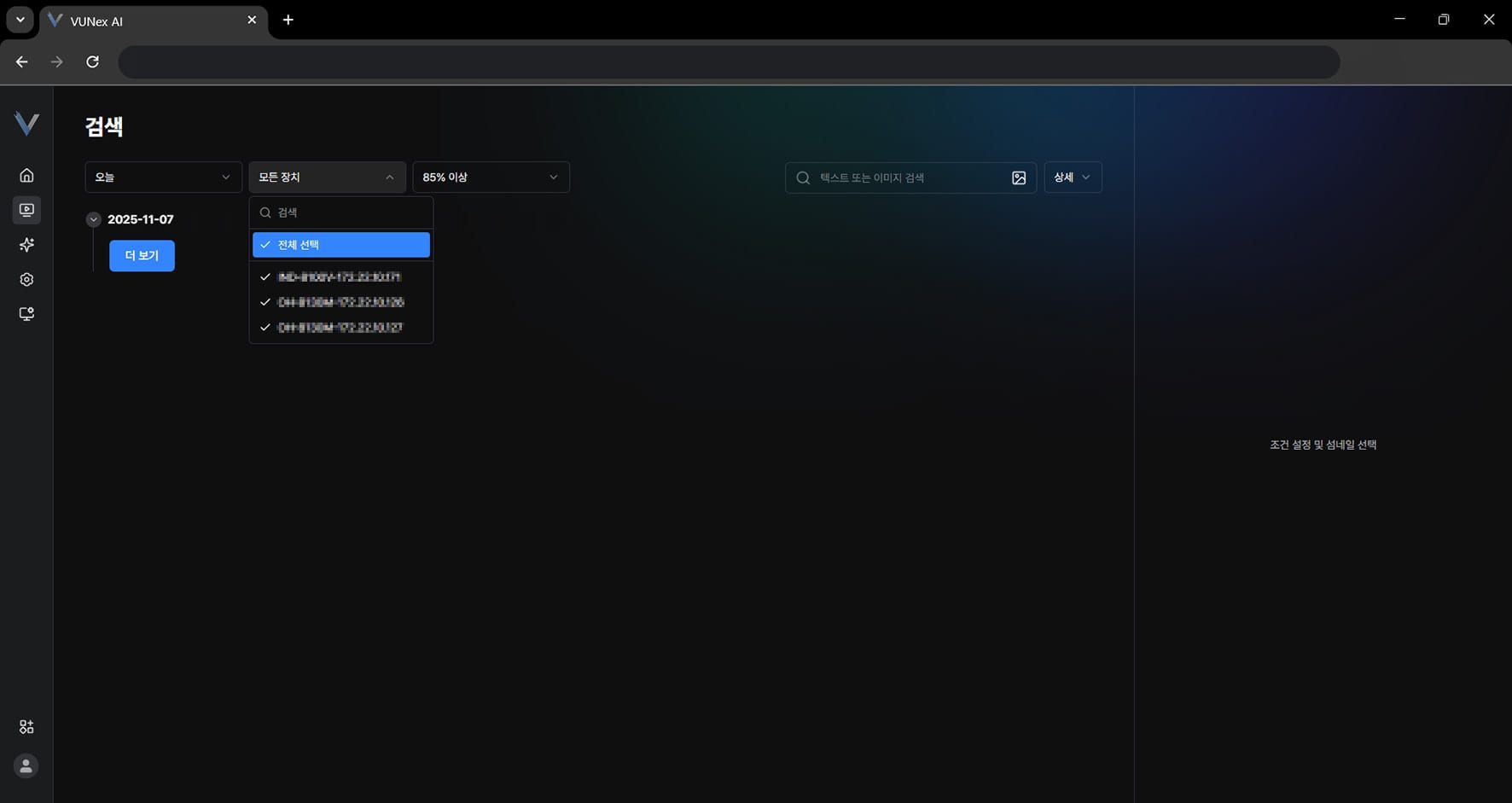 Figure 4-5. Setting the Search Device and Accuracy
 - Select the search accuracy
- Set the conditions and select the item you want
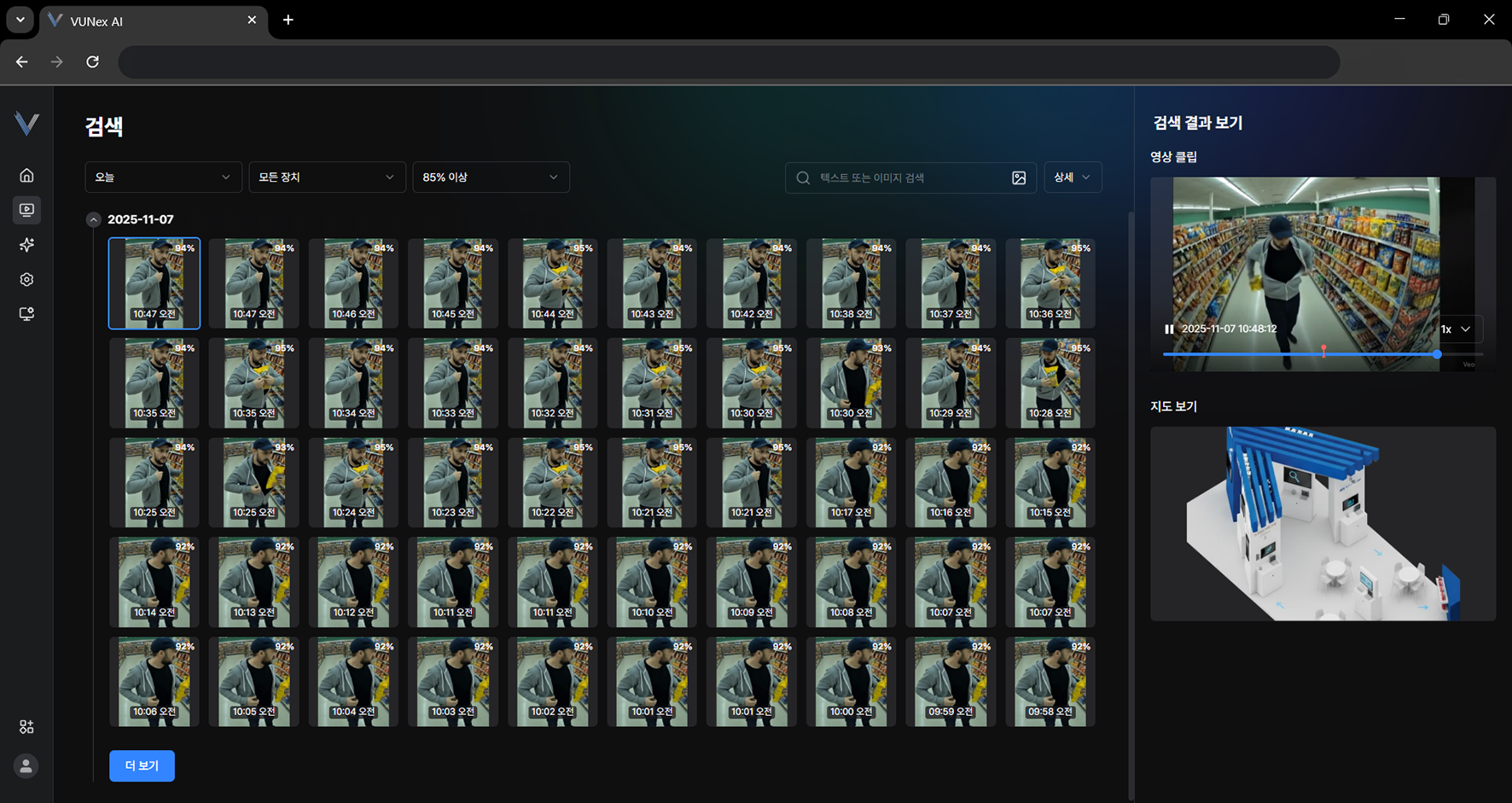 Figure 4-6. Entering a Query and Searching
 - Check the search results
Note
Search accuracy can be set after performing a text or image search.
Viewing Search Results
Select a thumbnail that matches the search conditions to check result information such as the video and the map.
- In the main menu, click [] > [Search]The Search screen appears.
- Set the conditions and select the item you want
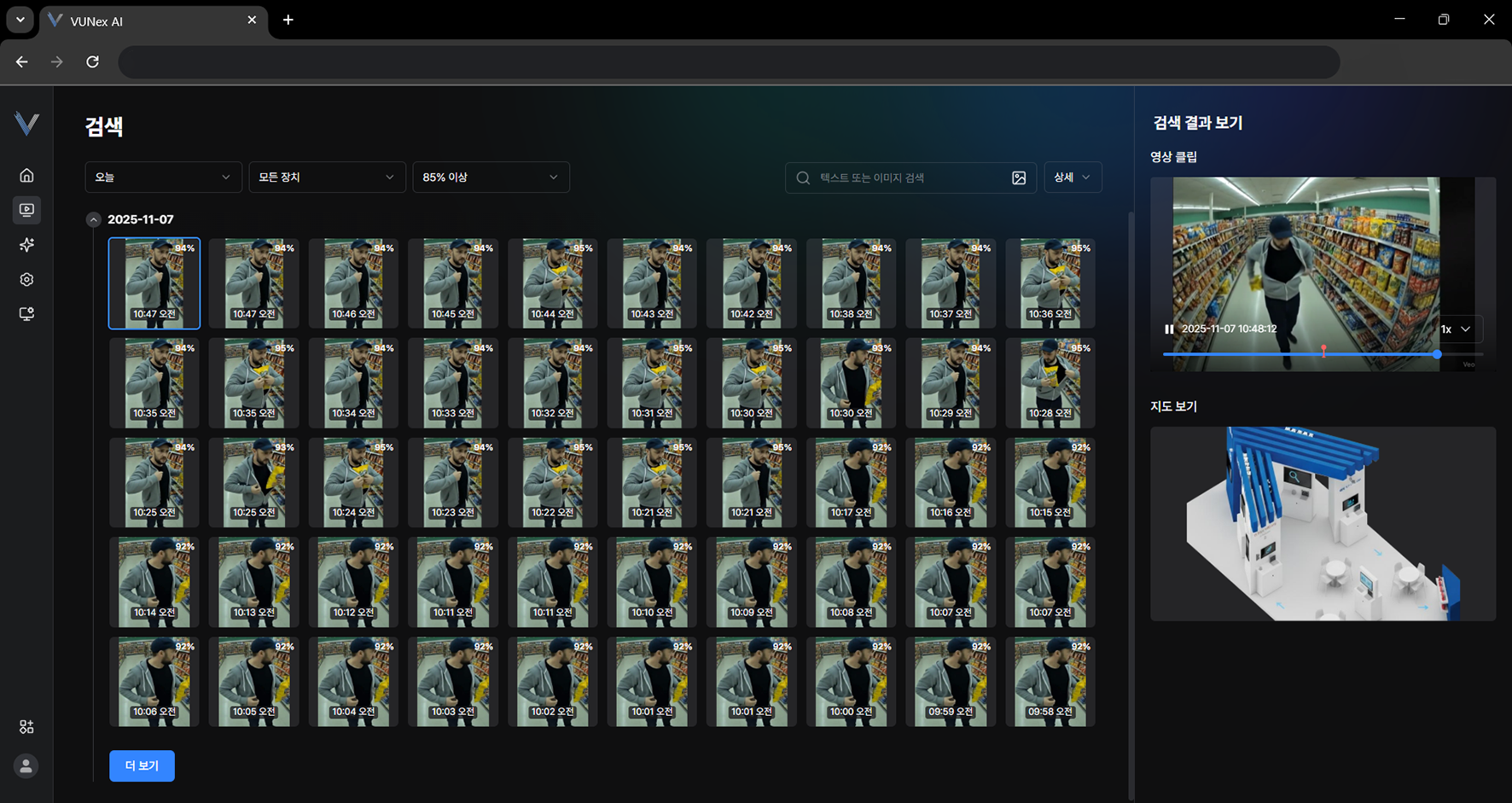 Figure 4-7. Selecting a Search Result
 - Right-click on the videoThe pop-up menu appears.
- Click the item you want[Expand]: maximizes the video. [Playback]: plays the video. [Camera name]: shows the camera name on the video.
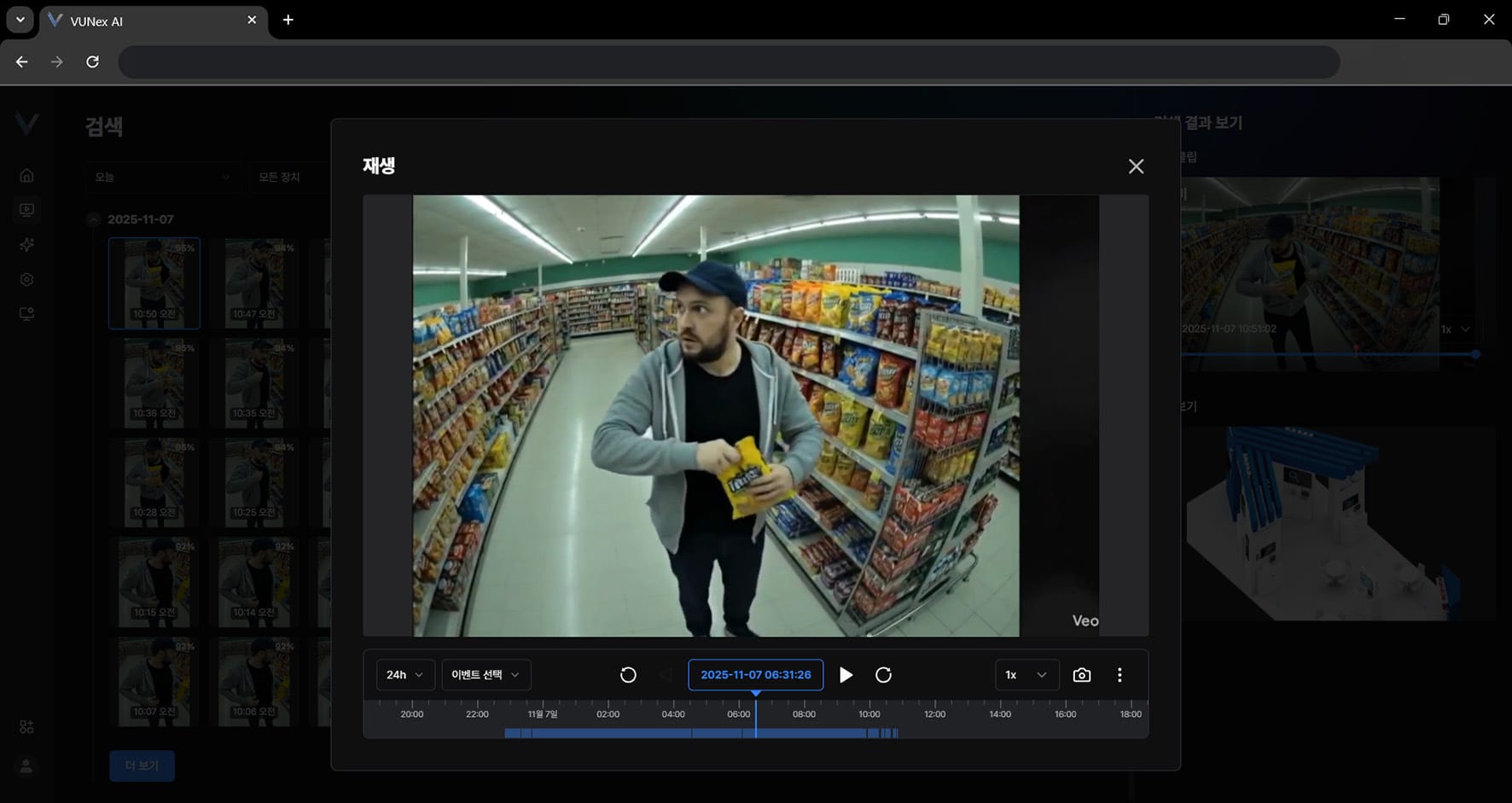 Figure 4-8. Playing a Search Result Video
 - Click [Playback]
- Check the recorded video
Note
For details, see Viewing Recorded Video.
Searching by Text or Image
Search by entering a query or registering an image.
- In the main menu, click [] > [Search]The Search screen appears.
- Click [Search by text or image] > [image icon]
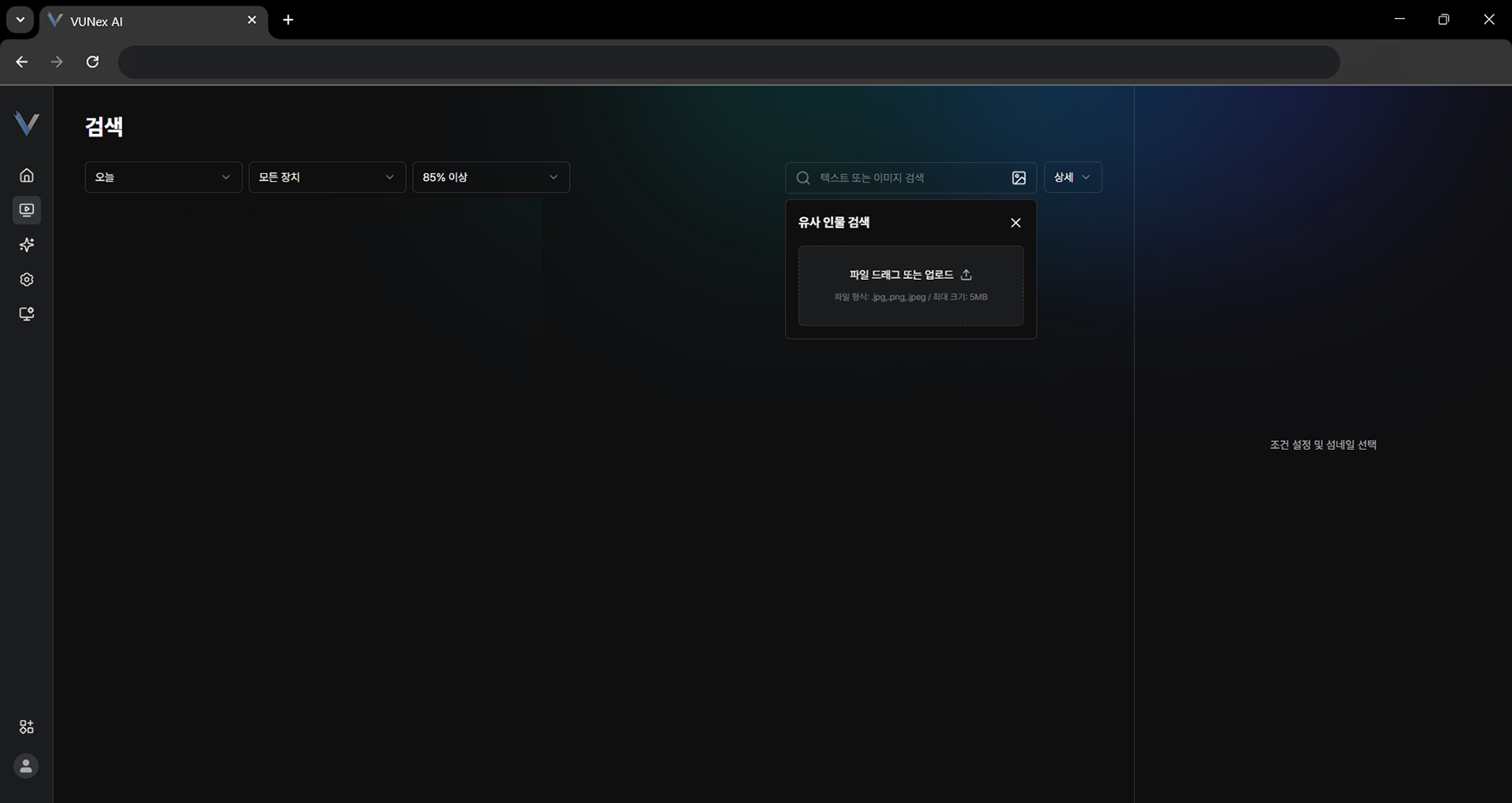 Figure 4-9. Image Search Mode
 - Click the area marked with a dotted line
- Select the file and click [Open]
- Drag the item you want into the search box
- Search for the image
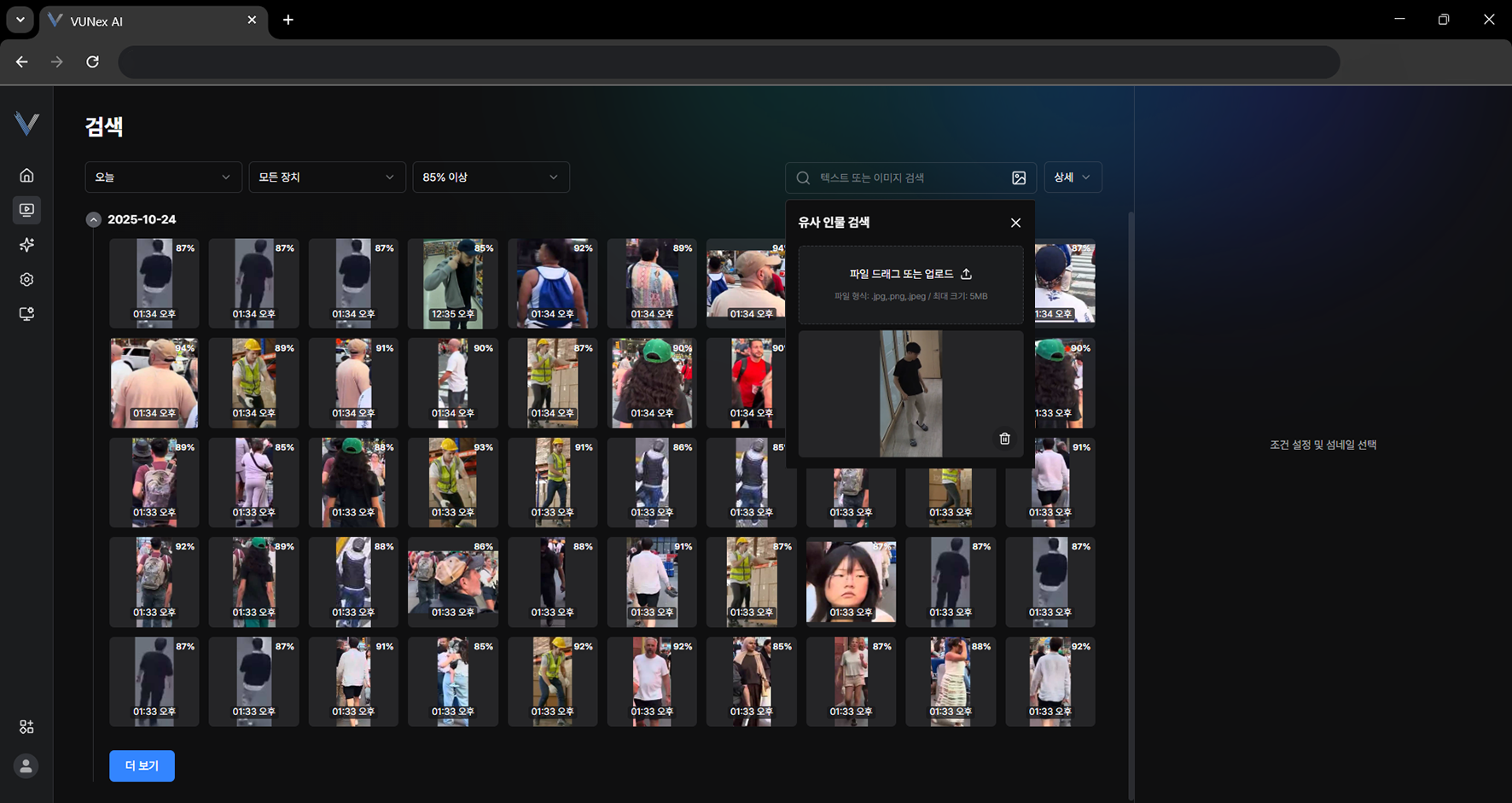 Figure 4-10. Uploading an Image and Searching
 - Select the item you want
- Check the search results
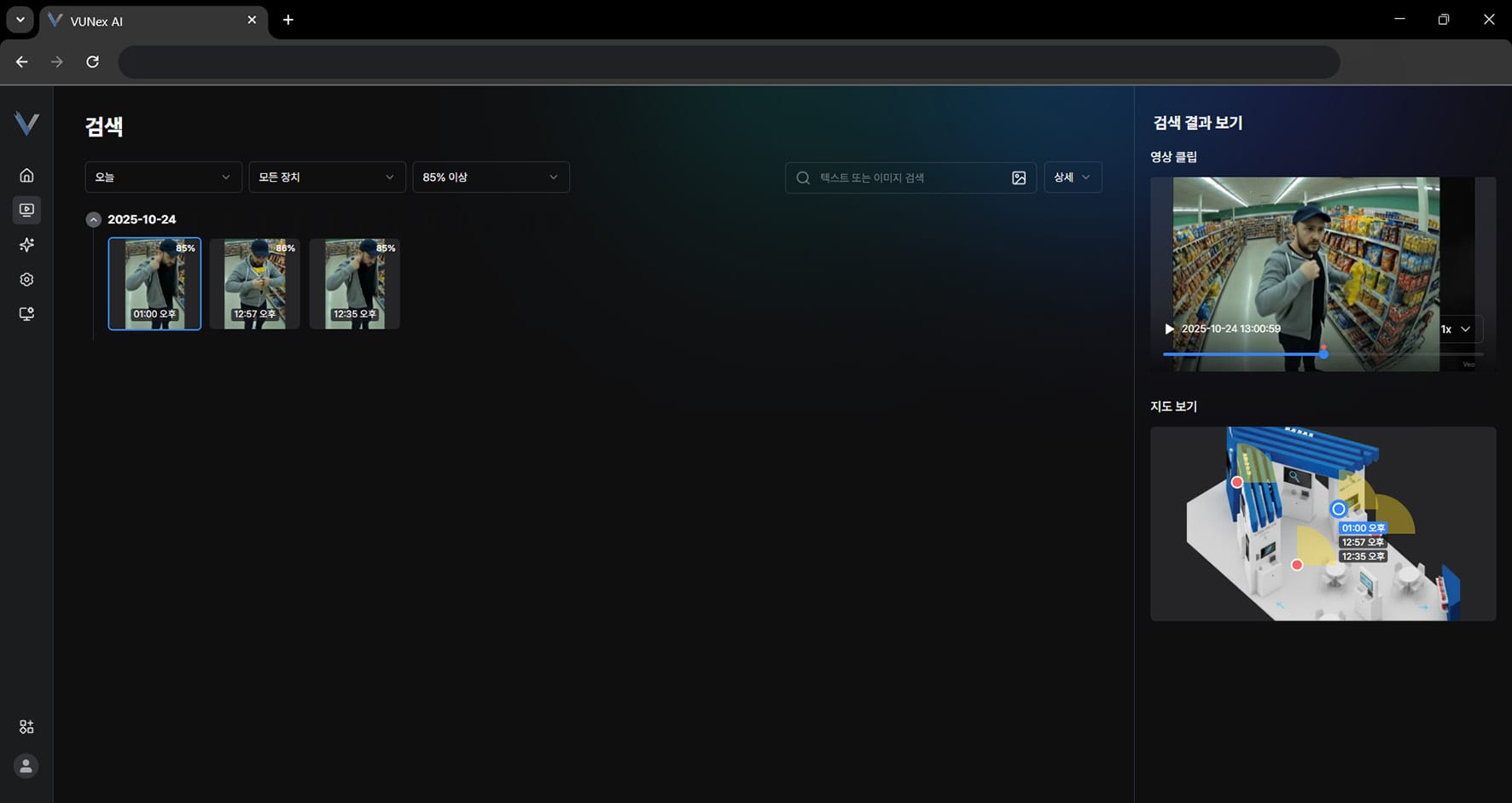 Figure 4-11. Image Search Results
Note
Click a timestamp in [Map view] to see the video at that moment.
[Map view] requires the [Map view] setting.
In the main menu, click [] > [AI Service] > [Map view] to configure the map view service.
Searching with Detailed Conditions
Search with detailed conditions.
- In the main menu, click [] > [Search]The Search screen appears.
- Click [Detail]
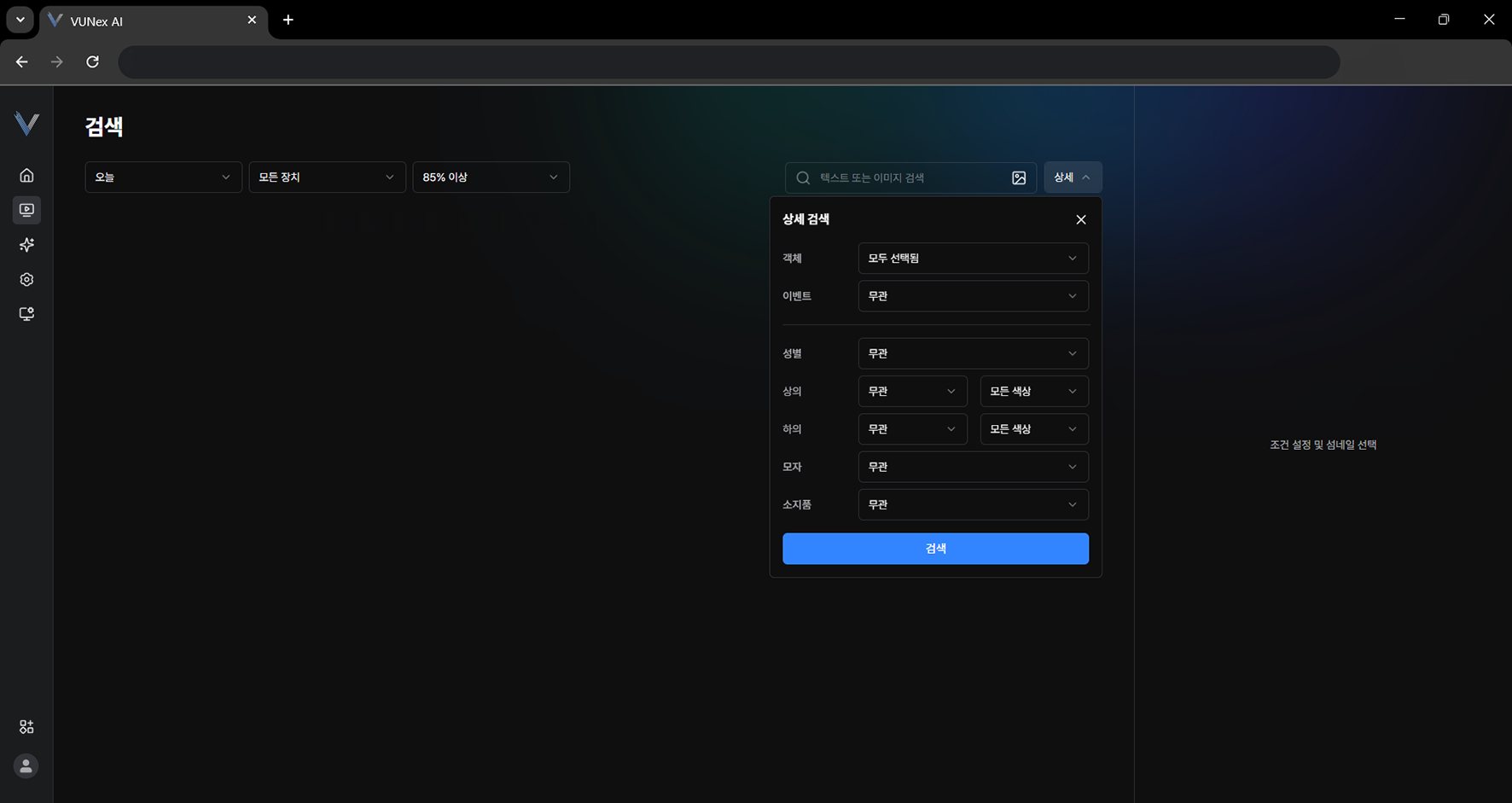 Figure 4-12. Detailed Search Menu
 - Set the conditions and click [Search]
- Select the item you want
- Check the search results
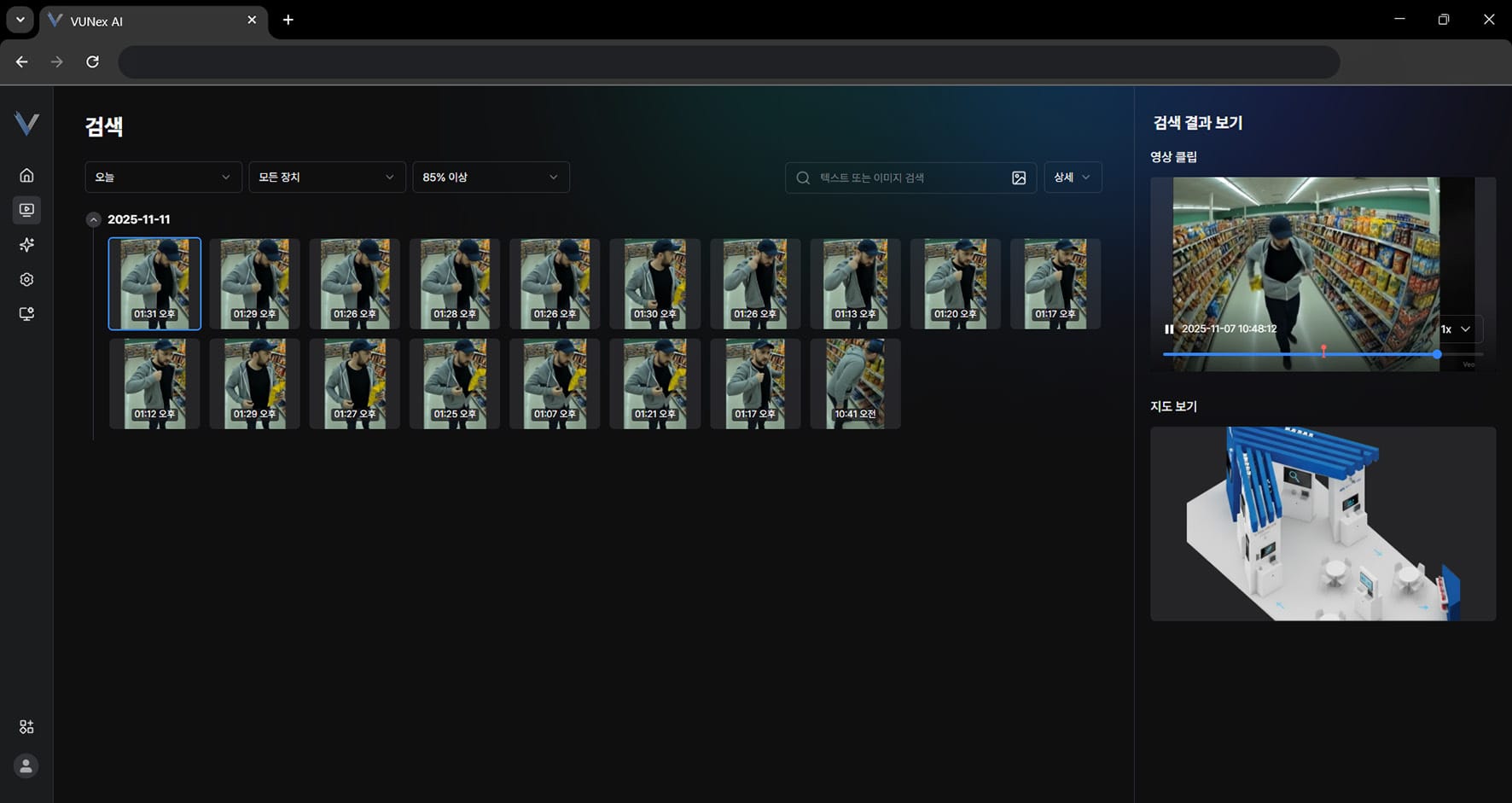 Figure 4-13. Detailed Search Results
Searching by Similar Person
Find scenes containing people similar to the person you selected.
- In the main menu, click [] > [Search]
- Click [Similar Person Search]
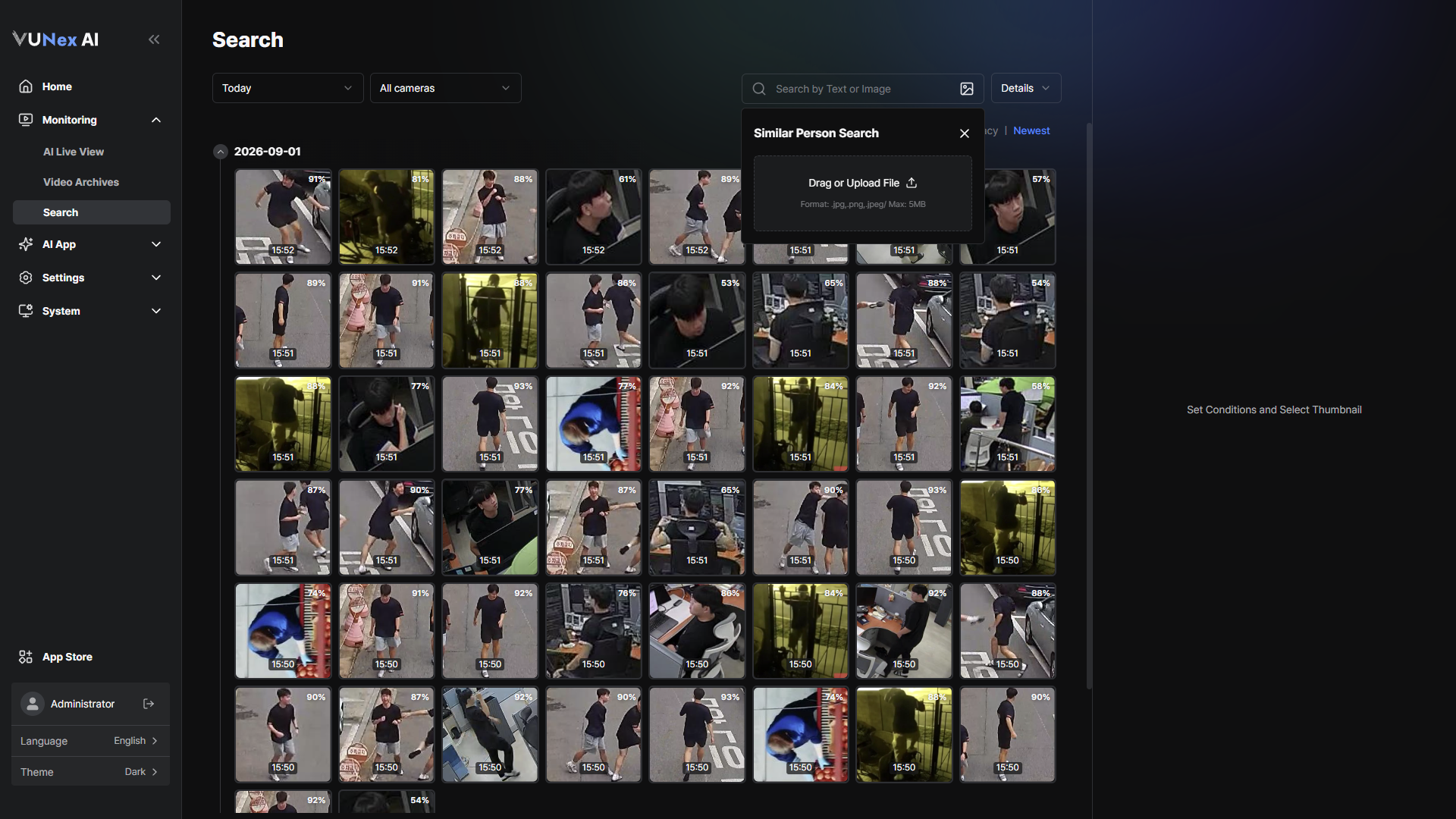 Figure 4-14. Selecting Similar Person Search
 - Select the person to search forOnce person detection finishes, the selectable people are shown. Click [Original] to see the original image.
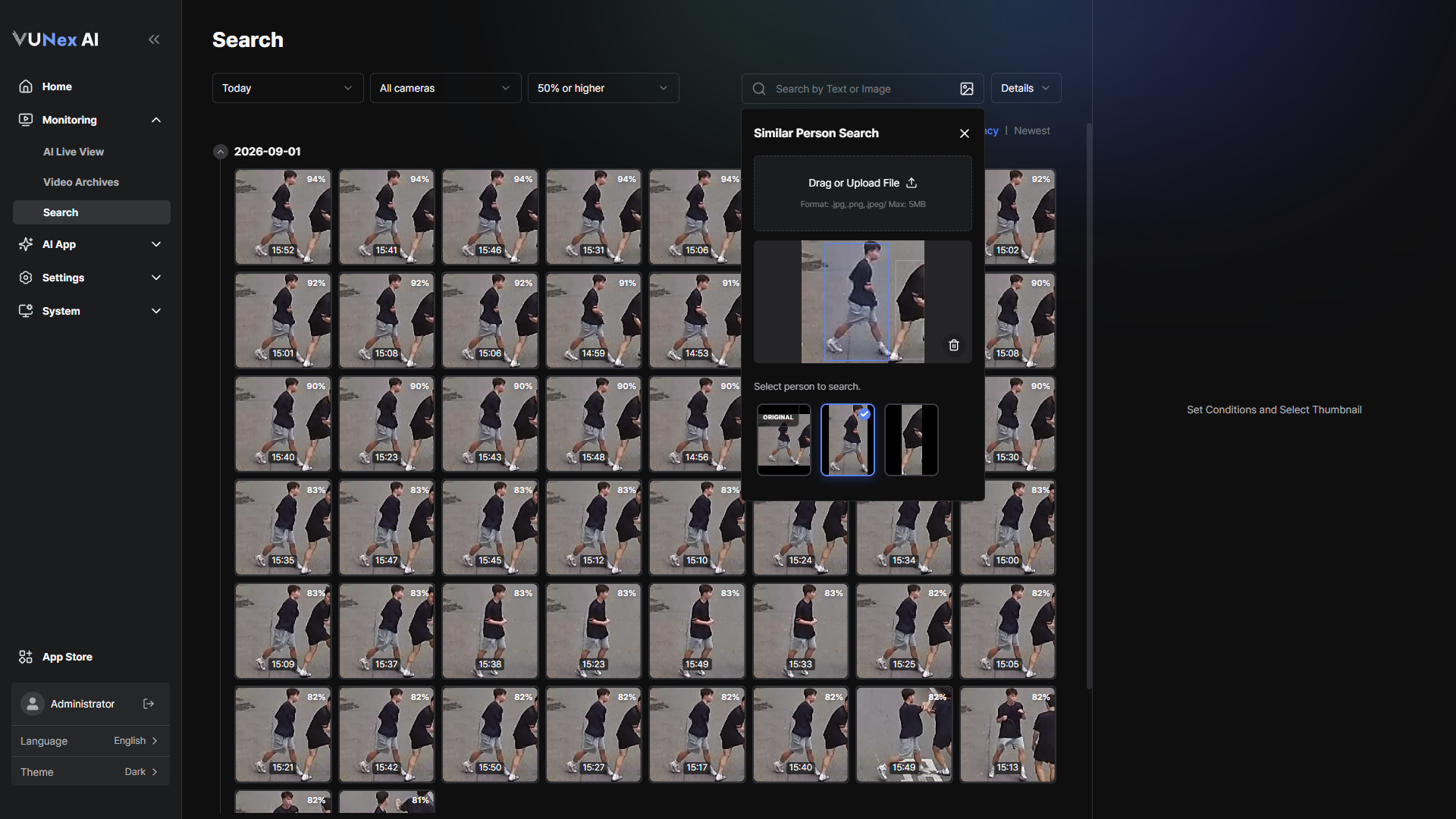 Figure 4-15. Selecting the Person to Search
 - Set the [Accuracy] and click [Search]
- Check the search results
Note
To use similar person search, enable [Similar Person Search] in [] > [AI Service] > [Search].
If it is not enabled, the message [Service is not activated.] is shown.
You can also start the same search from [] > [Similar Person Search] in live and recorded video.
Sorting Results and Viewing Them on the Map
Change how results are sorted, or check where the results occurred on the map.
- In the main menu, click [] > [Search]
- Set the conditions and click [Search]
- Select [By accuracy] or [Newest]
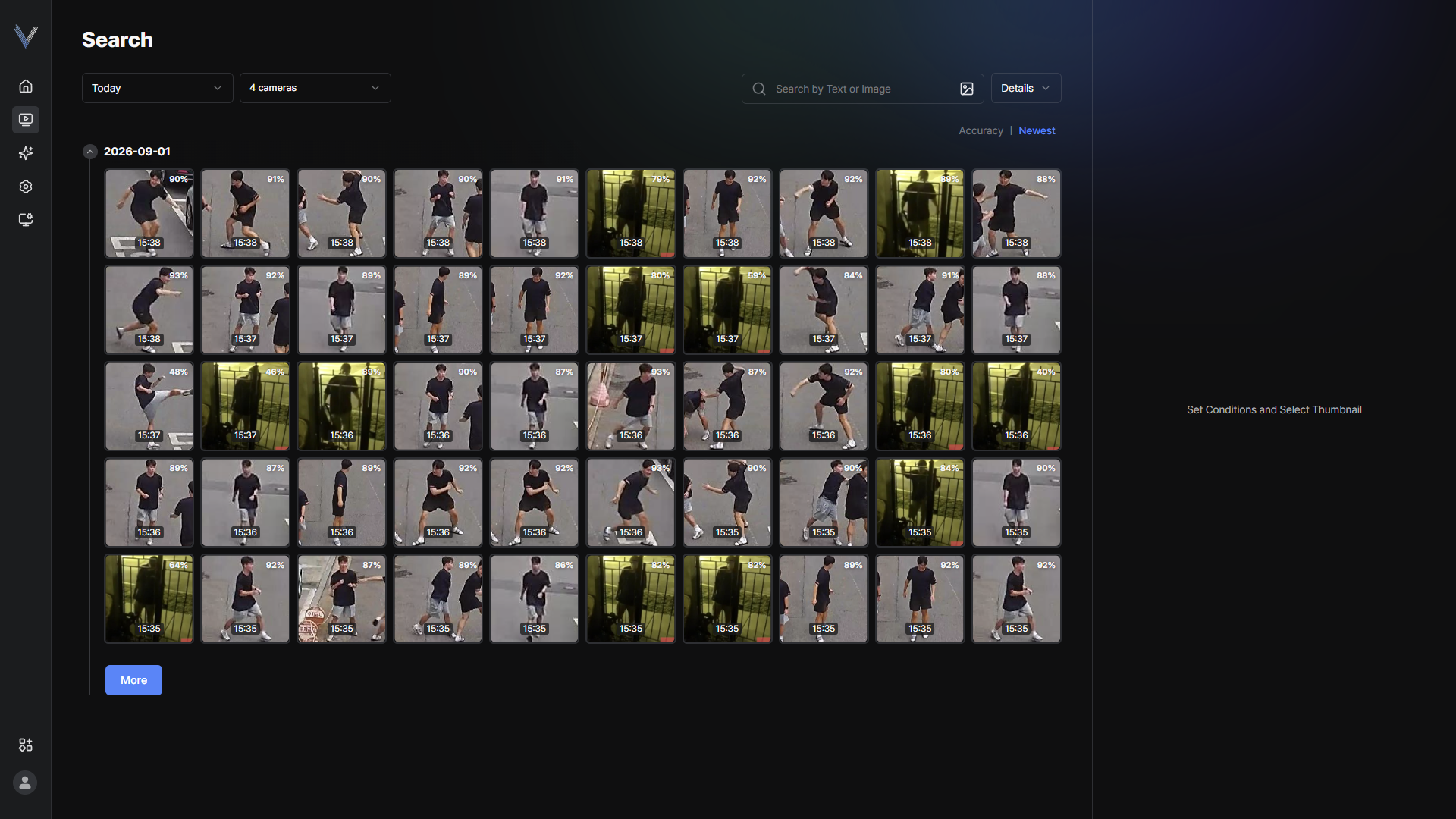 Figure 4-16. Sorting Search Results
 - Select a thumbnail and check [Video clip] and [Map view]
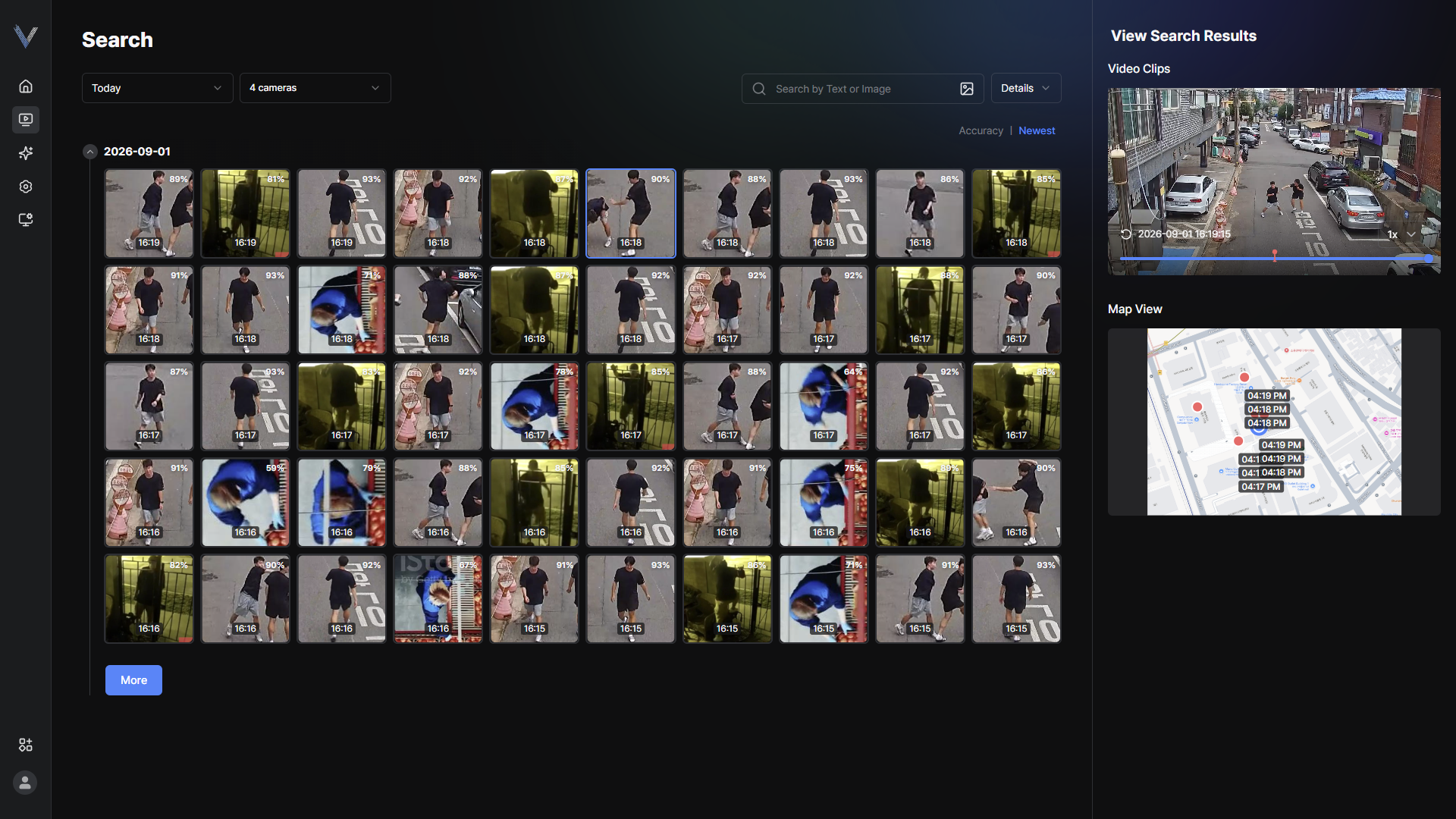 Figure 4-17. Video Clip and Map View
Note
To use the map view, first configure the map and device positions in [] > [AI Service] > [Map view].
If no map is configured, a prompt to go to the map settings is shown.
Click [More] to load additional results.