08
AI Teaching
This section explains how to teach new classes by selecting targets directly in the video.
Starting AI Teaching
Open the AI Teaching screen from the live video or the playback screen.
- In the main menu, click [] > [AI Live View]
- Click [AI Teaching] at the top right of the screenYou can also open it from the playback screen by selecting the [AI Teaching] icon.
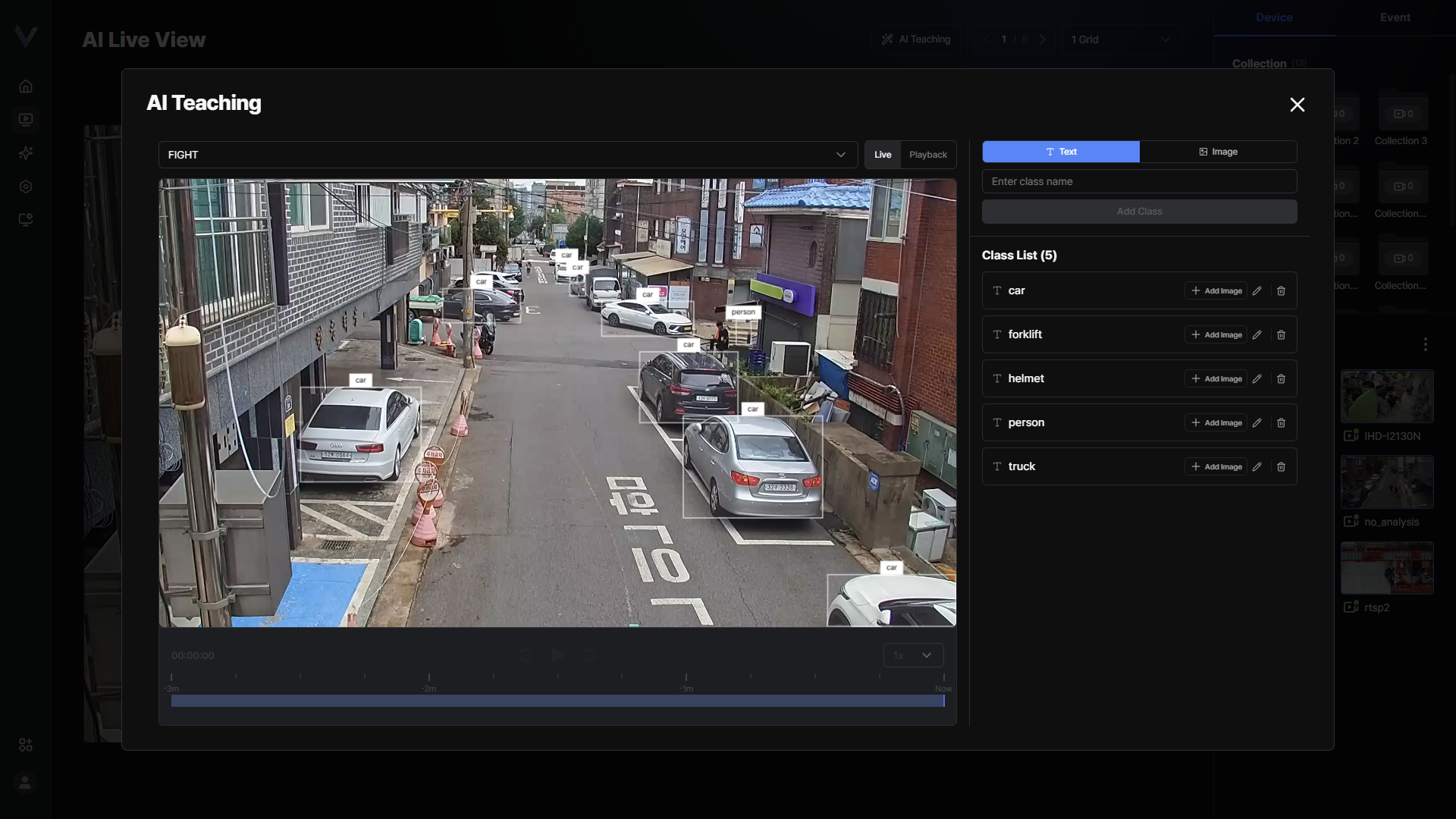 Figure 8-1. Opening AI Teaching
 - Choose the camera to use for teaching in [Select Camera]
- Select [Live] or [Playback]In [Playback], use [Seek Back 10s] and [Seek Forward 10s] to find the scene you want.
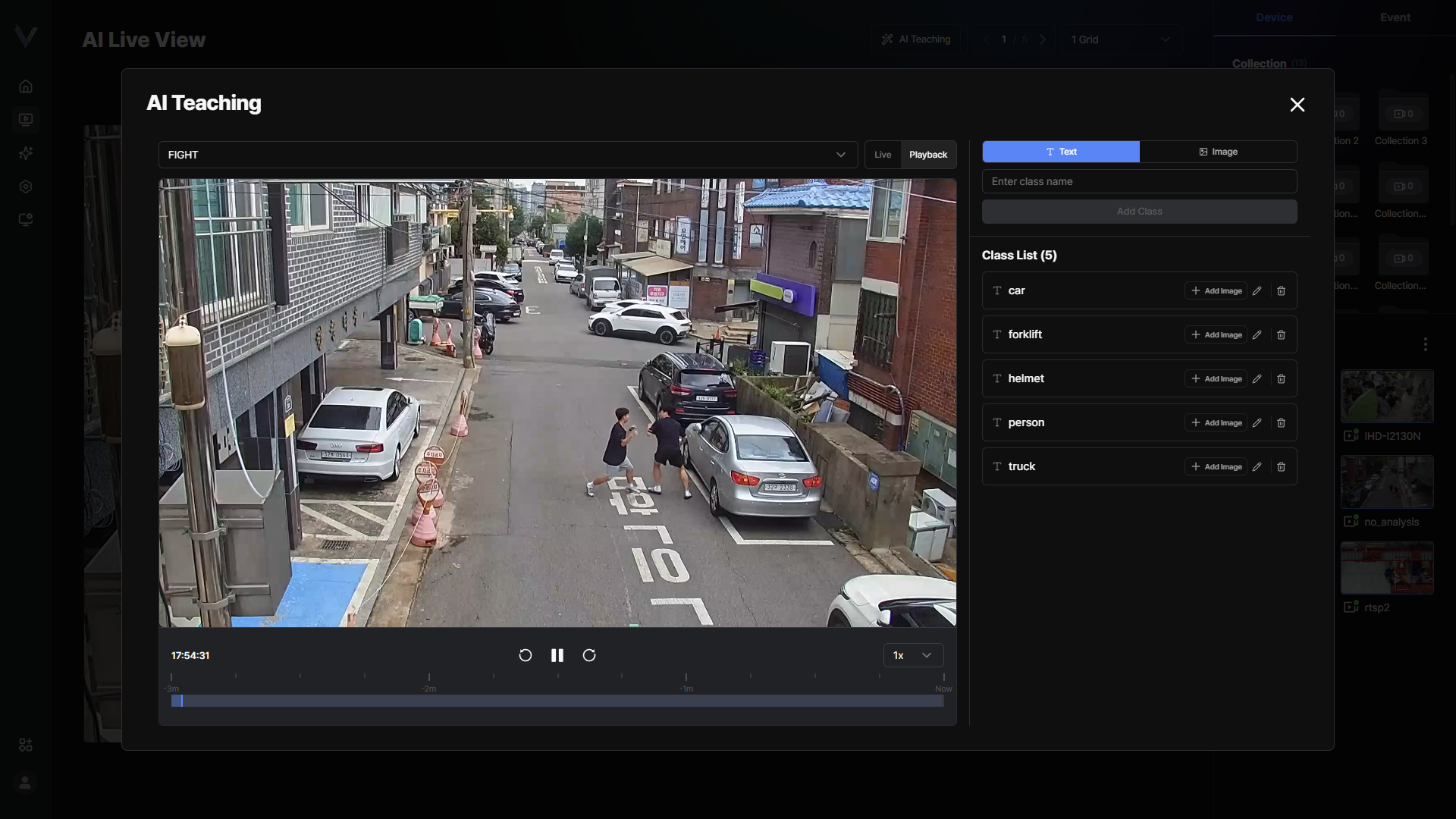 Figure 8-2. AI Teaching Screen
Note
The [AI Teaching] button appears only on devices running an open-vocabulary detection (OVD) model.
You can check the applied model in [App Store] > [AI model].
Teaching a New Class
Create a new class by drawing a box around the target in the video.
- On the AI Teaching screen, select [Image]
- Enter a name in [Enter class name]Only letters, numbers and spaces are allowed. A name already in use cannot be reused.
- Drag on the video to draw a box around the targetA box that is too small is not added as a sample. At least one box is required.
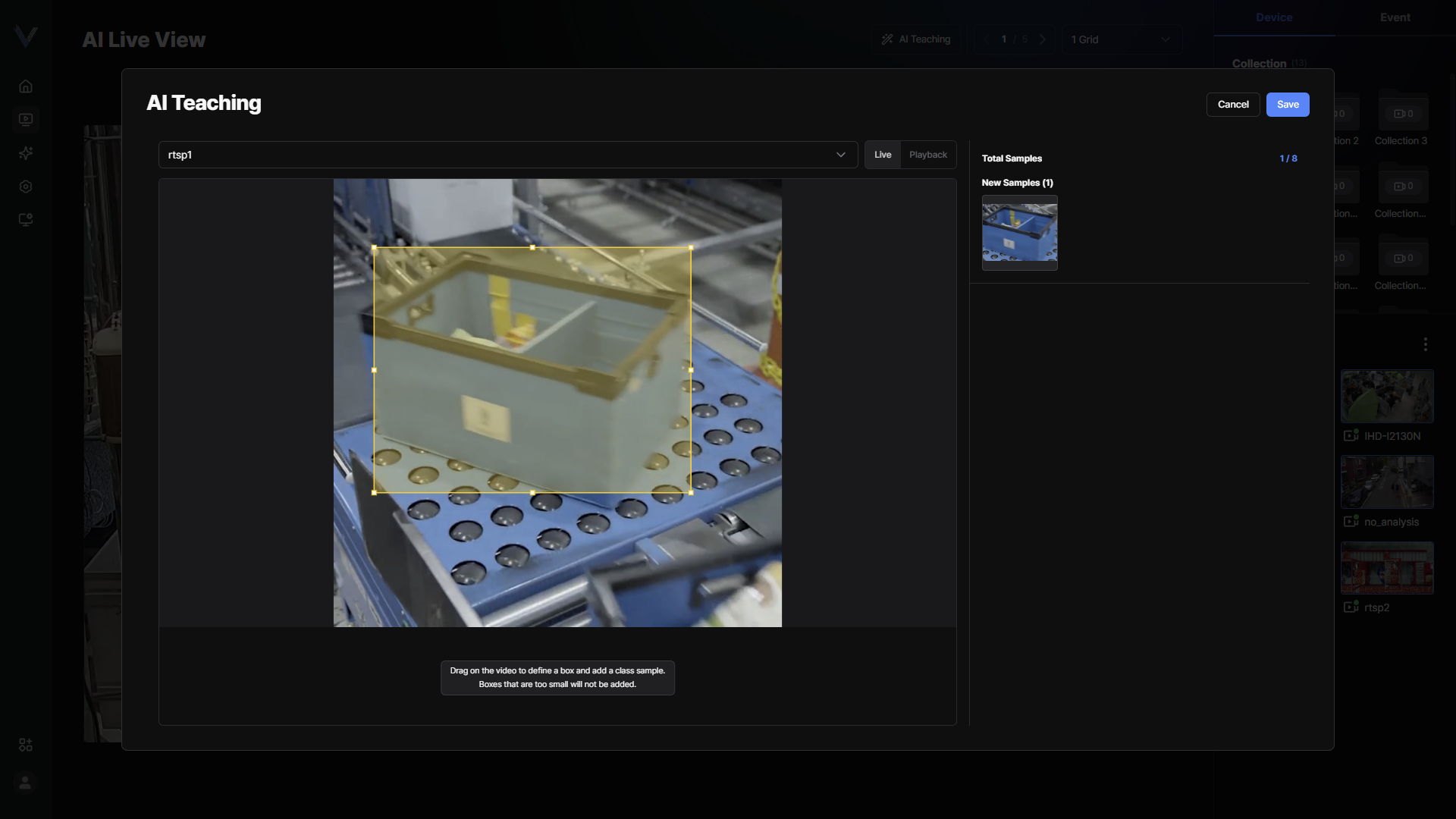 Figure 8-3. Drawing the Target Box
 - Click [Add Class]
- Click [Save&Close]The taught classes are saved and the AI Teaching screen closes.
Note
You can choose [Text] or [Image] as the class type.
Saved classes appear in the target object lists of AI Events and Search.
Adding Samples to an Existing Class
Add more images to an existing class to improve recognition accuracy.
- On the AI Teaching screen, select [Image]
- Select a class and click the [Add Image] button.
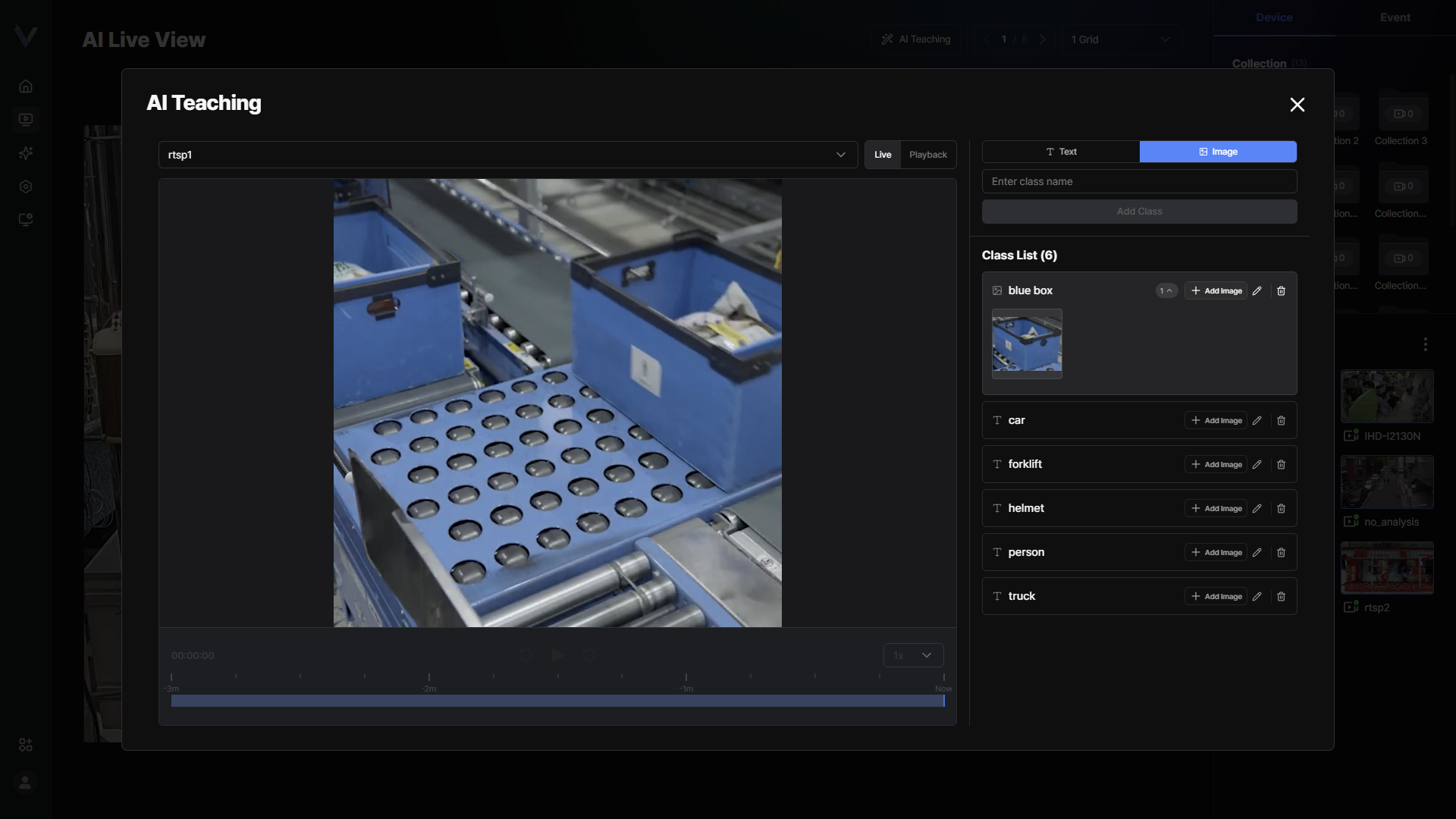 Figure 8-5. Adding to an Existing Class
 - Drag on the video to draw a box around the target
- Click [Add Image]
- Click [Save&Close]
Note
Check the number of registered samples with [Total Samples] in the class list.
Adding the same target from several angles and distances improves recognition accuracy.
Renaming and Deleting a Class
Rename a taught class, or delete classes and samples you no longer use.
- Check [Class List] on the AI Teaching screen
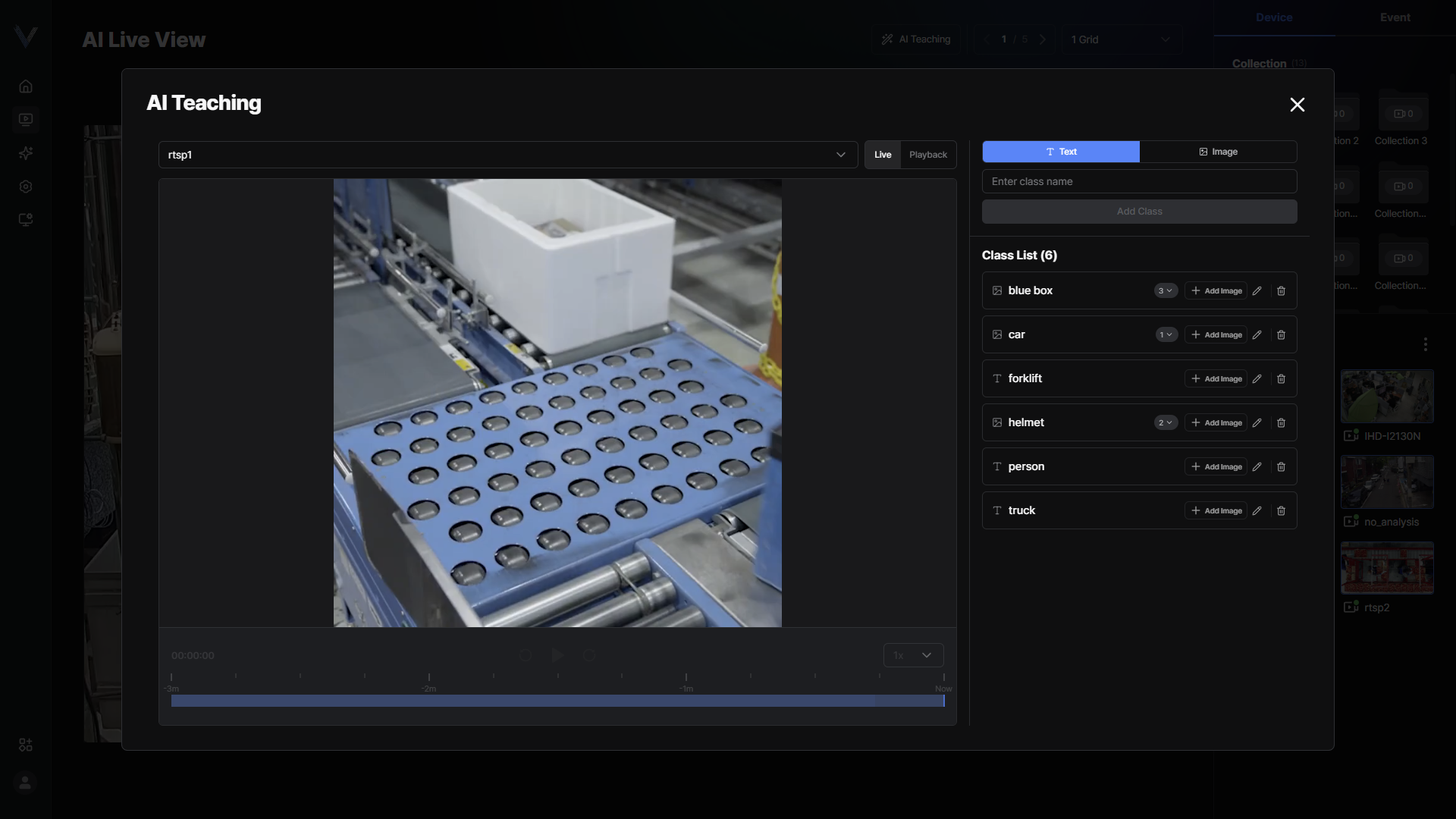 Figure 8-6. Class List
 - Select the class to rename, type the new name and press [Enter]Only letters, numbers and spaces are allowed, and unsupported characters are flagged as you type.
- To delete, click [Delete] on the class or the sample image
- Click [OK]
Caution
Deleted classes and sample images cannot be restored.
Deleting a class in use also removes it from the events and search conditions that used it.