09
App Store
This section explains how to turn the AI features of this device on and off and how to check the applied AI model and AI Power usage.
Viewing the App Store Screen
- [AI model]: the model currently running on the device and when it was last updated
- [Class(es) from Model]: the classes the current model can detect
- [AI Power Breakdown]: total cost, used cost and free cost
- [My AI APP]: the installed AI Events and AI Services
- In the main menu, click [] > [App Store]
- Check the item you want
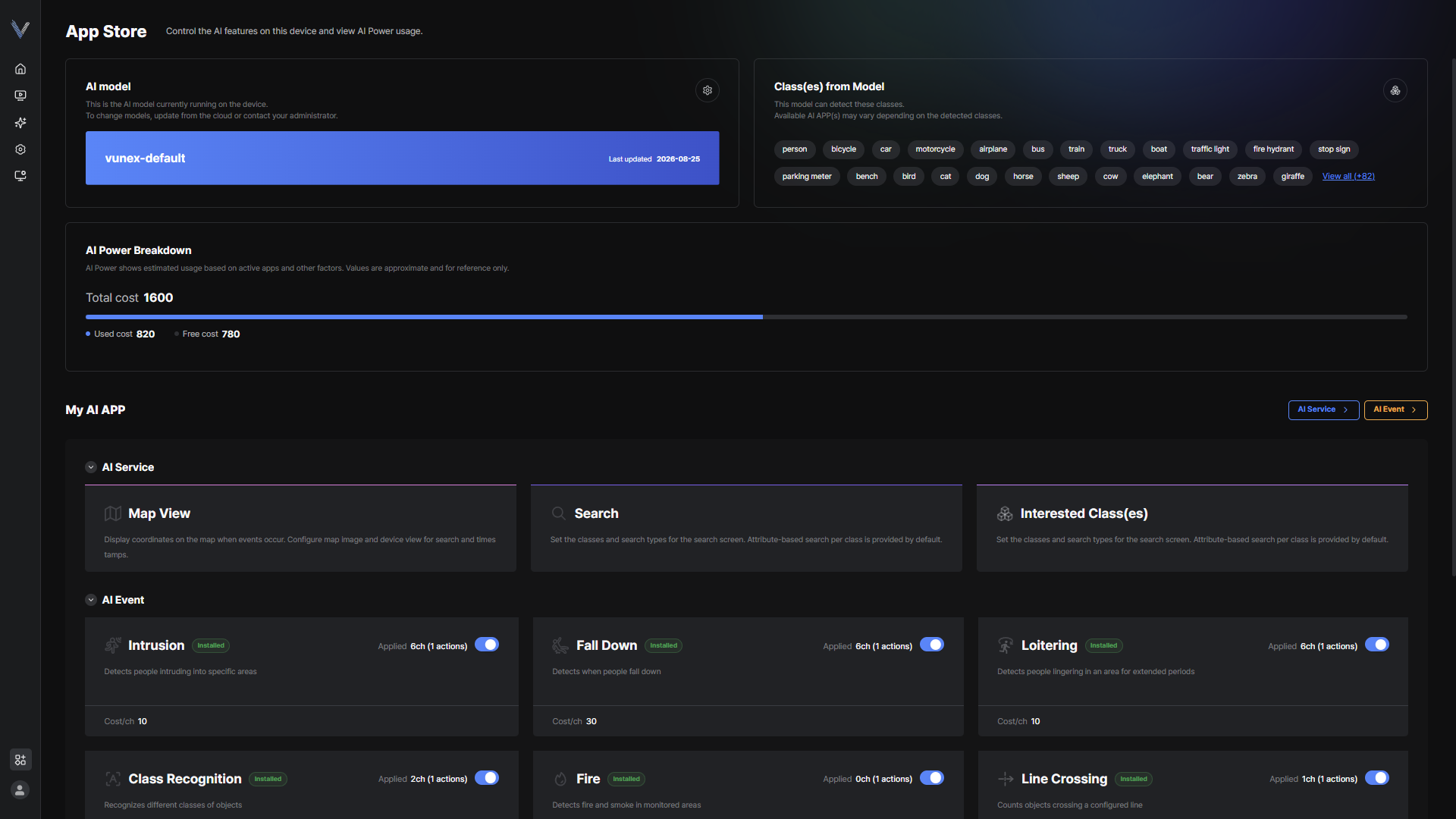 Figure 9-1. App Store Screen
Changing the AI Model
Replace the AI model applied to the device with a different one.
- In the main menu, click [] > [App Store]
- Click [AI model] > [Change AI Model]
- Select the model to use
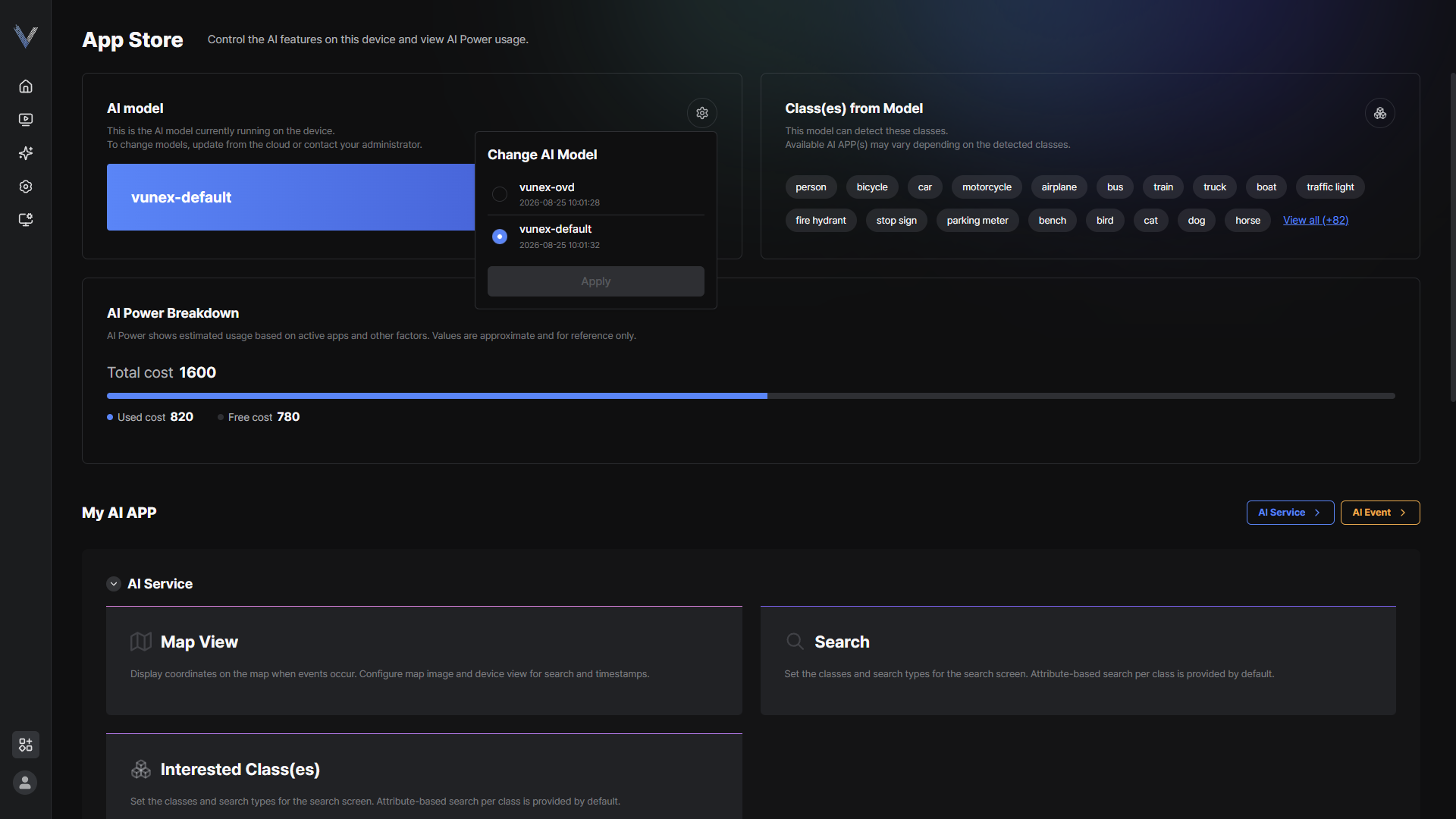 Figure 9-2. Changing the AI Model
 - Click [OK]A progress indicator appears while the model is being changed, and the status is reflected on the screen as soon as it finishes.
Caution
Changing the AI model can change which object types are detected and the detection performance (FPS / accuracy).
AI Service and AI Event settings are reapplied based on the selected model, so if you use a model for the first time you must configure detection and event settings again.
If you switch to another model while using an event that requires pose recognition, that event is turned off automatically.
Checking the Classes Provided by the Model
View all classes the current model can detect.
- In the main menu, click [] > [App Store]
- Click [Class(es) from Model] > [View all]
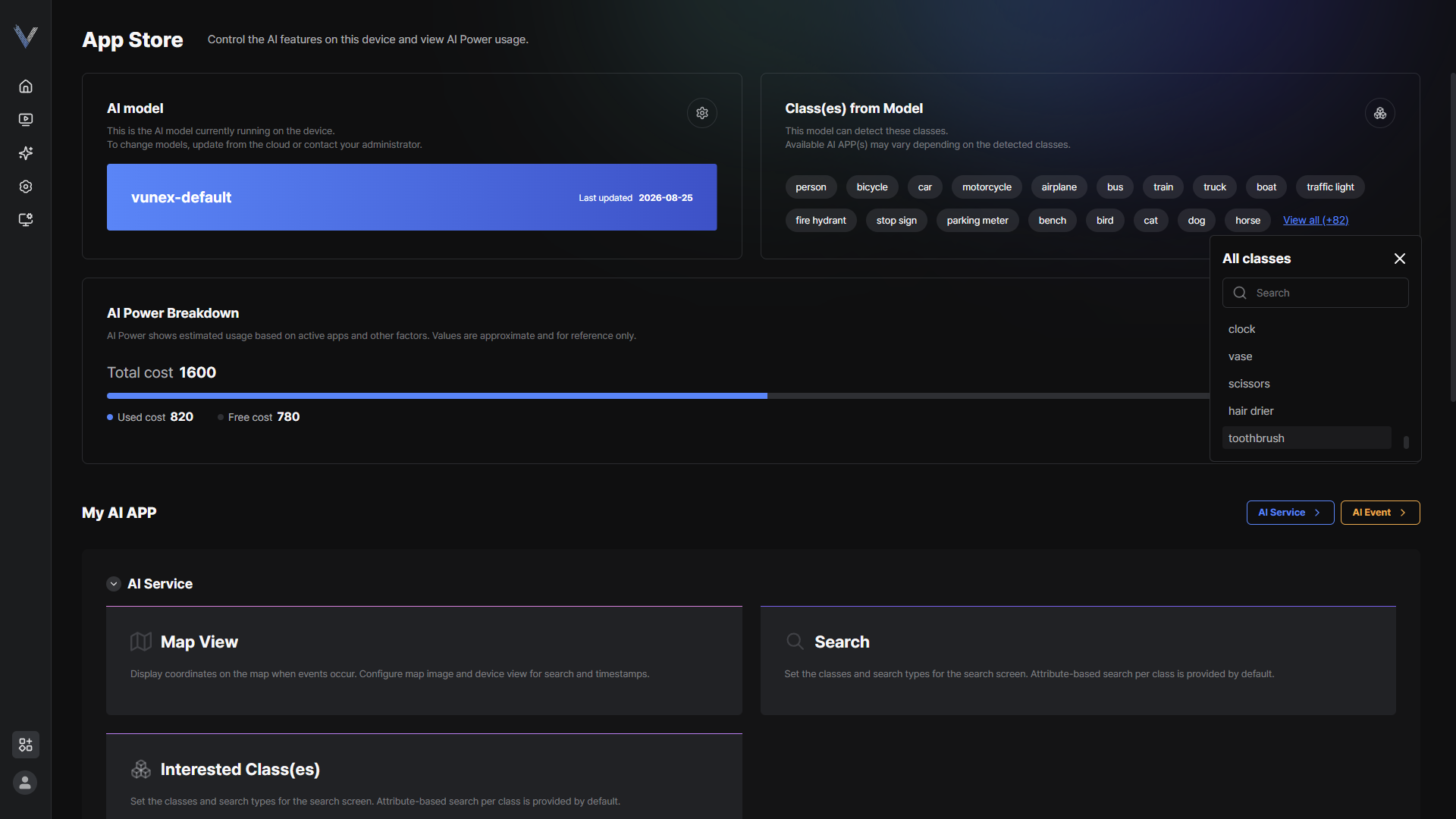 Figure 9-3. Classes Provided by the Model
 - Enter a class name in [Search] to find the class you want
Note
Click [Manage interested classes] to go to the interested class settings of AI Service.
The available AI apps can differ depending on which classes the model can detect.
Newly added classes are marked [NEW].
Checking AI Power Usage
Check how much AI analysis capacity the device has and how much is currently used.
- In the main menu, click [] > [App Store]
- Check [Total cost], [Used cost] and [Free cost] in [AI Power Breakdown]
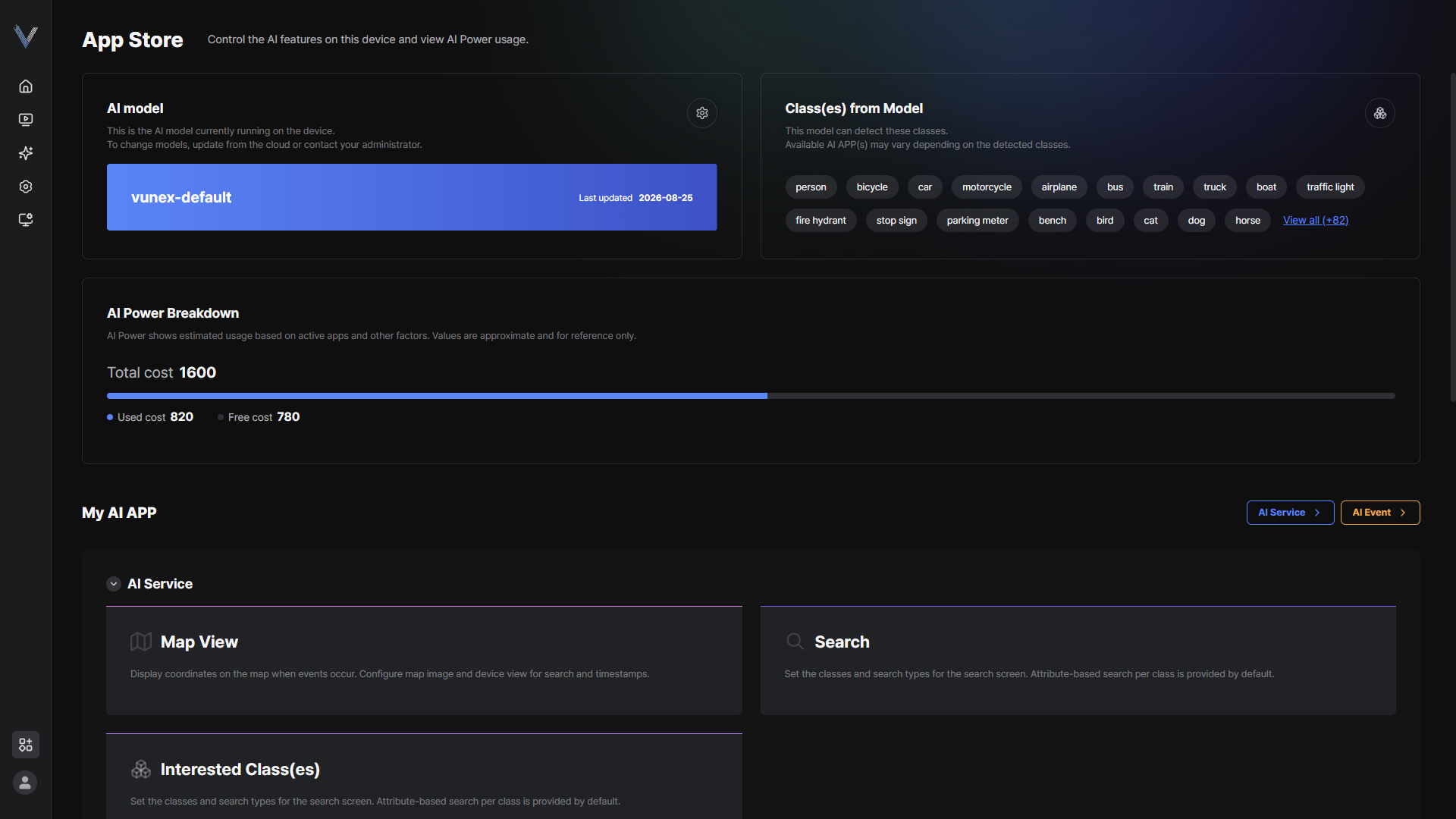 Figure 9-4. AI Power Breakdown
Note
AI Power is an estimate calculated from the enabled apps and channel resolutions, and is provided for reference.
Settings that exceed the free cost are blocked when you save, and the message [AI Power limit reached.] is shown.
The [AI Power] widget on the Home screen also shows usage together with the total.
Enabling and Disabling AI Apps
Turn the installed AI Events and AI Services on or off.
- In the main menu, click [] > [App Store]
- In [My AI APP], click [AI Event] or [AI Service]
- Click the app's [] to enable or disable itYou can also see the number of applied channels and actions, and the cost per channel.
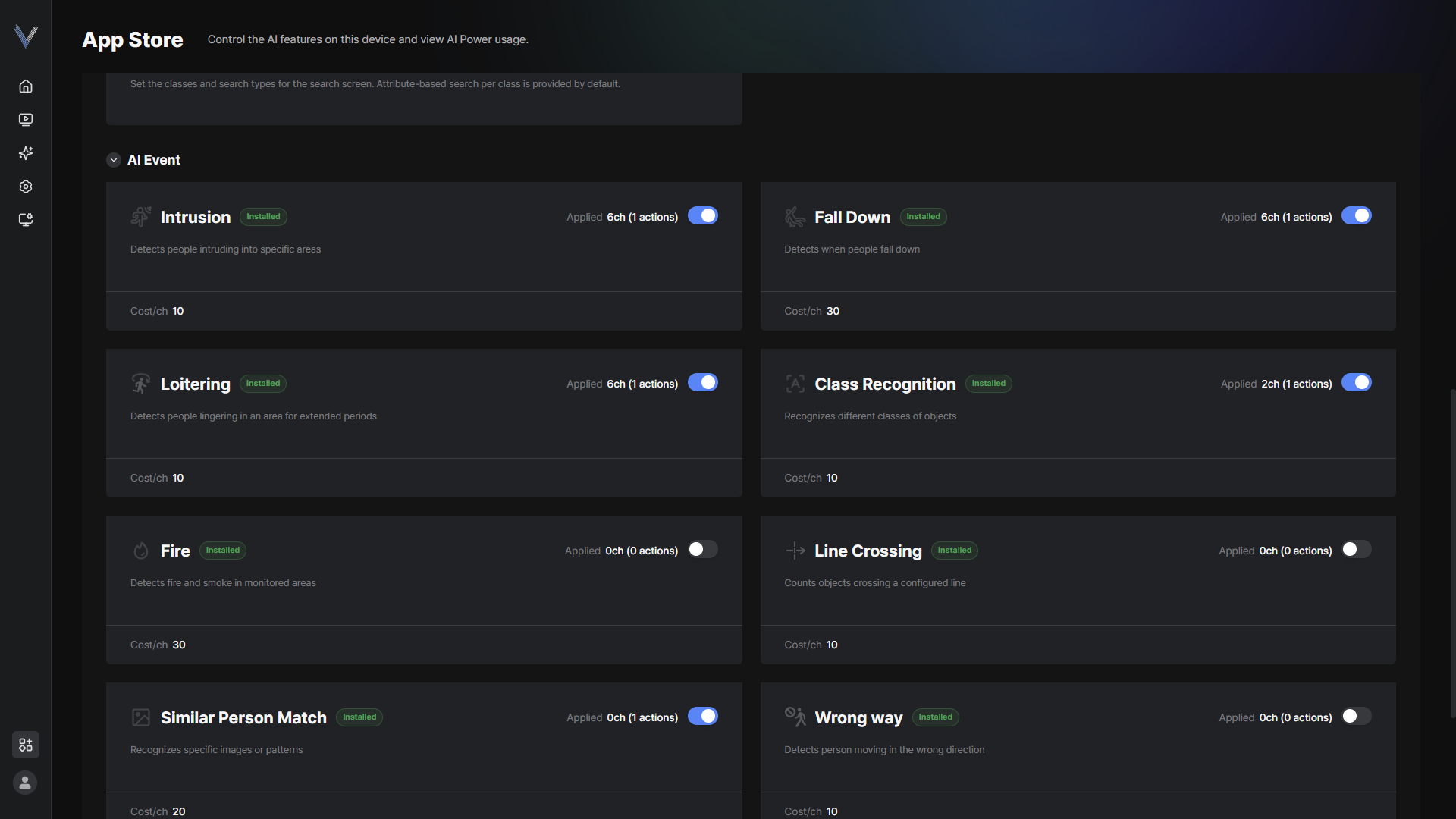 Figure 9-5. Enabling AI Apps
 - Check the installation statusThe status is shown as [Installed], [Installing] or [Error], and the progress is shown while installation is running.
Note
On the first start after installation, the event modules and models that match the device are installed automatically, so no separate pre-download step is required.
AI Events that are turned off are not shown in other menus such as the AI Event screen.
Apps that require a pose detection model cannot be turned on unless that model is applied; the message [This feature requires a Pose detection model] is shown.