01
Getting Started
This section explains the basic usage of the VUNex AI system.
Login and Logout
Log in or out of the system.
- Enter the default URL in your web browser
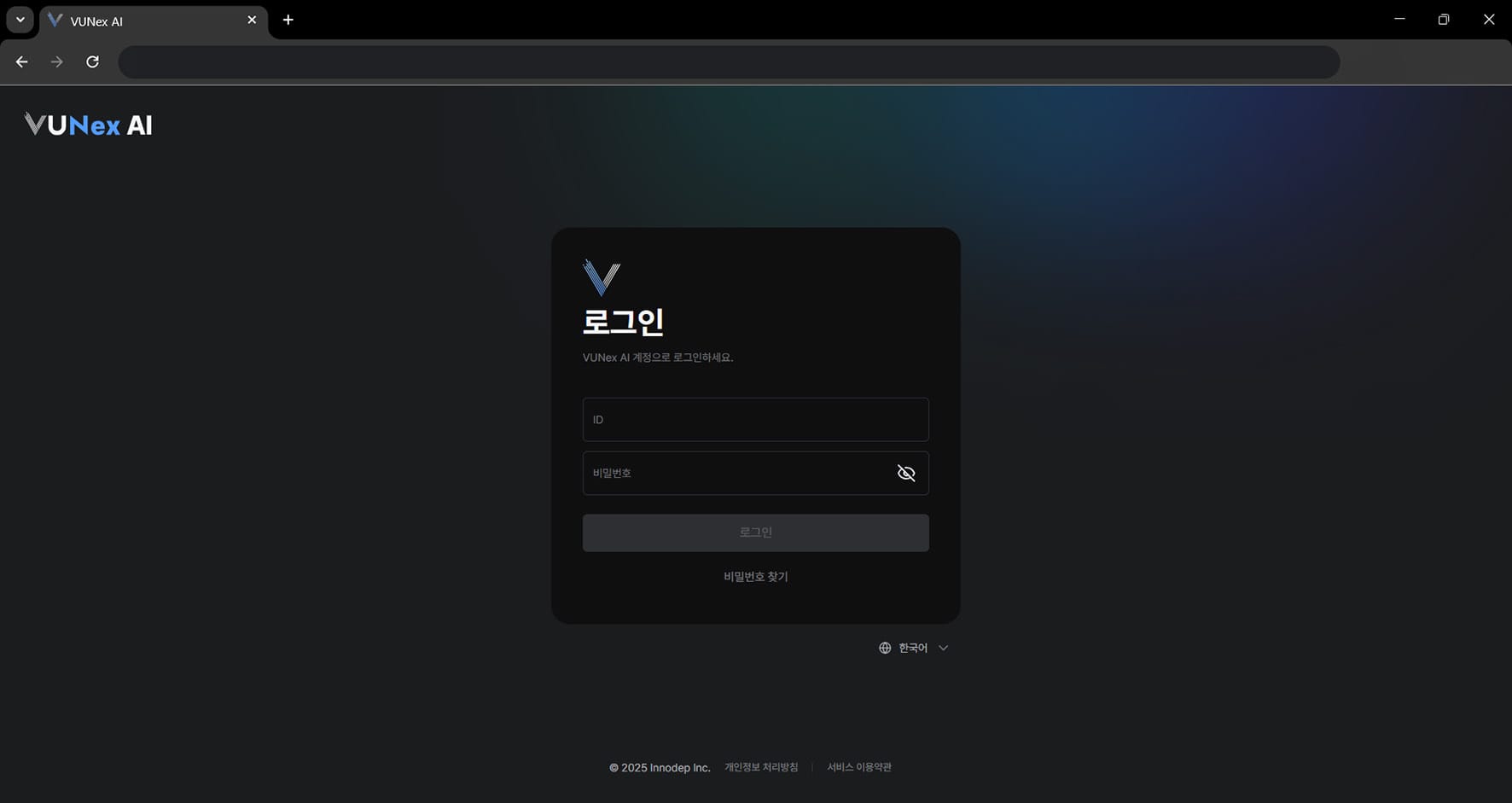 Figure 1-1. VUNex AI Login Screen
 - Enter your information[ID]: Enter your ID. [Password]: Enter your password.
- Click [Login]Access the system.
Note
Click [Forgot Password] to set a new password.
Click [Korean] to set the system language.
Initial Login
Access the system for the first time after installation.
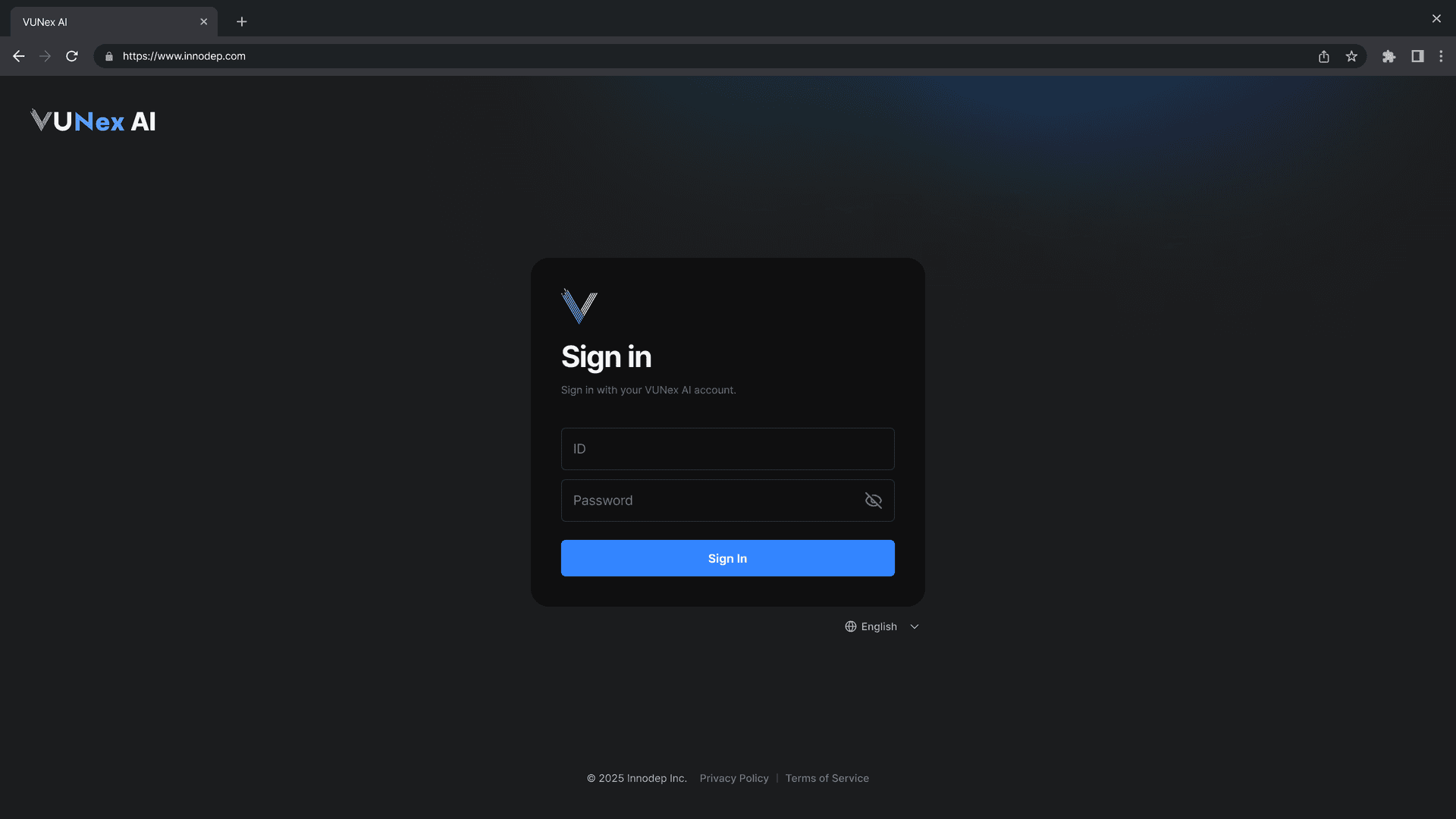
Figure 1-1a. Initial Login Screen
- Enter the system URL in your web browserAccess using the IP address or domain configured during installation.
- Log in with the default account[ID]: admin [Password]: admin
- Click the [Sign In] button
Warning
The [Forgot password] feature is not available during initial login.
For security, be sure to change your password after your first login.
Change Default Password
Change the default password for security.
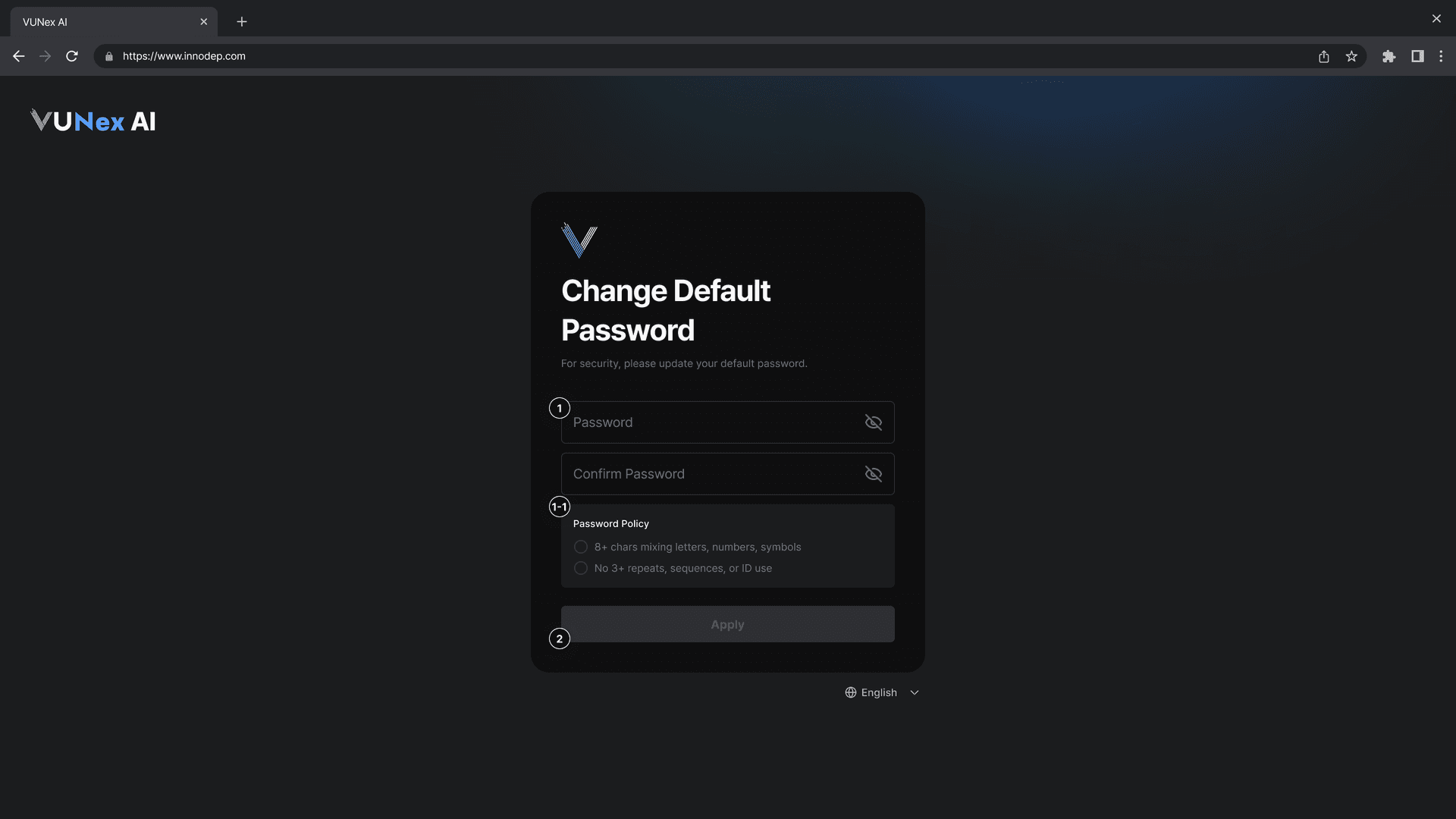
Figure 1-1b. Change Default Password Screen
- Enter your new password[Password]: Enter your new password. [Confirm Password]: Re-enter the same password.
- Click the [Apply] button
Password Policy
- 8+ chars mixing letters, numbers, symbols
- No 3+ repeats, sequences, or ID use
Security Questions Setup
Set up security questions for password recovery.
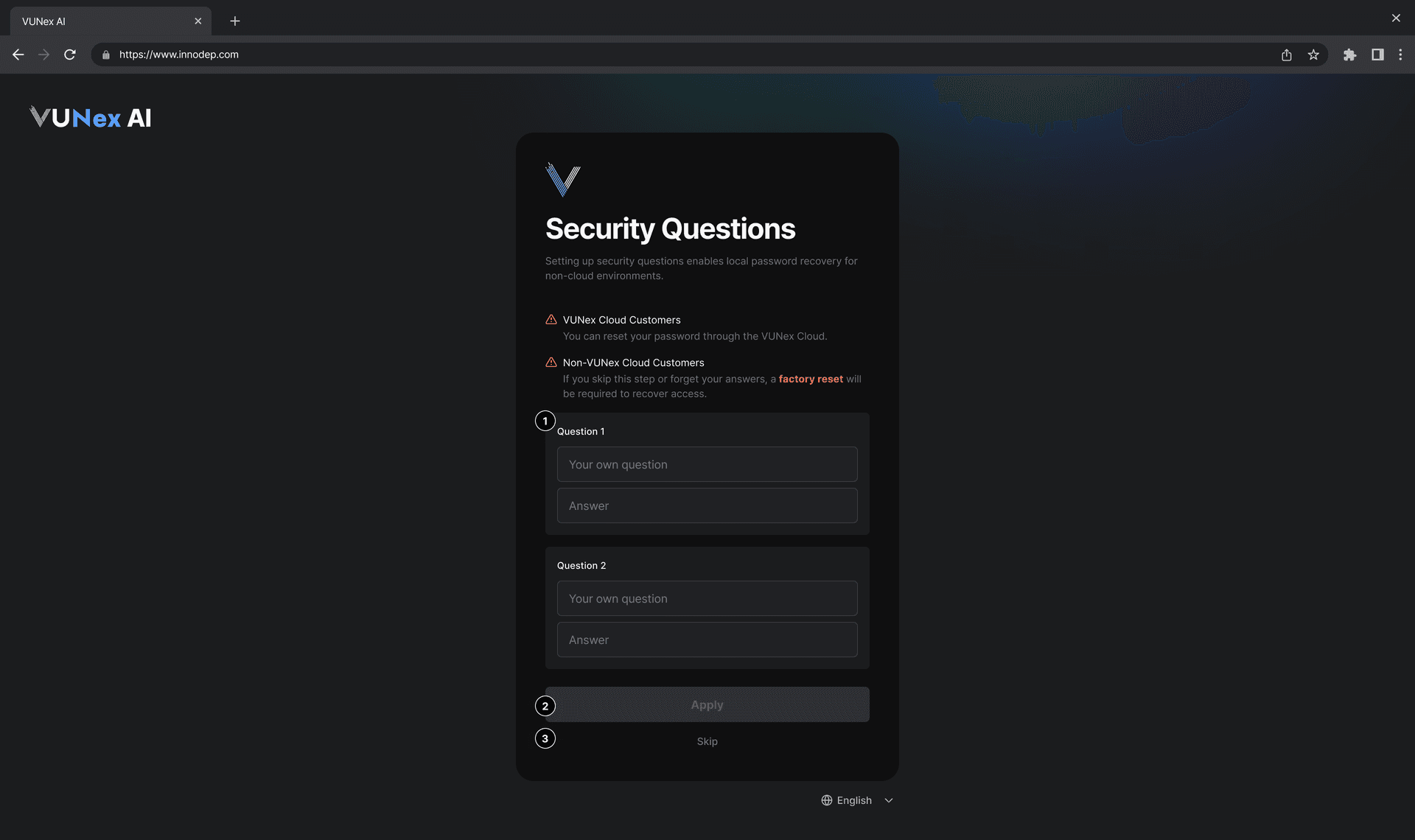
Figure 1-1c. Security Questions Setup Screen
- Set up Security Question 1[Question 1]: Enter your question. [Answer]: Enter your answer.
- Set up Security Question 2[Question 2]: Enter your second question. [Answer]: Enter your answer.
- Click [Apply] or [Skip] button
VUNex Cloud Customers
You can reset your password through the VUNex Cloud.
Non-VUNex Cloud Customers
If you skip this step or forget your answers, a factory reset will be required to recover access.
Forgot Password
Instructions for recovering your password if you forgot it.
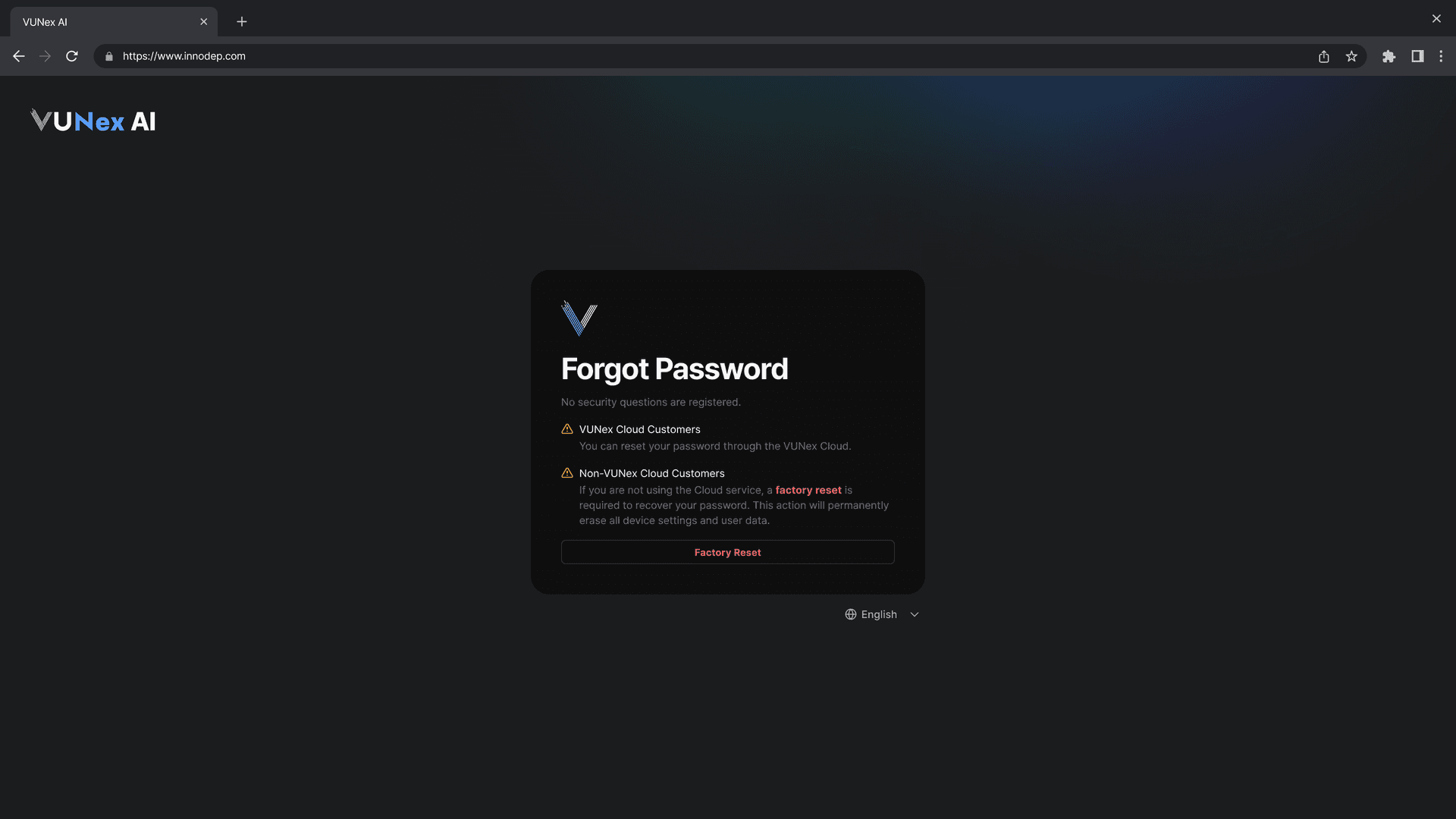
Figure 1-1d. Forgot Password Screen
VUNex Cloud Customers
You can reset your password through the VUNex Cloud.
Non-VUNex Cloud Customers
If you are not using the Cloud service, a factory reset is required to recover your password.
This action will permanently erase all device settings and user data.
- Click [Forgot password] on the login screen
- Click the [Factory Reset] buttonWarning: This will delete all settings and data.
New Password (Recovery)
Set a new password after security question verification.
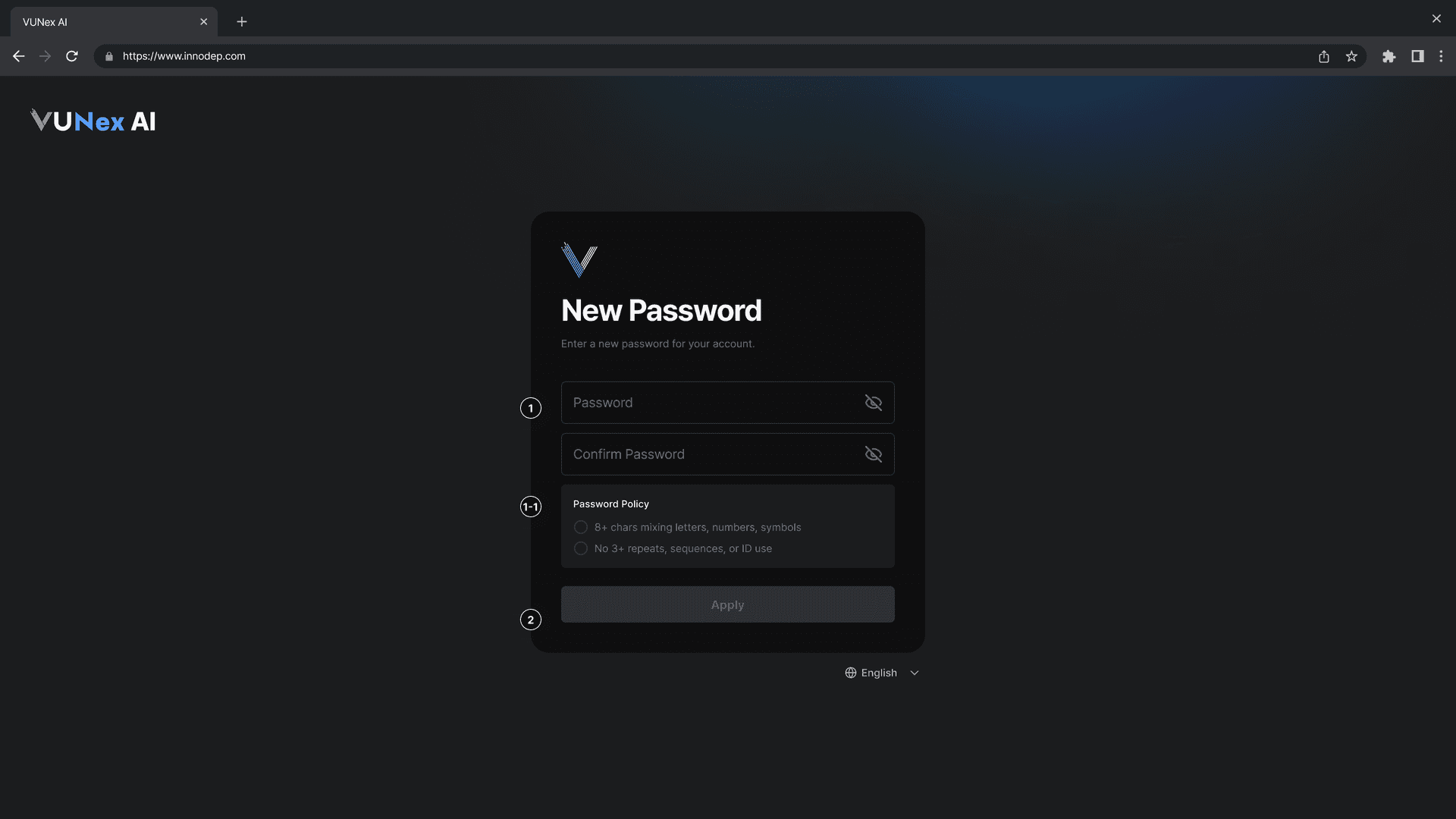
Figure 1-1e. New Password Screen
- Enter your new password[Password]: Enter your new password. [Confirm Password]: Re-enter the same password.
- Click the [Apply] buttonYour new password will be applied and you will be redirected to the login screen.
Password Policy
- Minimum 8 characters mixing letters, numbers, and symbols
- No 3+ repeats, sequences, or ID use
Logout
Log out of the system.
- Click the [Sign out] button at the bottom left of the screen.
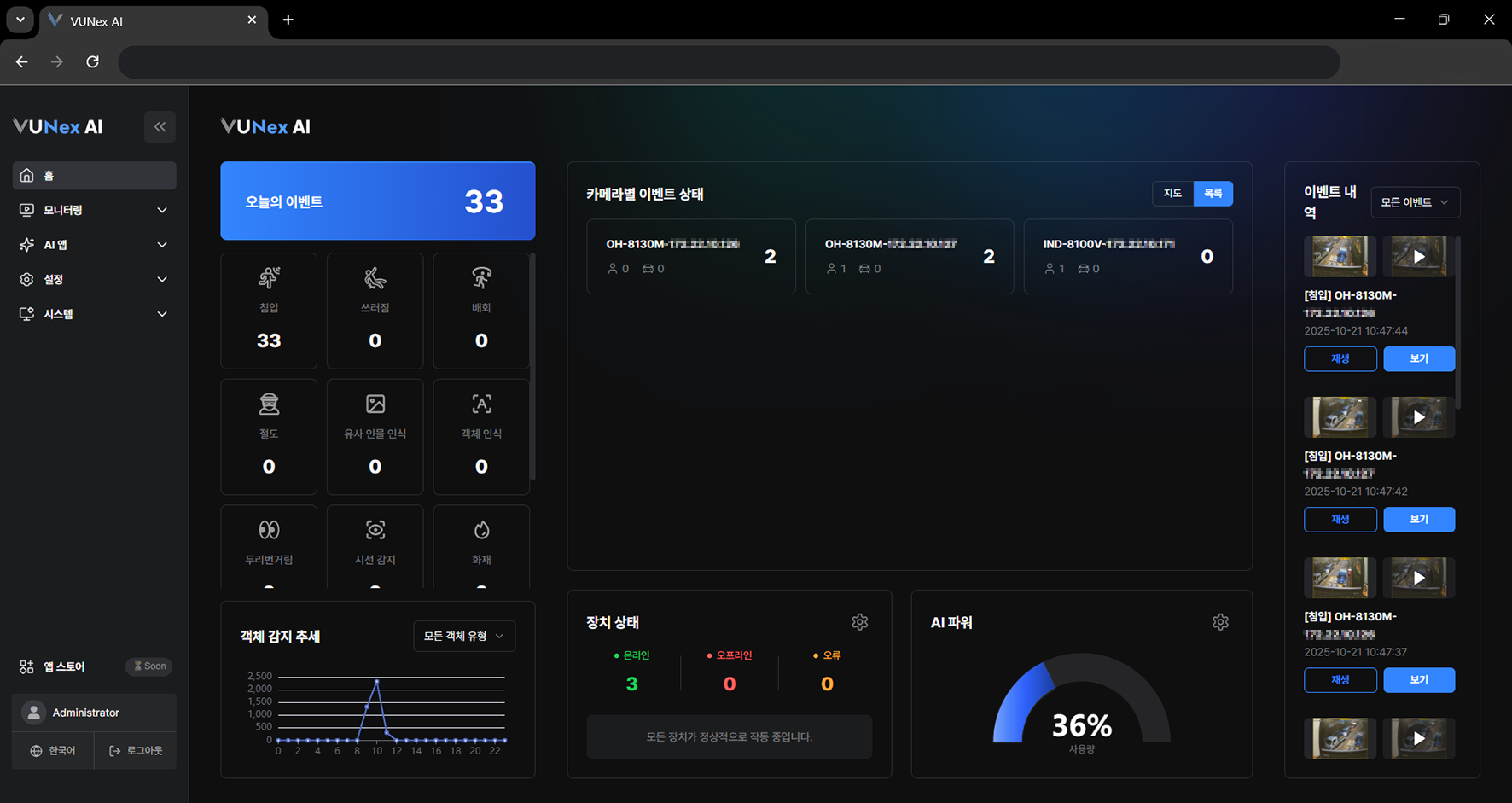 Figure 1-2. Logout Button
 - You will be logged out and returned to the Signin screen.
Main Screen
View the screen and menus.
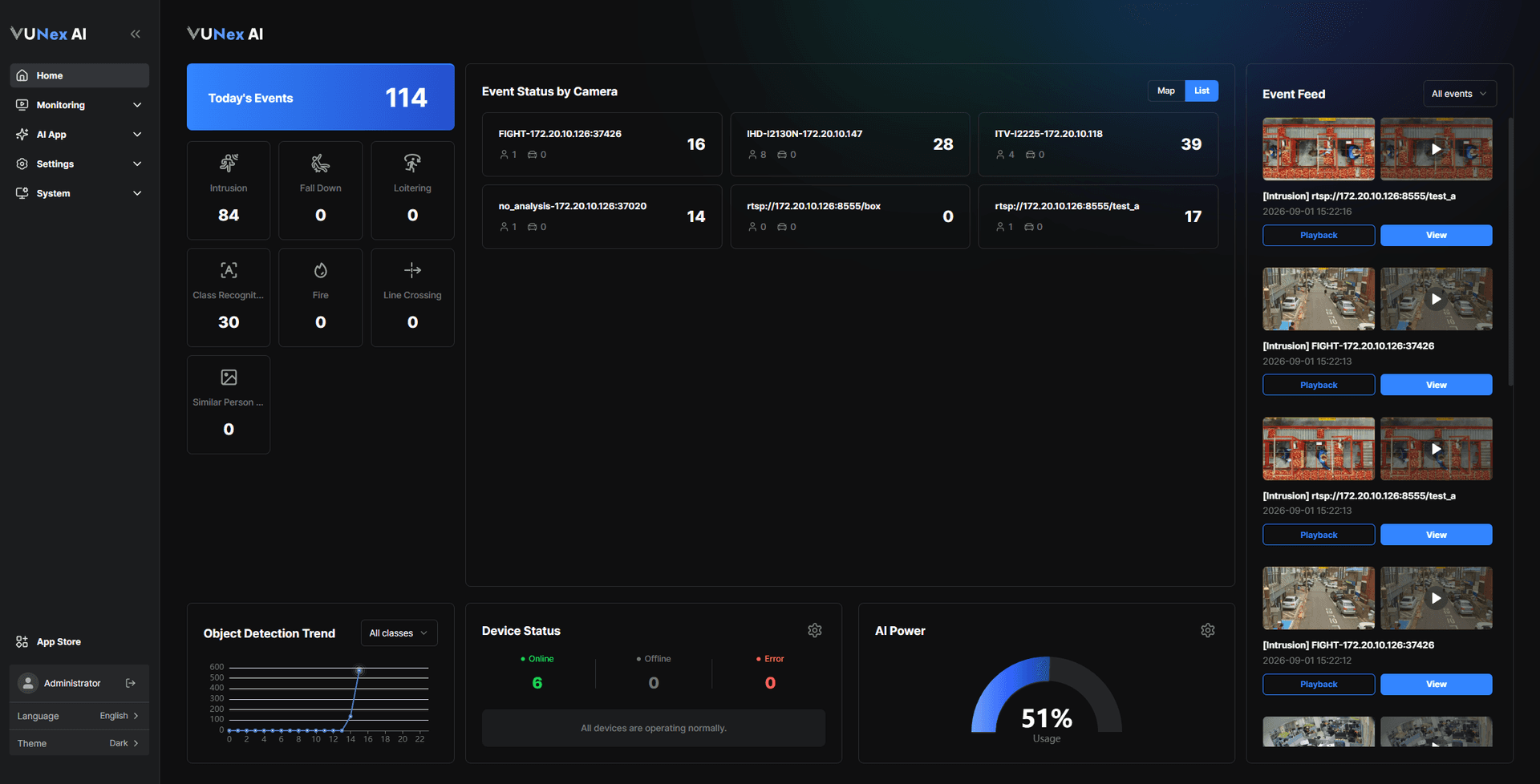
Figure 1-4. Main Menu Structure
| No. | Menu | Description |
|---|---|---|
| ❶ | Home | Goes to the Home screen. |
| ❷ | Monitoring | Check live and recorded video. |
| ❸ | AI App | Configure AI events and services. |
| ❹ | Settings | Configure the system. |
| ❺ | System | Manage the system, such as updates and reset. |
| ❻ | App Store | Manage the AI model, AI apps and AI Power usage. |
Language Settings
Change the system language.
- Click the language selection button on the login screen
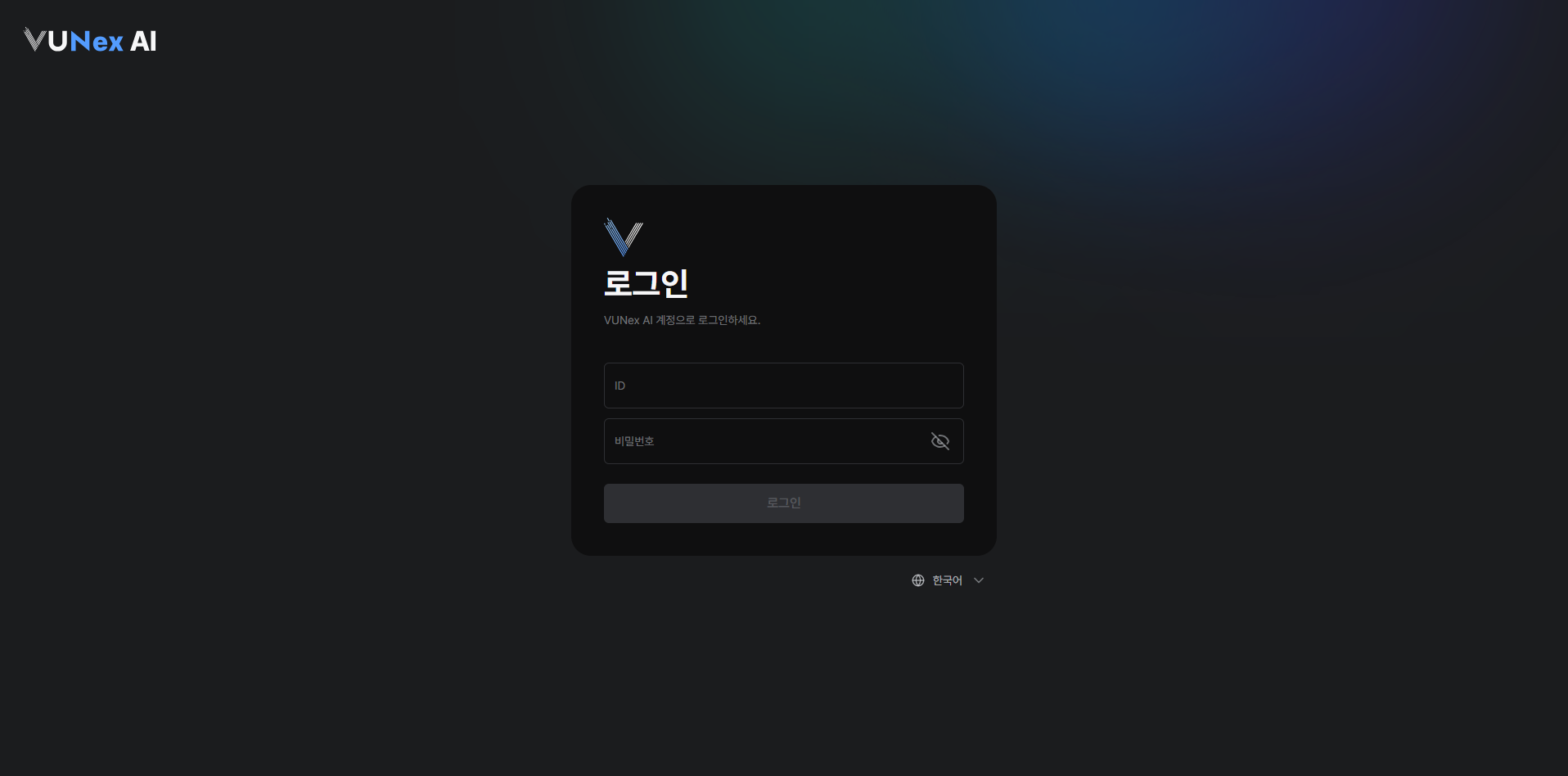 Figure 1-3. Language Settings
 - Select your preferred languageYou can choose from Korean, English, Japanese, or Spanish.
Note
After login you can also change the language with [Language] in the profile area at the bottom of the left menu.
Home Screen
View the home screen.
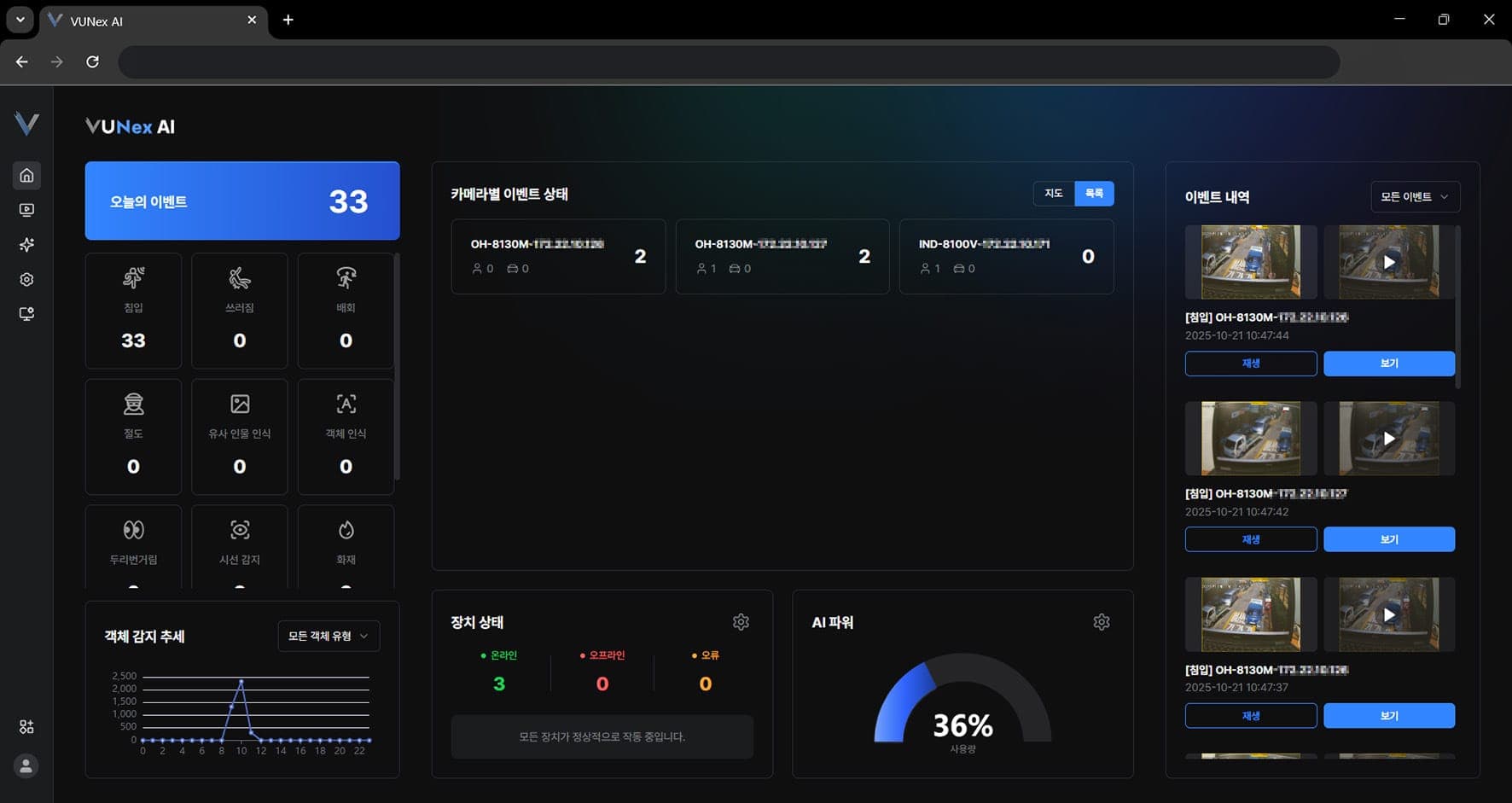
Figure 1-6. Home Screen
| No. | Item | Description |
|---|---|---|
| ❶ | Device status | Check the number of online, offline and error devices. |
| ❷ | Today's events | Check today's events by type. |
| ❸ | Object detection trend | Check the detection trend per interested object. |
| ❹ | Event feed | Check the list of recent events. |
| ❺ | AI Power | Check the usage and total of AI analysis resources. |
| ❻ | Event status | Check where events occurred as a map, a list or statistics. |
Note
When accessing the system for the first time, you need to add a device.
For more information, see Settings - Adding a Device.