01
Sign In
This section explains how to sign in to and out of the VUNex Hub client.
Signing in
Sign in to the VUNex Hub client with the server connection information and your account.
![[캡처 필요: 로그인 화면 기본 상태]](/_next/image?url=%2Fmanual%2Fvunexhub%2Fimages%2F1779431549190_Sign_In_ko.jpg&w=1920&q=75&dpl=dpl_9dyqtFAdagPhFoBcUQXwGffUzrM7)
- Enter the server information.
- [Server] : Enter the IP address of the Hub server to connect to.
- [Port] : Enter the port number of the Hub server.
- Enter your account information.
- [ID] : Enter your account ID.
- [Password] : Enter your password.
- [Initial Account Information] : For the initial login, the default username and password are admin/admin.
- Click [Sign In].After sign-in is complete, you are taken to the VUNex Hub main screen (Monitoring). If you signed in with the default account (admin / admin), the [Change Default Password] screen appears first.
- If you signed in with the default account, set a new password.
- [Password] : Enter a new password.
- [Confirm Password] : Enter the new password again.
- The [Password Policy] items below the fields turn into check marks as each condition is met. Click [Apply] once all conditions are met.
- After the password is changed, you are signed in immediately and taken to the Monitoring screen. You do not need to sign in again.
- Click [Back to the Sign In] to cancel and return to the sign-in screen. You will be asked to change the password again at the next sign-in.
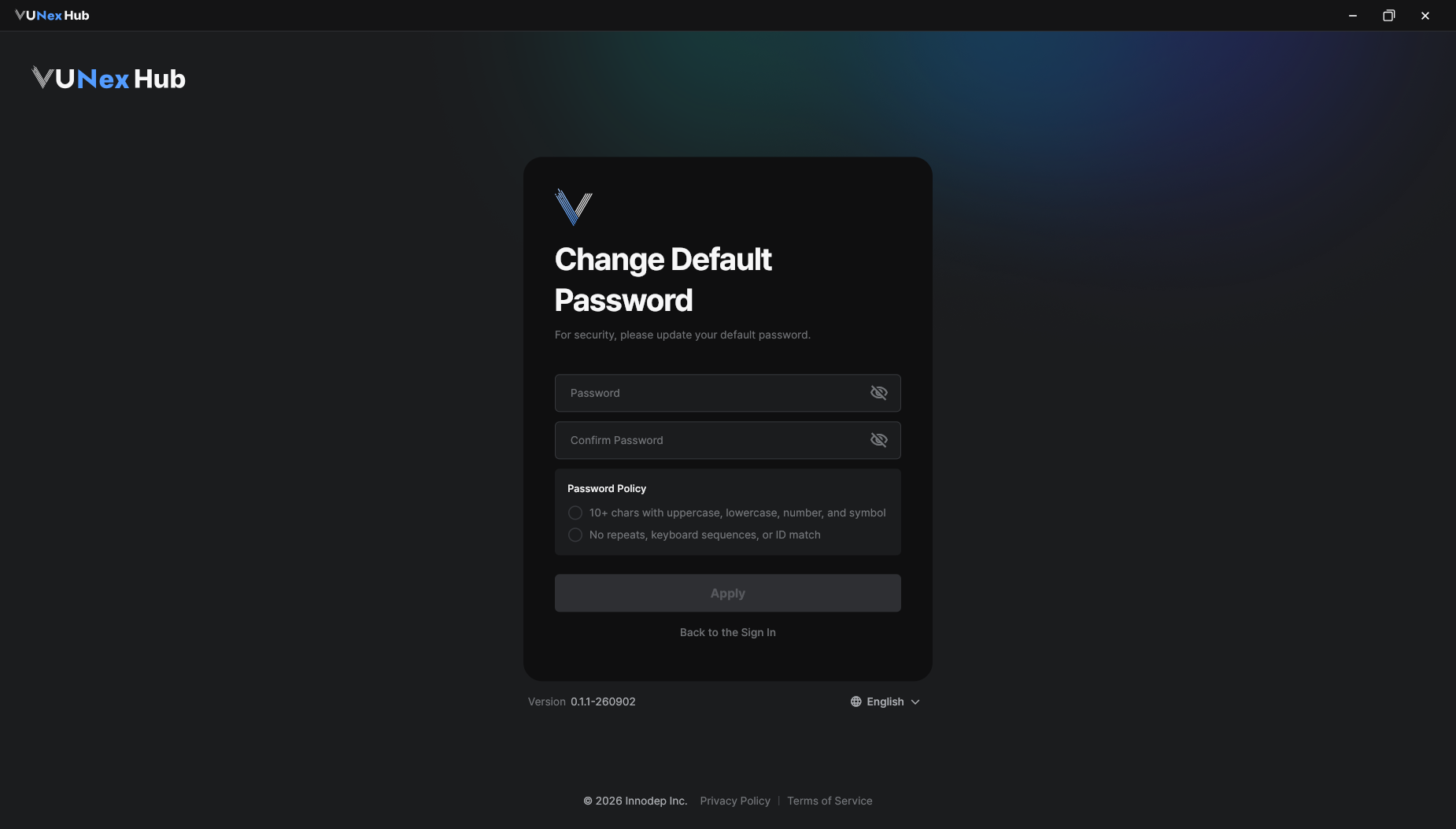 기본 비밀번호 변경 화면
Note
Passwords must meet all of the following policy rules. (The same policy applies to My Account > Change Password.)
- 10 or more characters including at least one uppercase letter, lowercase letter, number, and symbol
- No character repeated 3 or more times, no keyboard sequence of 4 or more characters, and no 3 or more consecutive characters of the ID
Note
- To change the language, click the language menu at the bottom of the sign-in screen and choose 한국어, English, 日本語, or Español.
Troubleshooting sign-in
Explains what to do if you forgot your password or your account is locked after repeated sign-in failures.
- If you forgot your password, click [Forgot password?] on the sign-in screen.Recovery steps are shown by account type.
- Manager / Viewer : Contact your administrator to reset the password.
- Administrator : Ask another administrator to reset the password, or contact Customer Support (Email / Phone) shown in the window.
- If you enter the wrong password several times, check the remaining attempts.
- From the third failure, the number of attempts left before lockout appears below the fields.
- When it reaches 0, the account is locked and the remaining time (in minutes) until it unlocks is shown. Try again after that time has passed.
- If the message "Cannot connect to the server" appears, check the server information.Check that the server IP address and port are correct, the Hub server is running, and the network connection is working, then sign in again.
Exploring the header menu
Click the More options(▾) button at the top right of the screen to open a menu for changing the language and theme, and signing out.
 버튼을 클릭해 열린 메뉴 (프로필 정보, 언어, 테마, 전원, 로그아웃)]](/_next/image?url=%2Fmanual%2Fvunexhub%2Fimages%2FMonitoring_en_0914.jpeg&w=1920&q=75&dpl=dpl_9dyqtFAdagPhFoBcUQXwGffUzrM7)
- Click the [More options] (▾) button at the top right of the screen.The [Profile] area at the top of the menu shows your display name, the connected server [IP], the client [Version], and the [Last sign in] time.
- Change the [Language] and [Theme].
- [Language] : Choose from 한국어, English, 日本語, or Español. The screen language changes immediately.
- [Theme] : Choose [Dark mode] or [Light mode].
Note
On a Linux Hub device, the menu also shows [Power] ([Reboot] / [Shutdown]). You must re-enter your ID and password to run it.
Signing out
End the current session and return to the sign-in screen.
- Click the [More options] (▾) button at the top right of the screen.
- Click [Sign out].A confirmation window appears.
- Click [OK].You are signed out and returned to the sign-in screen.
Note
The Hub client does not close when you log out. You can log in again immediately.