04
Search
This section explains how to search data across multiple modes and how to launch a quick search from the header.
Getting started with Search
Select a mode, set conditions, and run a search from the common Search screen.
![[캡처 필요: 검색 화면 기본 구성 - 좌측 모드 / 상단 조건 / 중앙 결과 / 우측 상세]](/_next/image?url=%2Fmanual%2Fvunexhub%2Fimages%2F1779777400539_Search_-_Default_ko.png&w=1920&q=75&dpl=dpl_9dyqtFAdagPhFoBcUQXwGffUzrM7)
- Click [Search] in the left menu to open the Search screen.The Search screen opens with [AI] mode selected by default. Click [AI], [AC], or [FR] at the top to switch modes.
- Set conditions to narrow down the search results.When you set conditions in the condition area, you can see results that match those conditions. The condition fields vary by mode—see the guide for each mode for details.
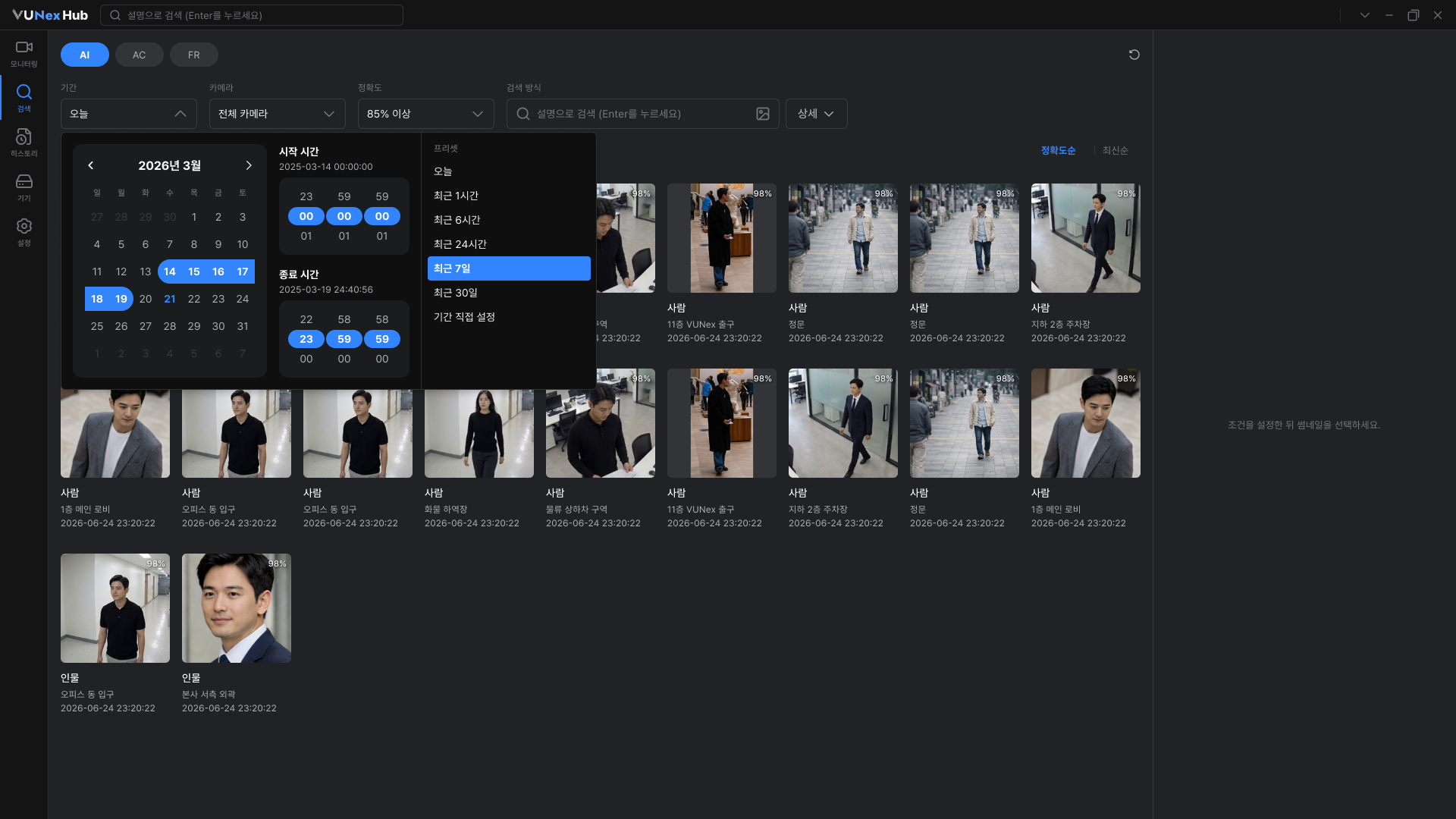
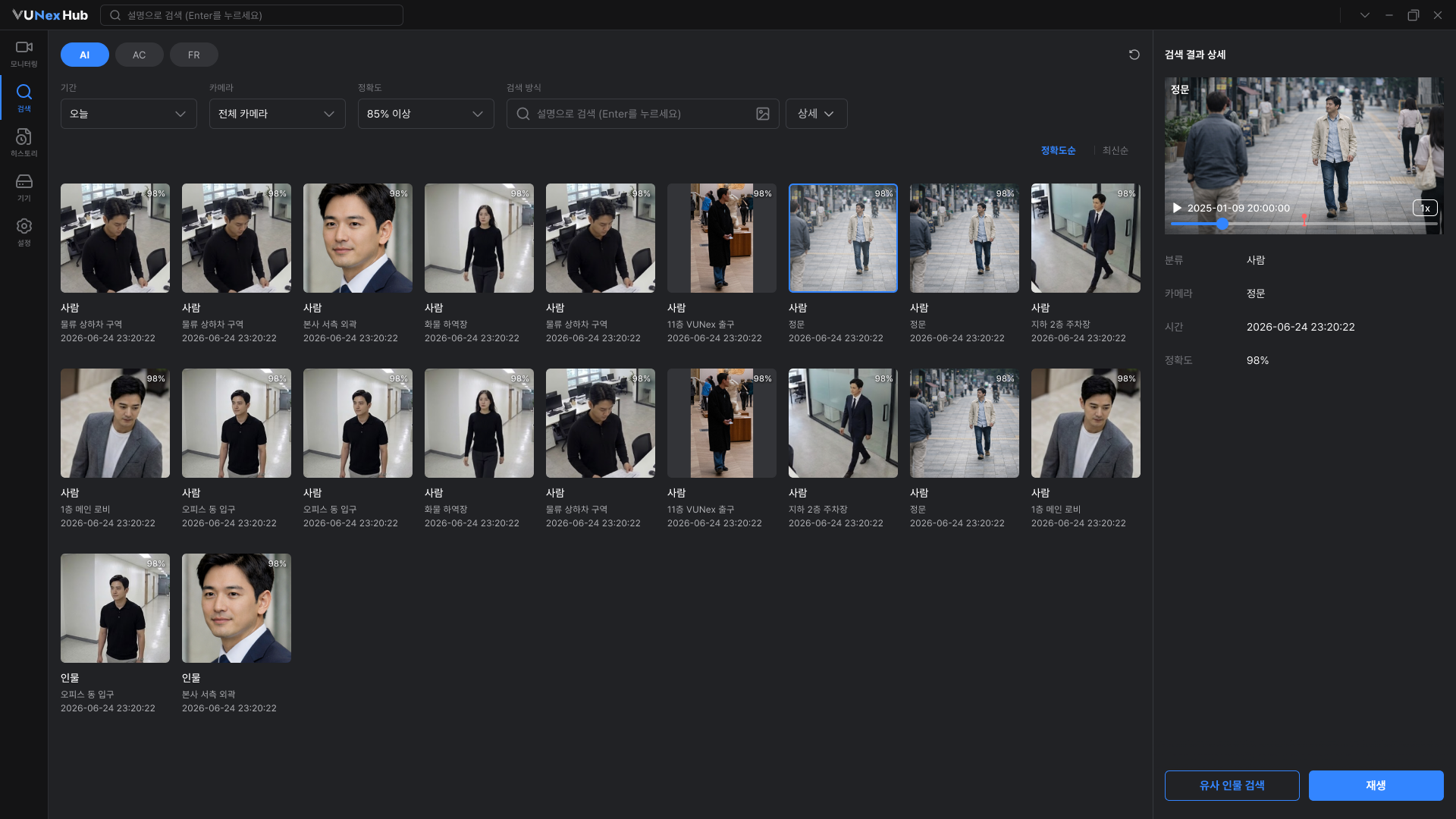
- Click a result card to review its details.The [View Result Detail] area opens on the right. The metadata items shown vary by search mode—see the guide for each mode for details.
- Click the X on a Chip at the top of the result area to remove a condition.The condition is removed and the results update immediately. Set new conditions and run the search again to refresh the results.
Note
- If the search service is disabled in the VUNex AI module, search is not available. Ask the system administrator to verify the VUNex AI settings.
- Only English letters and spaces can be entered.
Quick search from the header
![[캡처 필요: 헤더 AI Quick Search 바 - Default / Focus(최근 검색어) / Input 상태]](/_next/image?url=%2Fmanual%2Fvunexhub%2Fimages%2F1779777557753_Search_-_Header_ko.png&w=1920&q=75&dpl=dpl_9dyqtFAdagPhFoBcUQXwGffUzrM7)
- Enter a natural-language query in the header search bar and press Enter.The app moves to the Search screen and displays the results. Default conditions on entry are Today, All Cameras, and [AI] mode.
- Focus the search bar to reuse a term from [Recent Searches].Up to five recent terms are shown (duplicates removed). Clicking an item fills the search bar with that term, and pressing Enter runs the search.
Note
Only English letters and spaces can be entered.
Searching with AI
- Enter a natural-language description in the [Search By] field and press Enter to run a text search.
- Examples: blue top man, person with red backpack.
- Results are sorted by [Accuracy] by default. Click [Newest] to sort by most recent.
![Enter a natural-language description in the **[Search By]** field and press **Enter** to run a text search.](/manual/vunexhub/images/1779777569950_Search_-_prompt_ko.png)
- Click the image icon in the [Search By] field to upload an image and find similar persons.Drag and drop an image into the upload area, or click to select a file. After upload, the search runs automatically using the uploaded image as the reference.
![Click the image icon in the **[Search By]** field to upload an image and find similar persons.](/manual/vunexhub/images/1779777721284_Search_-_Similar_person_search_ko.png)
- Click [Detail] in the condition area to open the [Detail Search] window and search by attributes or events.Set values for [Class], [Event], [Gender], [Top], [Bottom], [Hat], and [Carried Item], then click [Search]. Items left as Any are not applied as filters.
![Click **[Detail]** in the condition area to open the **[Detail Search]** window and search by attributes or events.](/manual/vunexhub/images/1779777683310_Search_-_Attribute_search_ko.png)
- Click a result card to open the [View Result Detail] area and run follow-up actions.
- [Similar Person Search] : Search again using the selected image.
- [Playback] : Open the camera's single playback view.
Note
- [Detailed Search] is displayed when a [Class] value is selected.
- For best image search accuracy, use a photo where only one person is clearly visible and the full body is shown.
- Image upload supports .jpg, .png, and .jpeg formats, up to 5MB per file.
Searching access events (AC)
![[캡처 필요: AC 검색 - 조건(기간/장치/이벤트) + 결과 카드 + 검색 결과 상세 영역]](/_next/image?url=%2Fmanual%2Fvunexhub%2Fimages%2F1779777733512_Search_-AC_ko.png&w=1920&q=75&dpl=dpl_9dyqtFAdagPhFoBcUQXwGffUzrM7)
- Switch to [AC] mode and set [Time Range], [Device], and [Event].
- [Time Range] : Today (default)
- [Device] : All (default), multiple selection supported
- [Event] : All (default), multiple selection supported
- When the search is executed, please check the result card.Each result card shows the event name, user name, device name, and time.
- Click a result card to review the access details in the [View Result Detail] area.The area shows the event name, [User Group], [User], [Door], [Device] name, and time. If a registered face image exists, it appears next to the cropped face captured at the event.
![Click a result card to review the access details in the **[View Result Detail]** area.](/manual/vunexhub/images/1779777745658_Search_-AC_result_ko.png)
Searching by face (FR)
![[캡처 필요: FR 검색 - 사용자 이름 검색 / 얼굴 이미지 검색 창 / 검색 결과 상세]](/_next/image?url=%2Fmanual%2Fvunexhub%2Fimages%2F1779777942378_Search_-FR_ko.png&w=1920&q=75&dpl=dpl_9dyqtFAdagPhFoBcUQXwGffUzrM7)
- Switch to [FR] mode and set [Time Range], [Camera], and [Accuracy].
- [Time Range] : Today (default)
- [Camera] : All cameras (default)
- [Accuracy] : 80% or higher (default), range 70–100
- Enter a user name in the [Search By] field and press Enter to search by name.Focusing the field opens a guide panel with Registered users (up to 5), Unregistered users, and [Recent Searches]. Click any list item to fill the field automatically.
- Click a result card to open the [View Result Detail] area and run follow-up actions.The area shows the [User Type], [User], [Camera], and [Time] values.
- [Face Image Search] : Search again using the selected face image.
- [Playback] : Open the camera's single playback view.
![Click a result card to open the **[View Result Detail]** area and run follow-up actions.](/manual/vunexhub/images/1779777957566_Search_-FR_result_ko.png)
Note
- The result card displays the user type before the user name. Faces not registered in the user list are displayed as Unregistered User.
- Face image search and face matching threshold features will be supported in a future update.
Search from the Recorded Video Playback Screen
Crop a specific area directly from the playback video to search for similar persons.
![[캡처 필요: 재생 화면 Image Crop 모드 - 사각형 크롭 영역 + Search/Undo/Out 메뉴]](/_next/image?url=%2Fmanual%2Fvunexhub%2Fimages%2F1779777969102_Playback_Single_View_Menu_ko.png&w=1920&q=75&dpl=dpl_9dyqtFAdagPhFoBcUQXwGffUzrM7)
- Click [⋮] (more) at the right of the play controls and choose [Similar Person Search].The video pauses and switches to area selection mode. Areas outside the video cannot be clicked, and the mouse pointer changes.
- Drag on the video to draw a rectangular area to search.When you release the mouse, the cropped area is fixed and the menu appears.
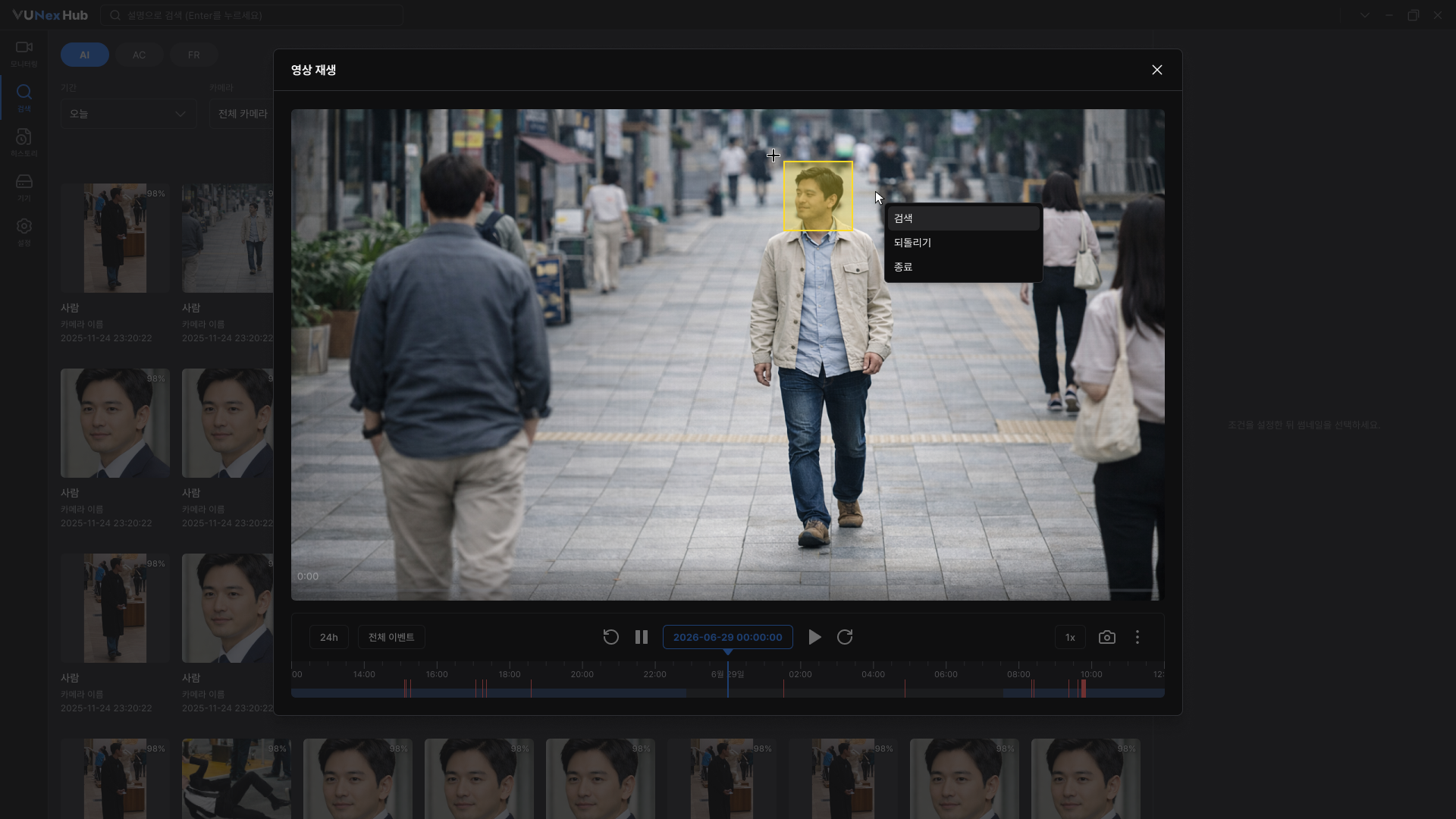
- Choose an action from the menu that appears.
- [Search] : Run a search using the cropped image. The app moves to the Search screen automatically.
- [Undo] : Cancel the crop and return to the area selection state.
- [Out] : Exit the area selection mode and return to the playback screen.
Note
The [Face Image Search] menu works in the same way and will be supported in a future update.