04
Searching Loss Status
How to search recording loss with the conditions you need and read the results.
Basic search
Choose conditions on the left, then search to refresh the results on the right.
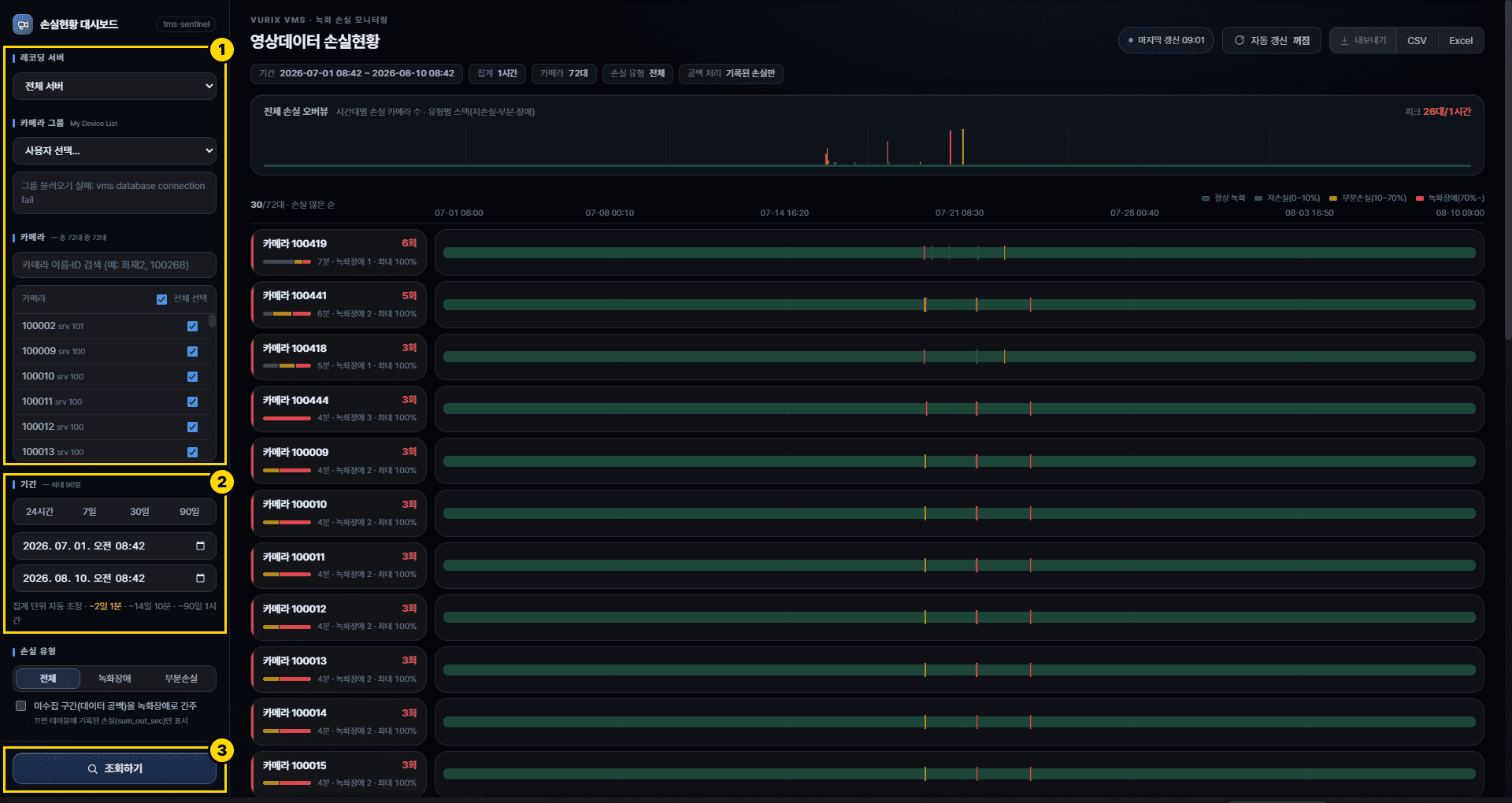
- Select servers or cameras (optional)Pick specific cameras if needed. If groups appear, you can select several cameras at once. Leaving them unselected searches all cameras.
- Select periodSet the date and time range. Use [24 hours], [7 days], [30 days], or [90 days] for a quick choice, or enter the start and end directly. You can view up to 90 days at once.
- Run searchClick [Search]. The overall loss overview and the camera list appear on the right.
Filter by loss type
Use this when you want to see only recording faults or only partial loss.
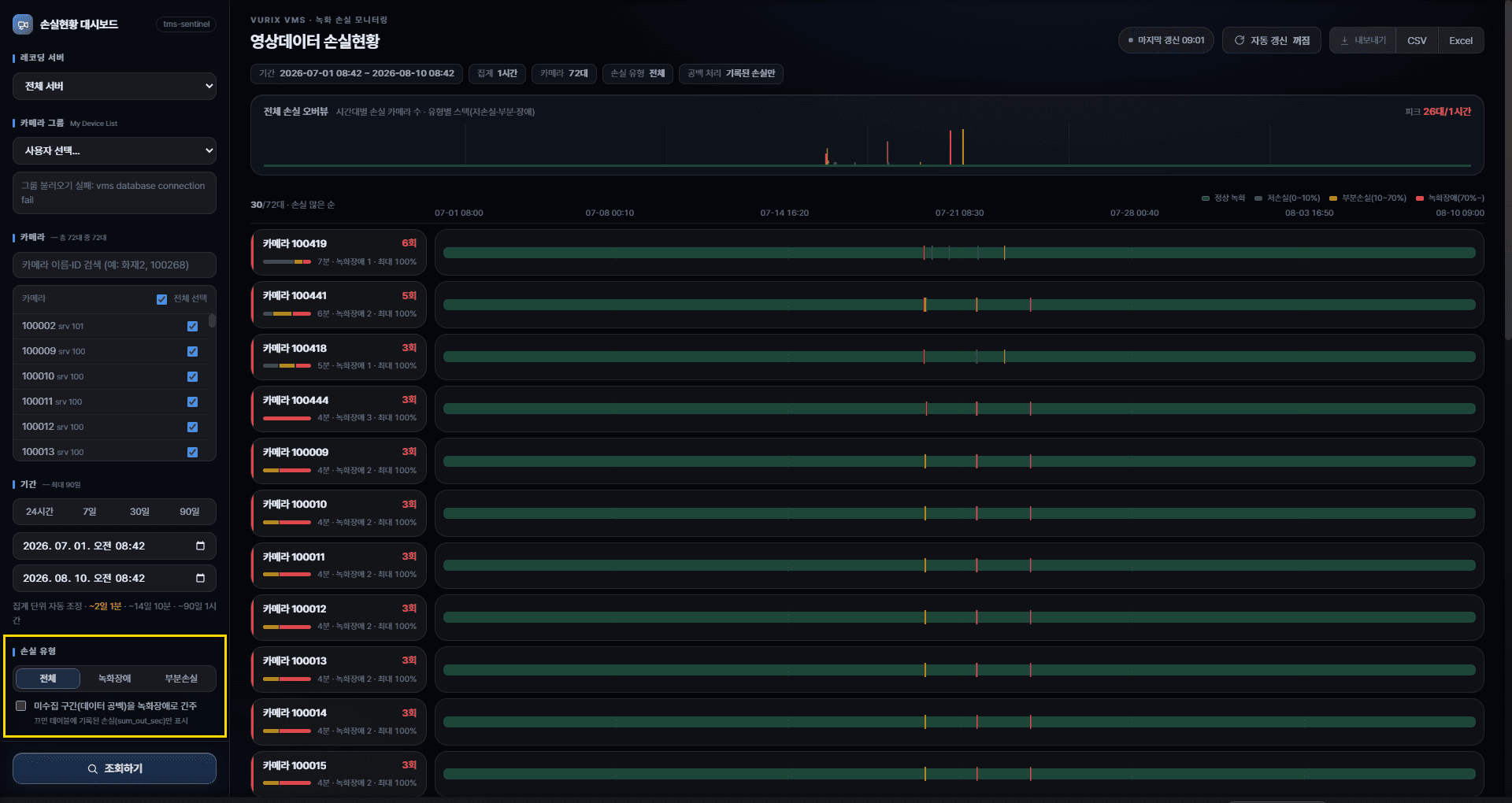
Note
- [All] — shows every interval that has loss.
- [Recording fault] — shows only severe loss intervals.
- [Partial loss] — shows only intervals milder than a recording fault.
Include uncollected intervals (optional)
An option that decides whether times with no statistics count as loss.
It is off by default. Turn it on only when needed.
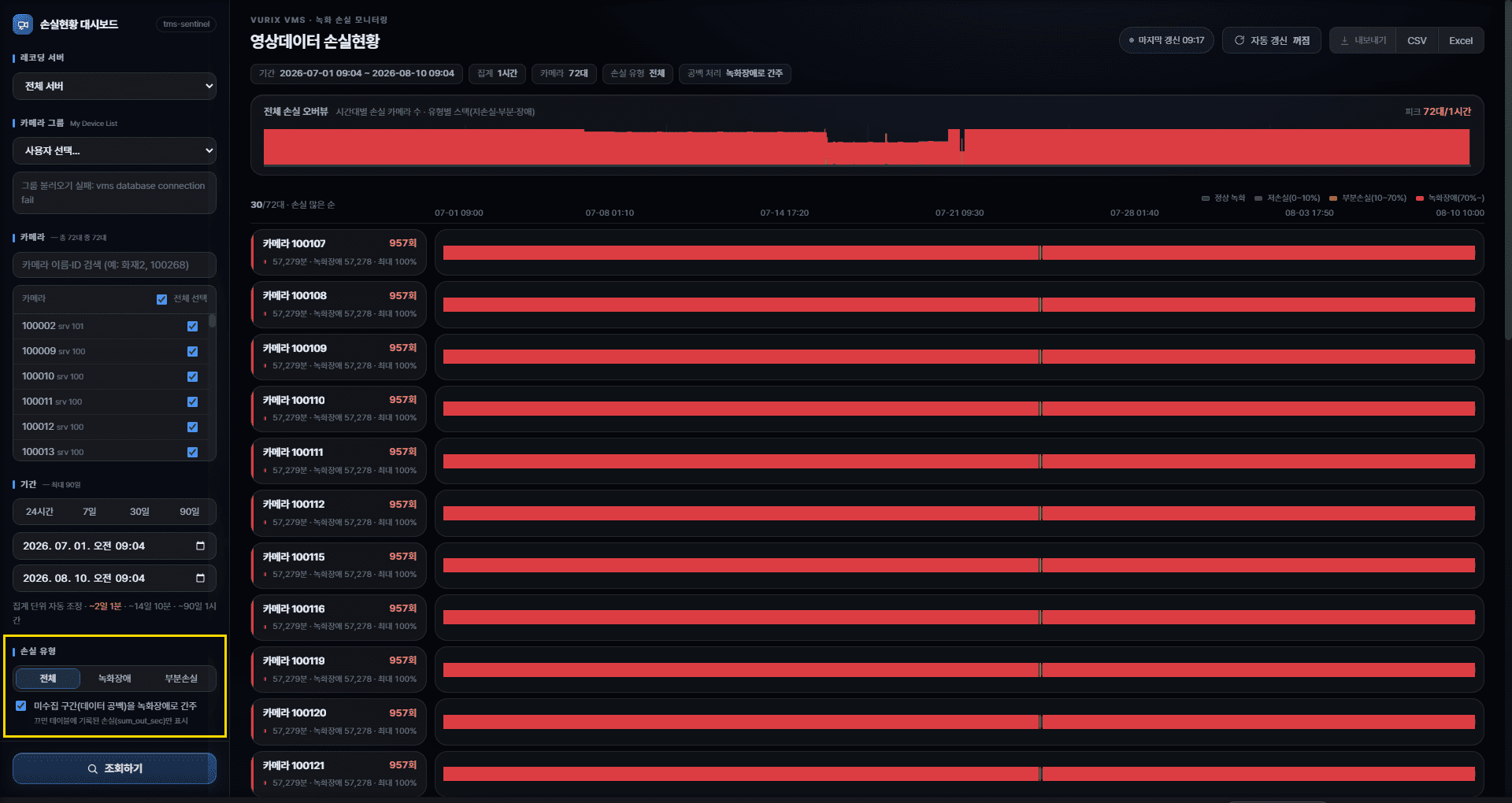
Note
- Turning on [Treat uncollected intervals as recording faults] can add many more red intervals. Leave it off for everyday checks.
- When it is off, only recorded loss is shown.
Reading the loss charts
Two charts show the overall trend over time and the loss of each camera.
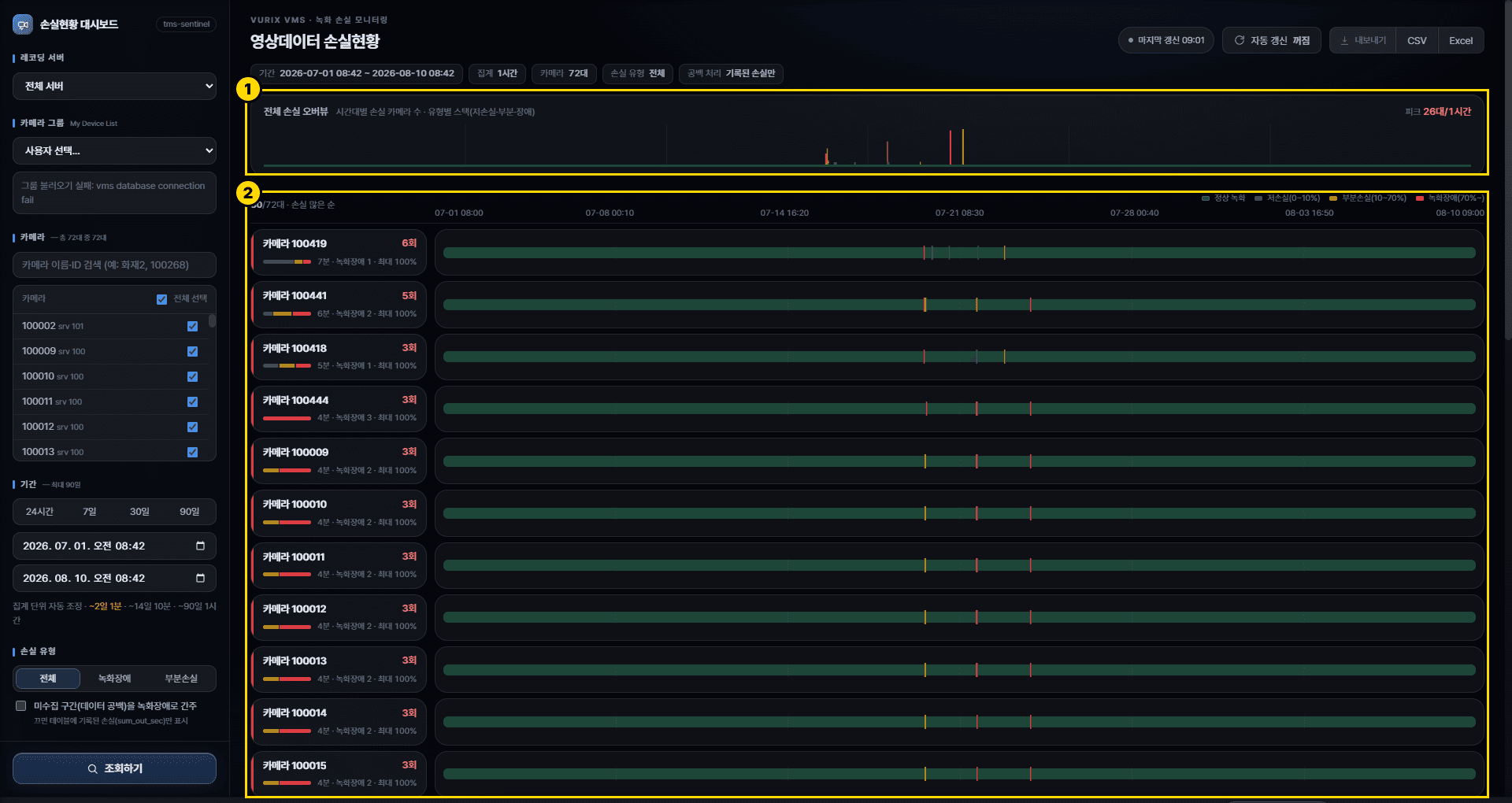
- Overview chartShows how many cameras had loss over time. Useful for finding when problems were concentrated.
- Per-camera chartEach row in the list shows one camera's loss over time as bars. Scroll down to load more cameras.
What to look at
- In the overview, taller bars mark the times when loss was concentrated.
- The Peak value on the right is the highest number of cameras with loss per aggregation unit.
- Scroll down the camera list to load more cameras.
Viewing camera details
Select a camera to see the intervals where loss continued, with their times.
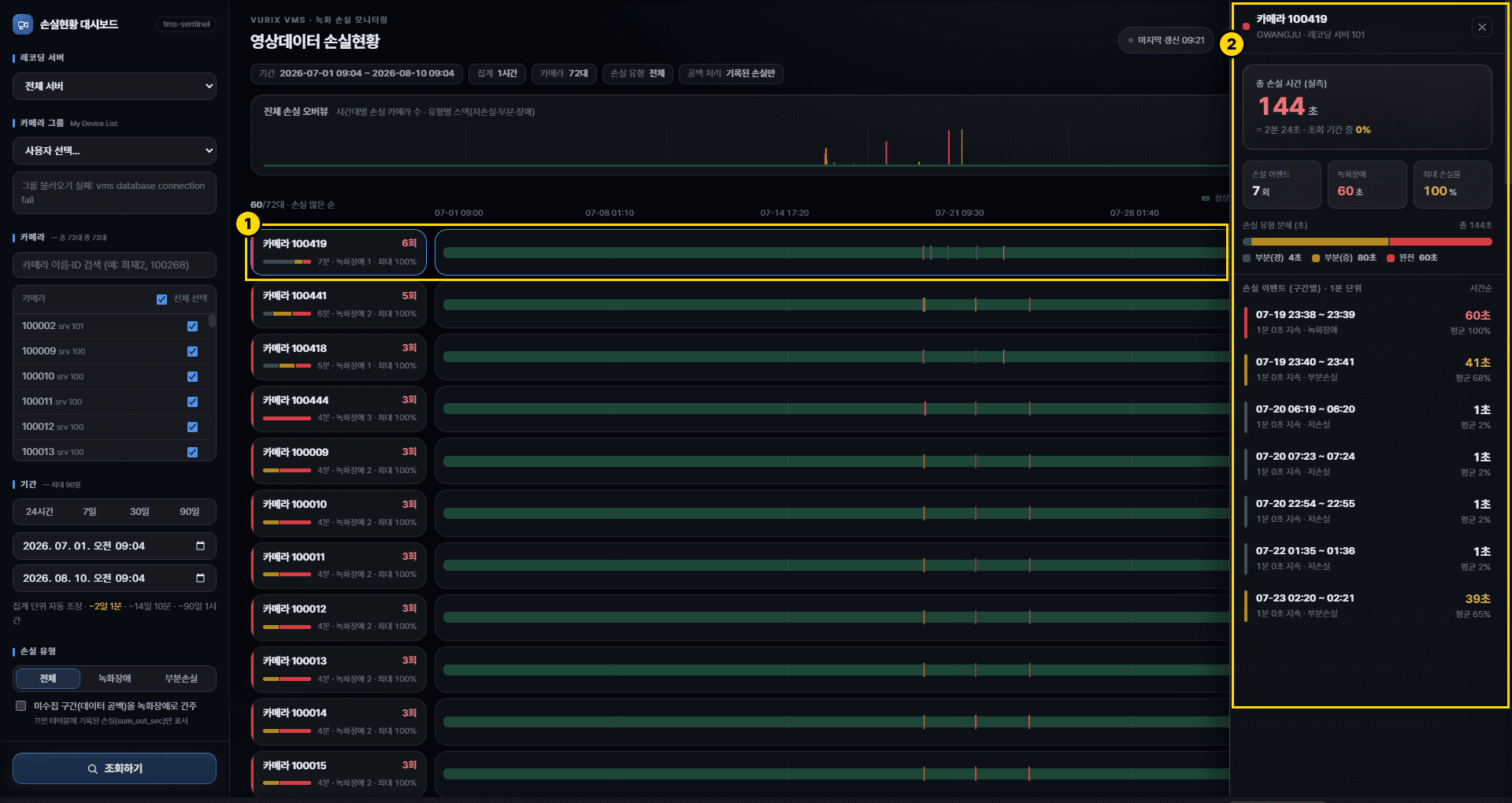
- Select a camera in the listClick the camera you want to inspect.
- Review the loss intervalsCheck from when to when the loss continued.
Using auto refresh
Re-runs the search periodically while the page stays open. The current state is shown on the button.
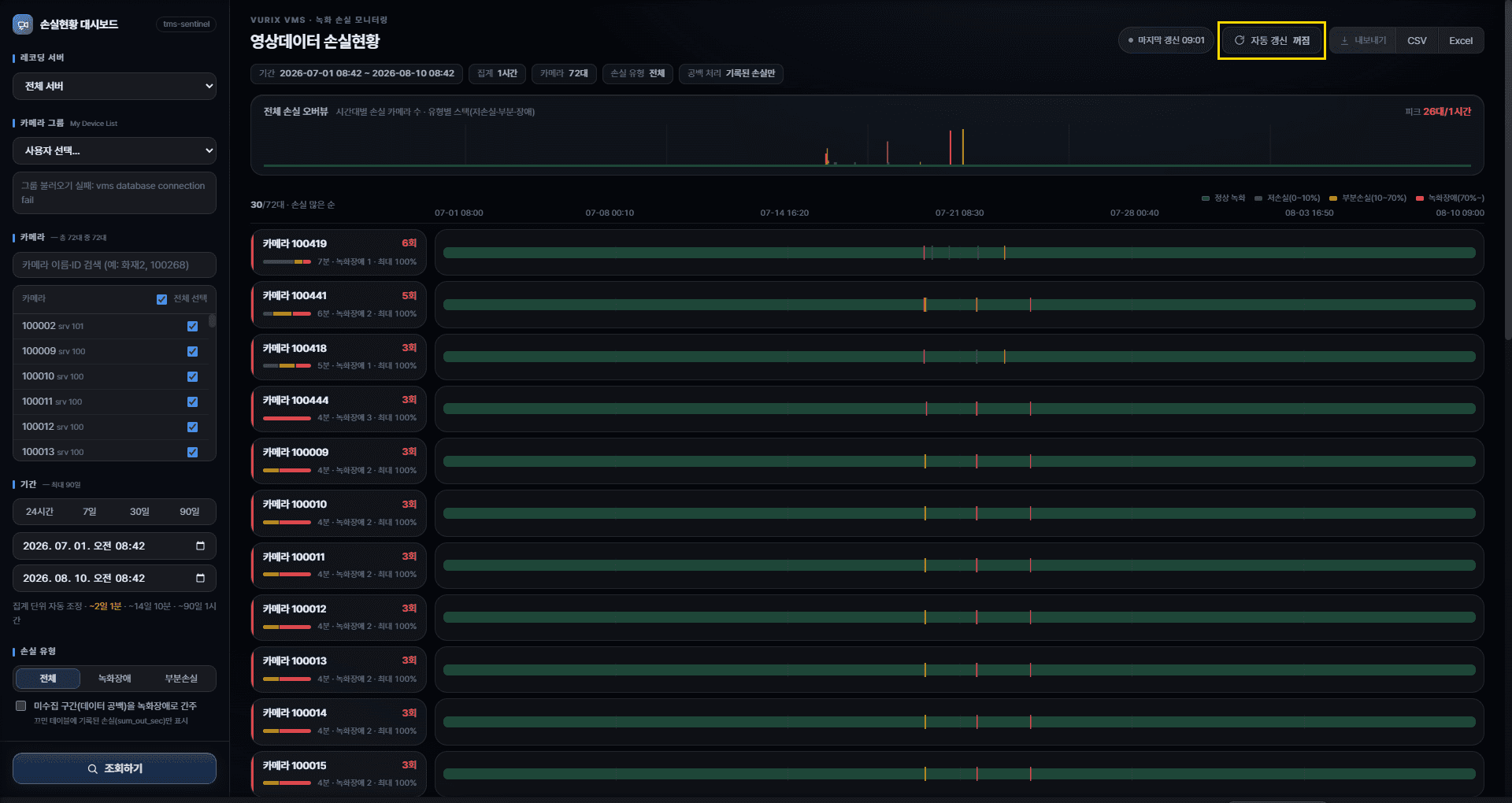
Note
- The time of the last search is also shown at the top right.
- When auto refresh is off, click [Search] again to get the latest data.