05
Download Files
How to save search results as Excel or CSV.
Save a file
The file uses the same conditions as on screen. Search first, then download.
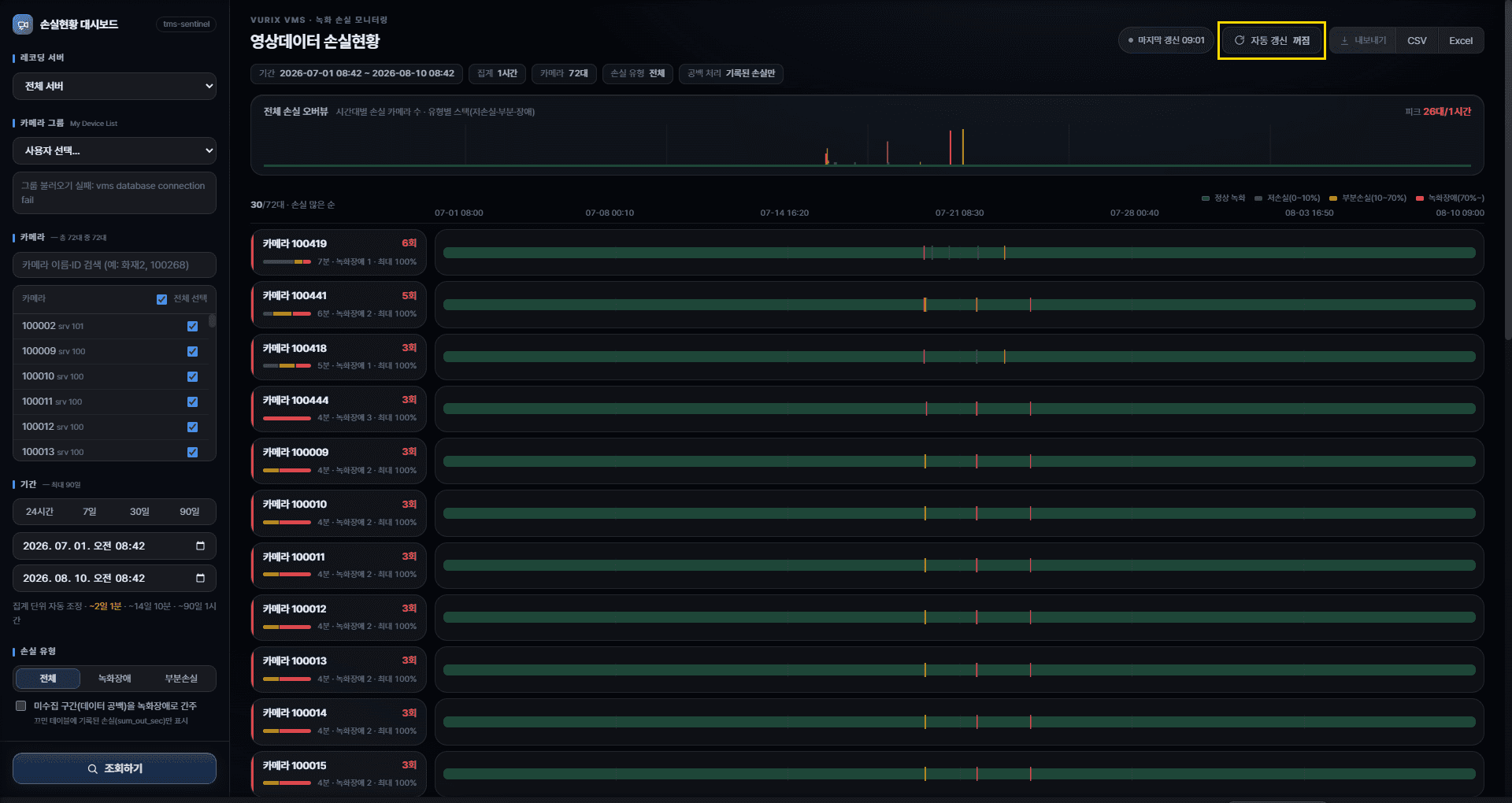
- Search with the desired filtersSet period, cameras, and loss type, then search.
- Click Excel or CSVThe file downloads. Large camera/period ranges may take a little longer.
What is in the Excel file
Excel is usually split into several sheets.
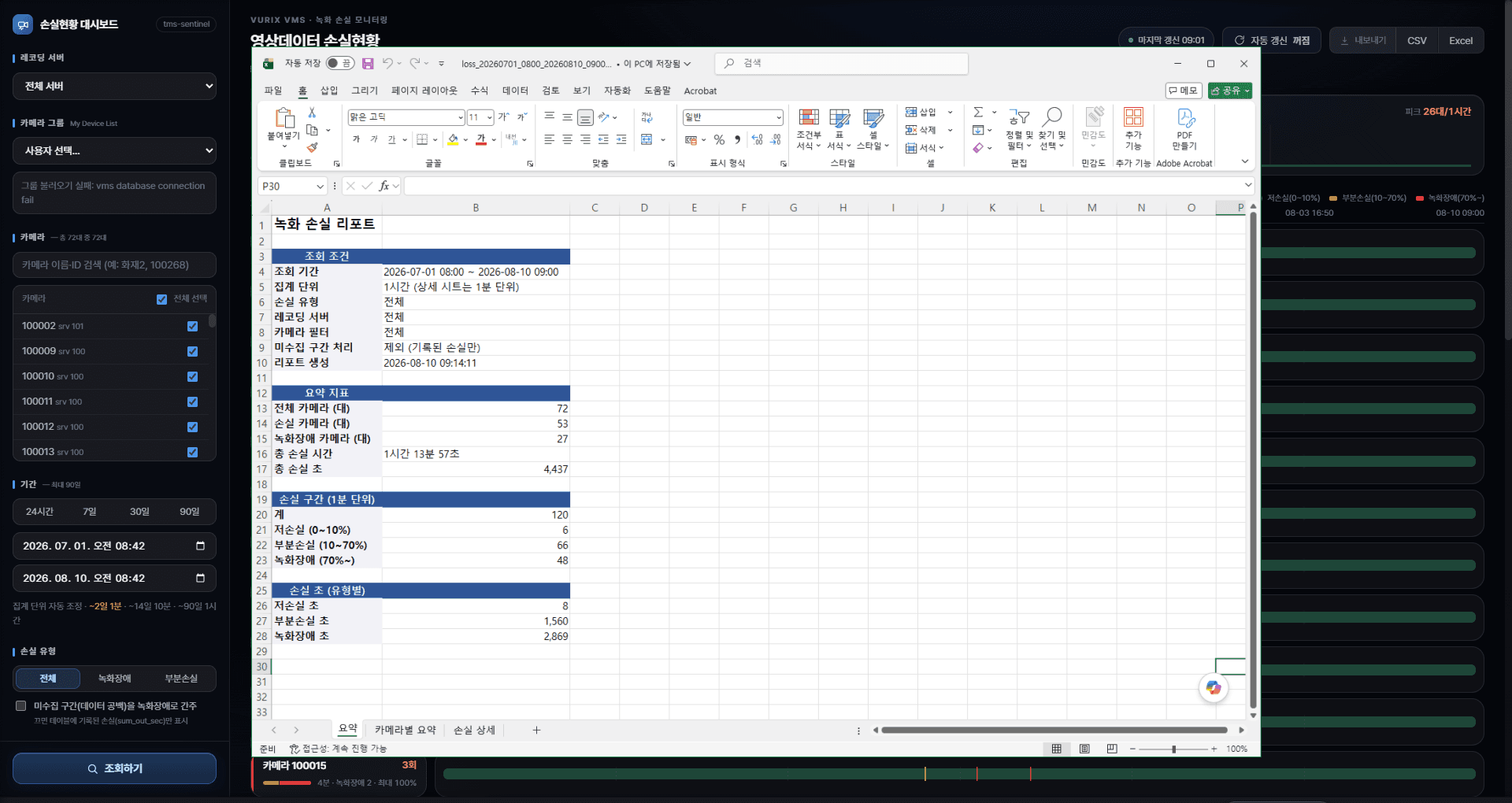
Sheet guide
1. Summary — conditions and overall numbers
2. Per-camera summary — one row per camera (total loss seconds, low/partial/fault minutes, loss intervals, max rate, etc.)
3. Loss detail — detailed loss times
CSV is for tabular detail data.
See Glossary for column meanings (loss intervals, max loss rate, etc.).
Good to know
Tips when download is slow or the file is large.
Tips
- Shorter periods and fewer cameras download faster.
- If the file will not open, wait until download finishes and try again.
- Avoid clicking download repeatedly.