Offline: On-site Procedure
The procedure for taking the training machine to a site, linking it with the vunexai device on the internal network, and building and deploying a site-specific model from that site's data only. Screen operation is the same as online, so this section focuses on what differs offline.
On-site Flow
The on-site work goes in this order.
- Arrive, connect, startConnect the training machine to the site network and start Studio.
- Register the deviceRegister the vunexai device in [AI Update] > [Device Management].
- Bring in site dataUpload only that site's videos to Studio.
- Label and trainSame as steps 3–4 of the Section 02 Quick Start.
- Automatic deploymentAfter training, the engine is built and deployed on the device.
- VerifyCheck on the device that the new model is applied.
- Delete dataBefore leaving, delete all site data following Section 11.
Connect and Start
Connect the training machine and start Studio on arrival. The machine must have been installed and checked by the AI team beforehand.
- Connect the training machine and the vunexai device to the same network.Use the IP agreed with the site owner.
- Check the training machine's IP and that it can reach the device.Check the IP with
ip -4 addrand reachability withping -c 3 <device IP>. - Start Studio.
cd vunex-studio-offline && bash start.sh <training machine IP> - Check the status.Run
bash status.sh <training machine IP>and confirm every item is[OK]. If some show[FAIL], check again after 1–3 minutes. - Open the browser and log in.
http://<training machine IP>:8080Ask the AI team for the account.
Required Connectivity
These paths must be open on the firewall/switch.
| Direction | Purpose | Port |
|---|---|---|
| Operator PC → training machine | Studio screen and video playback | 8080, 19000 |
| Training machine → device | SSH (probe, engine build, deploy) | 22 (default) |
| Training machine → device | Device API and storage | 8092, 9000 |
| Device → training machine | Download the trained model | 19000 |
Register the vunexai Device
Register this site's device in [Device Management] on the [AI Update] screen. After training, the model is deployed to every active registered device.
- Click [Device Management] at the top right of [AI Update].The VUNex AI Device Management window opens. If none is registered, a message is shown.
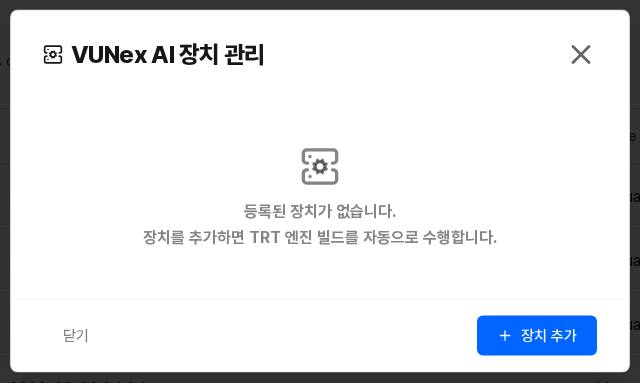 Figure 10-1. Device management window
- Click [Add device] and enter the basic information.Device name, IP address, SSH port, SSH user, SSH password. Ask the site owner or AI team for the account values.
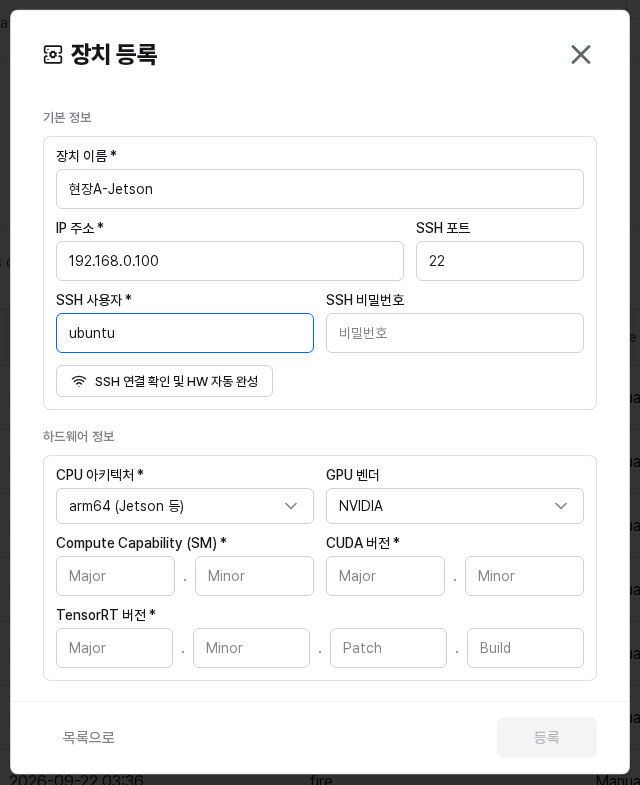 Figure 10-2. Device registration form
- Click [SSH connection check and HW autofill].On success the CPU architecture and GPU/CUDA/TensorRT information is filled in. It only reads.
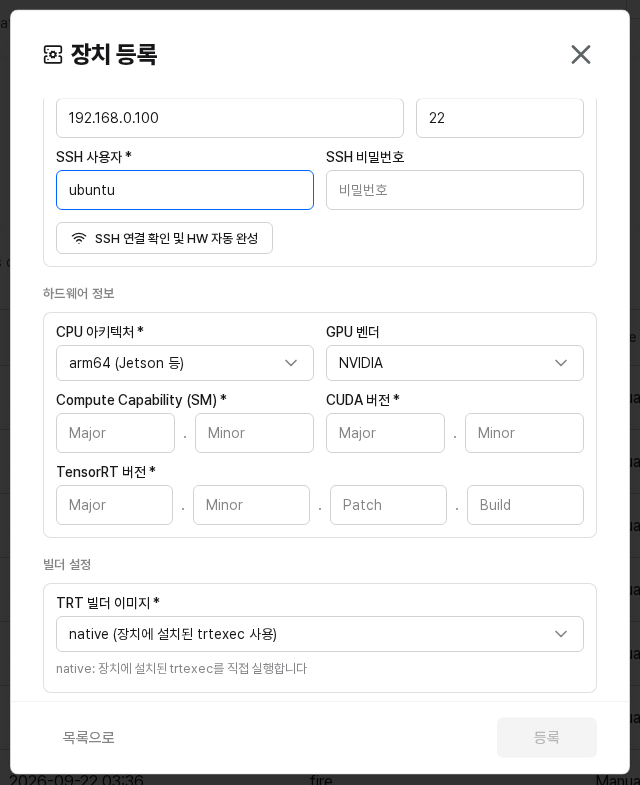 Figure 10-3. Hardware autofill
- Check the filled values against the device and click [Register].Fill in any empty fields. The only build method is native.
vunex-default model is replaced by the new version. Make sure only this site's device is registered, and delete any device you do not want to deploy to. With no device, deployment fails after training.Bring in Site Data
This work assumes only that site's data is used.
| Method | Description |
|---|---|
| Upload videos | Upload site videos in [AI Update] > [New Training Request], or in [Collected Videos] > [Uploaded Videos] (Sections 04, 07). |
| Field clips | If the device is set to send false-positive/miss clips they appear in [Collected Videos] > [Field Collection]. |
| How to keep "site data only" | Where to check |
|---|---|
| Check lists are empty on arrival | [AI Update], [Collected Videos], [Datasets] |
| Do not use shared datasets | Do not select [Train with shared datasets] in [New Training Request] |
| Only this site's device registered | [Device Management] |
Request Training and Track It
Screen use is the same as online (Section 02 Quick Start, Sections 04–06). Only what is specific to offline is listed here.
| Topic | Offline behavior |
|---|---|
| Starting model | Create new model starts from the base model (vunex-default), which the company provides and does not conflict with "site data only". |
| Auto-labeling | Uses the on-machine RF-DETR (default) and SAM3. Some external AI server features are unavailable offline. |
| GPU | During training the auto-labeling servers are stopped so the GPU is devoted to training, and are restarted afterwards. Object Suggestion and AI Search are unavailable during training. |
| Training approach | Without shared datasets, training focuses on the site videos (Section 04). |
Engine Build and Automatic Deployment
When training succeeds the system does the following automatically. There is no button to press.
- Builds a TensorRT engine on every active registered device.Up to 30 minutes per device, one after another. A failure on one device does not stop the next.
- Uploads the engine as a new version of the device's
vunex-defaultmodel and updates its class list.Up to 10 minutes per device. - The device loads the new model.From this point the device detects with the new model.
| TRT badge | Meaning |
|---|---|
| TRT waiting | Training is done; waiting to build the engine |
| TRT building | Building the engine on the device |
| TRT done | The engine build finished (does not mean deployment finished) |
| TRT failed | Engine build failed. Check device link and connectivity (see troubleshooting below) |
vunex-default to a new version. Before deploying, note the current model version and class list on the device. No rollback procedure is documented; ask the AI team if needed.Verify the Deployment
Treat deployment as complete only after all of these are checked.
| Check | How | Normal result |
|---|---|---|
| 1. Training status | [AI Update] list | Success and TRT Done |
| 2. Device model version | Model screen of the vunexai device | A new version of vunex-default is applied |
| 3. Class list | Model/class screen of the device | The classes you trained appear |
| 4. On-site detection | Check detections on site footage or live video | The targeted false positives/misses are reduced |
When Something Fails
What to check by symptom. If it keeps failing, summarize the symptom and time for the AI team (do not take logs containing site information off site).
| Symptom | Likely cause | Action |
|---|---|---|
| Deployment fails after training / no registered device | No active device registered | Register the device in [Device Management] and train again |
| TRT build fails | Device cannot reach port 19000, or device link error | Check connectivity and re-run the connection check |
| Authentication failure | SSH password empty or wrong | Re-enter the password in device edit |
| Device has no vunex-default | The base model is missing on the device | Ask the AI team |
| Connection check fails | Wrong IP/port/account, device power/network | Check IP, SSH port, account and ping |
| Training stalls from the start | Image delivery configured for a different IP | Ask the AI team to reconfigure for the new IP |