Datasets
How to manage My datasets (bundles of labeling results) and Shared datasets (COCO-format folder uploads and merges). The Model evaluation tab on the same screen is covered in the next chapter.
Screen Layout
Open it from [Datasets] in the left menu; the title is Datasets. It has three tabs, and each tab starts fresh (page and filters) every time you switch to it.
| Tab | Contents | This chapter |
|---|---|---|
| [My datasets] | Bundles of labeling results made by your organization from uploaded videos. They never leave the organization and are split into train/val by the pipeline at training time. | This chapter (My datasets) |
| [Shared datasets] | A finished dataset such as COCO. It can be shared across organizations, may carry its own train/val split, and may hold tens of thousands of images. | This chapter (Shared datasets) |
| [Model evaluation] | Records of scoring a model on a test set | The Model Evaluation chapter |
My Datasets: What They Are
Each row of the [My datasets] tab is one bundle of sessions (projects) that are labeled and trained together. A row appears when you start labeling an uploaded video or send collected clips to labeling, and becomes "Saved" once you save it from the labeling screen.
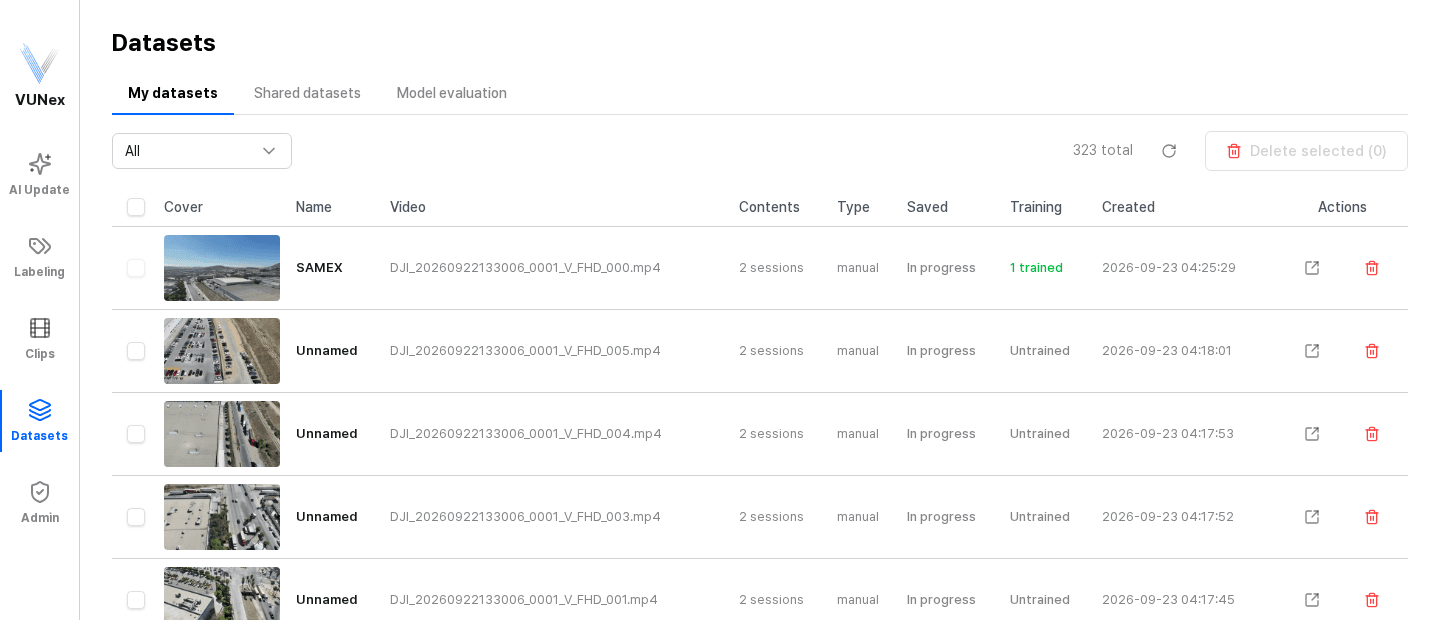
Columns of My Datasets
20 rows per page, newest first.
| Column | What it shows | Notes |
|---|---|---|
| (checkbox) | Select datasets to delete | Datasets used for training cannot be ticked. The header checkbox selects or clears only the selectable rows of the current page. |
| Cover | A representative frame | Click it to open in labeling. "No cover image." when none. |
| Name | The name given when saved | Falls back to the newest model made from it, then to "Unnamed" |
| Video | The source video file(s) labeled | "first name and N more" when several; hover for the full list. "not recorded" when unknown |
| Contents | "N sessions" | "N sessions + M public" when shared datasets were merged in; hover for their names |
| Type | Project type (e.g. manual) | Shown as the raw value. |
| Saved | Saved / In progress | See "Saved vs In Progress" below |
| Training | "N trained" (green) / "Untrained" | N is how many projects of the bundle produced a training run; useful for finding datasets collected but never used. |
| Created | When the bundle was first created | Organization time zone |
| Actions | [Open in labeling] and [Delete] icons | See the sections below |
Filter, Refresh and Paging
My datasets has a single query condition: training state.
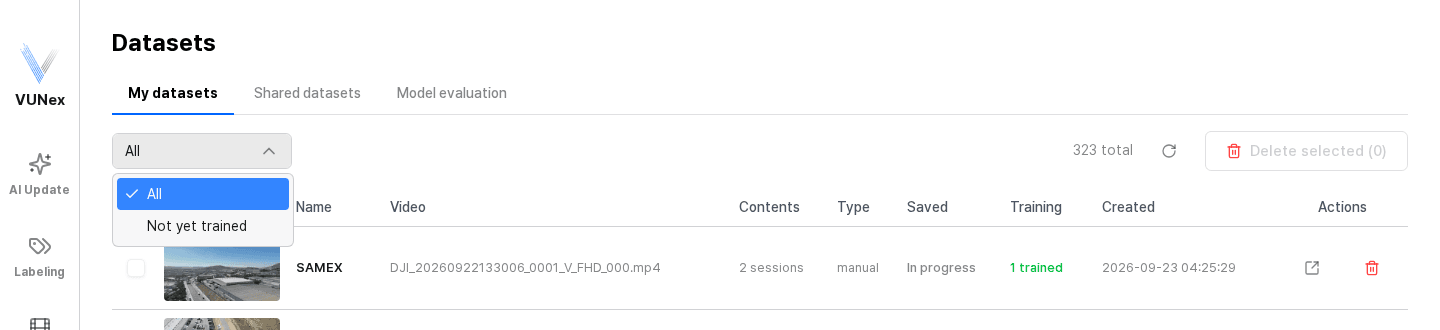
| Control | Behavior |
|---|---|
| Training-state dropdown | [All] (default) / [Not yet trained], which shows only datasets never used for training. Changing it returns to page 1 and clears the selection. |
| N total | Number of datasets matching the condition |
| Refresh icon | Reloads the list (there is no auto refresh). It spins while loading. |
| Paging | [Previous] · current / total · [Next] below the table only with two or more pages |
| List state messages | Empty "No datasets yet." / error "Could not load the list." |
Saved vs In Progress
The [Saved] column tells whether a person deliberately kept the result.
| Value | Meaning | Effect |
|---|---|---|
| Saved | A bundle whose labeling results were saved with [Save data] in the labeling screen | It can be picked as a past dataset on the training request screen and used as a source of [Merge datasets] on the Shared datasets tab. |
| In progress | A labeling session whose video is uploaded but whose result was not saved yet | It does not appear in the training request picker or as a merge source. |
Opening in Labeling
Click the first icon in the [Actions] column ([Open in labeling]) or the cover image to go to the labeling screen.
- Click the [Open in labeling] icon of the dataset row.Disabled when the bundle has no projects.
- You go to the first project of the bundle .The editor restores every session of the bundle as tabs, so the whole dataset opens.
Delete and Its Constraints
Deleting a dataset also deletes its sessions and the stored frames and video, and cannot be undone. A dataset that has been used for training even once cannot be deleted, so a model's source data never disappears.
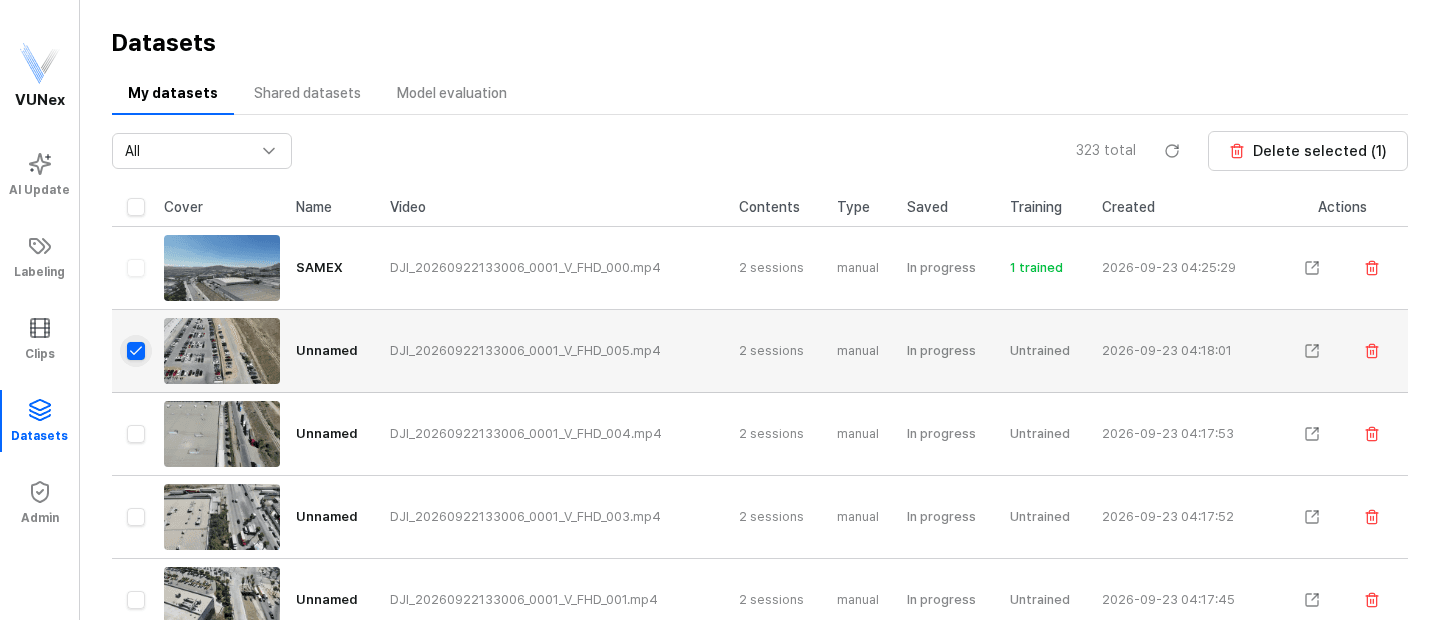
- Tick the datasets to delete (clicking an empty part of a row also works). For one dataset you can click the row's trash icon instead.For a trained row the checkbox and the trash icon are disabled; hovering the trash shows "A dataset that has been trained cannot be deleted."
- Click [Delete selected (N)].Disabled with zero selected; shows a spinner while deleting.
- Read the confirmation and click [Delete] (or [Cancel]).Title "Delete N datasets?", body "N sessions and their stored frames and video are deleted with them. This cannot be undone."
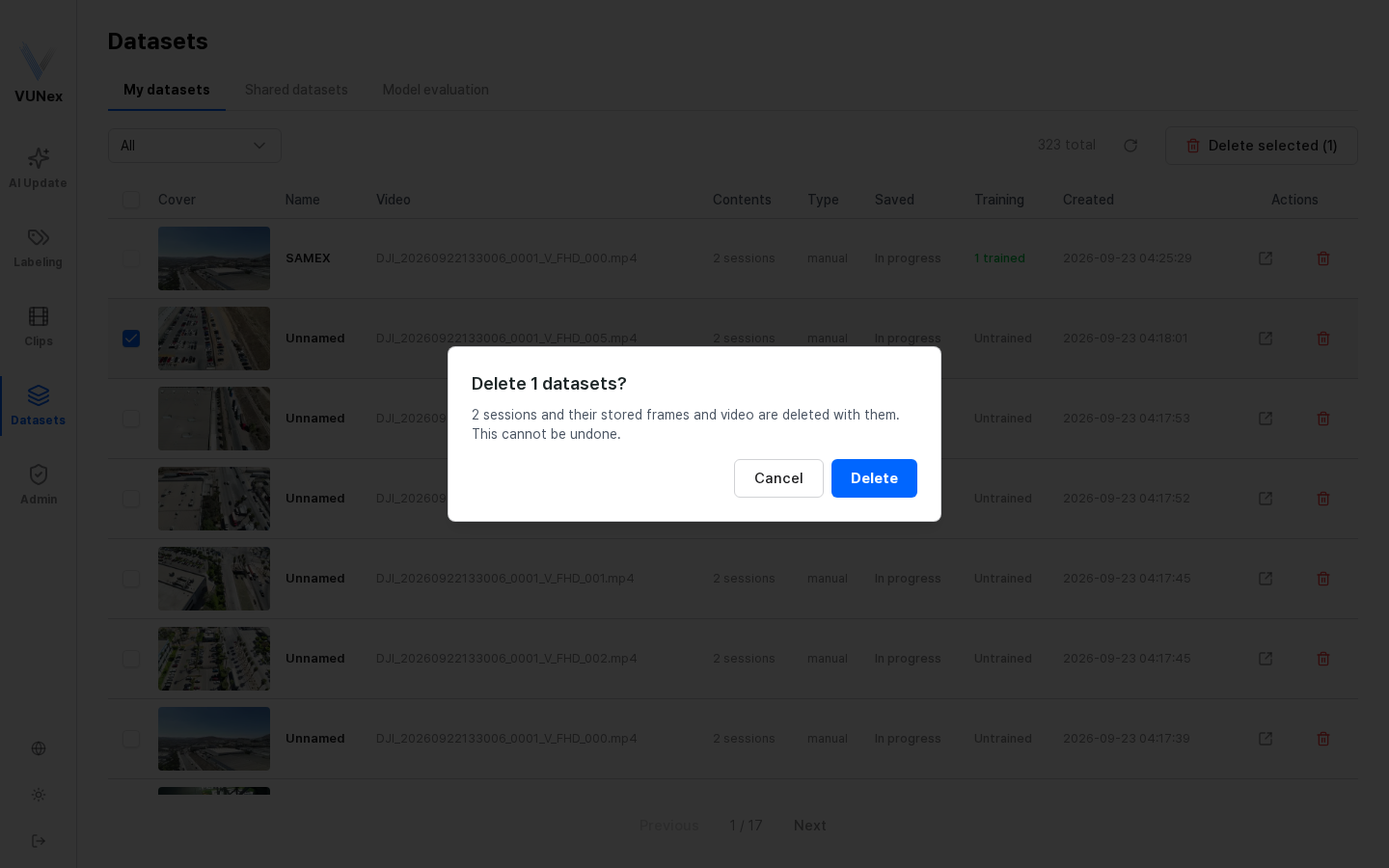 Figure 7-4. The delete confirmation (closed with Cancel)
| Result | Notice |
|---|---|
| All deleted | "Deleted N datasets." |
| Some skipped because trained | "N skipped - already trained." (warning) |
| Some failed for other reasons | "Deleted N, M failed." (warning) |
| Everything failed | "Could not delete it." |
Shared Datasets: What They Are
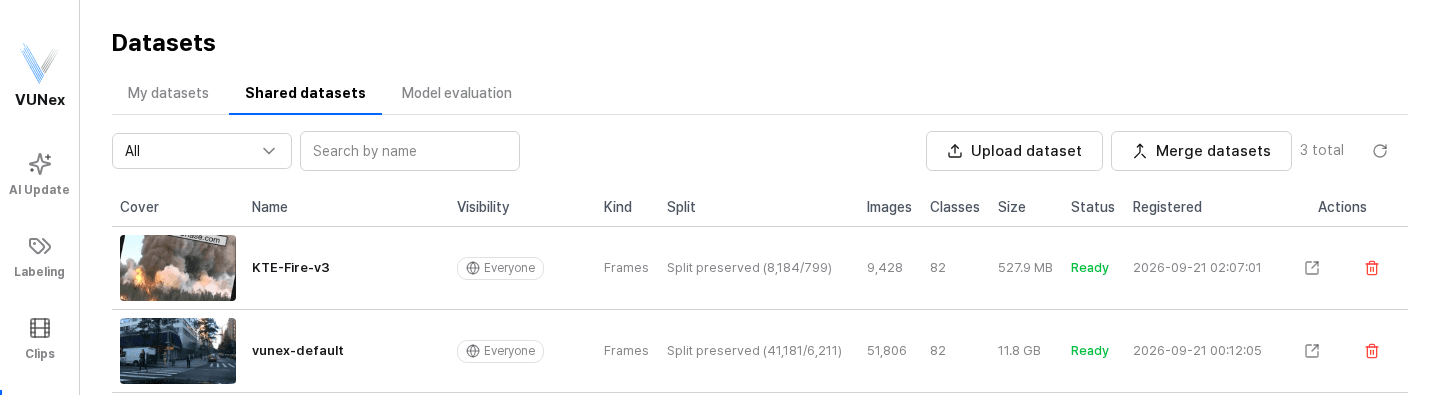
A shared dataset is a finished dataset stored from a COCO-format folder (images + annotation json). It has one of two split modes, and the mode changes how training behaves.
| Split label | Meaning | At training |
|---|---|---|
| Split preserved (train/val) | The folder already carries train/val (and optionally test). The list shows the counts, e.g. Split preserved (8,184/799). | The pipeline uses that split as-is and never re-divides it; use this to stay comparable with published numbers. |
| Split at training | Registered as one undivided pool | The pipeline divides it into train/val at training time. |
Columns of Shared Datasets
20 per page; datasets shared with everyone come first, newest registration first within each group.
| Column | What it shows | Notes |
|---|---|---|
| Cover | The cover image | An empty-image icon when none |
| Name | Dataset name | Hover to see the description. When the import failed, the reason shows below the name in red. |
| Visibility | Everyone (globe) / My organization (lock) button | Click to change. See "Changing Visibility". |
| Kind | Frames / Video | Uploads from this screen create the frames kind only. |
| Split | Split preserved (train/val) or Split at training | Counts use thousands separators |
| Images | Total image count | - |
| Classes | Number of classes (categories) | - |
| Size | Stored size | - |
| Status | Import state | See "Import Status and Stages" |
| Registered | When it was registered | Organization time zone |
| Actions | [Open] and [Delete] icons | - |
Visibility Filter and Name Search
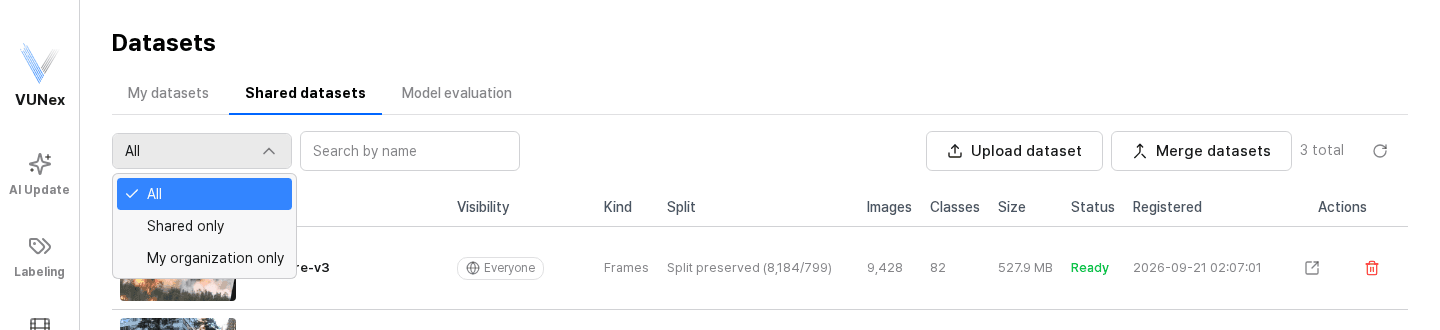
The controls above the table are as follows.
| Control | Behavior |
|---|---|
| Visibility dropdown | [All] (default, everything you can see) / [Shared only] (those shared with everyone) / [My organization only] (those your organization registered). Returns to page 1 when changed. |
| Name search | The [Search by name] box. Case-insensitive, matches text contained in the name, queries as you type and returns to page 1. |
| [Upload dataset], [Merge datasets] | Buttons at the top right; see the sections below |
| N total · Refresh | Matching count and manual refresh |
| Paging | [Previous] · current / total · [Next] with two or more pages |
| List state messages | "No shared datasets yet." / "Could not load the list." |
Import Status and Stages
After an upload or merge starts, the server imports (organizes into storage) the dataset in the background. Watch progress in the [Status] column. While something is importing, the list refreshes itself every 3 seconds.
| Display | Meaning | What to do |
|---|---|---|
| Ready (green) | Import finished; can be opened, evaluated, merged and trained on. | - |
| Importing | Import started but no stage reported yet (briefly) | Wait. |
| Stage name + percent | The import stage and processed / total images; hover for the exact processed / total. | Wait. |
| Import failed (red) | An error during import; the reason is shown under the name. | Delete it, fix the cause and upload again. |
| Interrupted (red) | No progress signal for over 10 minutes (e.g. the import process disappeared after a server restart) | Delete it and try again. |
| Import stage (server value) | Shown as |
|---|---|
| reading_annotations | 어노테이션 읽는 중 / Reading annotations |
| copying_images | 이미지 복사 중 / Copying images |
| writing_shards | 색인 만드는 중 / Building the index |
| finishing | 마무리 중 / Finishing |
Changing Visibility and Permissions
Clicking the button in the [Visibility] column toggles the dataset's visibility. There is no confirmation; it applies at once.
| Visibility | Meaning |
|---|---|
| Everyone | Every organization can read it and use it for training and evaluation. |
| My organization | Only the registering organization (and any organization it was explicitly shared with) can see it. |
| Action | Permission rule | What you see when restricted |
|---|---|---|
| Change visibility | Only the registering organization; additionally only the system organization can publish to everyone. | Disabled for non-owners (tooltip "Only the organization that registered it can change this."). Trying to publish without being the system organization shows "Only the system organization can publish a dataset to everyone." Other failures show "Could not change visibility." |
| Delete | Only the registering organization; not if it was used for training | See "Deleting a Shared Dataset" |
| View / evaluate / train | Any organization that can see it | - |
Shared Dataset Detail
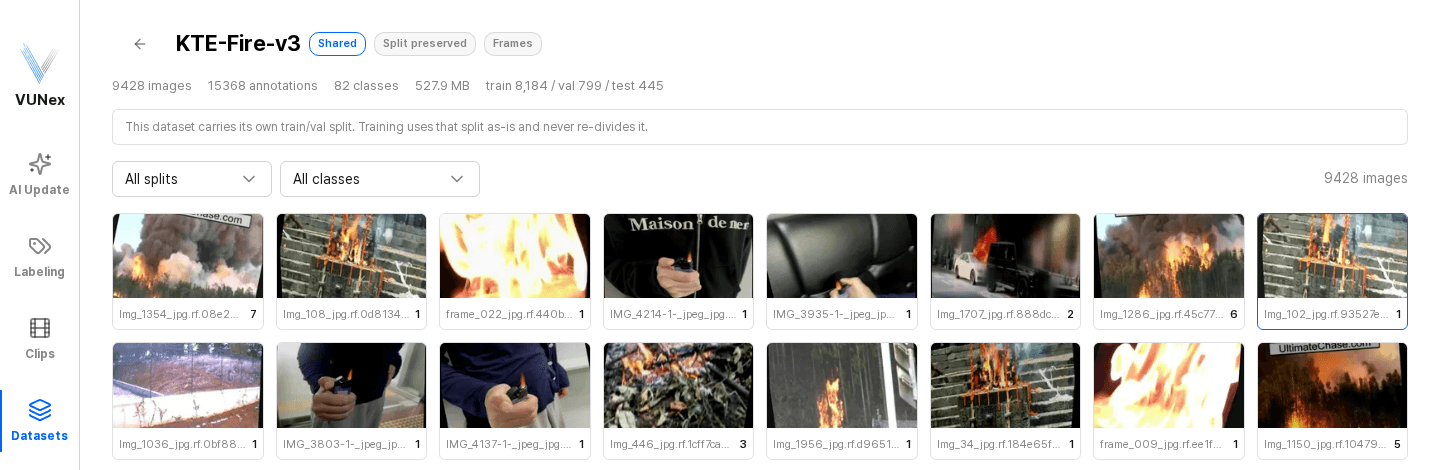
Click [Open] on a finished row to open the detail screen. The arrow at the top left ([Back]) returns to the list.
| Area | Contents |
|---|---|
| Title and badges | Dataset name and badges: [Shared] (when public), [Split preserved]/[Split at training], [Frames]/[Video] |
| Summary line | N images · N annotations · N classes · size · train N / val N (plus / test N when present) |
| Notice | "This dataset carries its own train/val split. Training uses that split as-is and never re-divides it." or "This dataset is one undivided pool. Training divides it into train/val." |
| Split filter | [All splits] plus only the splits that have images |
| Class filter | [All classes] plus every class; only images containing the chosen class remain |
| Image grid | Thumbnail, file name and the annotation (box) count. A page is the dataset's index size (200 by default), with [Previous] · current / total · [Next] below |
| Count at right | "N images" matching the filters, with a small spinner while loading |
Image Inspector
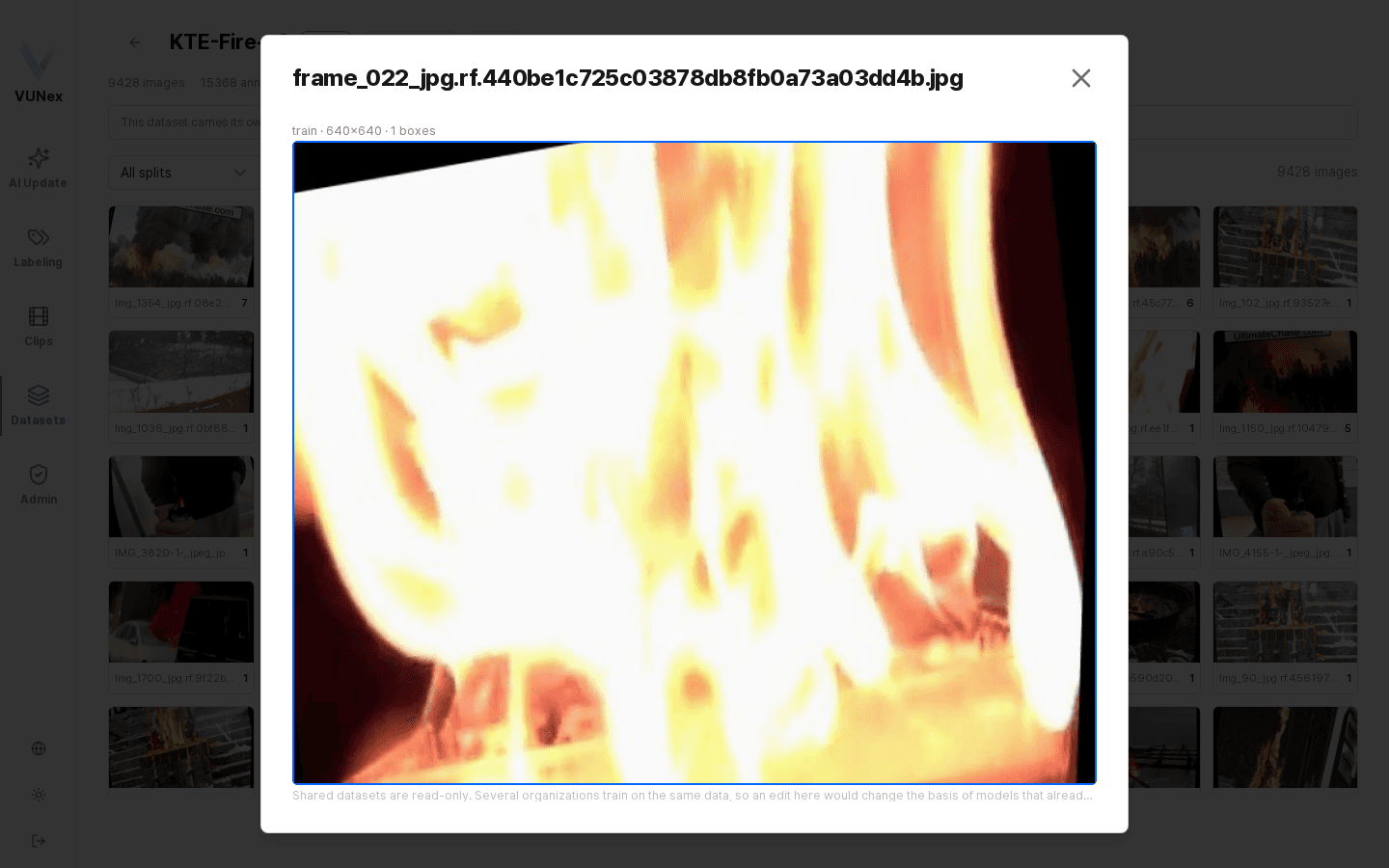
Clicking an image in the grid opens a window showing the full image with its annotation boxes overlaid.
| Element | Description |
|---|---|
| Title | The image file name |
| Info line | split · width×height · N boxes, with a spinner while boxes load |
| Boxes | Blue outlines with the class name label at the top left |
| No boxes | "This image has no boxes." |
| Footnote | "Shared datasets are read-only. Several organizations train on the same data, so an edit here would change the basis of models that already exist." |
Esc.Deleting a Shared Dataset
Delete one at a time with the row's trash icon (no multi-select). The images, annotations and index in storage are all removed and cannot be restored.
| Delete button state | Cause / tooltip |
|---|---|
| Disabled | It has been used for training: "A dataset used for training cannot be deleted." |
| Disabled | Registered by another organization: "Only the organization that registered it can delete this." |
| Enabled (red) | Your organization registered it and it was never trained on |
- Click an enabled trash icon.
- Read the confirmation "Delete (name)?"Body: "N images and their annotations are deleted for good."
- Click [Delete] and "Dataset deleted." appears.If the server refuses because it was trained on: "A dataset used for training cannot be deleted."; other failures: "Could not delete the dataset."
Dataset Upload: Folder Structure
[Upload dataset] uploads a whole COCO-format folder. Files go from the browser straight to storage, not through the server. The screen detects the structure automatically once you pick the folder, so prepare the folder following the rules below.
| Item | Rule |
|---|---|
| Folder unit | Pick the folder that holds both images and annotation json as a whole. It becomes the root and its own name is stripped from paths. |
| Annotations | One COCO-format .json per split (uses images[].file_name, annotations[].image_id, categories[].name) |
| Image folder | One folder of images (.jpg .jpeg .png .bmp .webp) per split; subfolders are fine. |
| Split name detection | The annotation file name and the image folder name must contain train, val or test (case-insensitive) to be paired as one split, e.g. annotations/instances_train.json ↔ images/train/ |
| Required splits | Only those named train, val or test are detected. Preserved-split upload needs at least two (normally train and val); test is optional. |
| Matching image names | Annotation file_name values are matched against image file names (path ignored) in the folder. |
| What is uploaded | Only the detected annotation json files and the images in the detected folders. Images no annotation references, and other files, are not uploaded. |
Dataset Upload: Step by Step
Work on the [Shared datasets] tab.
- Click [Upload dataset] at the top right to open the [Upload a shared dataset] window.
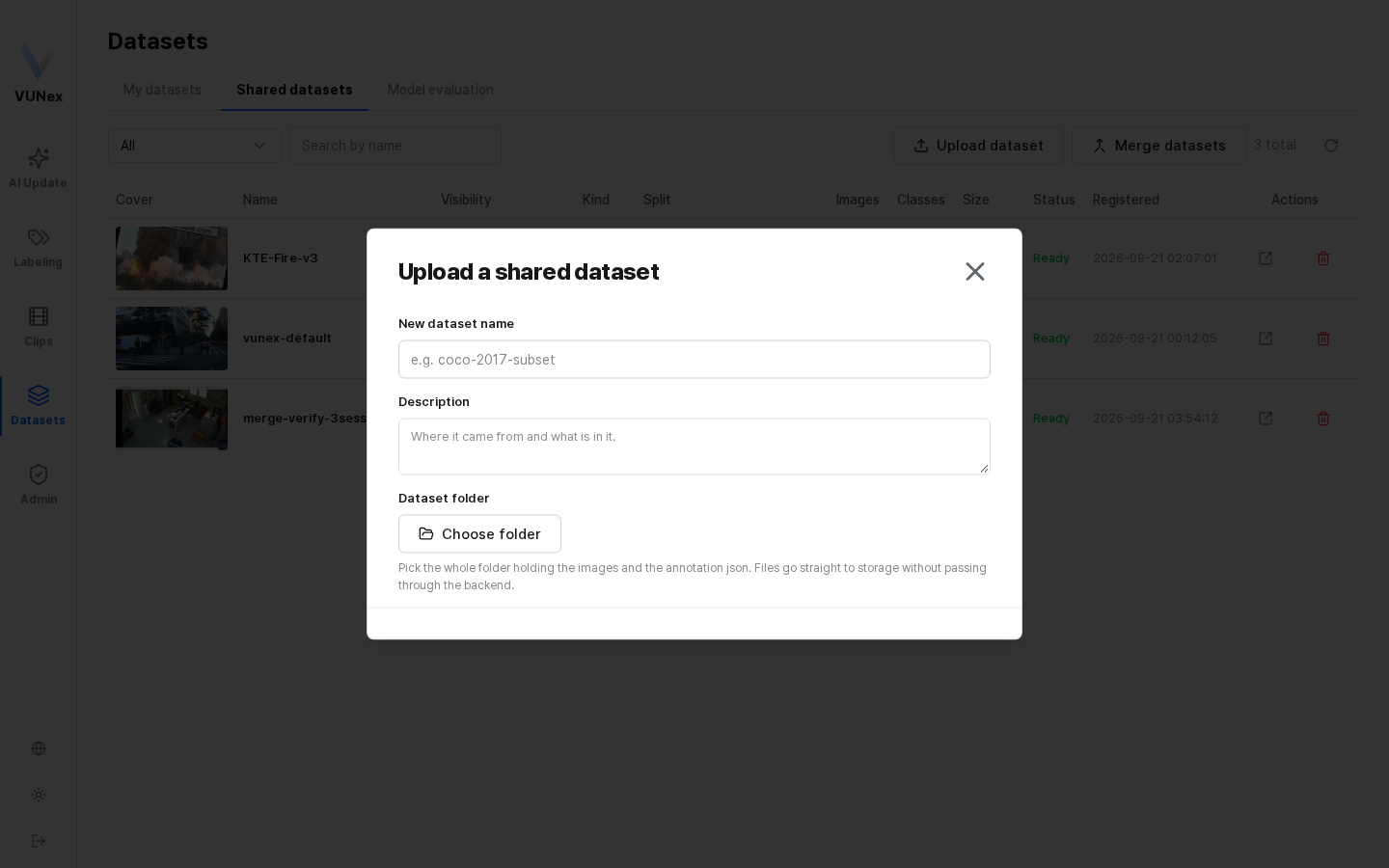 Figure 7-9. The upload window (initial state)
- Click [Choose folder] and pick the prepared folder.The number of picked files appears as "N files". If the dataset name is empty it is filled with the folder name.
- Wait for "Checking annotations against the images…" to finish.The per-split annotation file, image folder and image / class counts appear in the [Detected layout] table.
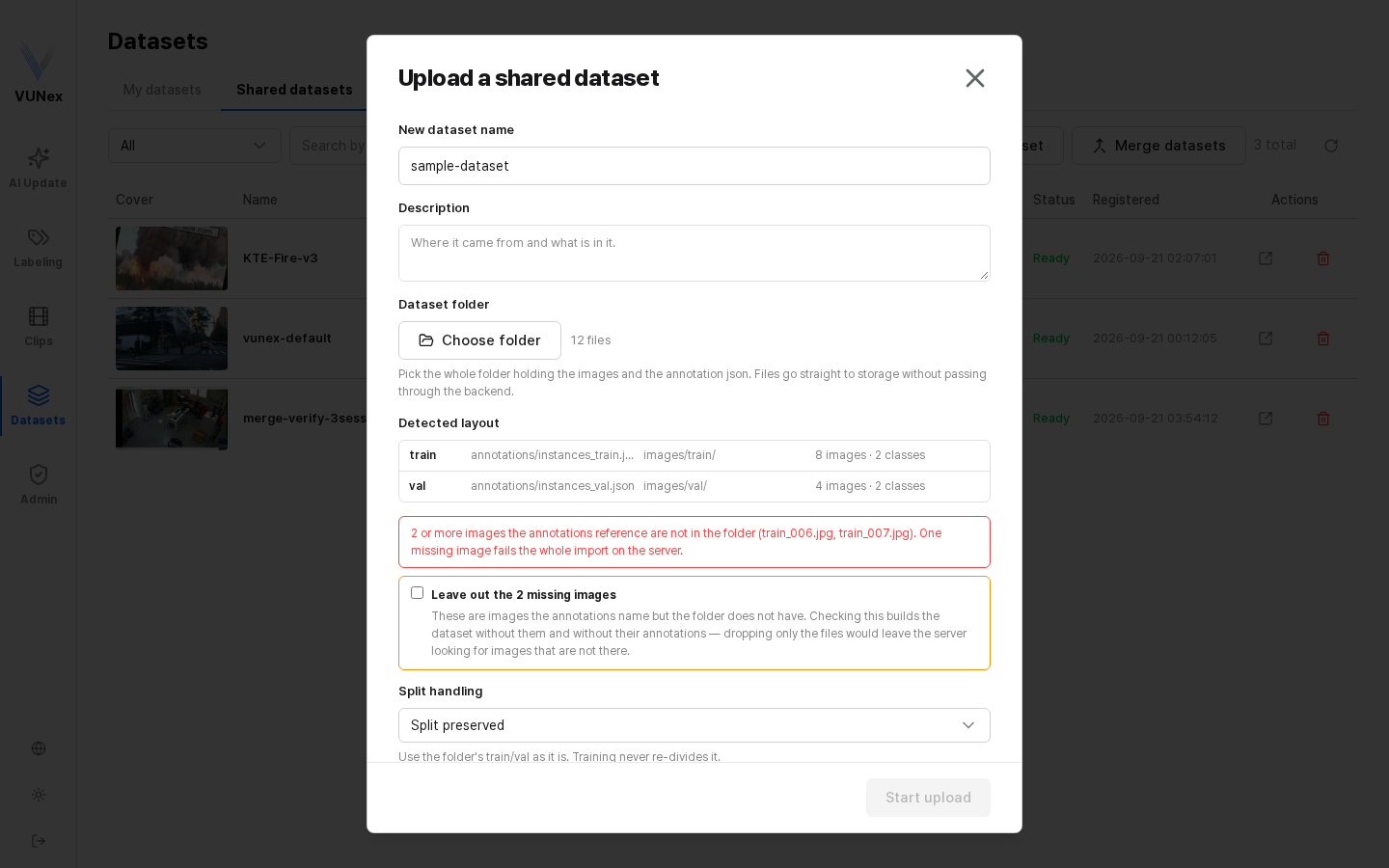 Figure 7-10. The review step after picking a folder (a folder with some images missing)
- Check the name and description and set the split handling and, if needed, leave out missing images.
- Make sure no red error remains and click [Start upload].
- Watch the progress, and click [Close] when "Upload complete" appears.The import then runs in the background; the dataset is usable once [Status] shows [Ready].
Upload Window Fields
All inputs of the upload window.
| Field | Description | Required | Constraints / default |
|---|---|---|---|
| New dataset name | The name shown in the list; placeholder e.g. coco-2017-subset | Yes | Auto-filled with the folder name (kept if you already typed one). Trimmed. [Start upload] is disabled when empty. |
| Description | Where it came from and what is in it | No | Multi-line |
| Dataset folder | Choose with the [Choose folder] button | Yes | One folder; picking again recomputes the detection. |
| Detected layout | Split / annotation path / image folder / image and class counts (read-only) | - | Annotations over 120 MB skip the in-browser check and show "annotation too large to check here". |
| Leave out the N missing images | Checkbox, shown only when annotations reference images missing from the folder | No | Off by default; see "Leaving Out Missing Images". |
| Split handling | [Split preserved] (default) / [Split at training] dropdown, shown once splits are detected | Yes (has default) | See "Choosing Split Handling". |
| N files to send · size | Summary of the files that will actually be sent and their total size | - | - |
| Button | Behavior |
|---|---|
| [Start upload] | Shown only in review. Enabled only when validation has no error, a name exists and at least one file will be sent. |
| [Stop] | Shown only while uploading. Stops the upload, cancels the upload session and resets the window. |
| [Close] | Shown only on the done screen; closes the window. |
[X] / Esc | Closes and resets the window. Closing during an upload stops it; it does not continue in the background. |
Upload Pre-check Messages
After you pick a folder, the browser cross-checks the annotations against the images and shows the notices below. Any red item (error) disables [Start upload].
| Level | Message (summary) | Cause and action |
|---|---|---|
| Error | No train/val layout was found. Check the folder structure. | Split words are missing from file/folder names, or there is no image folder. Rename per the folder-structure rules. |
| Error | An annotation file is not among the selected files: … | Pick the folder again. |
| Error | N or more images the annotations reference are not in the folder (…). One missing image fails the whole import on the server. | Add the missing images or tick Leave out the missing images. Only up to 5 example names are shown. |
| Warning (orange) | N images the annotations never reference will not be uploaded. | Not a problem; those images are simply not uploaded. |
| Warning (orange) | Annotation files not assigned to any split: … | json files without a split word or without a matching image folder; they are not uploaded. |
| Warning (orange) | The annotation file was too large to check in the browser (…). Anything missing will surface during the server-side import. | An annotation over 120 MB; upload is allowed but missing images may fail the server import. |
| Warning (orange) | N images the annotations reference are not in the folder and will be left out (…). The stored annotations are filtered to match. | Shown after you tick Leave out the missing images. |
Leaving Out Missing Images
When the annotation json lists images the folder does not have, the default state blocks the upload as an error and a [Leave out the N missing images] checkbox appears.
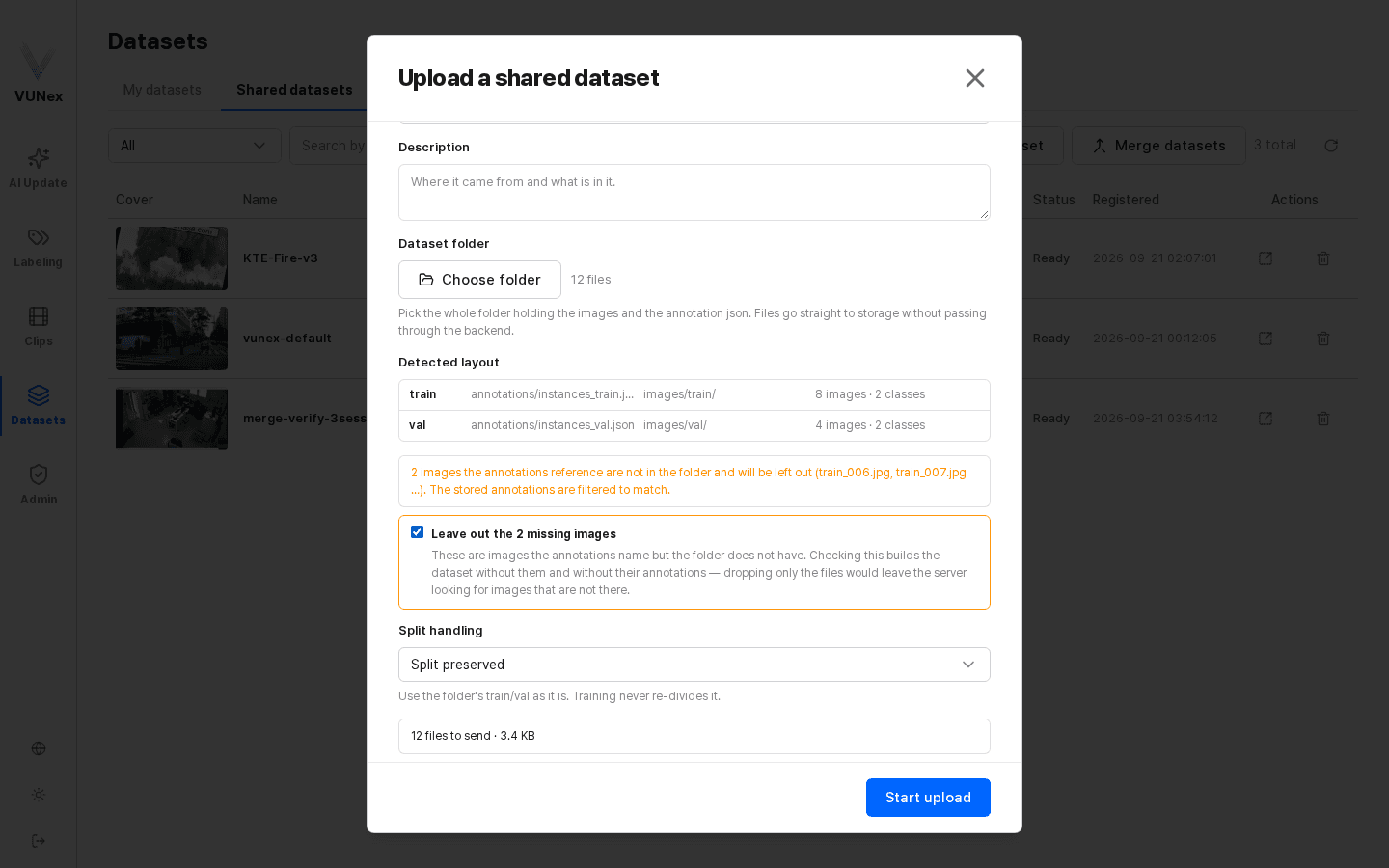
- Tick the checkbox.The error turns into an "…will be left out" warning and [Start upload] becomes enabled.
- On upload the server builds the dataset without those images and without their annotations.
Choosing Split Handling
The [Split handling] dropdown decides how train/val is treated when this dataset is used for training.
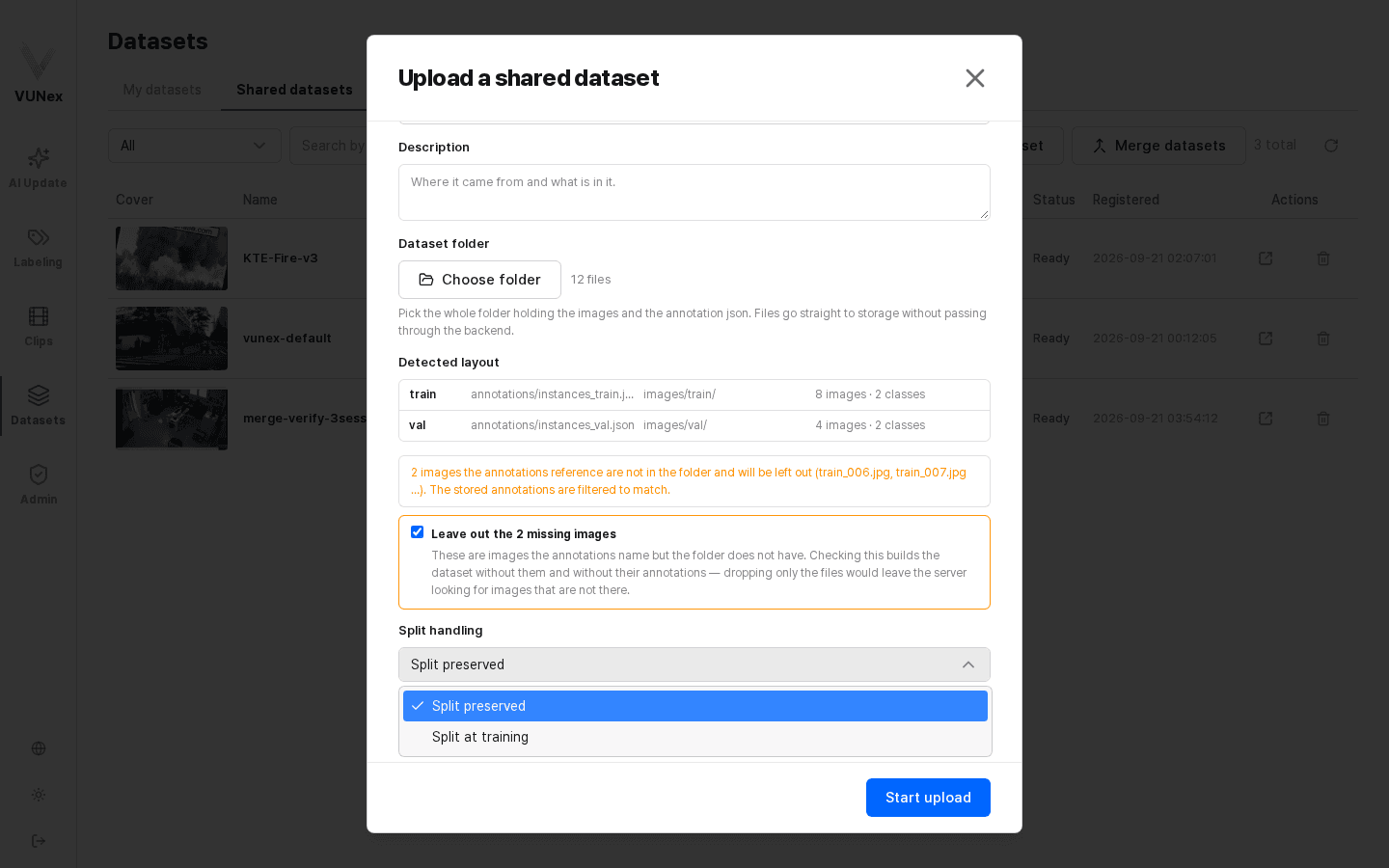
| Option | Description | Server condition |
|---|---|---|
| Split preserved (default) | "Use the folder's train/val as it is. Training never re-divides it." | At least two detected splits are needed; the server rejects a single one. |
| Split at training | "Treat it as one undivided pool. Training divides it." | One or more detected splits. |
Upload Progress, Retry and Stop
After [Start upload] an upload session opens and files are sent directly to storage.
| Display | Description |
|---|---|
| Uploading straight to storage | A progress bar and "done / total files · sent / total size". While the session opens: "Opening the upload session…" |
| Retrying: path | Shown in orange while a failed file is being re-sent |
| Hint | "Files go from the browser to storage directly. Closing this stops the upload." |
| Transfer rule | Value |
|---|---|
| Concurrency | 6 files at a time |
| Retries per file | Up to 3 attempts with a short back-off |
| Per-file time limit | 20 to 120 seconds depending on file size |
| Upload session validity | 24 hours; if never committed, the staged files are cleaned up. |
- When every file is up, the server is asked to import.The notice "Upload finished. Watch the import in the list." appears with the "Upload complete" screen: "The import runs in the background. It is usable once the list shows it as ready."
- If some files still fail after three attempts you return to the review step with an error.A "N files failed…" notice appears and the review step lists up to 10 failed file paths with reasons under "N file(s) did not upload…".
- If the server refuses, its message (otherwise "Could not upload.") is shown and you return to the review step.
Merging Datasets
[Merge datasets] combines shared datasets and your own saved labeling results into one new shared dataset. The sources stay untouched. The result appears as a new row, goes through the import states and becomes [Ready].
- Click [Merge datasets] at the top right.
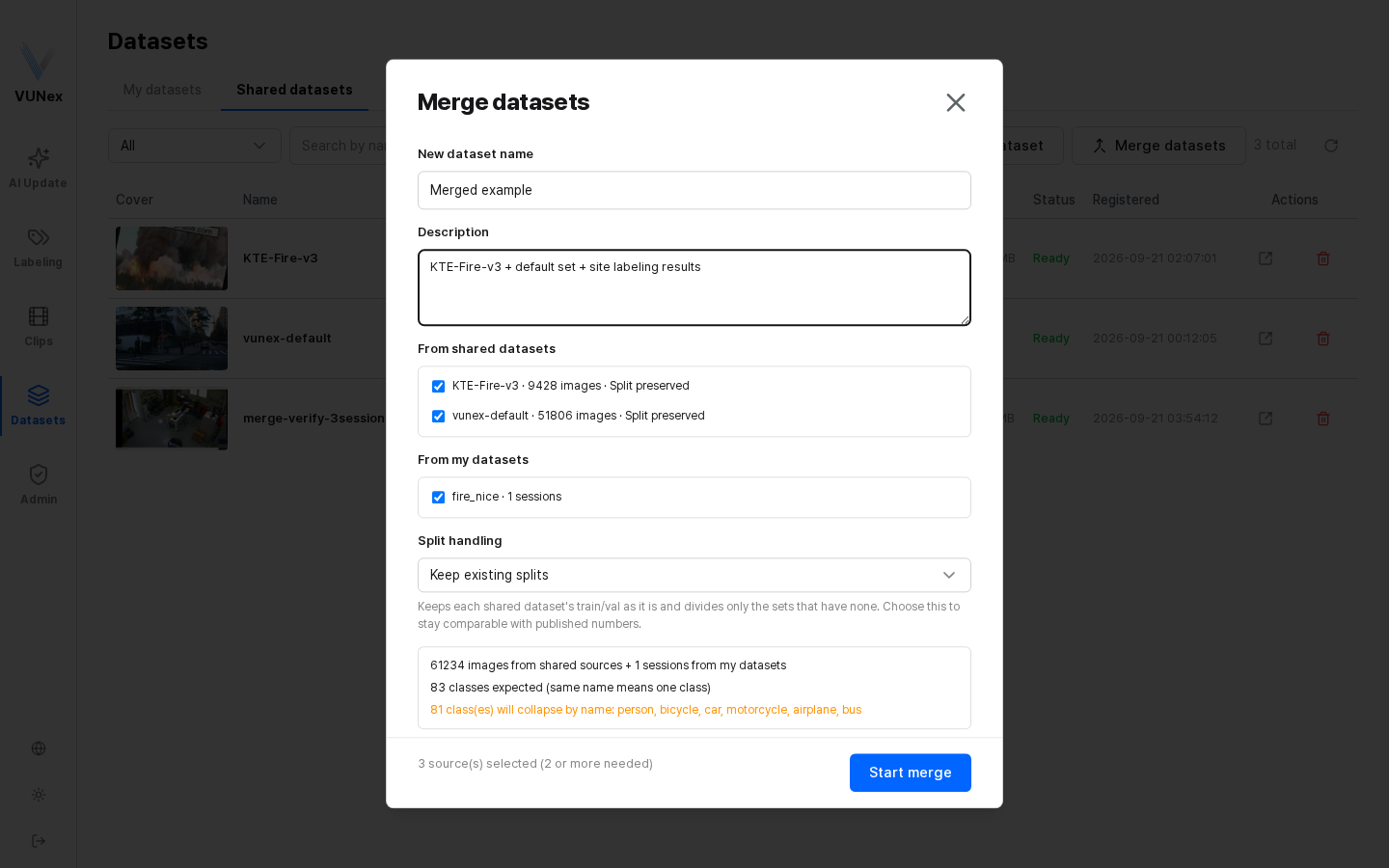 Figure 7-13. The merge window with three sources selected
- Enter [New dataset name] and [Description].Placeholder: "Say what went in and why. It is the only record once a model has been trained on this set."
- Tick the sources in [From shared datasets] and [From my datasets].
- Choose [Split handling] and check the preview.
- Check "N source(s) selected (2 or more needed)" at the bottom and click [Start merge]."Merge started. Watch its progress in the list." and the window closes. On failure the server message, otherwise "Could not start the merge."
| Field | Description | Required | Constraints |
|---|---|---|---|
| New dataset name | Name of the result; placeholder coco + site footage 2026-09 | Yes | Trimmed; [Start merge] disabled when empty |
| Description | Why and what was merged | No | - |
| From shared datasets | Checklist of finished (Ready) shared datasets (name · N images · split mode, up to 100) | No | "No shared datasets available" when empty |
| From my datasets | Checklist of Saved datasets of your own (name · N sessions, up to 100); sessions in progress do not appear | No | "No saved datasets of your own" when empty |
| Split handling | See the table below | Yes (default) | Default [Keep existing splits] |
| Split handling | Description |
|---|---|
| Keep existing splits | Keeps each shared dataset's train/val and divides only the sets that have none; choose this to stay comparable with published numbers. |
| Re-split everything | Divides every source again; use it when sources share footage and a kept split would leak between train and val. The val ratio is 20%. |
| Preview line | Meaning |
|---|---|
| N images from shared sources (+ N sessions from my datasets) | Totals of the chosen sources (sessions, not images, for your own datasets) |
| N classes expected | Same name means one class; the number is based on the chosen shared datasets' class names. |
| N class(es) will collapse by name: … | Classes whose name appears in several sources (orange, up to 6 names shown); check this first since it is the easiest thing to be surprised by. |
Using Shared Datasets in Training
On the training request screen, shared datasets can be added to a training run with [Train with shared datasets (optional)]. A preserved-split dataset keeps its split, and once used for training it can no longer be deleted.
Message Reference
Notices and messages you can see on this screen.
| Situation | Message |
|---|---|
| Delete My datasets | Deleted N datasets. / N skipped - already trained. / Deleted N, M failed. / Could not delete it. |
| Delete a shared dataset | Dataset deleted. / A dataset used for training cannot be deleted. / Could not delete the dataset. |
| Visibility | Could not change visibility. / Only the system organization can publish a dataset to everyone. |
| Upload | Upload finished. Watch the import in the list. / N files failed. / Could not upload. |
| Merge | Merge started. Watch its progress in the list. / Could not start the merge. |
| List state | No datasets yet. / No shared datasets yet. / Could not load the list. / No images match these filters. / Dataset not found. |