Collected Videos
How to review field clips with false-positive, true-positive and missed-detection verdicts, correct the verdict and send them to labeling, and how to manage the video files you uploaded yourself.
Opening the Screen and Layout
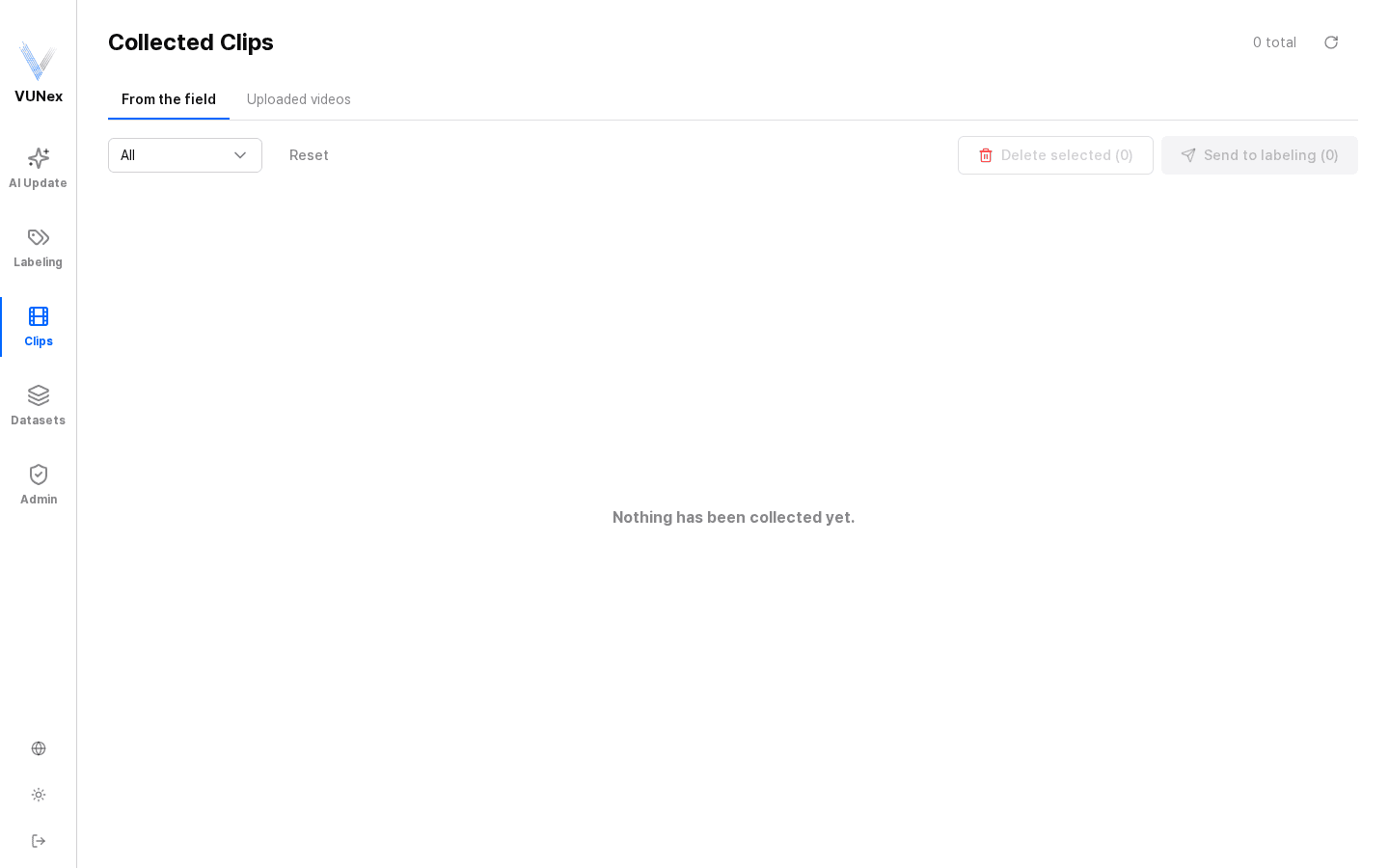
Click [Clips] in the left menu ([수집 영상] on the Korean screen) to open this screen. Its title is Collected Clips, and two kinds of footage are split into tabs by where they came from.
| Tab | Contents | Main use |
|---|---|---|
| [From the field] | Clips that field devices (sites) send together with a false-positive / true-positive / missed-detection verdict | Re-check or correct the verdict, then send the clips worth training on to labeling. |
| [Uploaded videos] | The list of video files that people uploaded themselves | See which datasets and sessions each video was used for, and remove videos nobody uses. |
How Field Data Arrives
Clips on the [From the field] tab are not uploaded by users; they are records sent by the site-side system (VUNex Cloud) together with a verdict.
- A person at the site judges a detection result.The verdict is one of false positive, true positive, or missed detection. The time of the detection, the device MAC, the channel and the AI app that fired are recorded with it.
- Once the record is accepted, a row appears in the list.Sending the same site record again is treated as a duplicate, so only one row remains.
- The video and images are fetched separately in the background.The server downloads them from the temporary addresses the site provided and stores them. While fetching, or when fetching failed, there is no thumbnail and no playback.
- Only clips whose fetch has finished can be played and sent to labeling.
Columns of the Field Clip List
Each row is one field clip. Twenty rows are shown per page.
| Column | What it shows | Notes |
|---|---|---|
| (checkbox) | Row selection. The header checkbox selects or clears the whole current page | Clicking an empty part of the row also toggles selection. Clicks on buttons or dropdowns inside the row do not affect selection. |
| Preview | The first collected image (116x66) | Clicking the thumbnail opens the player. Without an image an empty-image icon appears; hovering shows "No image was collected." |
| Occurred | When the detection occurred | Shown in your organization's time zone. |
| AI app | Name of the AI app that fired | Shown as "(unknown app)" when there is no name. |
| Device / channel | Device MAC and channel number (e.g. MAC · CH 2) | - when missing. Only the MAC is shown when there is no channel. |
| Verdict | False positive / True positive / Missed detection dropdown | Change it right in the row. See "Checking and Correcting Verdicts". |
| Clip | Play button | Enabled only when a stored video exists. Hovering the disabled button shows "There is no clip to play." |
| Actions | Delete button (trash icon) | Deletes that single clip. |
Filter and Paging
The only query condition on the [From the field] tab is the verdict; there is no search box.
- Open the dropdown above the list (default [All]).The choices are [All], [False positive], [True positive] and [Missed detection].
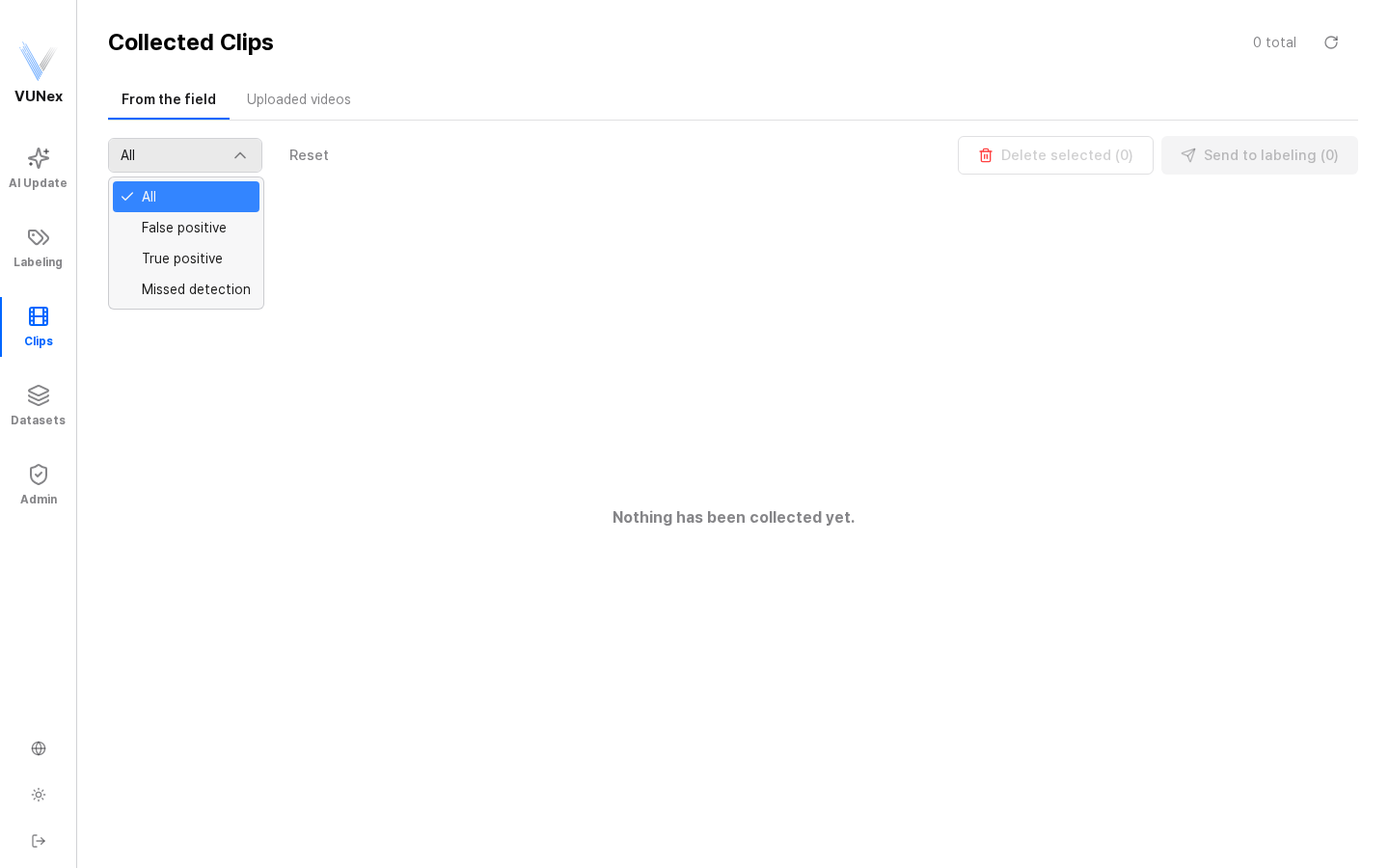 Figure 6-2. The verdict filter dropdown
- The list immediately shows only that verdict.Changing the filter returns to page 1 and clears every selected row.
- [Reset] returns the verdict to [All] and goes to page 1.
| Item | Behavior |
|---|---|
| Page size | Fixed at 20 rows |
| Paging | [Previous] · current / total · [Next] appear below the table only when there are two or more pages. [Previous] is disabled on the first page and [Next] on the last. |
| Selection reset | Turning the page or changing the filter clears the selection, so rows you can no longer see are never deleted or sent by accident. |
| List state messages | A spinner while loading; "Could not load the list." on failure; "Nothing has been collected yet." when empty |
Checking and Correcting Verdicts
Use the [Verdict] dropdown in each row to correct the verdict a person gave. Only the verdict is editable; provenance such as occurrence time, device and AI app cannot be changed, so a collected sample stays traceable.
| Verdict | Meaning | Use for training |
|---|---|---|
| False positive | The AI detected something that was not actually a target | A sample that teaches "this scene is not a target"; in labeling you remove the wrong boxes. |
| True positive | The AI detected correctly | A reference sample of what works; refine boxes in labeling if needed. |
| Missed detection | A target was present but the AI missed it | The most valuable kind for training; add boxes for the missed objects in labeling. |
- Open the [Verdict] dropdown of the row.
- Choose the new verdict.It is saved to the server immediately; there is no save button. On success a "Verdict updated." notice appears and the list refreshes.
- If saving fails, "Could not update the verdict." appears and the previous value stays.
When a Clip Does Not Show Right Away
After a clip arrives from the site the server needs time to fetch its video and images. While that is in progress the thumbnail is empty or the play button is disabled.
Thumbnail and Playback Detail Window
Click a thumbnail or the play button in the [Clip] column to open the player.
- Click the thumbnail or play button of a row that has a stored video.Even with a thumbnail, the thumbnail button is disabled when there is no video. Playback links expire, so a new one is requested each time the window opens.
- The window title is the AI app name ("(unknown app)" if none).Below the title one line shows occurrence time · device MAC · CH channel, and the right side shows resolution · length (s) · fps · size (MB). Missing items are omitted.
- Review with the video player (play/pause, seek, volume, full screen).The video does not start automatically and grows up to 60% of the window height.
- Close with [X] or
Esc.
| Window state | Display |
|---|---|
| Getting the link | A spinner |
| Link failed | "Could not get a playback URL." |
| No video | "There is no clip to play." |
Sending Clips to Labeling
Turns the selected clips into labeling projects and opens them in the labeling screen right away. This is the entry point for turning field verdict clips into training data.
- Tick the checkboxes of the clips to label.You can also click an empty part of a row, or use the header checkbox for the whole page.
- Click [Send to labeling (N)] at the top right (N is the number selected).The button is disabled with zero selected, and shows a spinner while sending.
- The server creates one labeling project (session) per clip and groups them as one session group (dataset).A "Created N sessions." notice appears.
- You are taken to the labeling screen of the first session automatically.The editor restores every session of the group as tabs, so all the clips you just sent are open.
| Condition | Behavior |
|---|---|
| Maximum per request | The server limit is 50, but a page holds 20 rows, so at most 20 can be sent from the screen at once. |
| Clips without a stored video | Skipped automatically with a warning "N skipped - no video."; the rest are sent normally. |
| Nothing sendable | "Could not send to labeling." appears and nothing opens. |
| Sending the same clip again | No new project is created; the existing one is reused. |
| Partial failure | Failed clips are skipped and the others continue. |
Deleting Clips
Field clips can be deleted one at a time or several at once. Deleting removes the verdict record together with the stored video and images, and cannot be undone.
- One clip: click the trash button in the row's [Actions] column.
- Several clips: tick them and click [Delete selected (N)].Disabled with zero selected.
- In the confirmation "Delete N clips?" click [Delete] (or [Cancel]).Body: "The stored video and images are deleted with it. This cannot be undone."
| Result | Notice |
|---|---|
| All succeeded | "Deleted N." |
| Some failed | "Deleted N, M failed." (warning) |
| All failed | "Could not delete it." |
Uploaded Videos Tab: List
The [Uploaded videos] tab lists the video files that people uploaded themselves in the labeling/training flow. The same video re-uploaded under another name is merged into one row when the content (hash) matches. Rows are newest first, 20 per page.
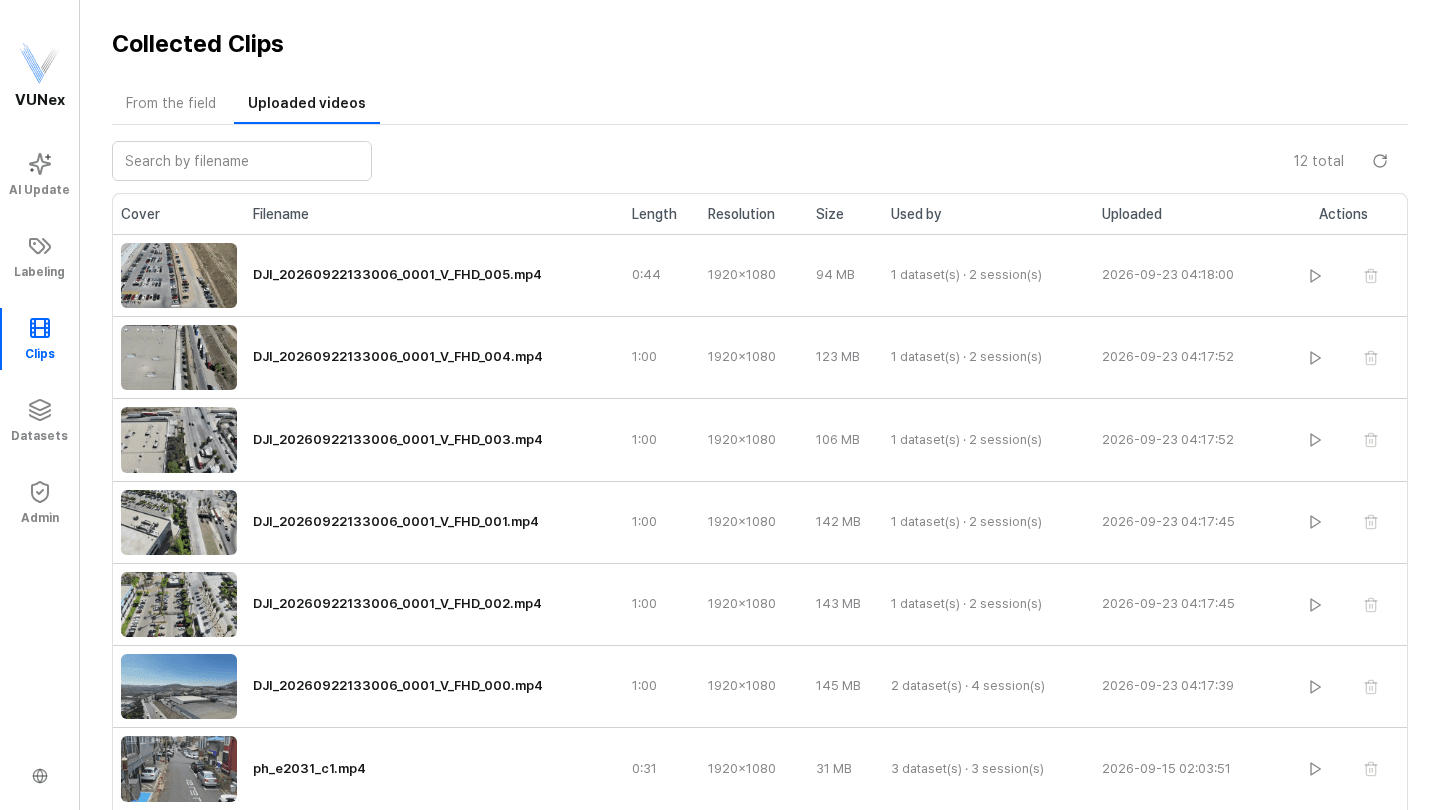
| Column | What it shows | Notes |
|---|---|---|
| Cover | A thumbnail borrowed from a project made from this video | Click to play. An empty-image icon ("No cover image.") when none. |
| Filename | The uploaded file name | Hovering shows the content hash (sha256) as a tooltip; use it to tell whether two names are the same video. |
| Length | min:sec (e.g. 1:00) | — when it could not be probed |
| Resolution | width×height (e.g. 1920×1080) | — when unknown |
| Size | B / KB / MB / GB | — when unknown |
| Used by | How many datasets and sessions were built on this video (e.g. "2 dataset(s) · 4 session(s)") | "unused" when no dataset uses it. |
| Uploaded | When the video was first registered | Organization time zone |
| Actions | Play and delete buttons | See below for when each is enabled. |
Searching Uploaded Videos
Type in the [Search by filename] box above the table to show only videos whose file name contains the text. It queries as you type and returns to page 1; leading and trailing spaces are ignored.
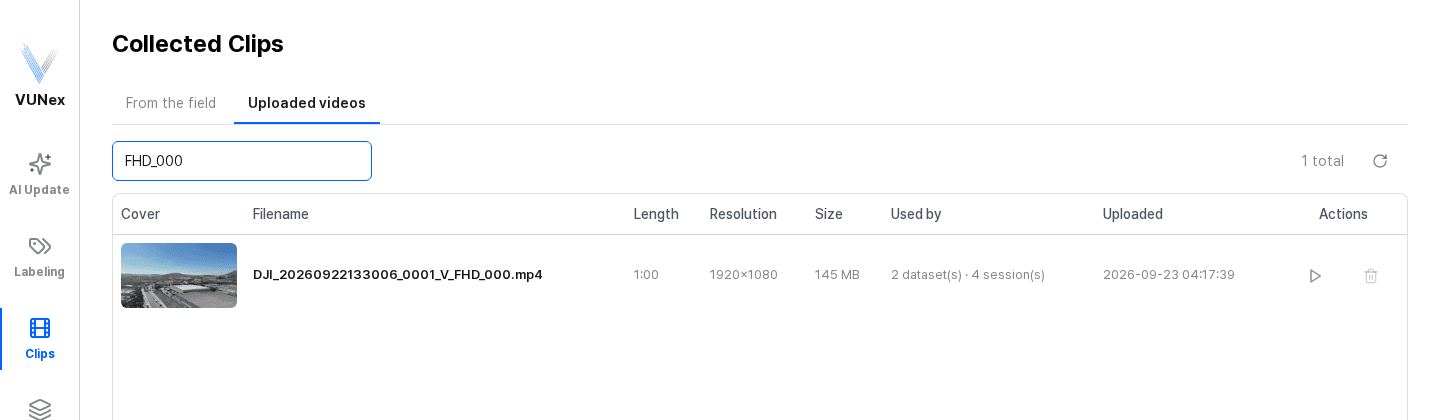
| State | Display |
|---|---|
| No result | "No uploaded videos." |
| Load failed | "Failed to load the list." |
| Paging | [Previous] · current / total · [Next] only with two or more pages |
Playing Uploaded Videos
Click the cover image or the row's play button to open the player. A fresh playback link is requested when the window opens.
- Click the play button.The play button is enabled only while a session built from this video still exists. When disabled, hovering shows "No stored video left to play." (deleting all of those sessions removes the footage too).
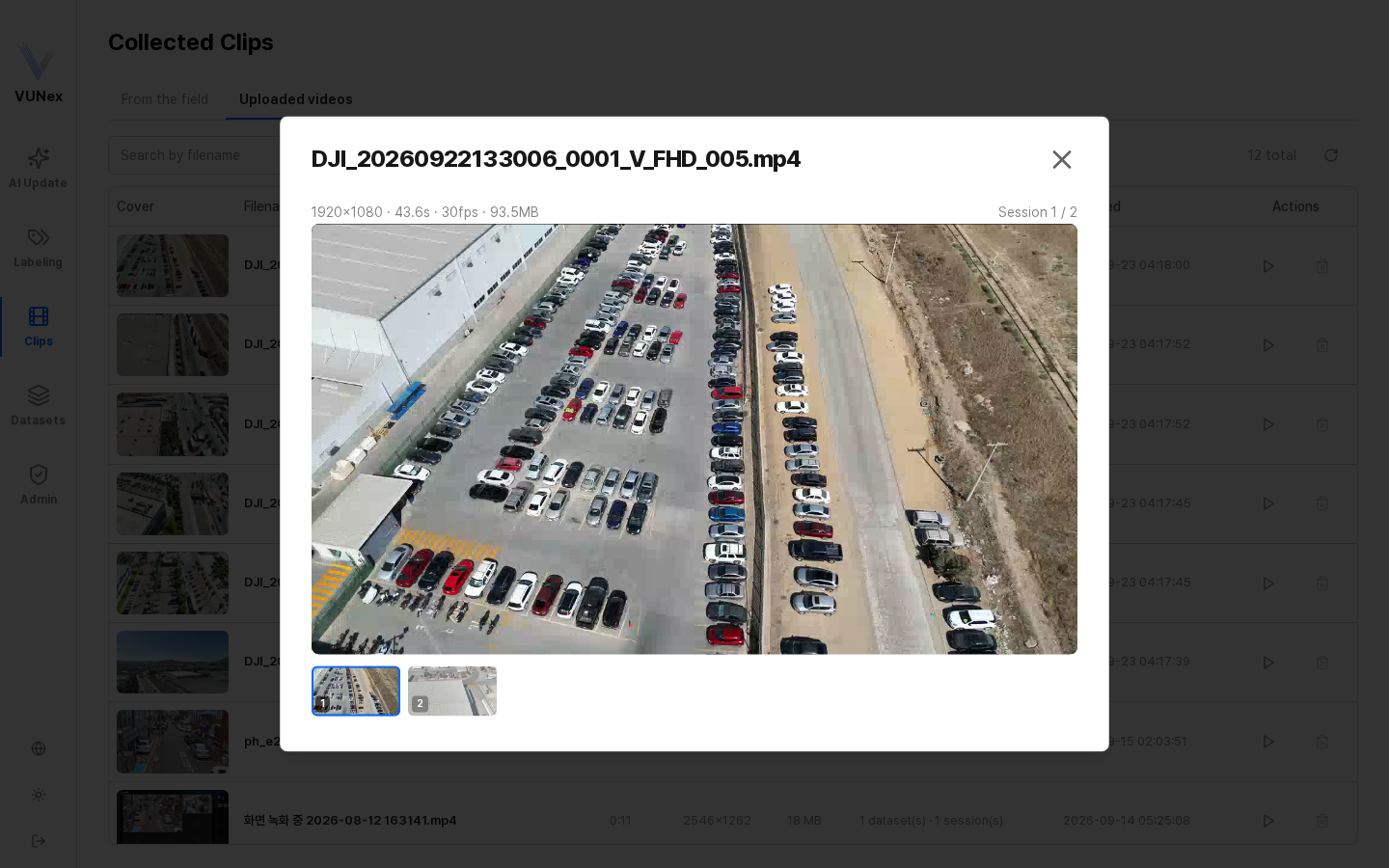 Figure 6-5. The uploaded video player (a video with two sessions)
- The title is the file name, with resolution · length (s) · fps · size (MB) below it.
- With two or more sessions, "Session 1 / 2" appears on the right and a strip of session thumbnails below.Click a numbered thumbnail to switch to that session's video (hover shows e.g. "Session 2 (project 123)"). A single upload can have several sessions because a long video was cut into clips or the same file was labeled again differently.
- The video autoplays when the window opens. Close with [X] or
Esc.
Deleting Uploaded Videos and Its Limits
Uploaded videos are deleted one row at a time (no multi-select), and only when no session has been built from the video.
| State | Delete button |
|---|---|
| At least one session (used by labeling) | Greyed out. Hover shows "A video in use by labeling cannot be deleted" |
| No sessions (never used, or all sessions deleted) | Red trash icon. Opens a confirmation. |
- Click the trash button of a deletable row.
- Read the confirmation "Remove the video "name" from the list?"Body: "Only a video no dataset was built from can be removed. This cannot be undone."
- On success a "Removed the video "name"." notice appears and the list refreshes.Deleting the last row of a page moves back one page. On failure the server's message is shown, otherwise "Failed to delete the video."
Message Reference
Notices and messages you can see on this screen.
| Situation | Message |
|---|---|
| Verdict change | Verdict updated. / Could not update the verdict. |
| Send to labeling | Created N sessions. / N skipped - no video. / Could not send to labeling. |
| Delete a field clip | Deleted N. / Deleted N, M failed. / Could not delete it. |
| Delete an uploaded video | Removed the video "name". / Failed to delete the video. |
| Playback | There is no clip to play. / Could not get a playback URL. / No stored video left to play. |
| List state | Nothing has been collected yet. / No uploaded videos. / Could not load the list. |