Advanced Labeling
This section covers track connecting and merging, class search and AI Search, excluded ranges and excluded sessions, background sessions, saving data, the training confirmation window, keyboard shortcuts, the leave warning, screen requirements and all messages.
Bulk Connect or Delete Tracking-failed Boxes
Some boxes made by the AI, such as the result of Object Suggest, do not get a track number that links the same object across frames (track -1, Tracking Failed). They are collected as ⚠ Tracking Failed in the class panel and drawn as orange dashed boxes. Use [Connect] and [Delete] in the toolbar to clean them up in bulk.

| Button | When it appears | Tooltip | Disabled when |
|---|---|---|---|
| [Connect (N)] (link icon) | The current session has at least one tracking-failed box. Hand-drawn boxes are not counted. | "Batch track merge: N mergeable" | There are no mergeable boxes |
| [Delete (N)] (red trash icon) | Same as above | "Delete unmergeable objects: N" | There are no unmergeable boxes |
- Click [Connect (N)].N is the number of mergeable boxes under the default criteria (minimum IOU 30%, frame gap ±10).
- Adjust the Merge criteria if needed.Moving a slider recalculates the result below immediately. Lowering the criteria connects more boxes but raises the risk of linking them to the wrong object.
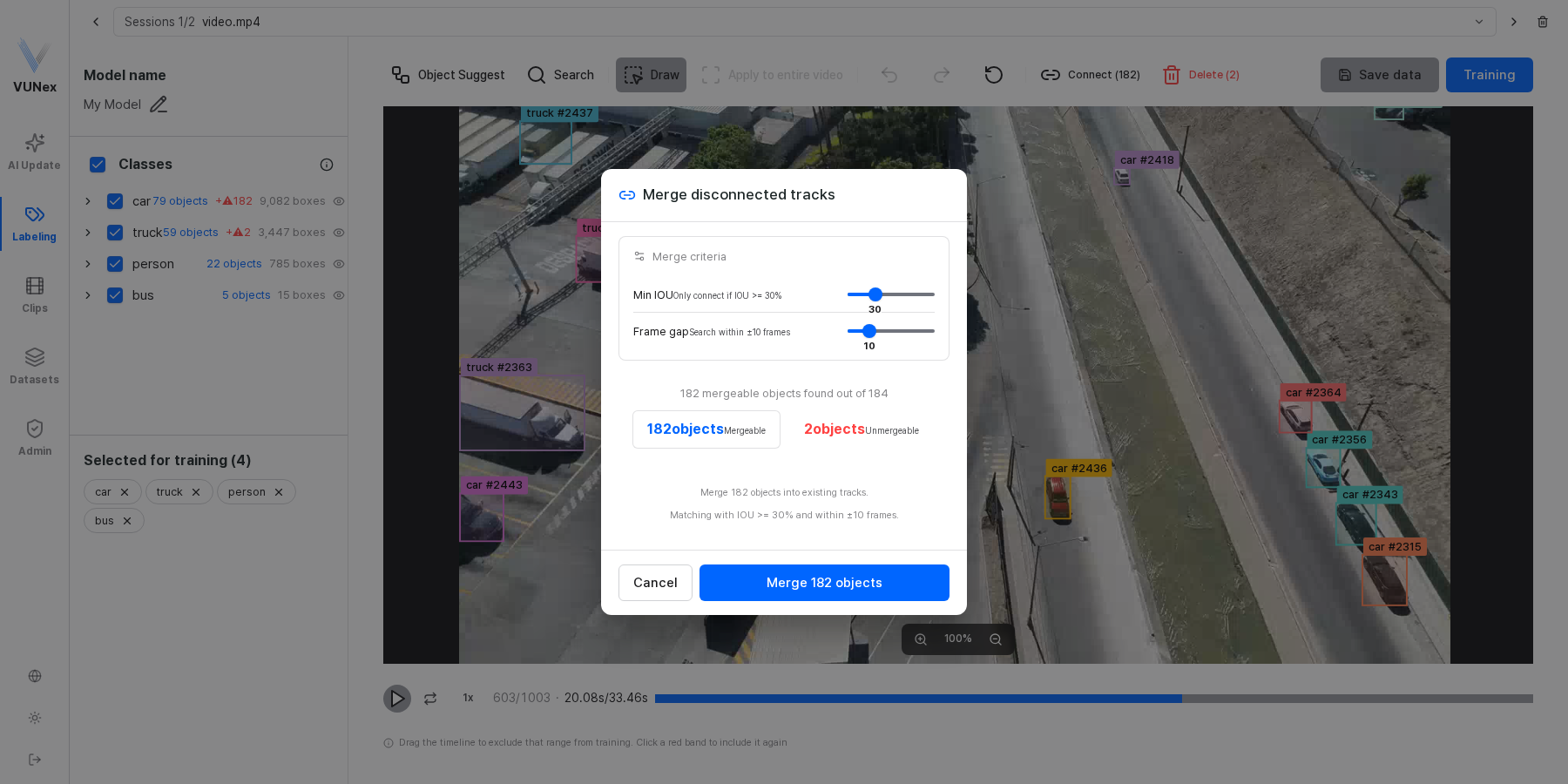 Figure 5-2. Connect window
- Click [Merge N objects]."N objects connected" appears. Press Ctrl+Z if it was wrong.
| Window element | Description |
|---|---|
| Min IOU | Slider 10%–80% in 5% steps, default 30%. "Only connect if IOU >= N%". The overlap (IOU) between the box and a nearby track box must be at least this value. |
| Frame gap | Slider 5–30 in steps of 5, default 10. "Search within ±N frames". Only tracks of the same class within this many frames before or after the box are candidates. |
| Analysis result | "B mergeable objects found out of A" and the Mergeable/Unmergeable counts. It is the total of repeated passes, because a connection can create candidates for others; with two or more passes "(N iterations)" is added. |
| [Cancel] / [Merge N objects] | When there is nothing to merge, [Merge N objects] is disabled. |
- To remove boxes that cannot be connected, click [Delete (N)].The same criteria sliders appear with "Delete N unmergeable objects. This action can be undone with Ctrl+Z." After deleting, "N objects deleted" appears.
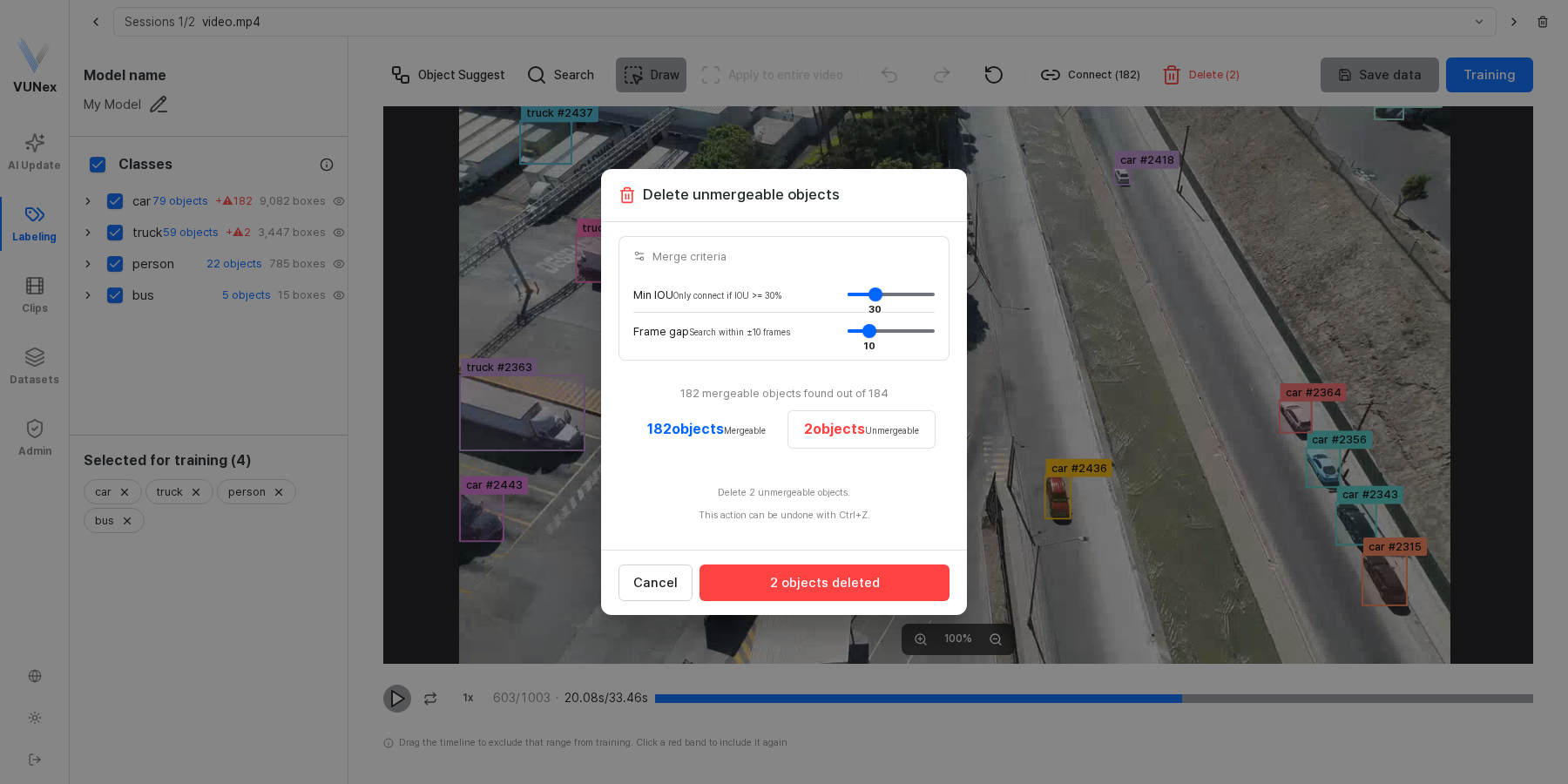 Figure 5-3. Delete unmergeable objects window
Per-class Track Connect Panel (Preview and Pick)
If bulk connecting feels risky, preview items class by class and pick the boxes to connect yourself.
- Expand the class in the class panel and click the link icon (Track merge) on the
⚠ Tracking Failedrow.The row shows the number of tracking-failed boxes in red.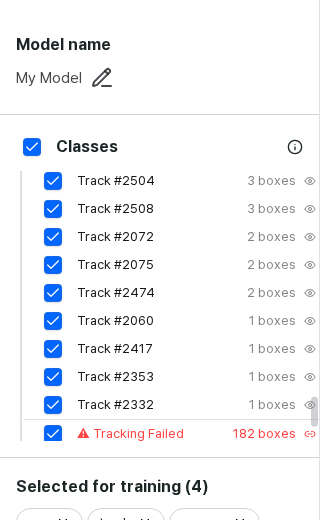 Figure 5-4. Tracking-failed row with the link icon
- Check the Merge tracking failed objects panel that slides in from the right.At the top are the Merge criteria sliders (Min IOU, Frame gap) and "B mergeable objects found out of A", followed by the Mergeable list. All mergeable items are checked at first.
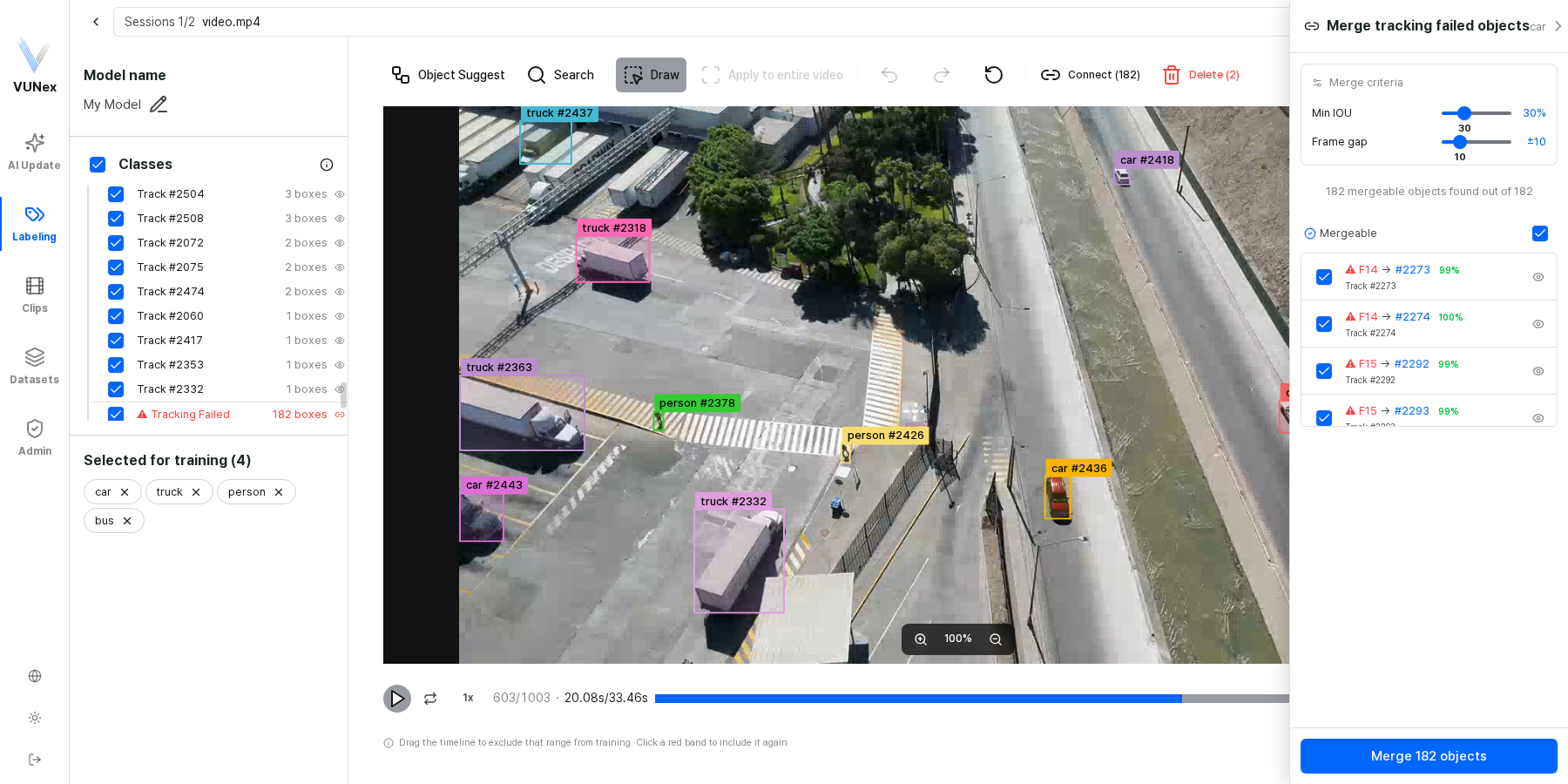 Figure 5-5. Merge tracking failed objects panel
- Check each result with the eye icon (Preview merge).The video jumps to that frame and dims everything else. The box to be connected is shown as a gold dashed box labeled
class → #track, and the box of the target track is highlighted in cyan.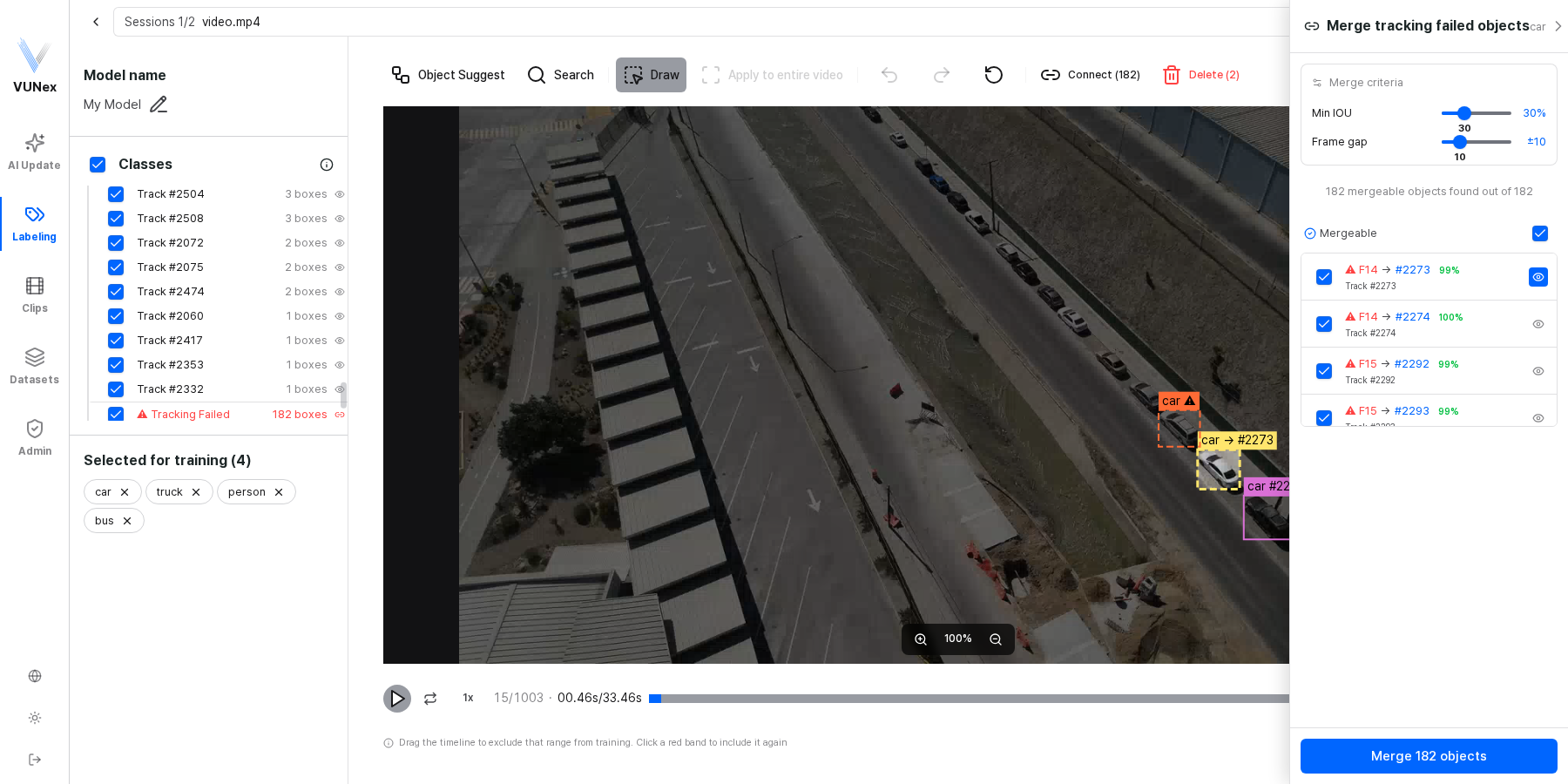 Figure 5-6. Merge preview
- Clear the checkbox of items you do not want and click [Merge N objects].Only the checked items are connected and the panel closes. Changing a slider recalculates the list and re-checks everything.
| Panel element | Description |
|---|---|
| Mergeable list item | ⚠ F frame → #track IOU% with Track #number below. The IOU value is color-coded. The header checkbox selects or clears all. |
| Unmergeable (N) list | Boxes for which no target track was found. Clicking only jumps to that frame; they cannot be connected here. |
| Empty state | "No tracking failed objects to merge" |
| [Merge N objects] | Disabled when nothing is checked. The connection can be undone with Ctrl+Z. |
| › button at the top right | Closes the panel and removes the preview highlight. |
Merging Broken and Duplicate Tracks, and Other Track Cleanup
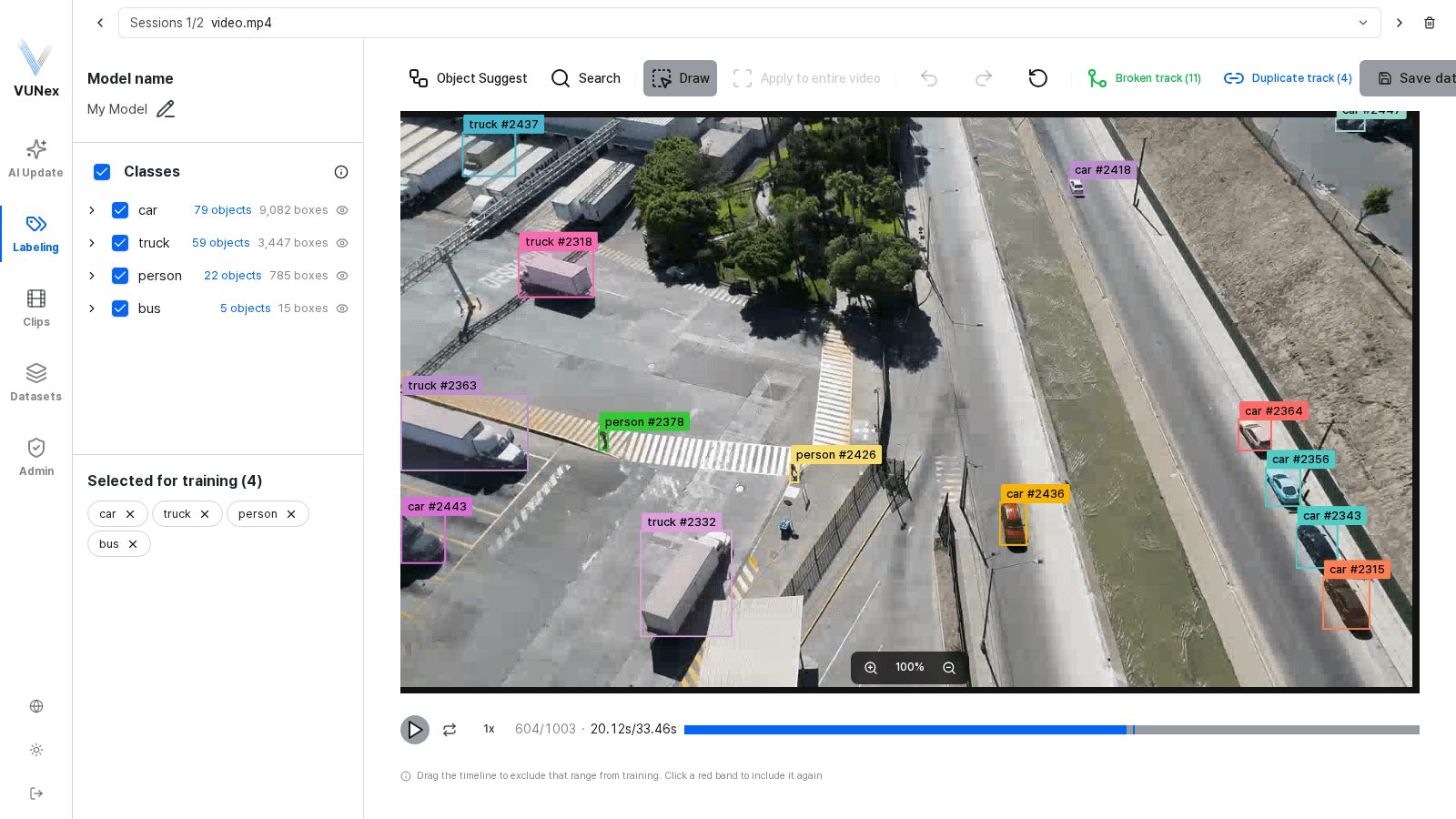
Even with no tracking-failed boxes, the same object can be split into different track numbers. In that case [Broken track] and [Duplicate track] buttons appear in the toolbar.
| Button | When it appears | What it merges | Criteria (fixed) |
|---|---|---|---|
| [Broken track (N)] (green, branch icon) | No tracking-failed boxes and at least one candidate pair. N is the number of mergeable track pairs. | Joins a same-class track that starts right after another one ends into a single track. Tooltip: "Merge disconnected tracks with similar movement patterns". | Same class, starts within 30 frames after the first track ends; total score 0.5 or higher (position prediction 50% + speed similarity 30% + size similarity 20%). |
| [Duplicate track (N)] (blue, link icon) | No tracking-failed boxes and at least one candidate pair. N is the number of overlapping track pairs. | Joins two tracks that follow the same object at the same time. Tooltip: "Merge tracks with high IOU overlap in the same time period". | Same class, at least 5 overlapping frames, average IOU of 0.3 or higher over them, and total score (average IOU 60% + speed similarity 40%) of 0.5 or higher. The track with more boxes is kept. |
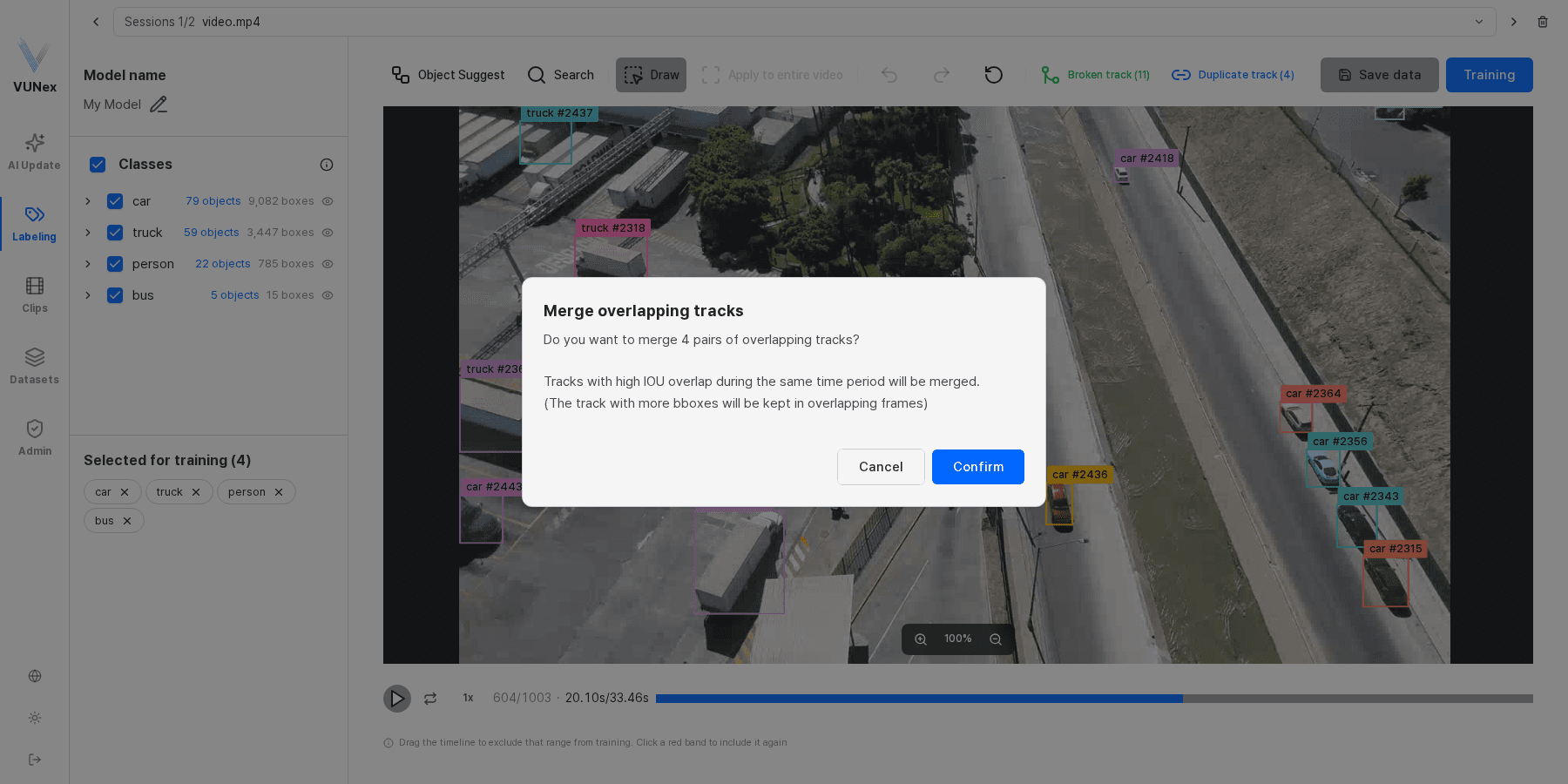
- Click [Broken track (N)] or [Duplicate track (N)].A confirmation opens. Broken: "Do you want to merge N pairs of disconnected tracks? Tracks with similar movement patterns will be merged." Duplicate: "Do you want to merge N pairs of overlapping tracks? Tracks with high IOU overlap during the same time period will be merged. (The track with more bboxes will be kept in overlapping frames)"
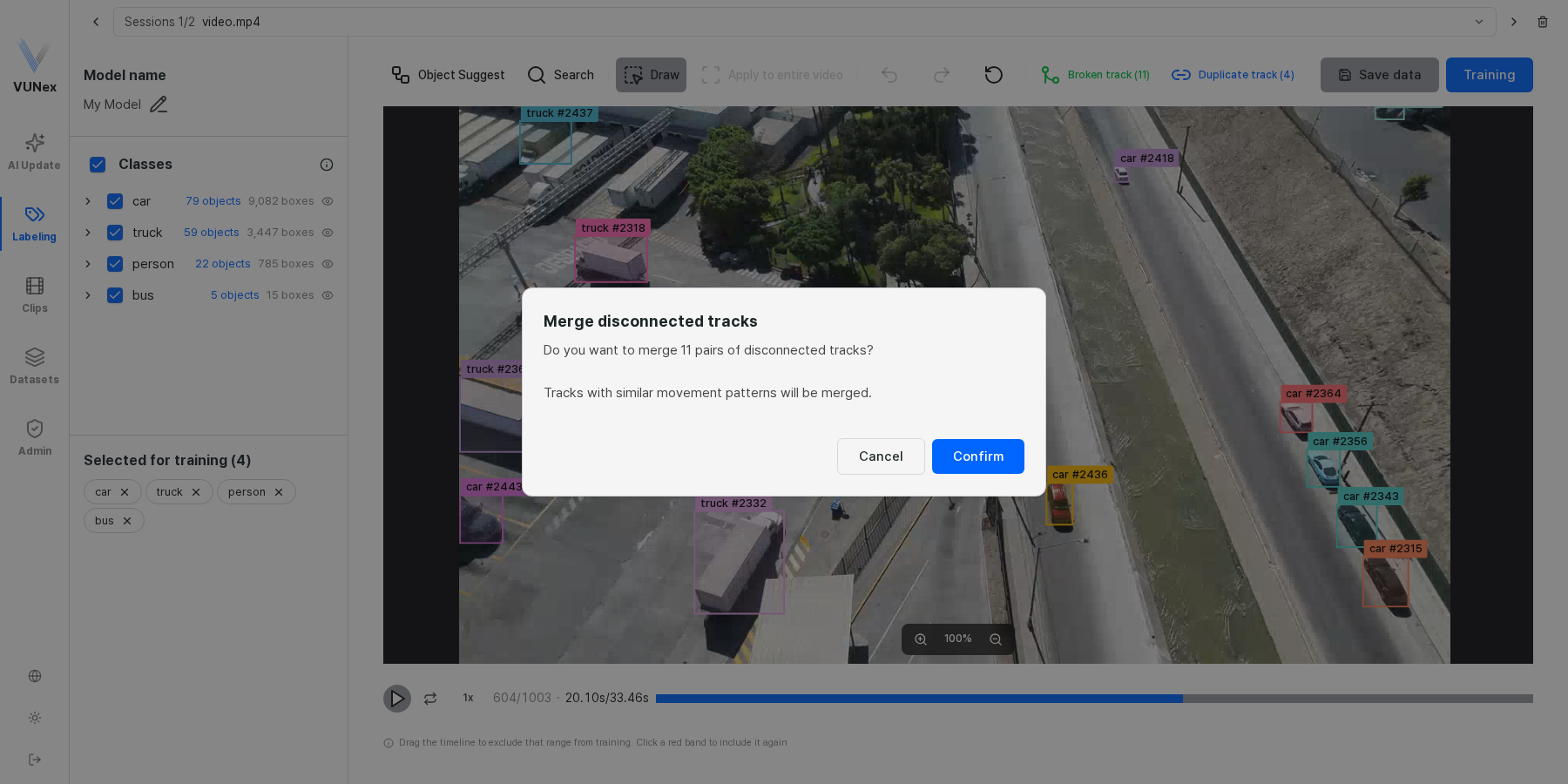 Figure 5-7. Merge disconnected tracks confirmation
- Click [Confirm]."N tracks merged" appears. Press Ctrl+Z to undo.
Class Search (Ctrl+Space / Ctrl+F)
Find a class that is already labeled in the video by name and jump straight to the frame where it first appears.
- Click [Search] in the toolbar or press Ctrl+Space or Ctrl+F.The tooltip reads "Class search (Ctrl+Space / Ctrl+F)". Pressing the same shortcut while the window is open closes it.
- Type part of a class name.Only classes containing the text remain, sorted by box count. Each row shows
N tracks · N boxes · First appearance time.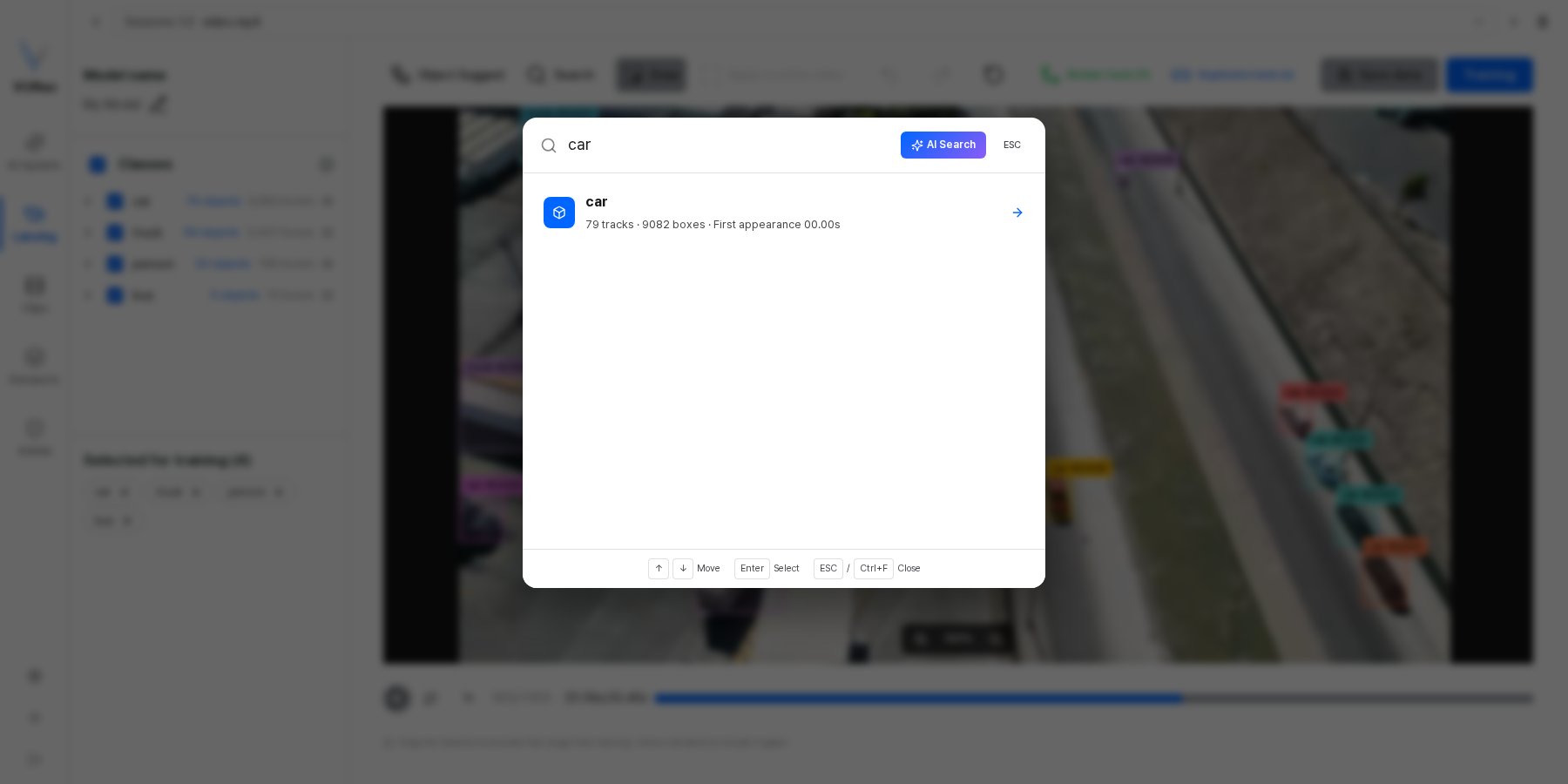 Figure 5-9. Class search window
- Pick with ↑/↓ and select with Enter (or click).The window closes and the video jumps to the first frame of that class and pauses. A notice "car 클래스로 이동" appears (this wording is always in Korean).
| Element | Description |
|---|---|
Input (Search class... (e.g. car, person, red car)) | Case-insensitive; matches classes whose name contains the text. |
| AI Search button | Appears on the right only when the input has text. See the next item ("AI Search"). |
| Empty input | If there are labeled classes, all of them are listed by box count. If there are none, "Type to search or use AI Search" and the examples "e.g. car, person, red bicycle, running dog" appear. |
| No result | "No class found for \"query\"" and the Search for "query" with AI (Enter) button. |
| Footer hints | ↑↓ Move / Enter Select / ESC, Ctrl+F Close |
| Click outside | Closes the window. |
AI Search (Find Objects by Text)
AI Search finds objects you describe in words, such as "red bicycle" or "running dog", across the whole video of the current session and creates boxes for them. It can find objects that are not among the COCO 80 classes.
- Type the object to find in the search window (Ctrl+F).If no existing class matches, the Search for "query" with AI (Enter) button appears. Even if a class matches, you can start AI Search with the AI Search button on the right of the input.
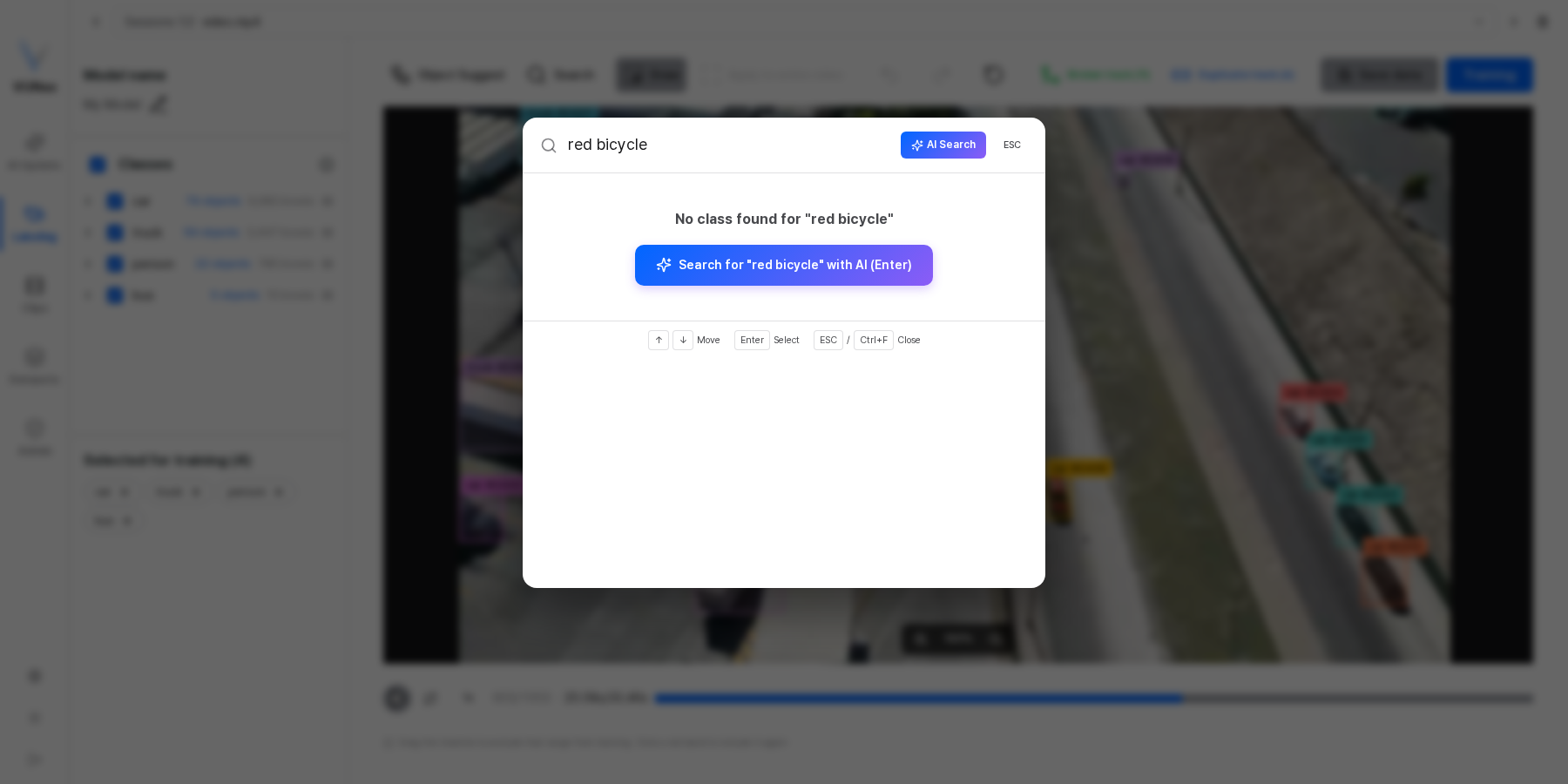 Figure 5-10. AI Search button when no class matches
- Press Enter or click AI Search.The input is cleared and the search starts. You can type another query without closing the window to run several searches at once.
- Watch the progress.The toolbar [Search] button turns into Searching (N), and the AI Searching (N) area in the window shows each query with the playback time at which you started it and a progress bar in %. Results are added to the screen as each batch of about 30 frames arrives.
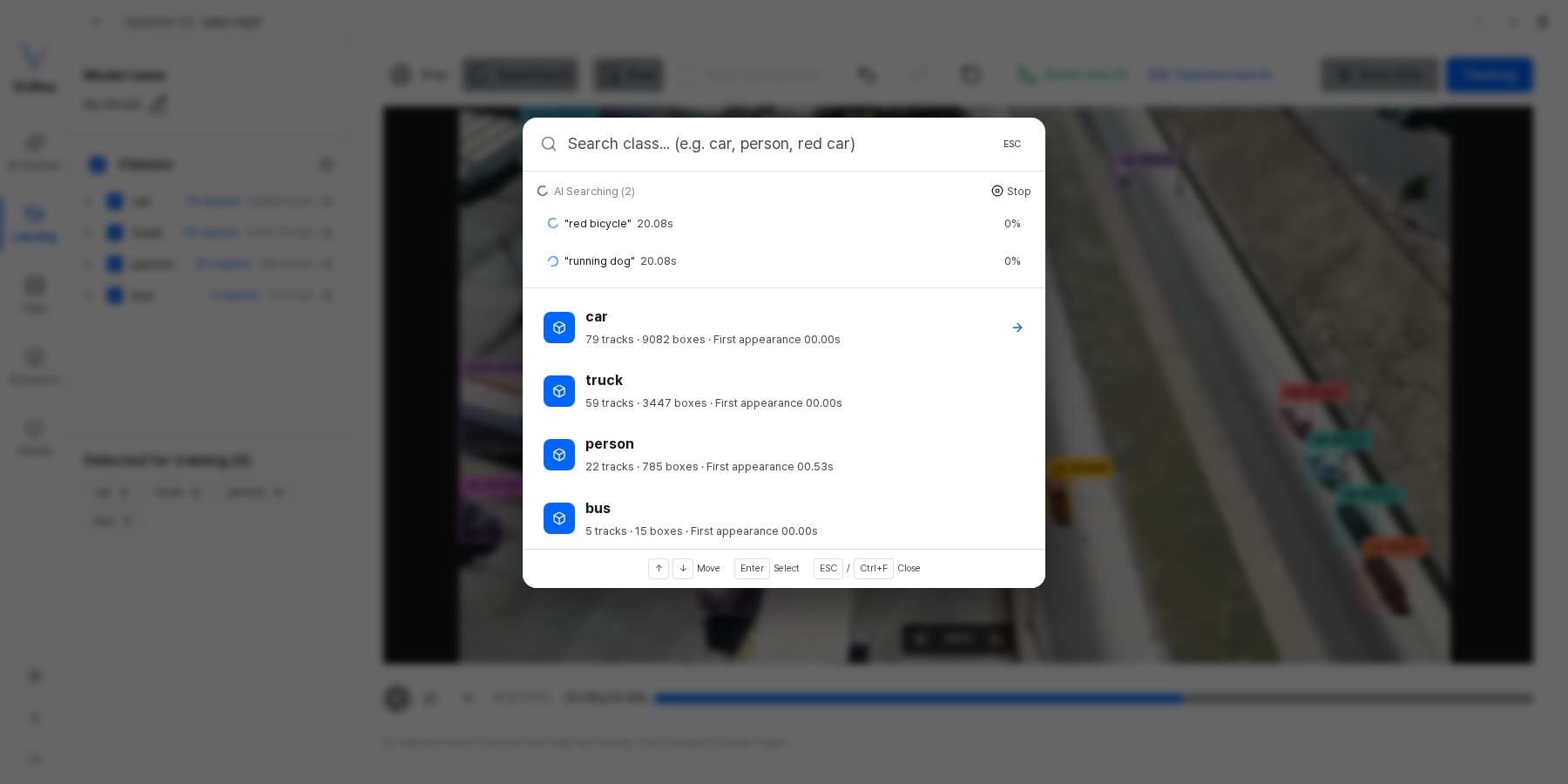 Figure 5-11. Search window with two AI searches running
- Check the notice when it finishes.Found boxes get new track numbers, and classes that were not in the list are added to the class panel. If you do not like the result, press Ctrl+Z to return to the state before the search.

| Message | Type | Condition |
|---|---|---|
| "query" N개 어노테이션 추가 완료 | Success | At least one was found |
| "query"에 해당하는 객체를 찾지 못했습니다 | Notice | No result |
| "query" AI 검색 실패 | Error | The request ended with an error |
| Project not initialized | Error | Searched before the session was ready |
Excluded Ranges (Drag on the Timeline)
For parts of the video you do not want to train on, such as when the camera was blocked or the scene changed, drag on the timeline to exclude them.
- Press at the start of the range on the timeline and drag to its end.A faint red area with a dashed outline is shown while dragging. Moving 4 pixels or less is treated as a seek, not an exclusion.
 Figure 5-13. Dragging a range
- Release the mouse.The range is shown as a red band and a N excluded range(s) badge appears under the timeline. It is saved to the server immediately; you do not need to press [Save data].
 Figure 5-14. Timeline with an excluded range
- Click the red band to cancel the exclusion.Hovering the band shows "Excluded frames start–end (click to restore)". Clicking it brings the whole band back into training.
| Rule | Detail |
|---|---|
| Overlapping ranges | Dragging over or next to an existing range merges them into one band. Re-dragging the same part does not make it darker. |
| Range | Frame-based and inclusive; you can drag in either direction. Endpoints are limited to the video. |
| Per session | Excluded ranges are stored per session. Set them for each session as you switch. |
| On a training request | Boxes in frames within excluded ranges are left out of the training request. |
| On saving data | The saved dataset keeps every box and the excluded-range information with it, so the same exclusion applies when you reopen it or use it for the next training. |
| On-screen hint | The hint "Drag the timeline to exclude that range from training. Click a red band to include it again" is always shown under the timeline. |
| Error message | Cause |
|---|---|
| Failed to update excluded ranges | A general error while saving |
| You do not have permission to change this session | The server answered 403 (no permission) |
| This session no longer exists. Please reload the page | The server answered 404 (for example, a deleted session) |
| Cannot reach the server. Check your connection and try again | No response from the server |
Excluding and Restoring Sessions
When a whole session is not needed for training, exclude it as a session. Nothing is deleted; it is only marked as "left out of training".
- Click the trash icon (Exclude session from training) in the session bar.The trash icon on each row of the session list excludes other sessions too. It applies immediately without a confirmation.
- Check the notice and the indicators."Session excluded from training" appears, the session name gets (excluded) and a strikethrough, and the icon turns into a restore icon (Restore session). It is saved to the server immediately.
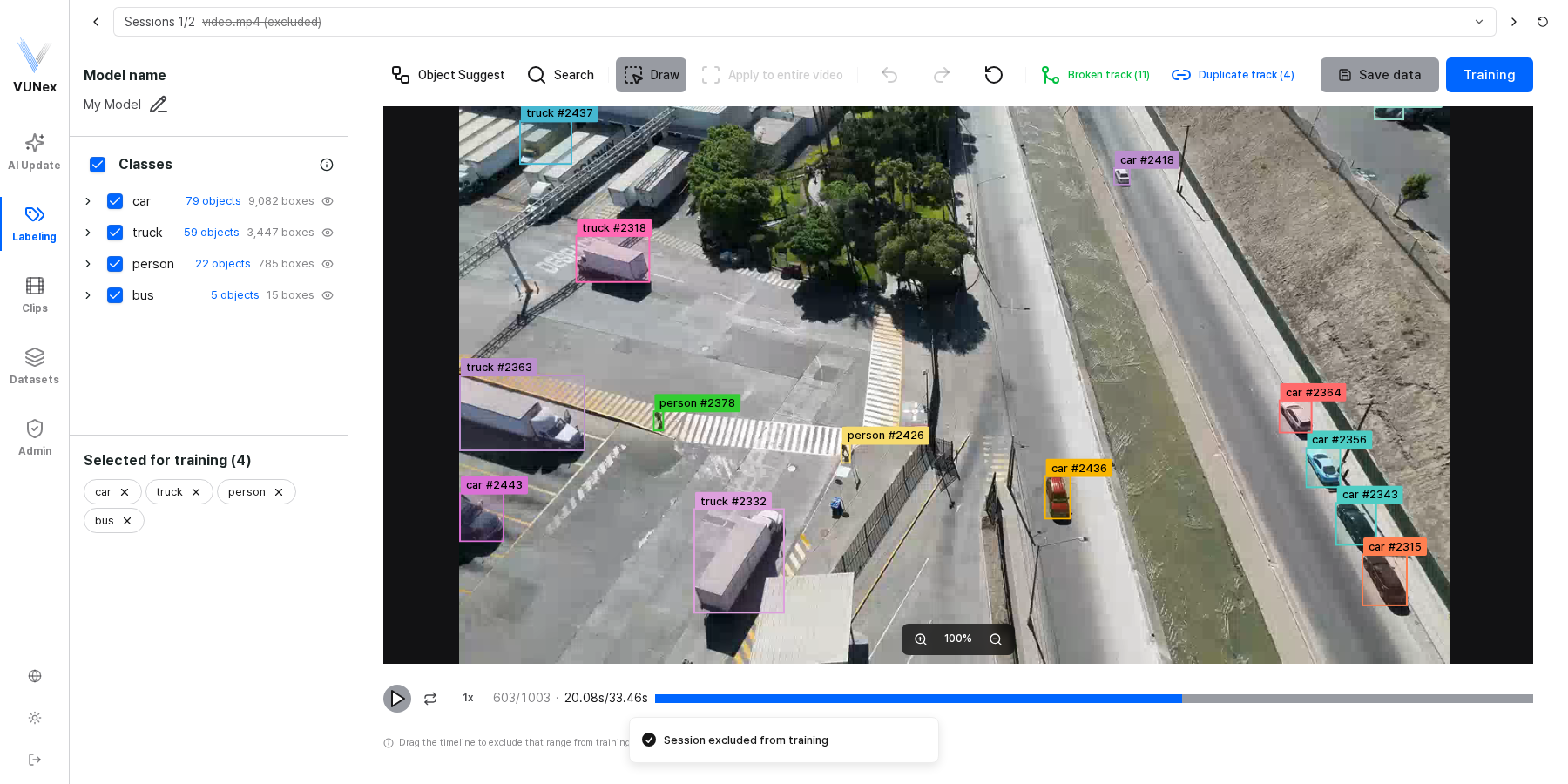 Figure 5-15. An excluded session
- To undo, click the Restore session icon."Session restored to training" appears.
| Item | Rule |
|---|---|
| Training request | Excluded sessions are not trained. Their labels are still sent with the request and kept on the server. |
| Saving data | Excluded sessions are saved too, with the exclusion mark. |
| When all are excluded | Starting training shows the error "All sessions are excluded from training". |
| Opening a restored dataset | Even if the first session is excluded, the screen opens on the first non-excluded session. |
| Error message | Cause |
|---|---|
| Failed to update session | A general error while saving |
| You do not have permission to change this session | No permission (403) |
| This session no longer exists. Please reload the page | Session not found (404) |
| Cannot reach the server. Check your connection and try again | No server response |
Unlabeled Sessions as Background
A session with no boxes at all is trained as the correct answer "there is nothing to find in this video". This is called background training and helps reduce false positives (detecting things that are not there).
- When you click [Training], the screen checks automatically for sessions without labels.If any non-excluded session has zero boxes, the dialog title becomes "Train N unlabeled session(s) as background?" with the text "N session(s) without labels will be included as background data to suppress false positives. Cancel if you meant to label them."
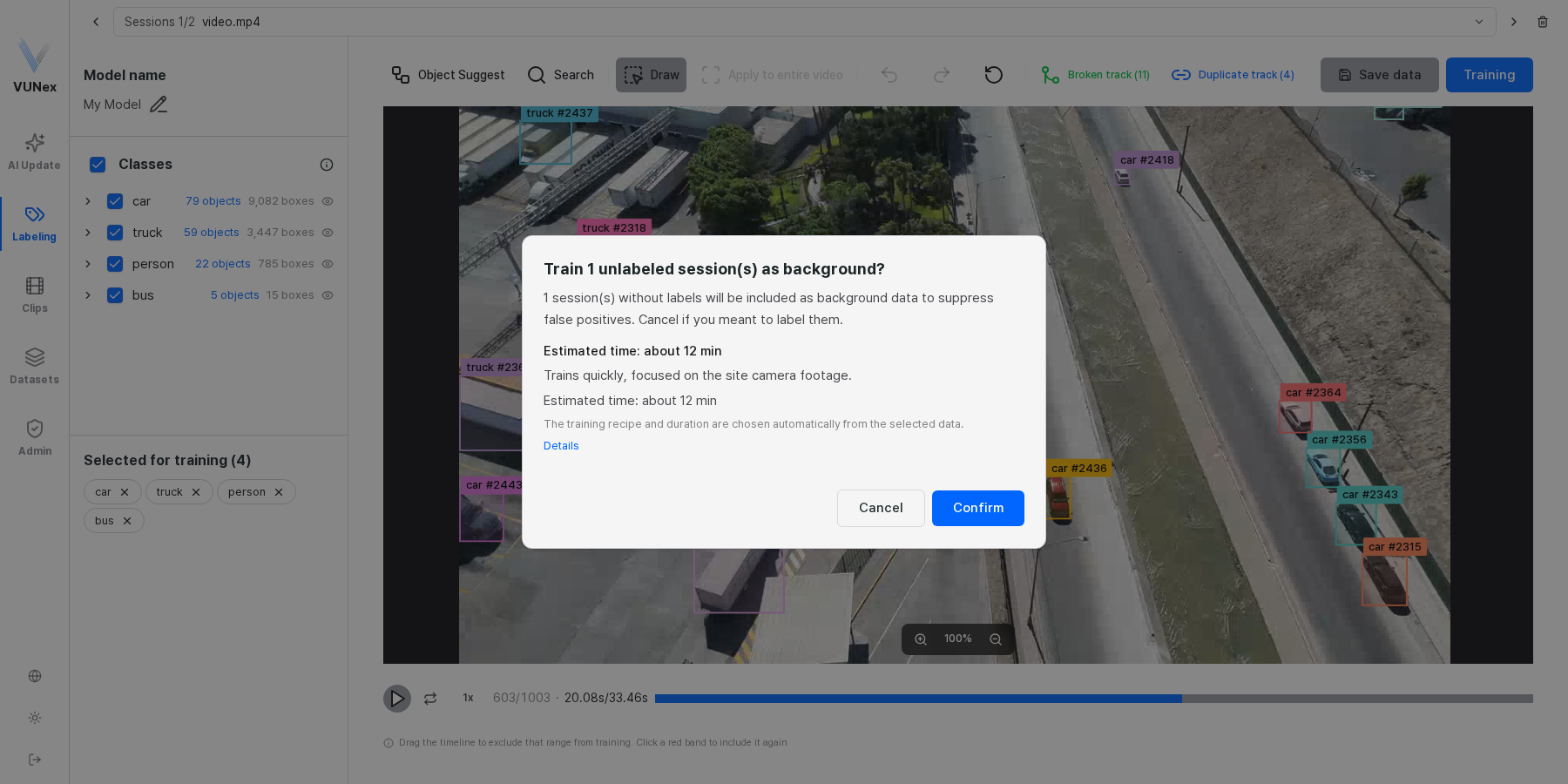 Figure 5-16. Training confirmation when background sessions exist
- If intended, click [Confirm]; if you forgot to label, click [Cancel] and label that session.
Saving Data (Keep Without Training)
[Save data] saves your labeling result as a dataset without starting training. The saved dataset appears on the [Datasets] screen and can be chosen as a "past dataset" in the next training request.
- Click [Save data] at the top right or press Ctrl+S.The tooltip reads "Keep the labeling results as a dataset without training (Ctrl + S)". It is disabled while the video is loading or while Object Suggest or Apply to entire video is running.
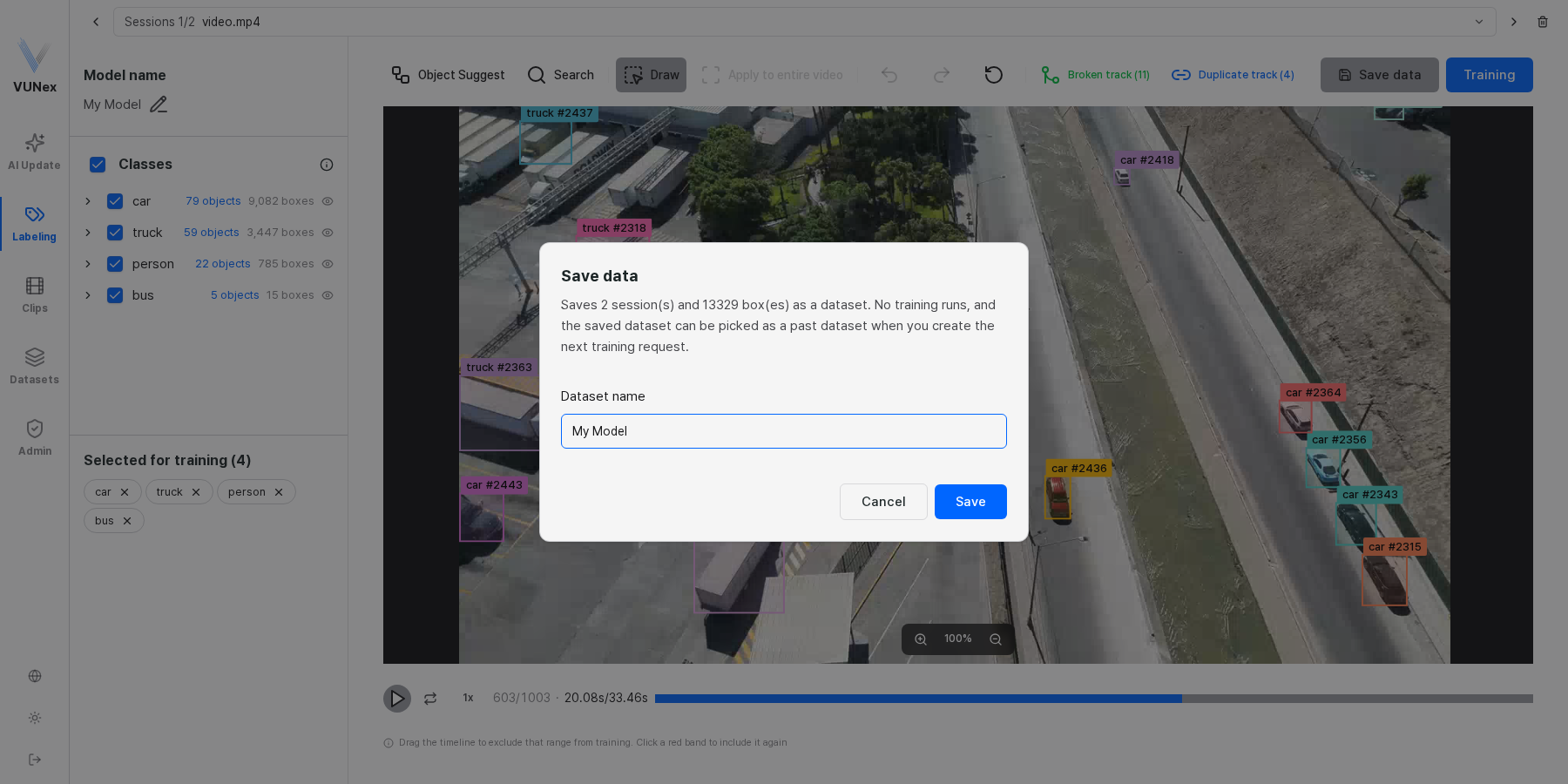 Figure 5-17. Save data window
- Enter a Dataset name.The window reads "Saves N session(s) and N box(es) as a dataset. No training runs, and the saved dataset can be picked as a past dataset when you create the next training request." The name field is prefilled with the model name, accepts up to 100 characters and may be left empty (an unnamed dataset is distinguished by its project number or model name in the list).
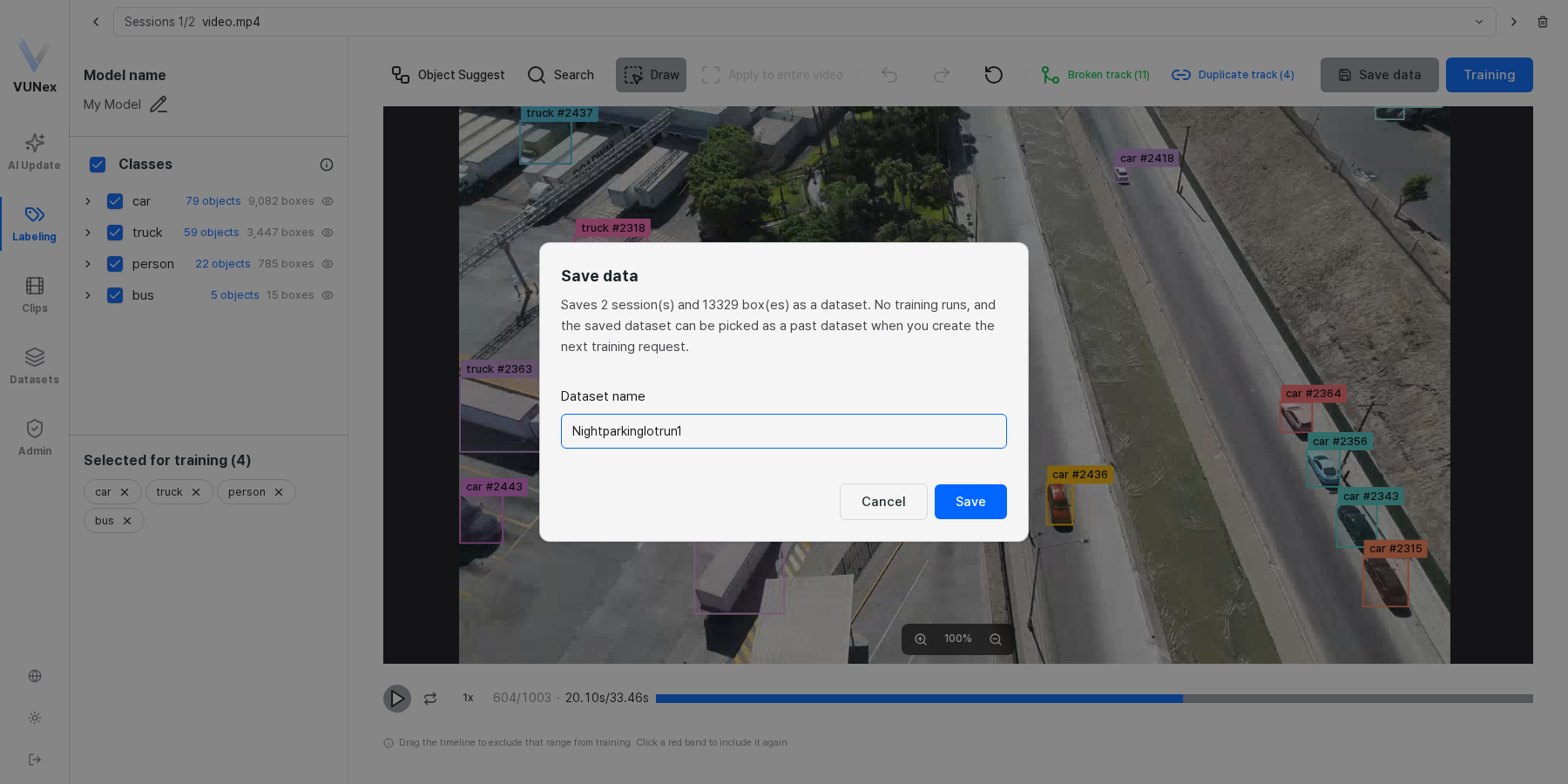 Figure 5-18. Name entered
- Click [Save] (or press Enter).A "Saving the labeling results." window shows briefly, then "Saved as a dataset (N session(s))" appears and you are taken to the [Datasets] screen. [Cancel] (or Esc) closes the window without saving.
| What is saved | Description |
|---|---|
| Every session | Including excluded sessions. |
| All boxes and classes | Classes you unchecked, excluded tracks and boxes in excluded ranges are saved too. They only mean "left out of this run", not "discard this work". |
| Public dataset selection | The public datasets chosen for the training request are recorded as well. |
| Message | Type | Condition |
|---|---|---|
| Saving the labeling results. | Progress window | While saving |
| Saved as a dataset (N session(s)) | Success | Saved |
| Failed to save the dataset. + server message | Error (5 s) | Saving failed |
| There is no labeling session to save yet | Error | There is no session to save |
Starting Training and the Confirmation Window
[Training] requests model training with the labels of the classes and tracks checked on this screen. Before sending, a confirmation window shows the estimated time and the training composition.
- Check that only the classes and tracks to train are checked in the class panel.
- Click [Training] at the top right.The confirmation opens and shows "Estimating training time…" while the estimate is calculated.Figure 5-19. Start training confirmation
- Read the Estimated time and the training mode text, and click [Details] to see the composition.As the note "The training recipe and duration are chosen automatically from the selected data." says, you do not choose the training mode.
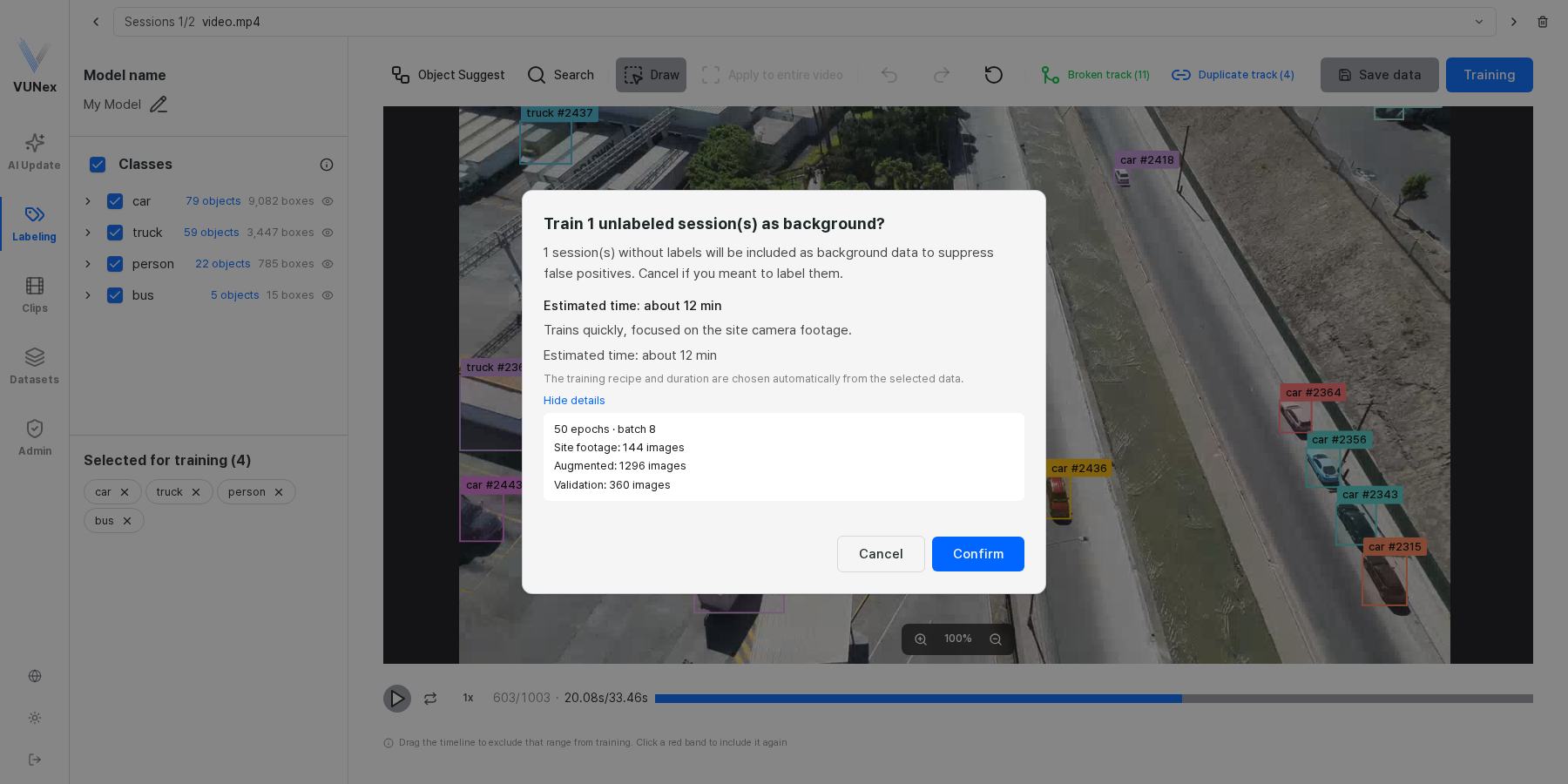 Figure 5-20. Details expanded
- Click [Confirm] to send the request.A "Training is in progress. Please wait a moment" window appears; on success a "Update request for "model name" has been successfully submitted." notice appears and you are taken to the [AI Update] screen to follow its progress. [Cancel] (Esc) sends nothing.
| Confirmation item | Description |
|---|---|
| Estimated time | "Estimated time: about N min" (minimum 1 minute), calculated by the server from the data and training composition. |
| Training mode text | One of these, depending on the automatically chosen mode: "Trains quickly, focused on the site camera footage." / "Mixes part of the public datasets into the site footage to fit this site." / "Uses all public datasets and previous training data to upgrade the base model." |
| [Details] / [Hide details] | Expands or collapses the details below. |
| N epochs · batch N | How many times training repeats (epochs) and how many images are processed at once (batch). |
| Site footage: N images | Number of images from the video you labeled this time. |
| Augmented: N images | Number of extra images made by changing the position, size and brightness of site footage. |
| Public datasets: N images | Images of the public datasets trained together (shown only when included). |
| Existing model data: N images | Images re-mixed from data the existing model was trained on (shown only when applicable), so previous knowledge is not forgotten. |
| Validation: N images | Images used to check performance during training. |
| Message | When it appears |
|---|---|
| Estimating training time… | While calculating right after the window opens |
| Could not fetch the time estimate. Training can still be requested. | The estimate failed. It does not block the request. |
| Training is in progress. Please wait a moment | Loading window while the request is sent |
| Update request for "model name" has been successfully submitted. | Request succeeded |
| Failed to request training + server message (5 s) | The request failed; the server message follows. |
| All sessions are excluded from training | No non-excluded session exists |
| No session has labels. At least one session must be labeled | No session has any box |
| The selected model cannot be trained. A new model will be created. | Guidance text for when the selected base model cannot be trained further |
Warning When Leaving Without Saving
Labeling work lives only in screen memory until you save or request training, so leaving by accident would lose everything. The screen therefore intercepts leaving and shows a confirmation.
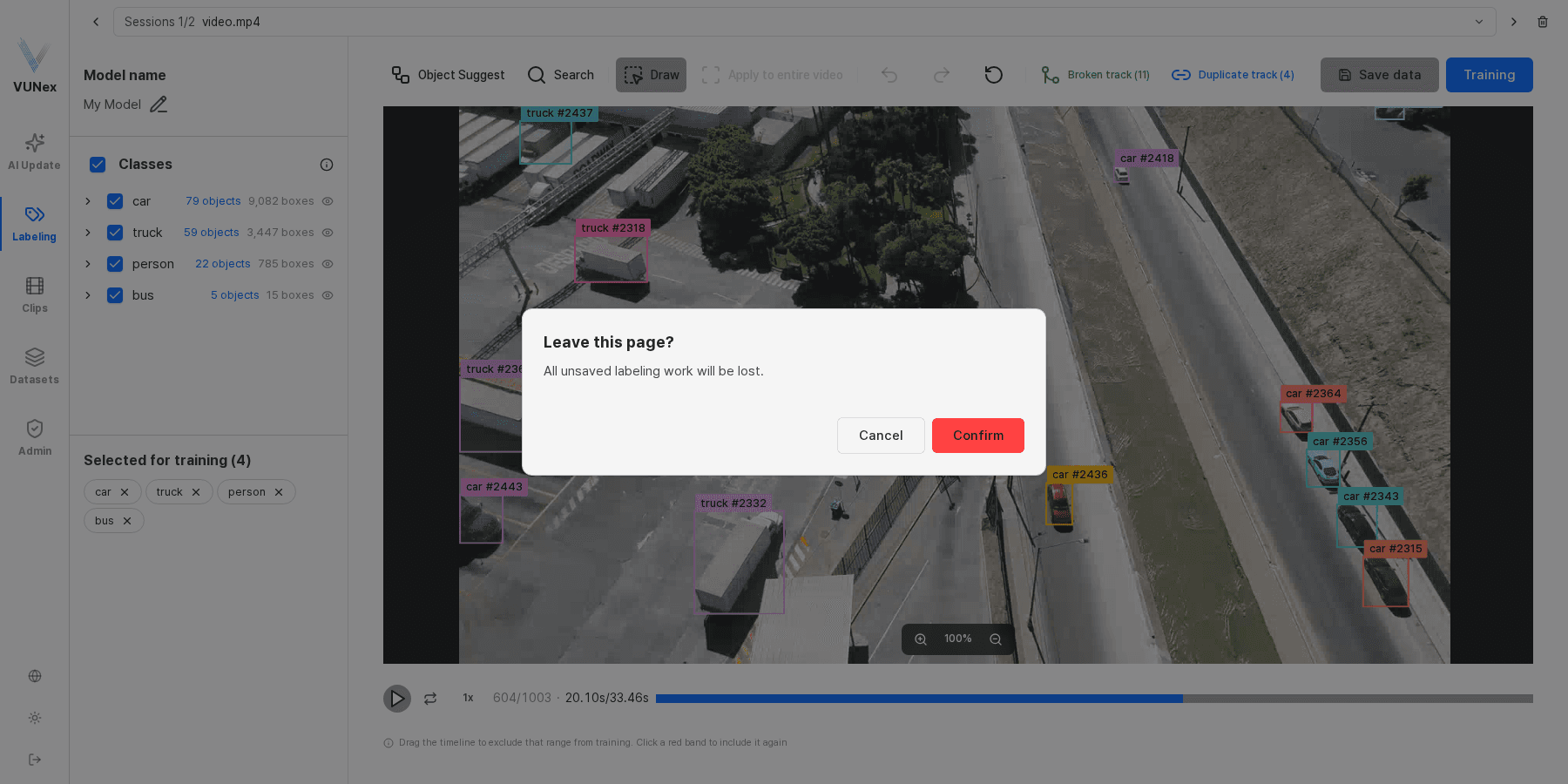
| Way of leaving | Behavior |
|---|---|
| Backspace key (outside input fields) | Blocks the browser back action and shows the confirmation. |
| Mouse back button, browser back button | The same confirmation appears. It is not shown again while one is already open. |
| Refresh, closing the tab or window | If there is at least one box, the browser's own "Leave this page?" prompt appears (its wording is decided by the browser). |
| Clicking the left menu | Navigates immediately without this confirmation. Save before leaving through the menu. |
| Dialog | Content |
|---|---|
| Title | Leave this page? |
| Text | All unsaved labeling work will be lost. |
| [Cancel] (Esc) | Stays on the screen. |
| [Confirm] (red button, Enter) | Goes back to the previous screen. Unsaved boxes are lost. |
Keyboard Shortcuts
These shortcuts work on the labeling screen. Most of them do not work while you are typing in an input field.
| Key | Action | Condition / notes |
|---|---|---|
| Space | Play/pause | When not typing. It can also fire inside some input fields, which is why spaces cannot be typed in the dataset name (see "Saving Data"). |
| Next/previous frame | One frame per press |
| D | Toggle draw mode | Outside input fields |
| Esc | End draw mode + clear box selection + clear class-panel highlight | While auto-labeling runs the stop confirmation opens first. In a dialog it acts as [Cancel]. |
| Ctrl+Z | Undo | Up to 20 steps |
| Ctrl+Y | Redo | — |
| Ctrl+S | Open the save data window | Not available while loading or while Object Suggest runs |
| A | Start Object Suggest / stop confirmation while running | Without Ctrl. Does nothing while a dialog is open |
| Ctrl+Space, Ctrl+F | Open/close the class search window | Used instead of the browser's own find |
| Backspace | Leave confirmation | Outside input fields |
| Enter / Esc | [Confirm] / [Cancel] in a dialog | In the save window Enter acts as [Save] |
| Delete | Delete the selected box from this frame | While a box is selected |
| Shift+V | Delete the selected box's track from the whole video | Not for tracking-failed (-1) boxes |
| F / B | Bring the selected box to front / send to back | While a box is selected |
| ↑ / ↓ / Enter / Esc (search window) | Move / select / close results | Inside the search window |
| Mouse wheel / middle-button drag | Zoom / pan | See "Zooming and Panning" |
Screen Requirements (Zoom 100%, Ratio 15.5:9 or Wider)
The labeling screen assumes a wide window with the browser zoom at 100% so that boxes can be drawn accurately.
| Requirement | Recommended | Reason |
|---|---|---|
| Browser zoom | 100% | A different browser zoom can make box positions and layout look off. Use the in-screen zoom controls to magnify the video. |
| Window aspect ratio | 15.5:9 or wider | The toolbar has many buttons, so in a narrow window the right-hand [Save data] and [Training] buttons are pushed off screen. The English UI has longer labels and needs a wider window. |
Confirmations, Notices and Error Messages
All confirmations and notices you can see on the labeling screen are collected here. They use the same wording as in each feature description.
| Dialog title | Content | Buttons |
|---|---|---|
| Object Suggest notice | Start guide, estimated time, note about keeping existing boxes, scope (two or more sessions) | [Cancel] [Confirm] |
| Stop auto-labeling | Stop the running auto-labeling? Results already applied will be kept. | [Cancel] [Confirm (red)] |
| Apply to entire video | Current frame has N "class" objects. Which objects should be tracked? | [Cancel] [Selected object only] [All N objects] |
| Reset | Are you sure you want to reset? | [Cancel] [Confirm] |
| Merge disconnected tracks / Merge overlapping tracks | Number of pairs and how they are merged | [Cancel] [Confirm] |
| Connect window / Delete unmergeable objects | Criteria sliders and analysis result | [Cancel] [Merge N objects / delete] |
| Save data | Number of sessions/boxes to save and a dataset name input | [Cancel] [Save] |
| Start training? / Train N unlabeled session(s) as background? | Estimated time and training composition (details) | [Cancel] [Confirm] |
| Leave this page? | All unsaved labeling work will be lost. | [Cancel] [Confirm (red)] |
| Notice (toast) | Type | Description |
|---|---|---|
| Moved to the first frame where selected class first appears [class] | Notice | Class panel eye icon |
| Moved to first frame of track [class #number] | Notice | Track row eye icon |
| N objects connected / N objects deleted / N tracks merged | Success | After connecting, deleting or merging tracks |
| Session excluded from training / Session restored to training | Success | Excluding/restoring a session |
| Saved as a dataset (N session(s)) | Success | Saving succeeded |
| Update request for "model name" has been successfully submitted. | Success | Training request succeeded |
| Object Suggest / AI Search / tracking notices | Success / notice / error | See the message tables of each feature |
| Auto-labeling stopped. Results already applied are kept. | Notice | After confirming a stop |
| N duplicate video(s) were merged into an existing session | Notice | Duplicate upload |
| N session(s) were not created because some video segments failed to process | Warning | Automatic split failed |
| Some sessions failed to load | Warning / error | Some sessions failed |
| Object Suggest is running... / The video is still loading... | Notice | Session switch blocked |
| The data is being loaded. + Please wait a moment | Loading window | While loading data |
| Data loaded successfully / Failed to load the data. Please try again. | Success / error | Loading result when opened from a channel video |
When Buttons Are Disabled
If a button does nothing, check the conditions below.
| Button / feature | Disabled or inactive when |
|---|---|
| [Object Suggest] | Video/data is loading. While running it becomes [Stop]. |
| [Apply to entire video] | No box is selected, or Object Suggest/tracking is running |
| [Undo] / [Redo] | There is no undo/redo history |
| [Connect (N)] / [Delete (N)] | Zero mergeable/unmergeable boxes. They do not appear at all without tracking-failed boxes |
| [Save data] | Video/data is loading, or Object Suggest or box tracking (Apply to entire video) is running. It is not disabled during AI Search |
| [Training] | Same as above, or every class is cleared so no class is checked ("No items selected for training") |
| Previous/next session buttons | Only one session. During Object Suggest clicking only shows a notice and does not move |
| [Merge N objects] (panel/window) | No items to merge (nothing checked) |
| Ctrl+S and A shortcuts | Same conditions as the buttons. A also does nothing while a dialog is open |
| Selecting, moving, resizing boxes | While the video is playing (pause first) |