03
Access and Screen Layout
Online Studio address, login and the common screen layout (menu, language, theme). The offline Studio uses the same login and layout.
Access Address
The online Studio is used from a web browser.
| Mode | Address | Account |
|---|---|---|
| Online | https://mlops.vunex-cloud.com/ | Ask the AI team |
| Offline | `http:// | Account prepared by the AI team |
Recommended Environment
Use a recent desktop Chrome or Edge. The labeling screen needs a large display: browser zoom 100% and an aspect ratio of 15.5:9 or wider. Mobile is not supported.
Signing In
Sign in with your Studio account.
- Enter the access address in the browser.The login screen opens.
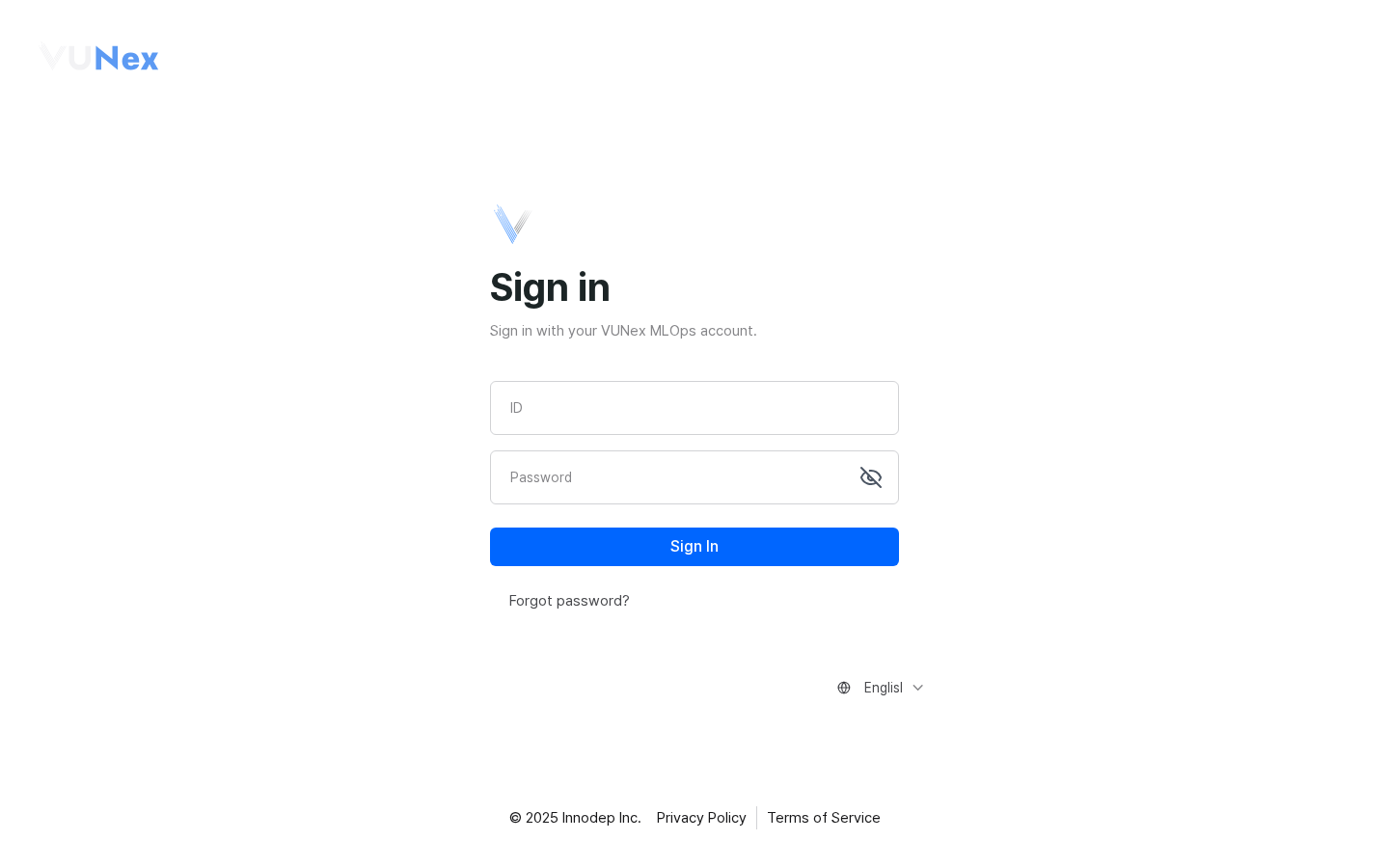 Figure 3-1. Login screen
- Enter your [ID] and [Password].Use the eye icon at the right of the password field to show or hide the password.
- Click [Login] or press Enter.The [AI Update] screen opens after login.
| Error message | Cause |
|---|---|
| Enter an ID of at least 6 characters | ID too short |
| Enter an ID of at most 20 characters | ID longer than 20 |
| Enter a password of 6–20 characters | Password length error |
| Check your ID or password. | Credentials rejected |
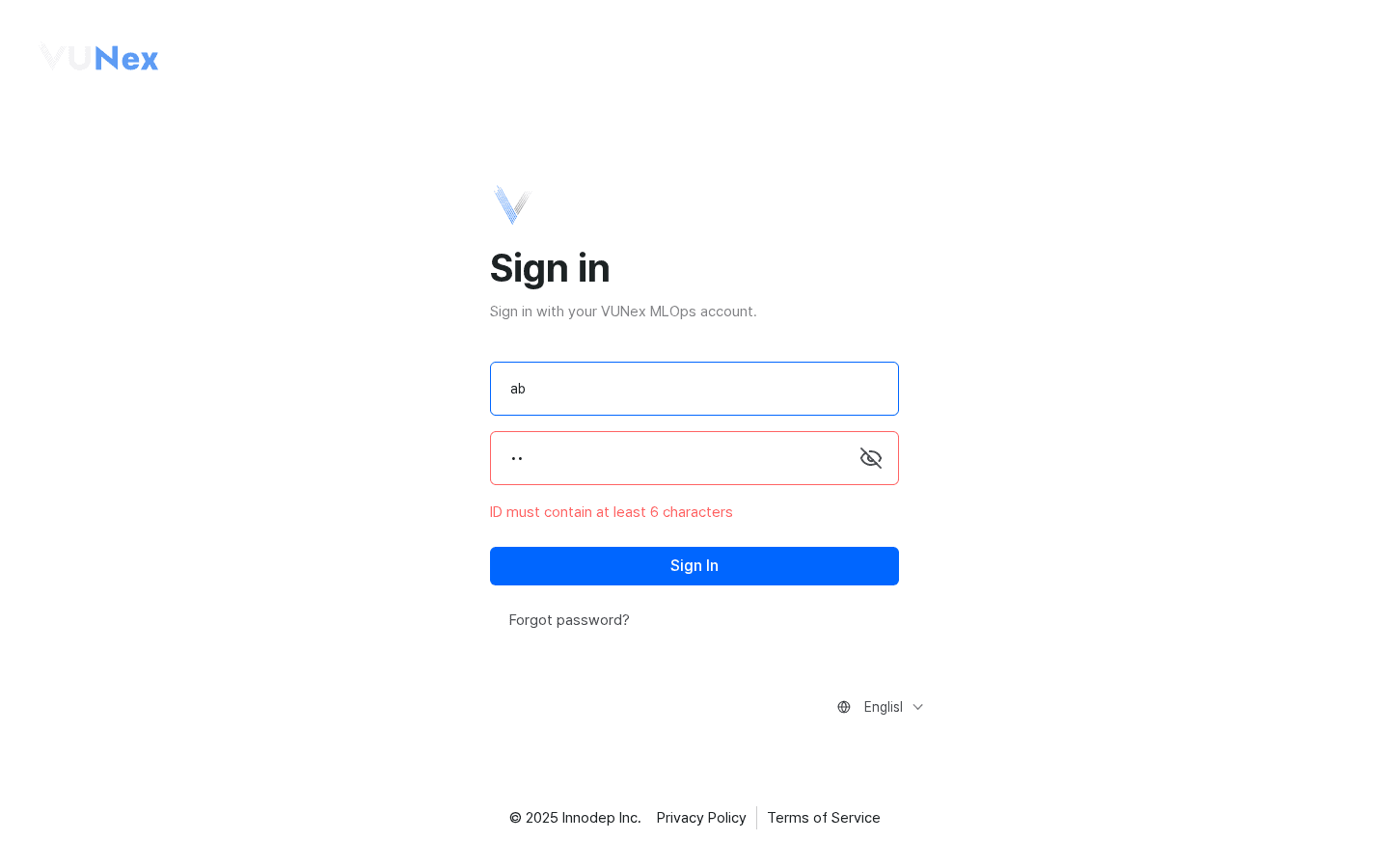
Figure 3-2. Input error display
Accounts
Accounts cannot be self-registered; the AI team issues them. If you forgot your password, ask the AI team. All models and data are separated per organization, and other organizations' data is invisible unless shared. On shared PCs always [Log out] after use.
Screen Layout
After login a menu is fixed on the left and the selected screen appears on the right.
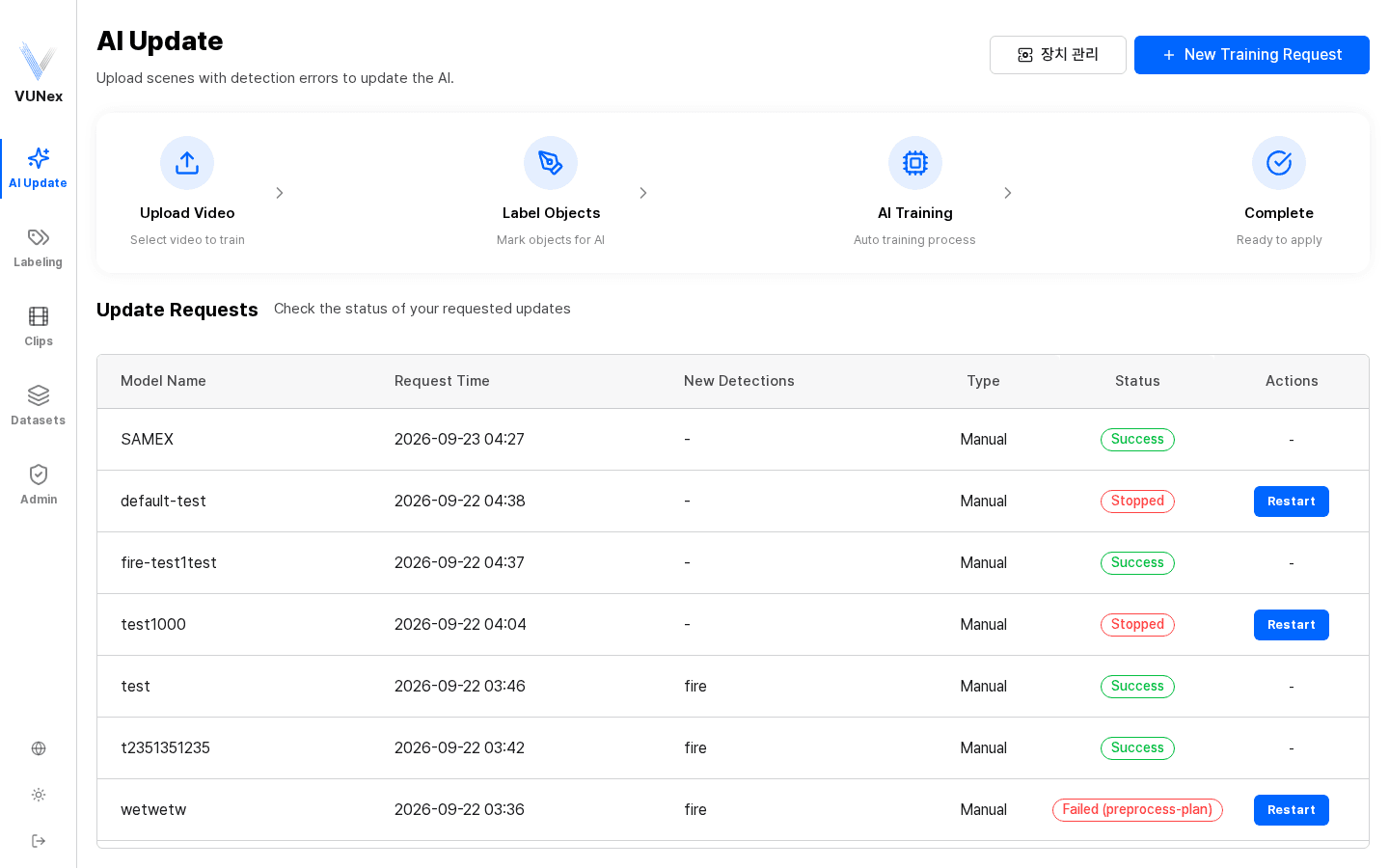
Figure 3-3. Basic screen layout
| Position | Item | Description |
|---|---|---|
| Left menu | AI Update | Create training requests and track progress. First screen. Section 04 |
| Left menu | Labeling | Video label editor. Sections 05–06 |
| Left menu | Collected Videos | Field-collected and uploaded videos. Section 07 |
| Left menu | Datasets | My/shared datasets, model evaluation. Sections 08–09 |
| Bottom left | Language (globe) | Choose English, 日本語, 한국어 or Español; saved in the browser. |
| Bottom left | Theme (sun/moon) | Switch light/dark; saved in the browser. |
| Bottom left | Log out | Ends the session and returns to the login screen. |