01
Installation and Sign In
This section explains how to install the VUNex Link app, sign in, and manage your account.
Installing the app
- Download the app from the app store for your device.
- iPhone : Search for 'VUNex Link' on the App Store and download it. Requires iOS 15.6 or later.
- Android : Search for 'VUNex Link' on Google Play and download it. Requires Android 7.0 or later.
- Install the app.When the installation is complete, the VUNex Link icon appears on your home screen.
Before you start
- Your account must be activated.Your account must be activated by your company administrator on VUNex Cloud. If it is pending approval, you cannot use the app.
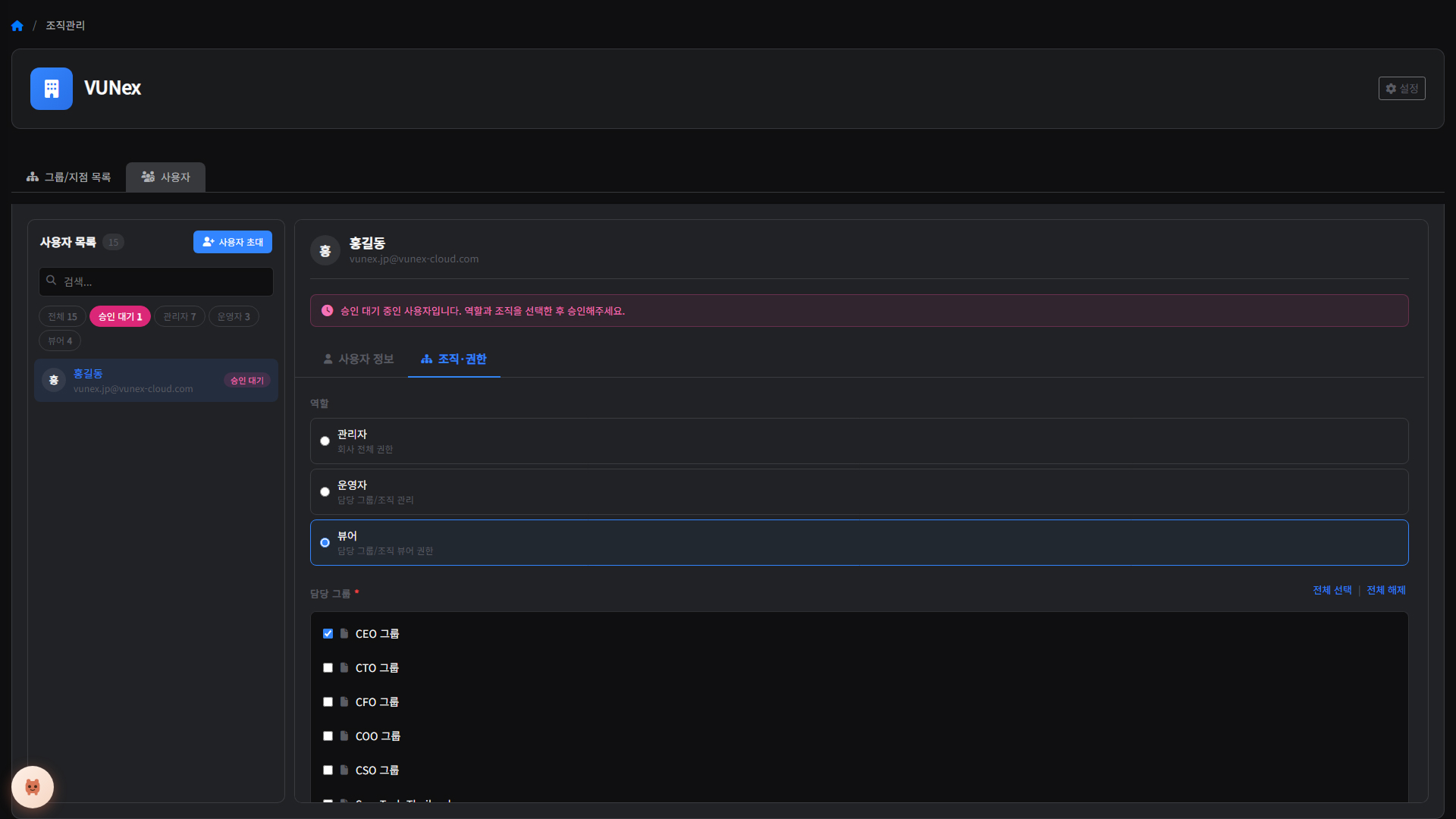
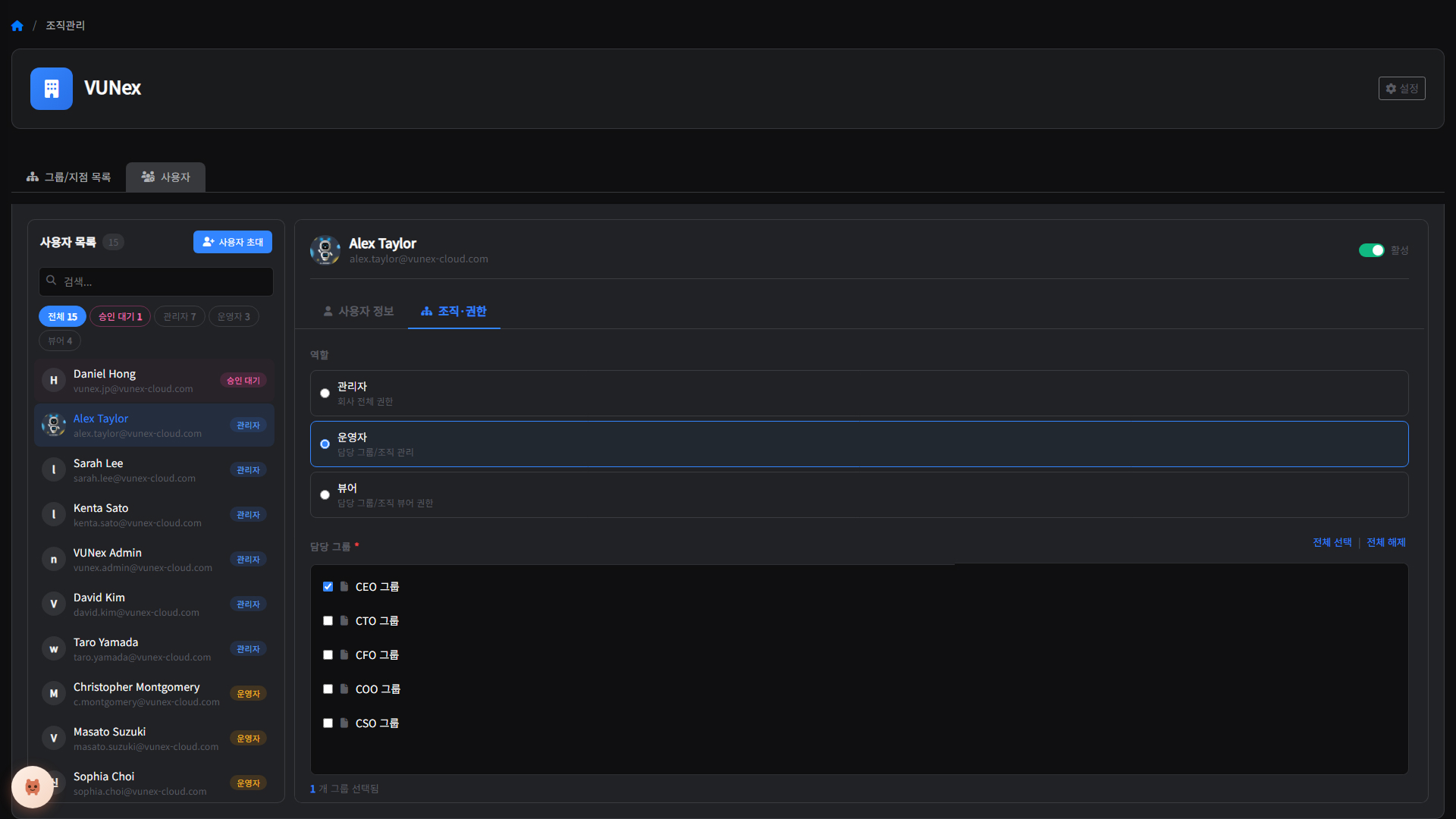
- A role and groups/branches must be assigned.Your role (Manager, Operator, or Viewer) and the groups/branches you are in charge of must be assigned to your account. Managers can access all groups/branches; operators and viewers can access only their assigned groups/branches.
Note
Account activation, roles, and group/branch assignment are managed by your company administrator on VUNex Cloud (Organization Management > Users).
If you cannot sign in, contact your company administrator.
For what you can do with each role, see 'User roles and permissions' in the Reference section.
Signing in
- Allow notifications when you first launch the app.When you launch the app for the first time, a notification permission request appears. You must allow it to receive event push notifications.
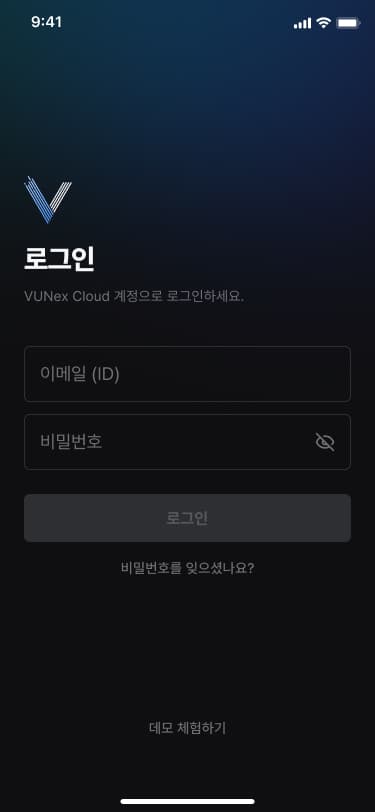
- Enter your account information.
- [Email (ID)] Enter your VUNex Cloud email (ID).
- [Password] Enter your password.
- Tap [Sign In].You sign in to the VUNex Link app.
Note
- When you launch the app, an intro screen appears and then the Sign In screen opens. If your sign-in is still active, the app goes directly to the Home screen, and you need to sign in again when the session expires.
- Automatic sign-in is not supported; your session is kept for at least 30 days, and you only need to sign in again after it expires.
- Tap [Try Demo] to use demo mode without an account and try out the features.
Caution
If you enter the wrong password 5 or more times, an account locked message appears.
Try again after 10 minutes, or tap [Reset Password] in the message to reset your password.
Resetting your password
- Tap [Forgot password?].
![Tap **[Forgot password?]**.](/manual/vunexlink/images/Sign_main_ko.jpg)
- Enter your [Email].Enter your VUNex Cloud email (ID).
![Enter your **[Email]**.](/manual/vunexlink/images/Sign_password_ko.jpg)
- Tap [Send].A verification email is sent to the email you entered.
- Enter the [Verification Code].Enter the 6-digit verification code sent to your email.
![Enter the **[Verification Code]**.](/manual/vunexlink/images/Sign_email_ko.jpg)
- Tap [Apply].After verification is complete, you go to the new password setup screen.
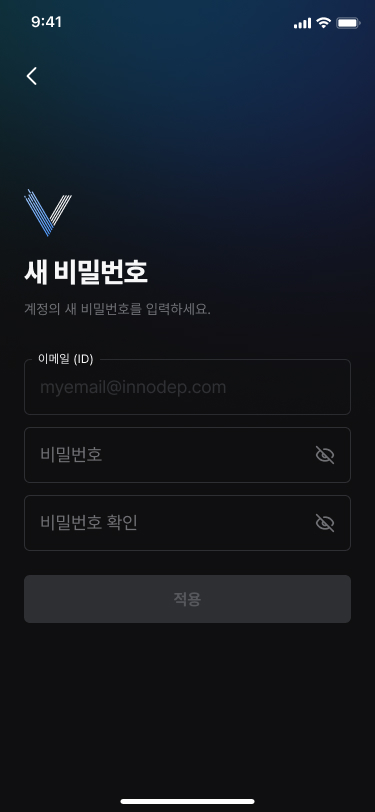
- Set your new password.
- [Password] : Enter a new password. It must be 10–30 characters long with no spaces, must include letters, numbers, and special characters, and cannot include the same character 3 or more times in a row.
- [Confirm Password] : Enter the password again.
- [Apply] : Completes the password change and goes to the Sign In screen.
Note
The verification code is valid for 10 minutes.
If it has expired, tap [Resend Email] to send a new code.
Resolving sign-in problems
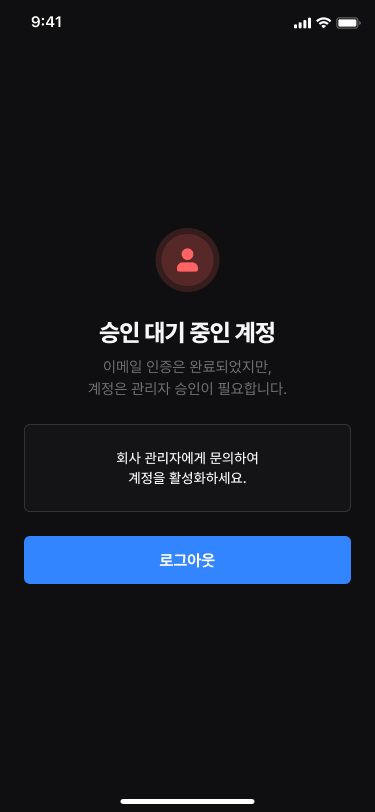
- When your account is pending approvalYour sign-up is pending approval on VUNex Cloud. Please contact your company administrator to request approval.
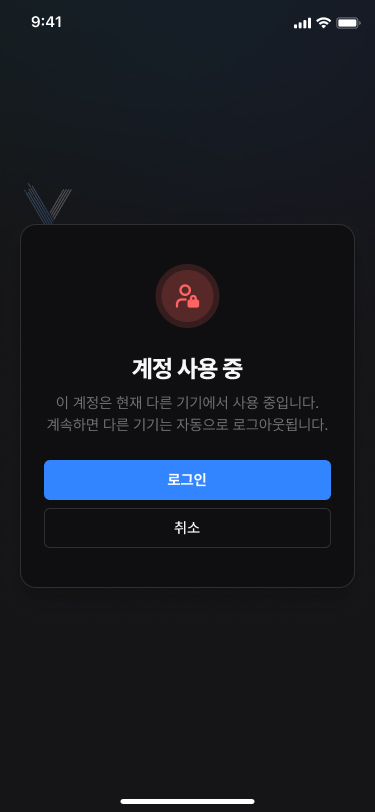
- When the account is in use on another deviceThe same account is already in use on another mobile device. Only one mobile device can be signed in per account. Tap [Sign In] to sign out of the other device and sign in on the current one. Tap [Cancel] to cancel the sign-in.
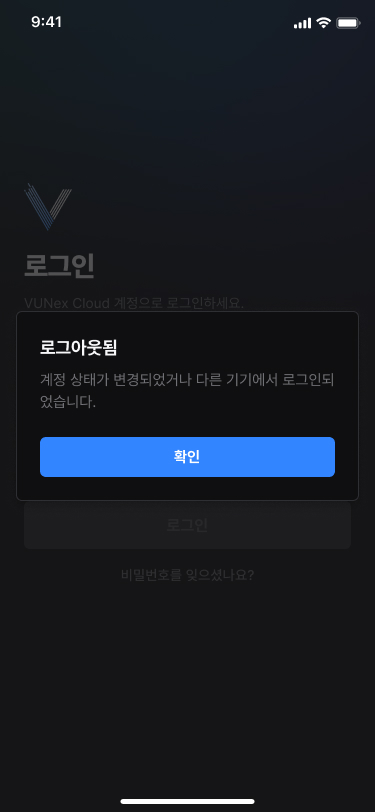
- When you are signed out by another device's sign-inYou are automatically signed out when the same account signs in on another device or when the session expires. Tap [OK] to go to the Sign In screen.
Note
Tap [Sign Out] to go to the Sign In screen.