05
More
Manage your account information and configure app settings such as notifications and theme.
Viewing the More menu
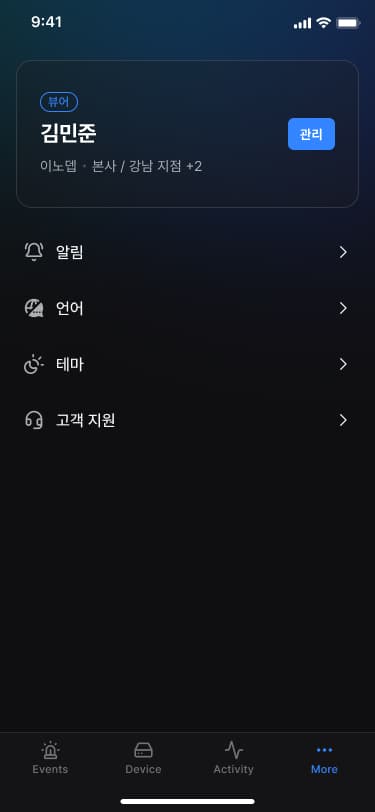
- Tap [More] in the bottom navigation bar.The More screen opens.
- Check the information you need.
- [Profile] : Check your user profile information.
- [Notifications] : Go to the push notification settings screen.
- [Language] : Go to the language settings screen.
- [Theme] : Go to the screen theme (light/dark mode) settings screen.
- [Customer Support] : Check customer support information.
Checking your profile
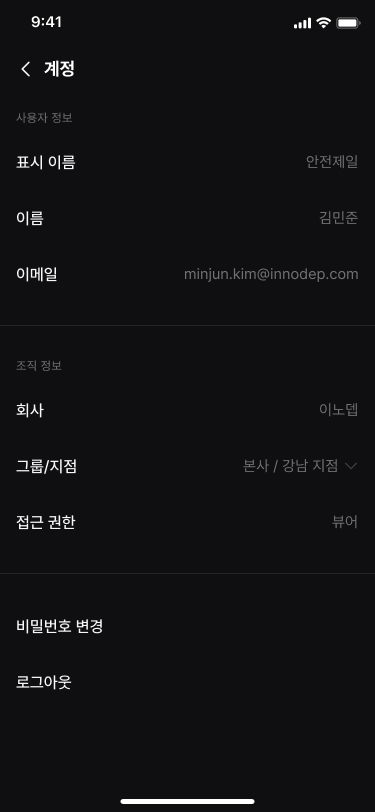
- Tap [Manage] in the profile information.The profile detail screen opens.
![Tap **[Manage]** in the profile information.](/manual/vunexlink/images/More_main_ko.jpg)
- Check the information you need.
- [User Information] : Check your VUNex Cloud user information.
- [Organization Information] : Check the information of the organizations you belong to.
- [Change Password] : Go to the password change screen.
- [Sign Out] : Sign out of the app.
Note
[Change Password] : A verification email is sent to your signed-in email address.
The steps after verification are the same as in 'Resetting your password.'
Setting up notifications
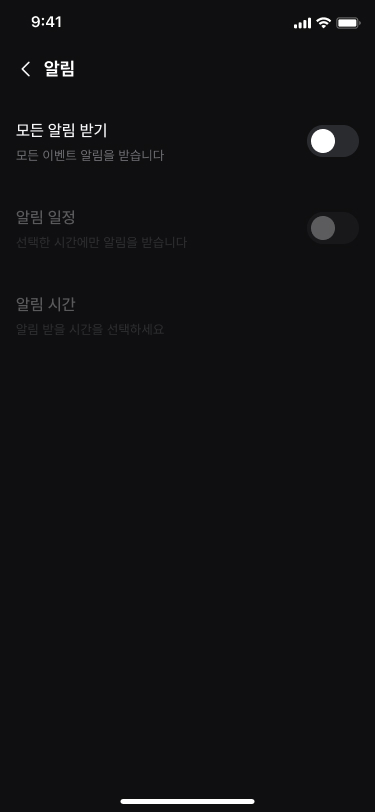
- Tap [Notifications] in the list.The notification settings screen opens.
- Tap the item you want.
- [Receive All Notifications] : Receive all event notifications.
- [Notification Schedule] : Receive notifications only during the set hours.
- [Notification Hours] : Set the notification schedule hours.
Note
Even if you turn off notifications, system notifications (device switching between online and offline) are always received.
No notification is sent to you for the User Events you created yourself.
Tapping a notification opens the detail screen of the event (system notifications open the Devices screen).
Setting a notification schedule
- Turn on [Notification Schedule] on the notification settings screen.The [Notification Hours] menu is enabled.
![Turn on **[Notification Schedule]** on the notification settings screen.](/manual/vunexlink/images/More_notifications_on_ko.jpg)
- Tap [Notification Hours].Set the days and hours to receive notifications.
- [Start time / End time] : Select when notifications start and end.
- [Active days] : Select the days to receive notifications.
![Tap **[Notification Hours]**.](/manual/vunexlink/images/More_schedule_ko.jpg)
- Tap [Apply].The notification schedule setup is complete.
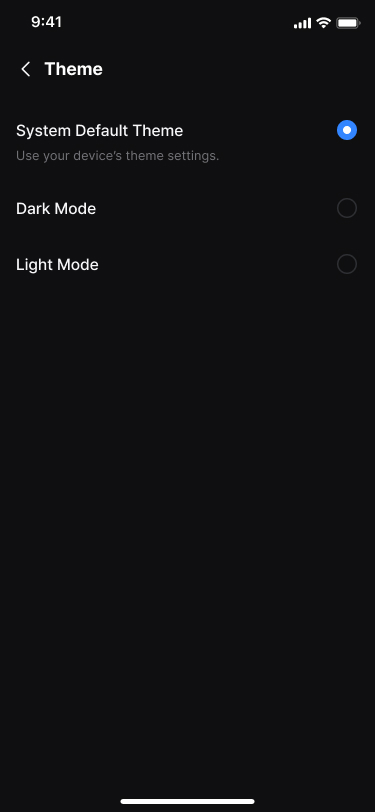
Changing the theme
- Tap [Theme] in the list.The theme settings screen opens.
- Select the screen mode you want.
- [System Default] : Apply the theme automatically according to the device system settings.
- [Dark Mode] : Apply the dark screen theme.
- [Light Mode] : Apply the light screen theme.
Customer support
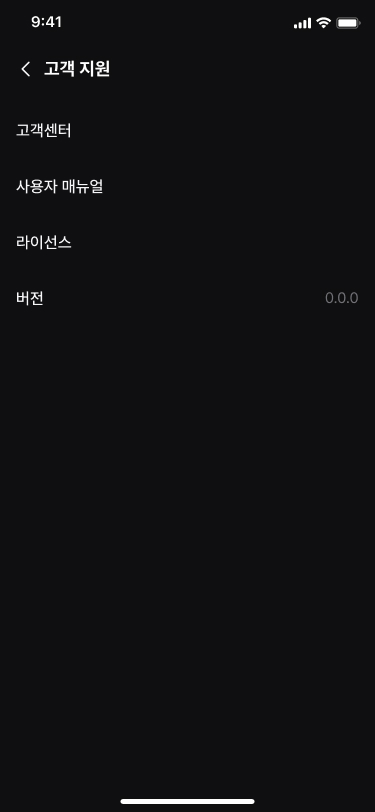
- Tap [Customer Support] in the list.
- Tap the item you want.
- [Customer Center] : Go to the customer center page.
- [User Manual] : Go to the user manual link.
- [License Agreement] : Go to the open source license link.
- [Version] : Check the app version information.