02
Events
Check and respond to all events detected by VUNex (AI, AC, FR) and User Events created by users, in a real-time feed.
Viewing the event list
![[이미지 교체: 이벤트 목록 — User 탭 + 보관함 아이콘 노출]](/_next/image?url=%2Fmanual%2Fvunexlink%2Fimages%2FEvent_main_ko.jpg&w=1920&q=75&dpl=dpl_9dyqtFAdagPhFoBcUQXwGffUzrM7)
- Tap [Events] in the bottom navigation bar.The Events screen opens.
- Tap [All Group/Branch].You can view events from a specific group or branch only.
- Tap the event type you want to view.
- [All] : View all types of events, including resolved ones.
- [Unresolved] : View only events that still need action.
- [AI], [AC], [FR] : View only AI analysis, access control, or face recognition events, respectively.
- [User] : View only User Events created by users.
- Check the information you need.
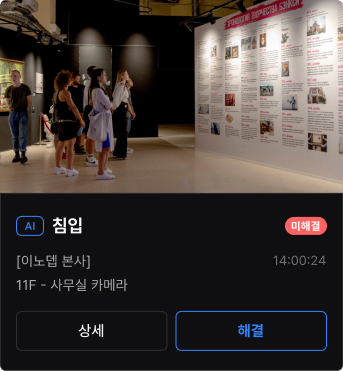
- [Event Type] : The badge at the top left of the card shows the event type (AI/AC/FR/User).
- [Event Info] : The video or image from the time of the event is shown, along with the group/branch, camera (or door), and time of occurrence.
- [Status Badge] : Shows the current processing status of the event (Unresolved, etc.).
- [Details] : Tap the button to open the event detail screen.
- [Resolve] : Tap the button to resolve the event. Available for AI events and User Events registered as requiring resolution.
Note
Only events from the last 7 days are shown in the list.
Pull down and release the screen to load the latest event list.
The [AI], [AC], and [FR] filters do not appear for groups/branches that have no AC or FR devices registered.
Searching for events
- Tap [Search] at the top right of the Events screen.The search screen opens with the input field automatically focused.
- Enter a search term.You can search by event name, group/branch name, camera name, or door name. Face recognition (FR) events can also be searched by user name.
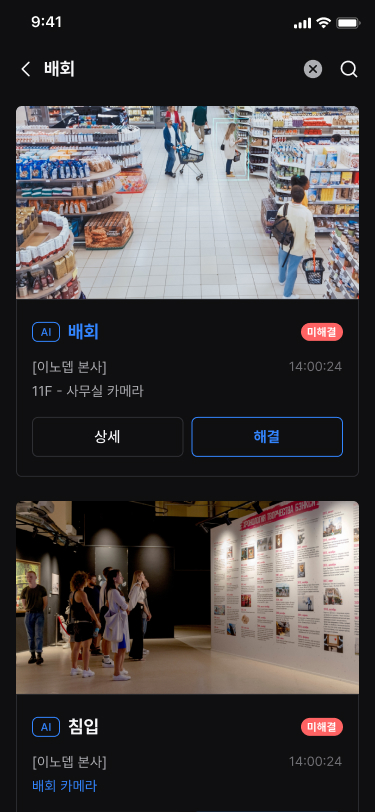
- Check the search results.Events matching the search term are shown as a list of cards.
Note
If no events match, the 'No Result Found' screen appears. Check your search term or try a different keyword.
Resolving an event
Check the situation of an event, record the classification and response action, and change it to resolved.
- Tap [Resolve] on the event list or detail screen.The event resolution screen opens.
- Select a classification or response action for the event.
- [Classification] : Make a final judgment on the nature of the event. Select either [No Action Required] or [False Alarm].
- [Response Action] : Record the actions actually taken. You can select multiple options among [On-site Check], [External Coordination], [Warning Broadcast], and [Others].
- [Classification] and [Response Action] cannot be selected together; selecting one automatically clears the other.
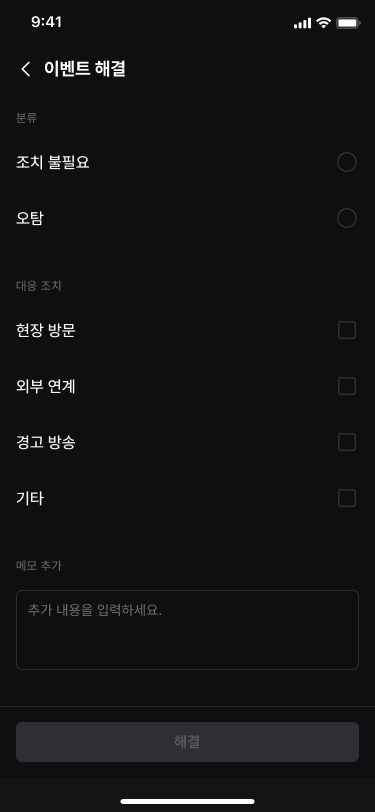
- If needed, enter additional details in [Add Notes].Enter any additional details you would like to include, such as on-site response details. If [Others] is selected, a note is required. If only a [Note] is entered, you must select either [Classification] or [Response Action].
- Tap [Resolve].The event changes to the resolved status. To return a resolved event to the unresolved status, see 'Reopening an event.'
- To resolve everything at once, tap [Resolve All].All unresolved events in the list are resolved at once.
![To resolve everything at once, tap **[Resolve All]**.](/manual/vunexlink/images/Event_unresolved_ko.jpg)
Caution
The resolve function is available for AI events and User Events registered as requiring resolution.
Access control (AC) and face recognition (FR) events cannot be resolved.
Reopening an event
![[이미지 필요: 이벤트 다시 열기 화면 — 사유 입력 상태]](/_next/image?url=%2Fmanual%2Fvunexlink%2Fimages%2FEvent_reopen_ko.jpg&w=1920&q=75&dpl=dpl_9dyqtFAdagPhFoBcUQXwGffUzrM7)
- Tap [Reopen] on a resolved event in the list or on the detail screen.The 'Reopen Event' screen opens.
- Enter the [Reopen Reason].The [Reopen] button becomes active only after you enter a reason.
- Tap [Reopen].The event returns to the unresolved status, and the reason you entered is recorded in the activity log.
![Tap **[Reopen]**.](/manual/vunexlink/images/Event_reopen_page_ko.jpg)
Note
You can check who reopened the event, when, and why in the activity log.
Creating a User Event
![[이미지 필요: 사용자 이벤트 생성 화면 — 조치 필요 토글 노출]](/_next/image?url=%2Fmanual%2Fvunexlink%2Fimages%2FUserevent_main_ko.jpg&w=1920&q=75&dpl=dpl_9dyqtFAdagPhFoBcUQXwGffUzrM7)
- Tap [Add] at the bottom right of the Events screen.The 'New User Event' screen opens. If you belong to multiple groups/branches, first select the group/branch to send the event to.
- Record or type the situation.
- [Tap to record] : Record your voice. The recording is automatically converted to text and entered in [Description(Auto)]. Tap [Tap to rerecord] to record again.
- [Type instead] : Type the description yourself. It is entered in [Description(Manual)].
- The description can be up to 250 characters.
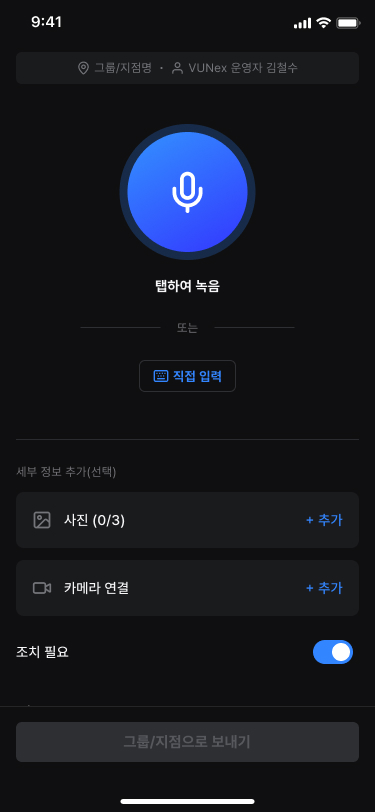
- If needed, attach information in [Add details (Optional)].
- [Photo] : Attach photos by taking a photo or choosing from the gallery.
- [Link camera] : Select and link a camera related to the situation. The linked camera can be viewed as live video on the event detail screen.
- If other members need to take action, turn on [Requires resolution].The [Resolve] button is shown only for events registered with [Requires resolution] turned on. It is on by default.
- Tap [Send to Group/Branch].The event is registered for the selected group/branch, and a push notification is sent to its members. No notification is sent to yourself.
![Tap **[Send to Group/Branch]**.](/manual/vunexlink/images/Userevent_add_ko.jpg)
Caution
If you switch to another task during voice recording, the recording stops and what was recorded so far is not saved. Please record again.
Managing User Events
- Tap [Details] on a User Event in the list.Tap [User] in the event type filter to view User Events only. On the detail screen, you can play the recorded voice and check the description, photos, linked camera, and [Creator].
- To resolve the event, tap [Resolve].This button is shown only for events registered with [Requires resolution]. Managers and operators of the same group/branch can resolve or reopen the event. The [False Alarm] classification is not provided on the resolve screen for User Events.
- To delete the event, tap [Delete] at the top right of the screen.Only the person who created the event can delete it, and a deleted event cannot be recovered.
![To delete the event, tap **[Delete]** at the top right of the screen.](/manual/vunexlink/images/Userevent_detail_ko.jpg)
Note
If the linked camera has been deleted, a notice appears instead of the live video.
Event details
- Tap [Details] for the event you want in the list.The event detail screen opens.
![Tap **[Details]** for the event you want in the list.](/manual/vunexlink/images/Event_main_ko.jpg)
- Check the event screen.For AI events, the recorded video from the time of the event is shown. Touch the screen to play/pause or move the position. For access control (AC) and face recognition (FR) events, an image from the time of the event is shown instead of video. For the User Event detail screen, see 'Managing User Events.'
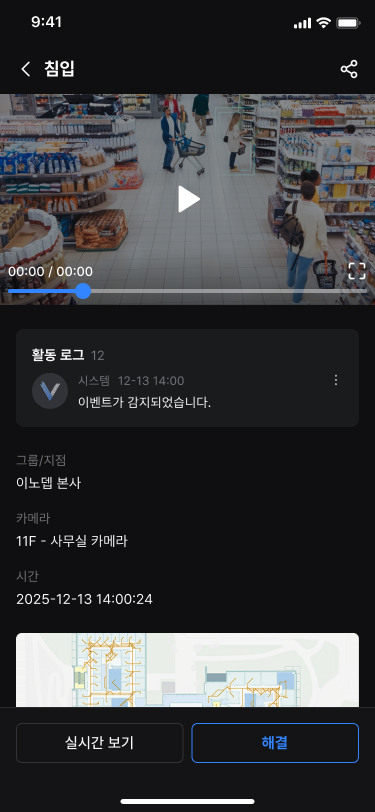
- Check the detailed information.
- [Activity Log] : Check the processing history of the event.
- [Group/Branch], [Camera] or [Door], [Time] : Check where and when the event occurred.
- Depending on the event type, additional details such as user, user group, user type, and device are also shown.
- If a map is registered, the location of the event is shown on the map.
- To share the event, tap [Share] at the top right of the screen.You can share event information with users in your company by email. For details, see 'Sharing an event.'
Note
For AI events, tap the [Expand icon] in the video area to view it in full screen.
Tap [Live View] at the bottom to see the real-time video of the camera where the event occurred.
Event history
- Tap [Activity Log] below the video or image.View the full history in chronological order, from event detection to user activity.
![Tap **[Activity Log]** below the video or image.](/manual/vunexlink/images/Event_activitylog_ko.jpg)
- To add a comment, enter text in the input field at the bottom and tap [Send].The comment you entered is recorded in the activity log. You can also tap [Attach] next to the input field to attach a photo.
- To record by voice, tap [Mic] on the right of the input field.Tapping the mic starts recording; tapping [Stop] ends the recording and adds it to the activity log. The voice message is automatically converted to text and saved together.
![To record by voice, tap **[Mic]** on the right of the input field.](/manual/vunexlink/images/Event_activitylog_recording_ko.jpg)
- You can delete comments or voice messages you created from [More].Tap [More] on the right of the item, select Delete, and confirm to remove the item.
Caution
If you switch to another task during voice recording, the recording stops and what was recorded so far is not saved. Please record again.
Viewing events you resolved
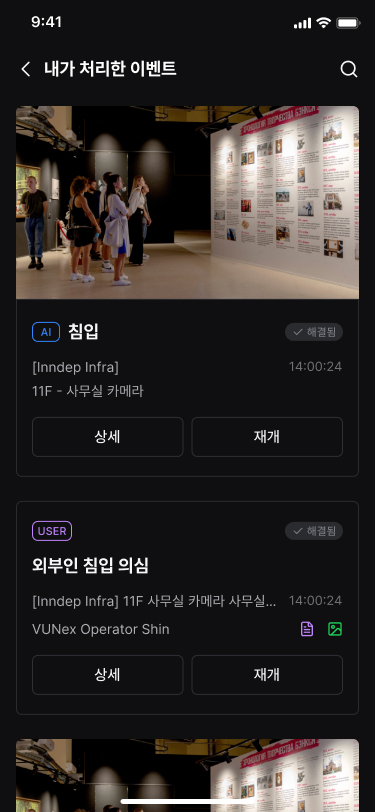
- Tap the [Archive] icon at the top right of the Events screen.The 'Resolved by me' screen opens, showing a list of the events you resolved.
- To find an event, tap [Search] and enter a search term.You can search by event name, group/branch name, camera name, or door name. The matching text in the results is highlighted.
- Check the event you want in the list.Tap [Details] to open the event detail screen, or tap [Reopen] to return the event to the unresolved status.
Note
If you have not resolved any events, the 'No events have been resolved.' screen appears.
Sharing an event
![[이미지 필요: 이벤트 공유 화면 — 디자인 완료 후 캡처]](/_next/image?url=%2Fmanual%2Fvunexlink%2Fimages%2FEvent_view_ko.jpg&w=1920&q=75&dpl=dpl_9dyqtFAdagPhFoBcUQXwGffUzrM7)
- Tap [Share] at the top right of the event detail screen.The screen for selecting recipients opens.
- Select the users to share with.You can search for users by name or email and select multiple users.
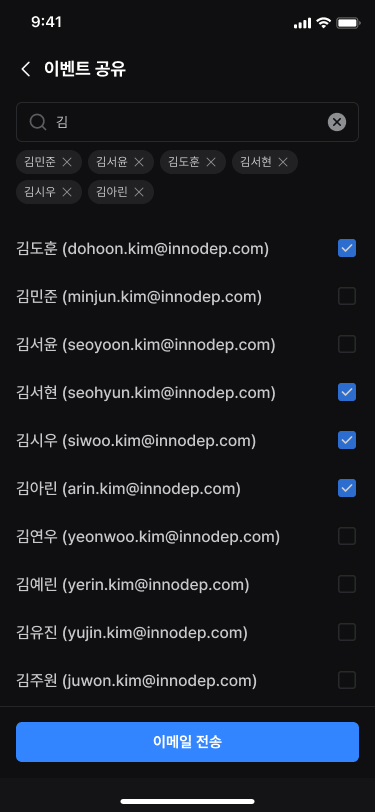
- Tap [Send Email].The event information is sent by email to the selected users.
Note
The shared email includes the event occurrence information, current processing status, and recent activity log.