01
Sign In
This section explains how to sign in to the VUNex AI 2.0 system and account management features.
Sign In Screen Overview
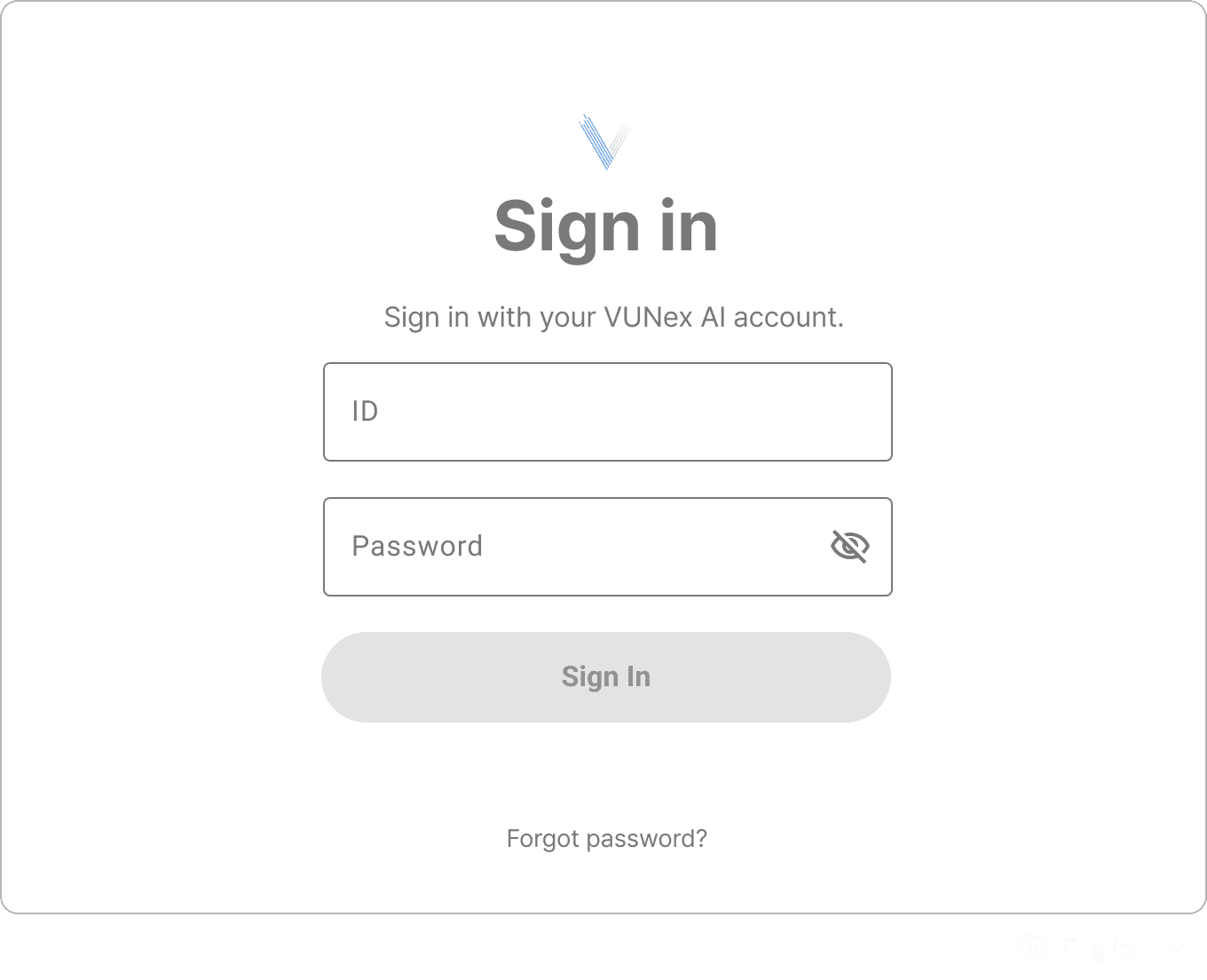
Figure 1-1. Sign In Default Screen
- Username InputEnter your registered username (ID).
- Password InputEnter your account password. It is masked for security.
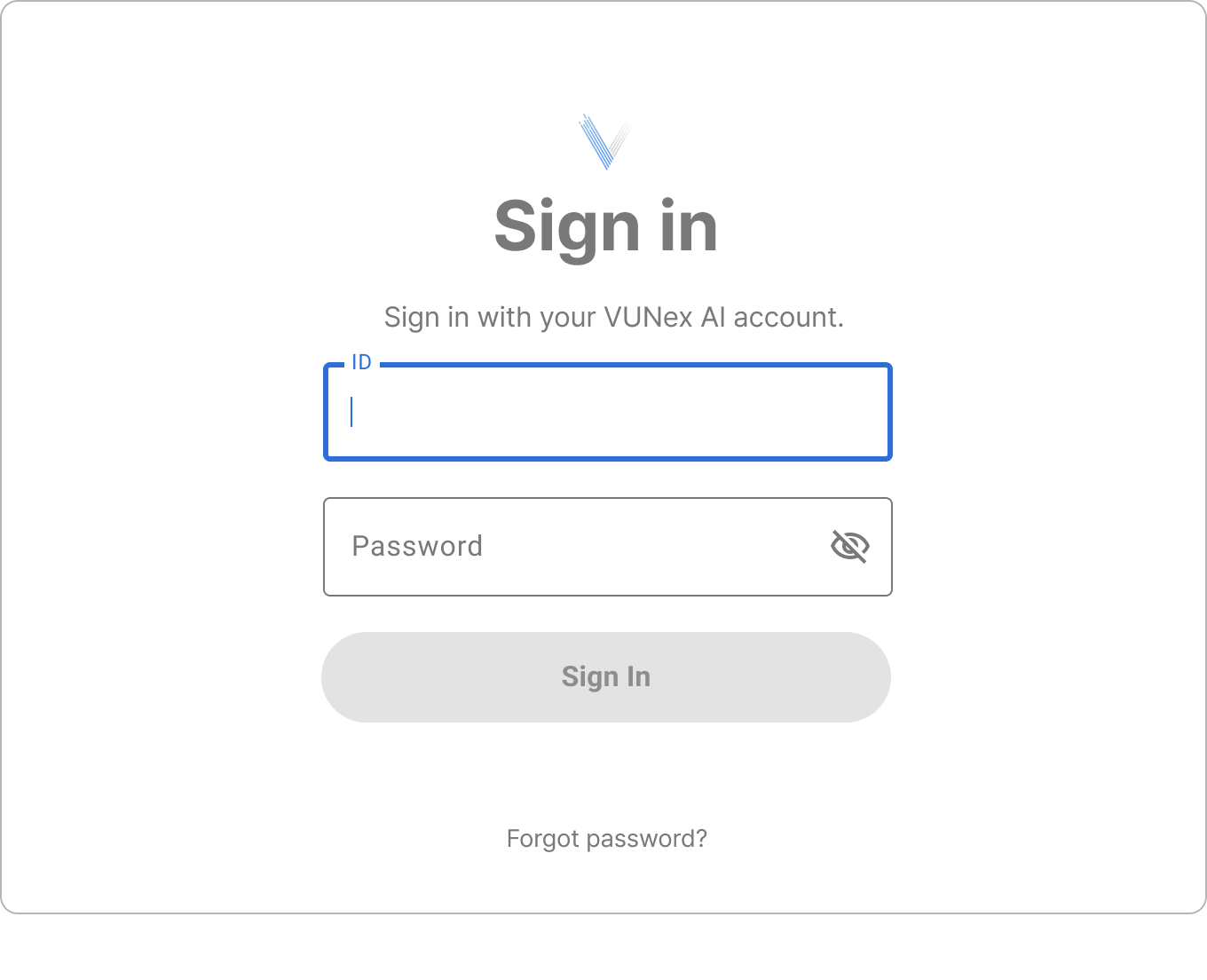 Figure 1-2. Input State
 - Sign In ButtonActivated after entering username and password. Click to sign in.
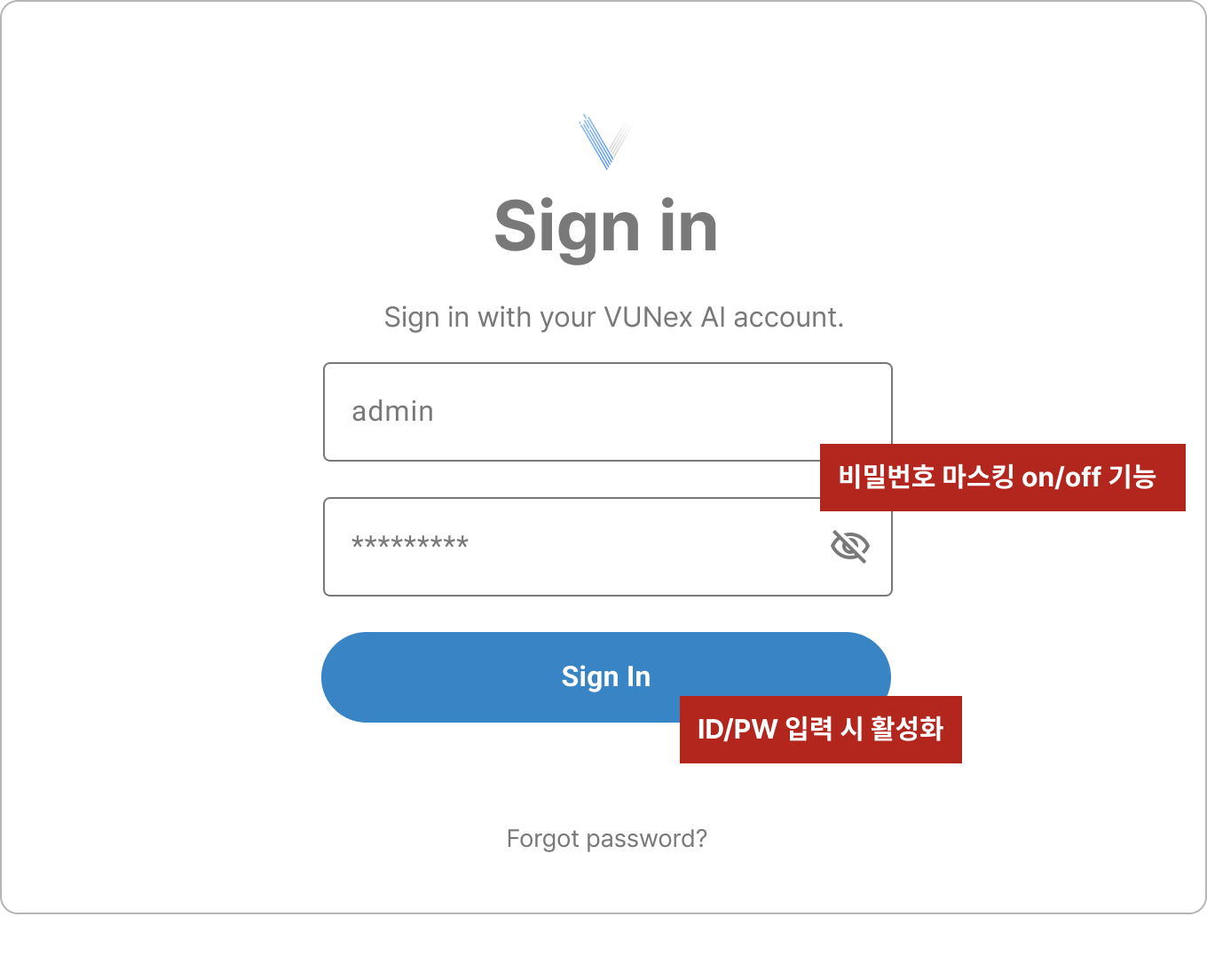 Figure 1-3. Button Enabled State
Sign In Error Handling
Error Types
Invalid Credentials: Username or password does not match.
Account Locked: Account is locked due to consecutive login failures.
Session Expired: Session has expired due to prolonged inactivity.
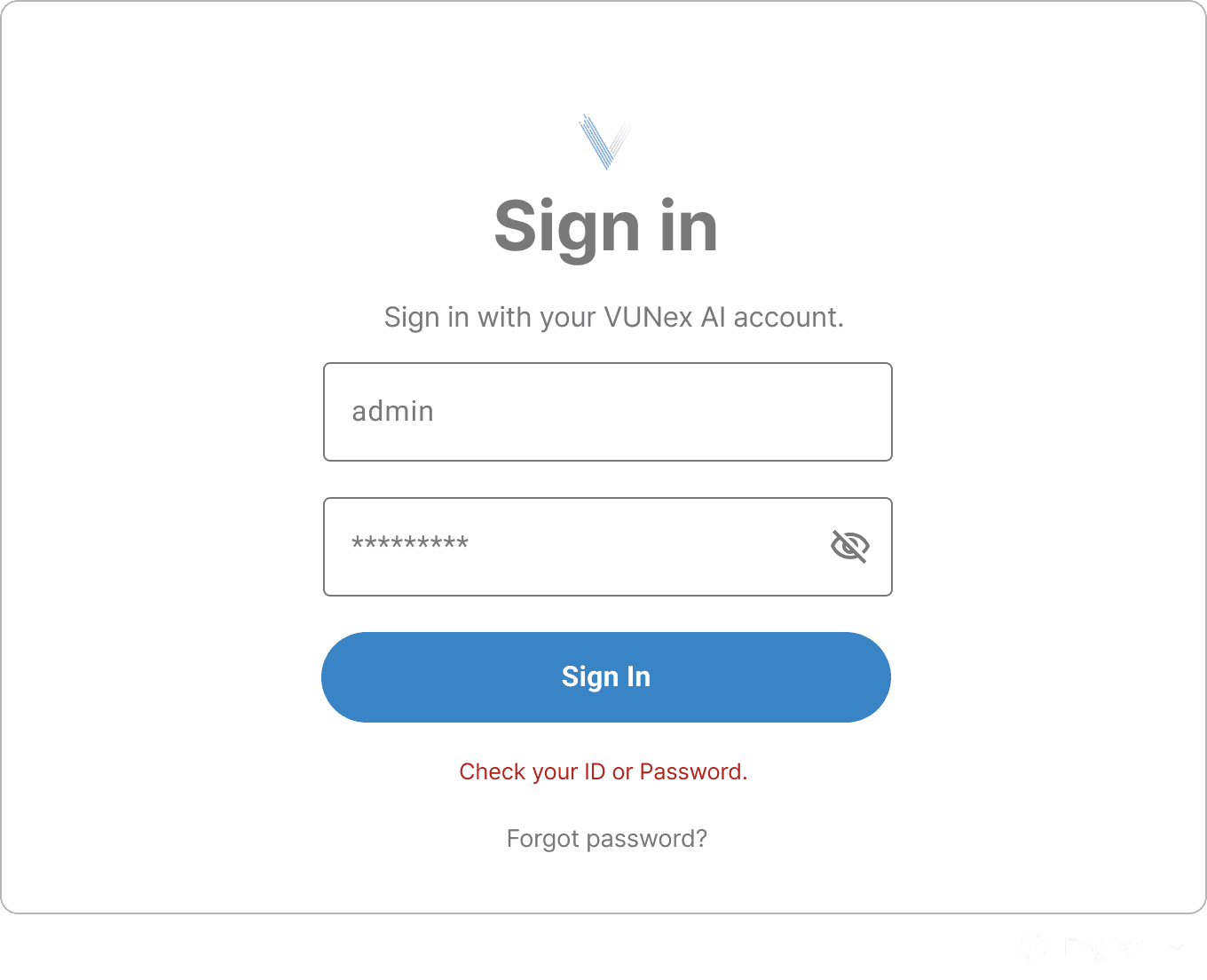
Figure 1-4. Error Message Display
Language Settings
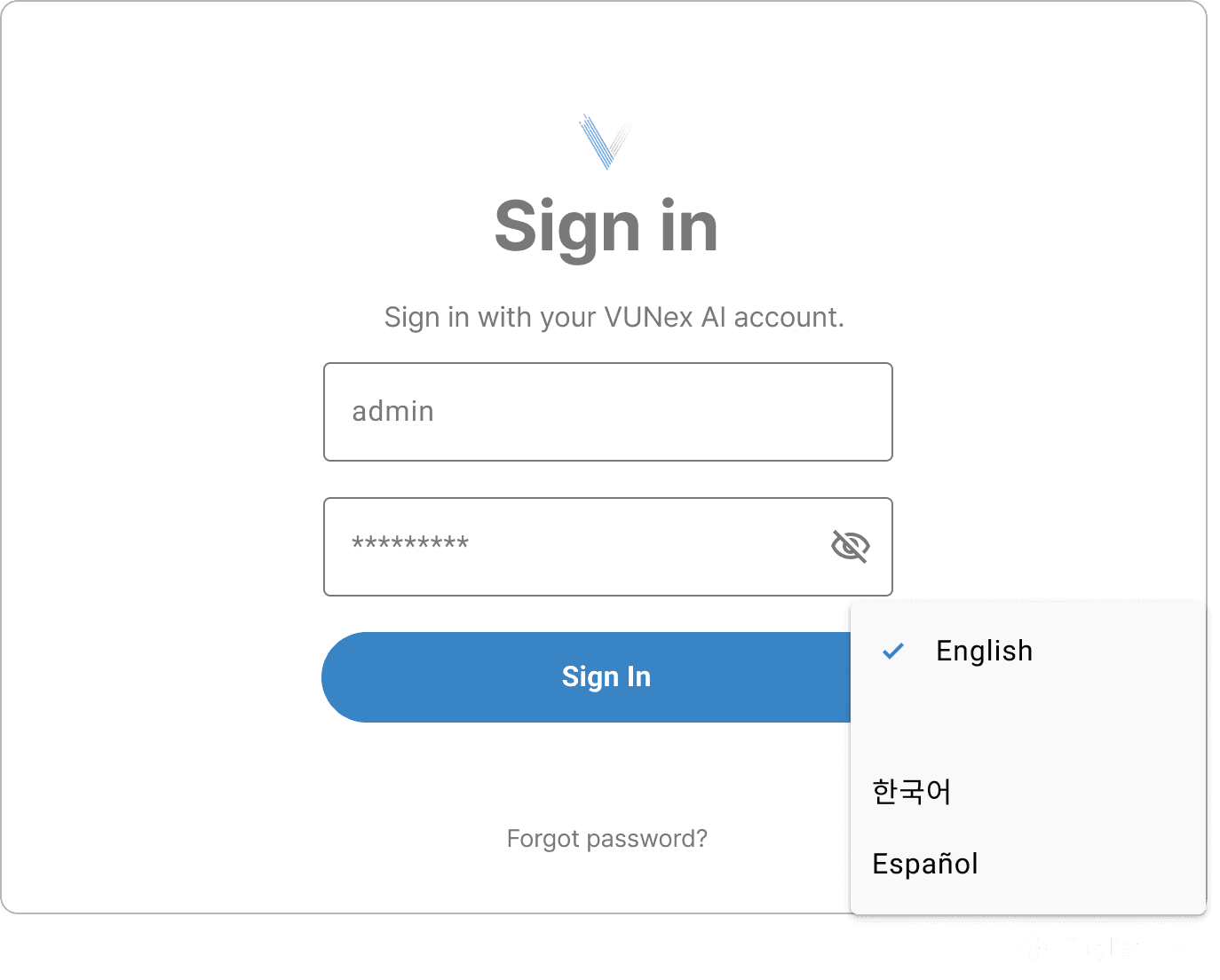
Figure 1-5. Language Selection
Supported Languages
- Korean (한국어)
- English
- Japanese (日本語)
- Spanish (Español)
Password Change
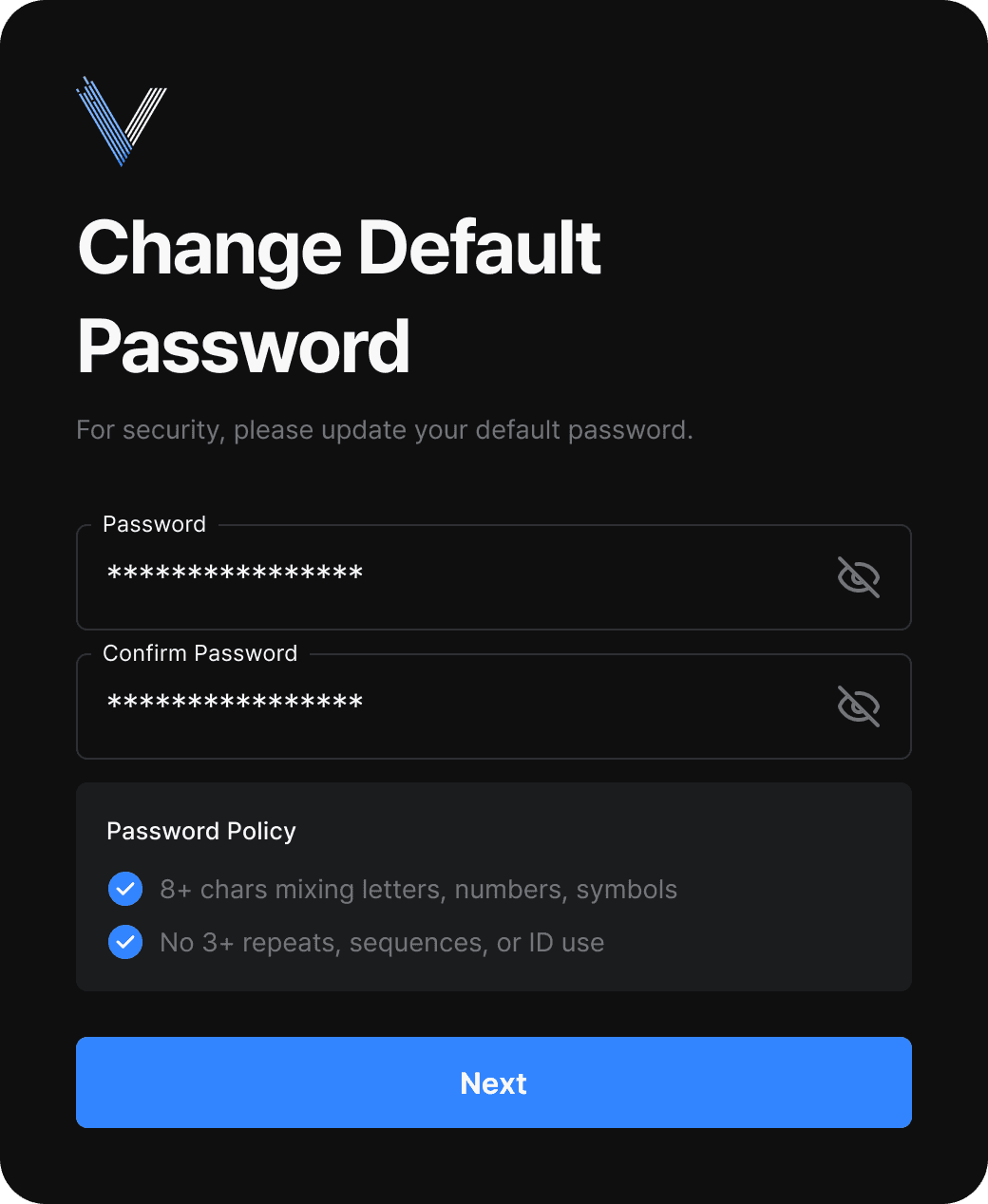
Figure 1-6. Password Change Screen
Password Rules
- Minimum 8 characters
- Recommended to include uppercase, lowercase, numbers, special characters
- Cannot be the same as previous password
Sign Out
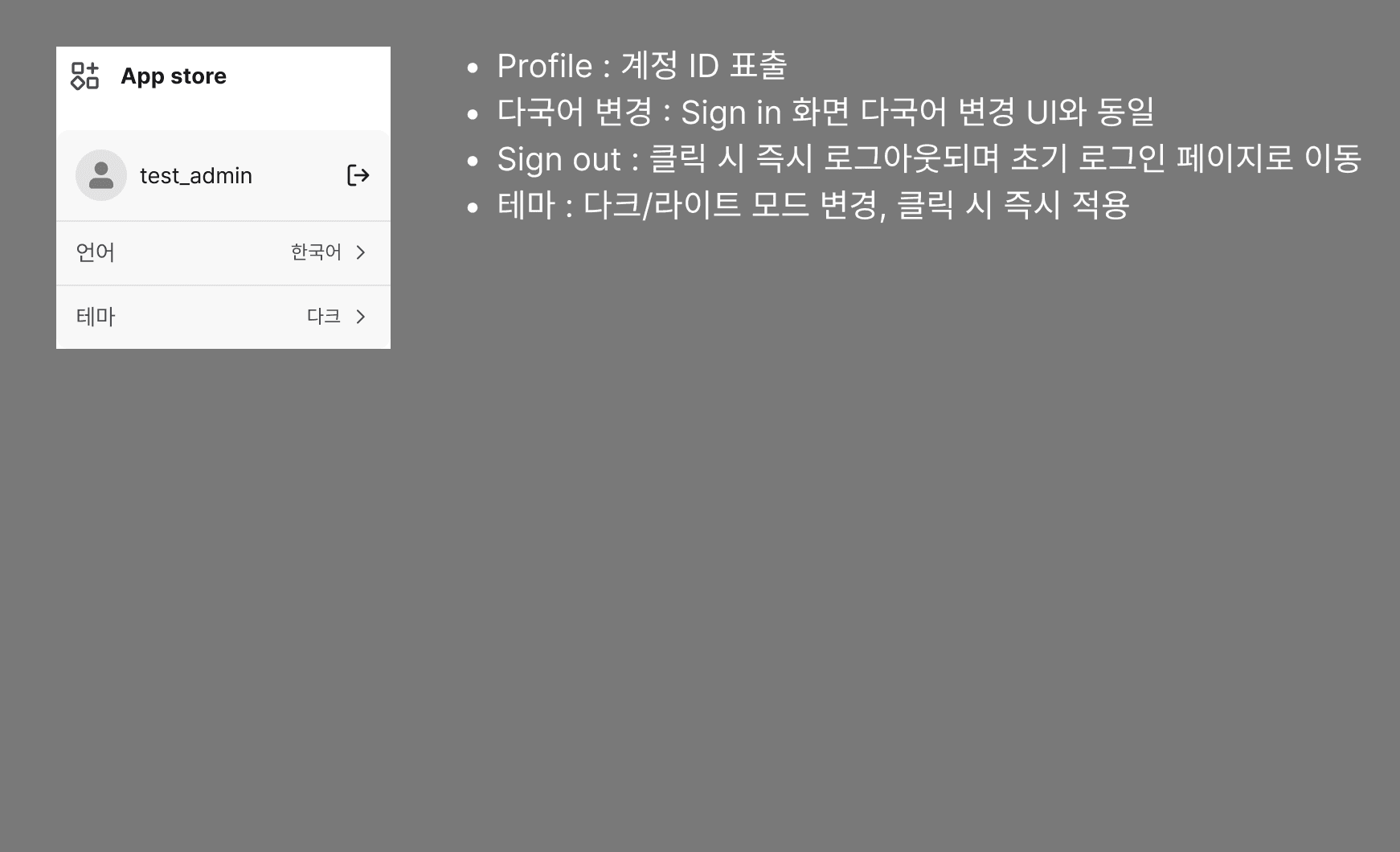
Figure 1-7. Sign Out