03
More
This section explains how to access account information, personal settings, and customer support features.
More Screen Overview
Explains the structure and purpose of the More screen.
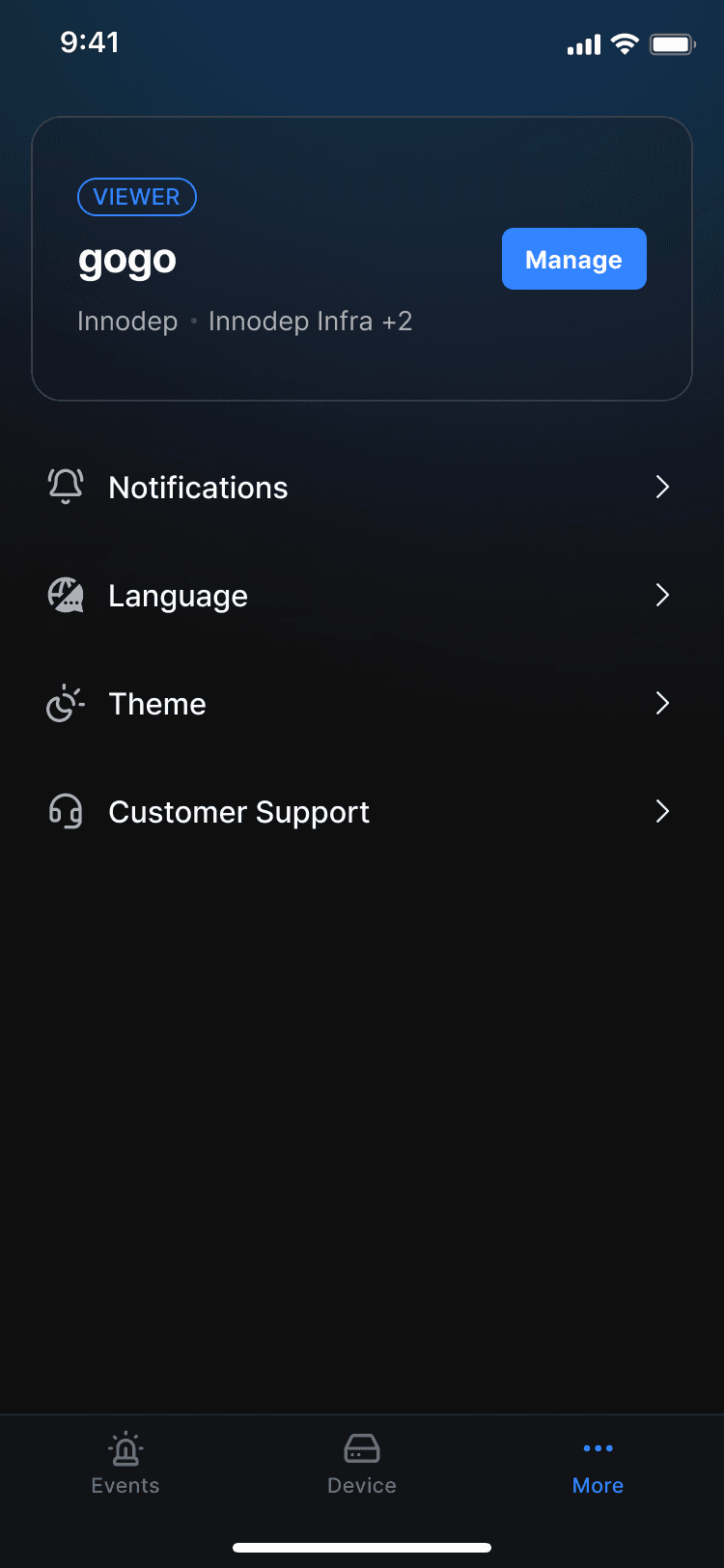
Figure 3-1. More Screen
Screen Purpose
Path: Bottom Nav > More
Purpose:
- Check your account information and permission status
- Access personal settings and customer support features
- Entry point for settings, management, and support functions separated from real-time operations
Profile Card Area
Area that displays a summary of user account and organization information.
- Display Name and Permission Badge
- Display Name: User's main display name
- Permission Badge: Company permission display
- Manager
- Operator
- Viewer
- Company and Group/Branch Information
- Company Name: Displays the company the user belongs to
- Group/Branch Summary:
- If 1: Only the group/branch name is displayed
- If more than 1: Shows additional count (e.g., "+2")
- Manage ButtonClick to navigate to the account management screen.
Account Management
Screen for viewing account information and managing settings.
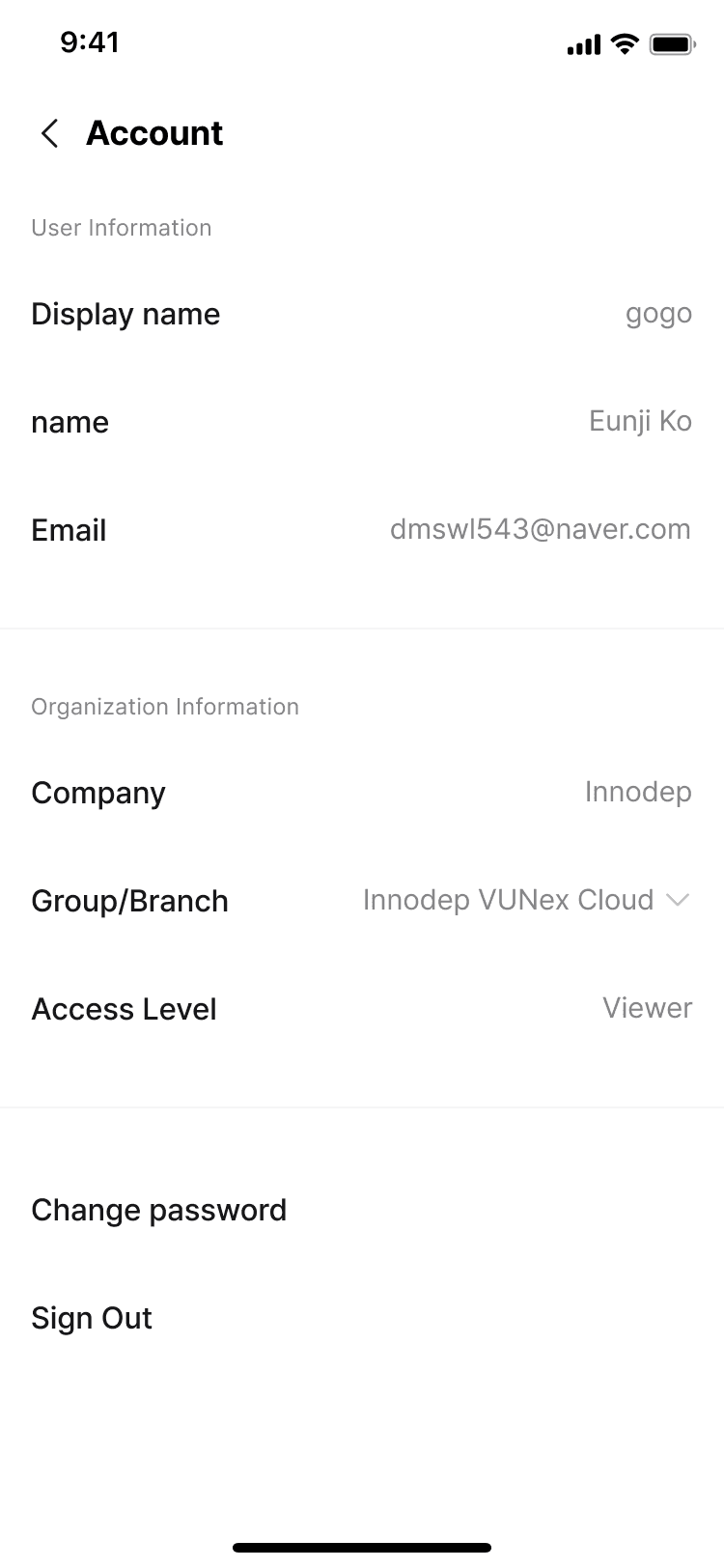
Figure 3-2. Account Management Screen
User Information
Displays basic user account information. (Read-only)
- Display Name: Nickname (the name displayed as primary)
- Name: Displayed as Last name > First name
- Email: Logged-in email account information
Organization Information
Displays the user's organization and access permission information.
- Company: Company name
- Group/Branch: Group, branch names (where permissions belong)
- If multiple, view list through Accordion expand/collapse
- Access Level: Company permission level display
Account Settings
Password change and sign out features.
- Change PasswordPassword change feature. 1. A confirmation alert is displayed when clicked. 2. Upon confirmation, navigate to the password change screen. 3. Set a new password after email verification. > Flow is the same as Reset Password > Verify Email.
- Sign OutSign out feature. 1. A confirmation alert is displayed when clicked. 2. Upon confirmation, you are signed out of the app and navigate to the sign in screen.
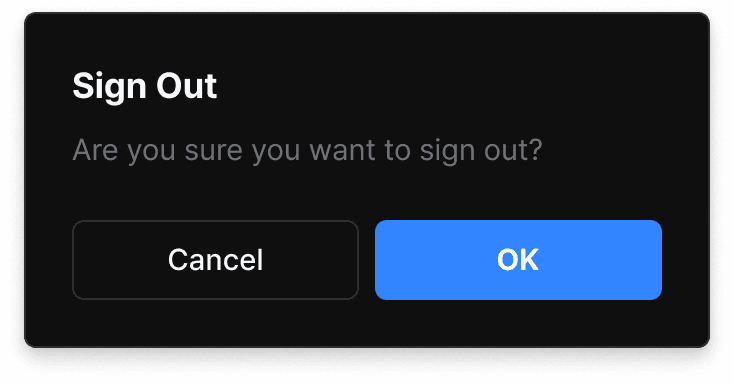
Figure 3-3. Confirmation Alert Dialog